...
Click on  on the top right
| Section |
|---|
|
| Column |
|---|
Specify the following Values: | Option | Value |
|---|
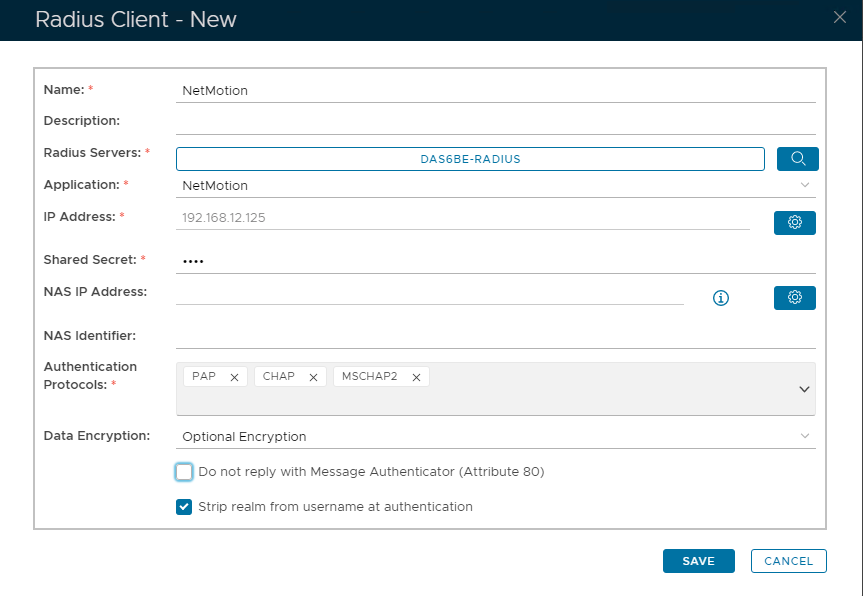
| Name | Specify a user-friendly name | | Description | (Optional) | | Radius Servers | Select the Radius Server(s) you have bound the application to. (See earlier step) * | | Application | Specify the name of the Authentication Application | | IP Address | Specify the IP address of your NetMotion appliance. * | | Shared Secret | Create a shared secret password | | Authentication Protocols | PAP; CHAP & MSCHAP2 |
*Use the buttons on the right to enter the value. eg to specify Radius Servers click on  Image Removed and then select from Image Removed and then select from 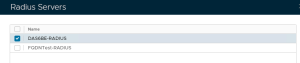 Image Removed Image Removed To Specify IP Address click on  Image Removed Then type the IP address here Image Removed Then type the IP address here 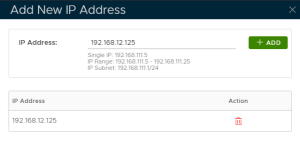 Image Removedand clicking the Add button Image Removedand clicking the Add button
|
| Column |
|---|
|
| Panel |
|---|
| borderColor | #9EBEE5 |
|---|
| bgColor | #FFFFFF |
|---|
| borderWidth | 1px |
|---|
| 
|
|
|
*Use the buttons on the right to enter the value.
| Section |
|---|
|
| Column |
|---|
To specify Radius Servers click on Image Added and then select from 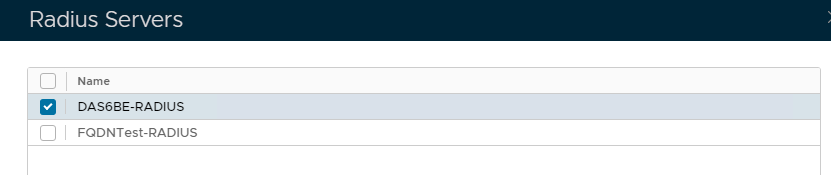 Image Added Image Added Specify the following values in the EAP Options | | Options | Value |
|---|
| Enabled | Make sure this is checked! | | Default EAP Type: | Tunnel Based(PEAP) | | Server Certificate | Select the SSL Certificate you imported in the previous section, from the drop-down | | Inner EAP Type | GTC | | Challenge String | Password: | | Max Session: | 4096 | | Max Time To Live(seconds): | 1200 | | Max Time To Idle: | 60 | Click Save
| Column |
|---|
| To Specify IP Address click on Image Added Then type the IP address here
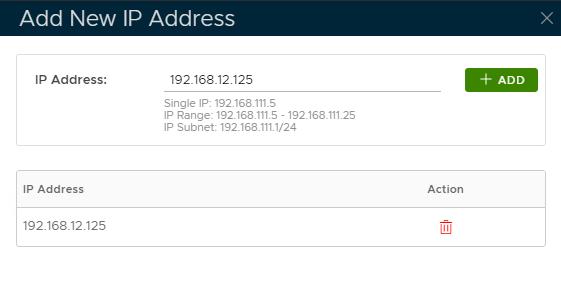 Image Added Image Added and clicking the Add button Click Save | Panel |
|---|
| | borderColor | #9EBEE5 |
|---|
| bgColor | #FFFFFF |
|---|
| borderWidth | 1px |
|---|
| 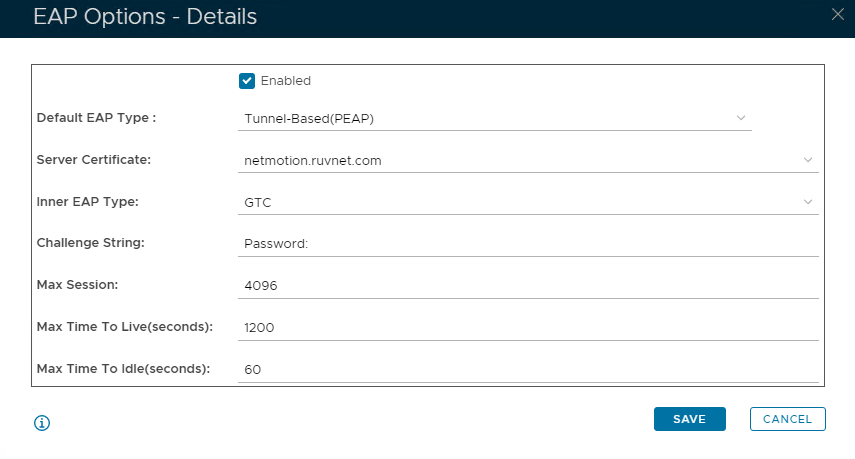 Image Removed Image Removed
|