Once you have completed the configuration of MFA settings for Outlook Anywhere application, you are ready to turn on MFA on the application.
Please select the appropriate steps below
| Table of Contents |
|---|
Enable Device-Based Outlook Anywhere MFA for Outlook on Windows
Select the "mapi" application node
Select both "Enable Two-Factor Authentication on Current Node" and "Apply Settings to Child Nodes"
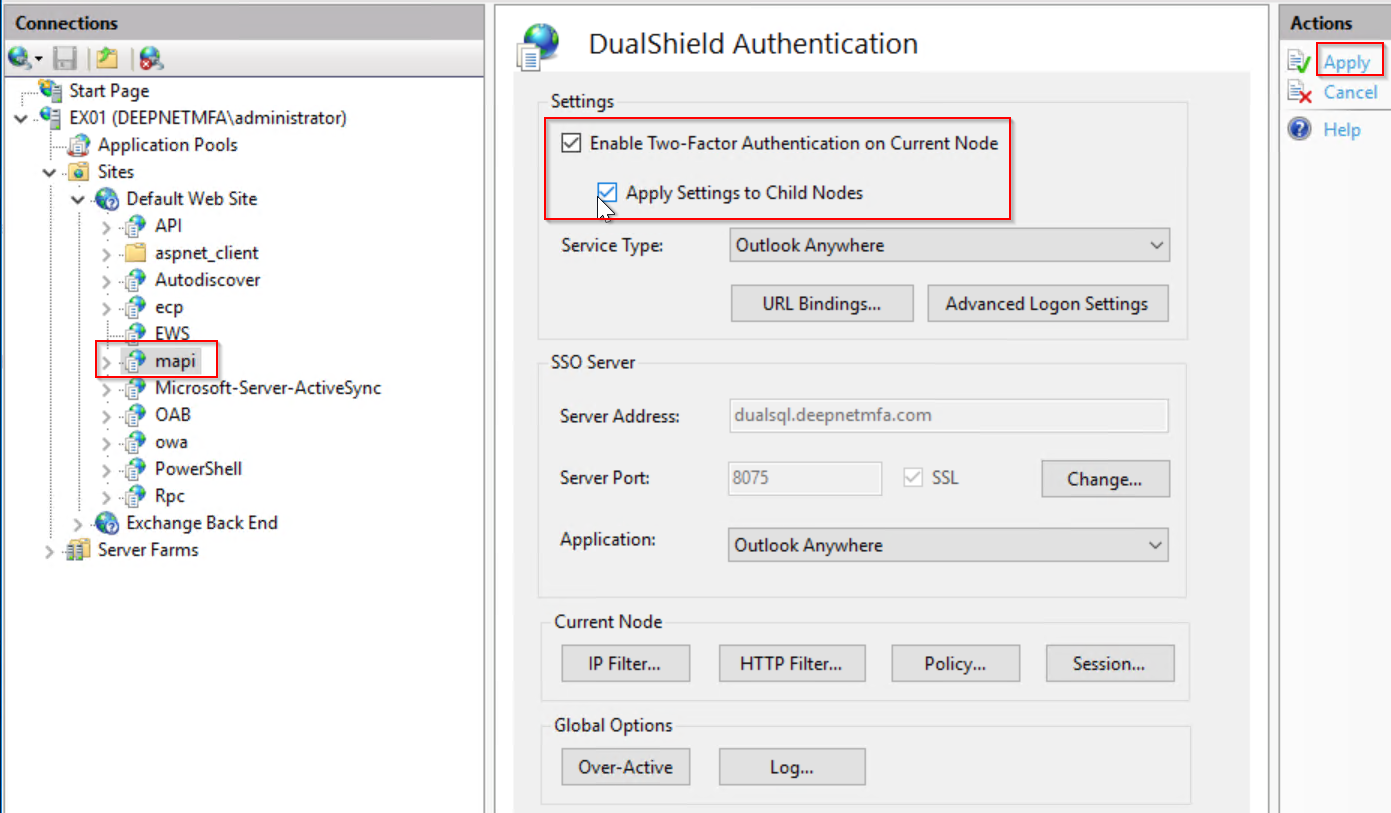
Click the "Advanced Logon Settings" button to bring up the advanced logon settings window.
In the Advanced Logon Settings window, click the "Outlook Anywhere" tab
Tick the option "Enable Agent-Less Outlook Anywhere"

Click OK to close the Advanced Logon Settings window
Click "Apply" to apply settings.
Outlook Anywhere
...
is now enabled with MFA.
Enable Device-Based Outlook Anywhere
...
MFA for Outlook on MacOS
Select the "EWS" application node
Select both "Enable Two-Factor Authentication on Current Node" and "Apply Settings to Child Nodes"

In the Advanced Logon Settings window, click the "Outlook Anywhere" tab
Tick the option "Enable Agent-Less Outlook Anywhere"
Click OK to close the Advanced Logon Settings window
...
...
Click "Apply" to apply settings.
Outlook Anywhere is now enabled with MFA.
Enable Agent-Based Outlook Anywhere MFA for Outlook on Windows
Select the "mapi" application node
Select both "Enable Two-Factor Authentication on Current Node" and "Apply Settings to Child Nodes"
Select the "RPC" application node
Select both "Enable Two-Factor Authentication on Current Node" and "Apply Settings to Child Nodes"
