Follow the steps below to prepare the configuration files for Entra-joined PCs.
| Table of Contents |
|---|
The Deepnet Computer Logon Agent for Entra ID requires a custom configuration file in order to function correctly for the users. IT administrators can distribute the off-the-shelf installer to their users, together with the custom configuration file. User can easily install the software using the off-the-shelf installer, but after installation users must manually copy the custom configuration file on to their PCs.
A better way of distributing the software is to create a custom installer package that includes both the off-the-shelf installer and the custom configuration file. The custom installer will install the software and automatically update the configuration file. This way, users will not need to carry out any manual work.
Step 1: Download the off-the-shelf installer package
| Include Page | ||
|---|---|---|
|
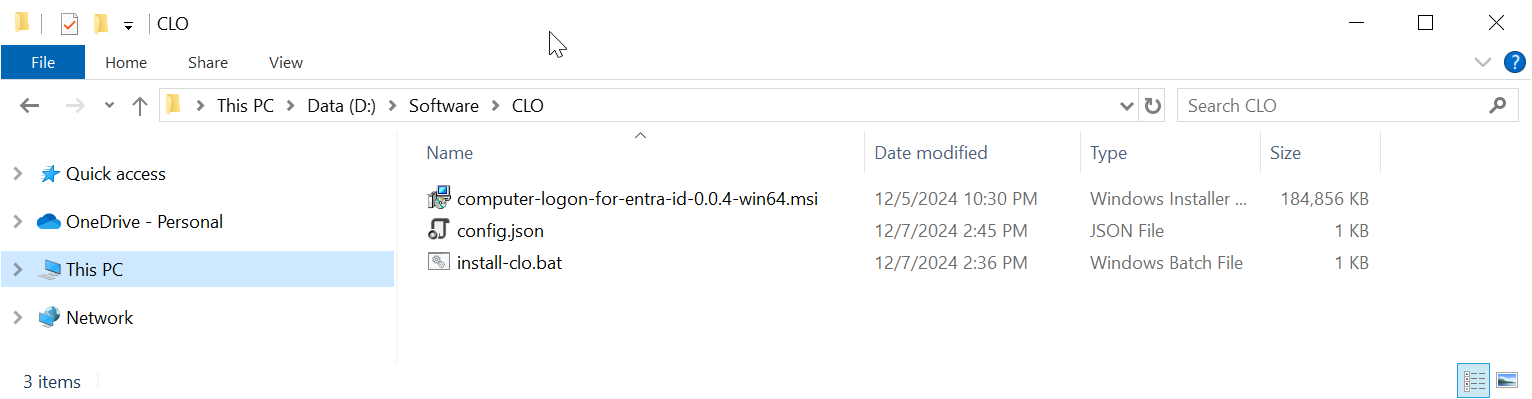
The package contains 3 files:
...
FILE
...
config.json
...
|
Step 2: Customise the configuration file
The Deepnet Computer Logon Modern Authentication requires a custom configuration file in order to function correctly for the users. You must customise the configuration file with your own data.
...
Open the config.json in a text editor, such as Notepad
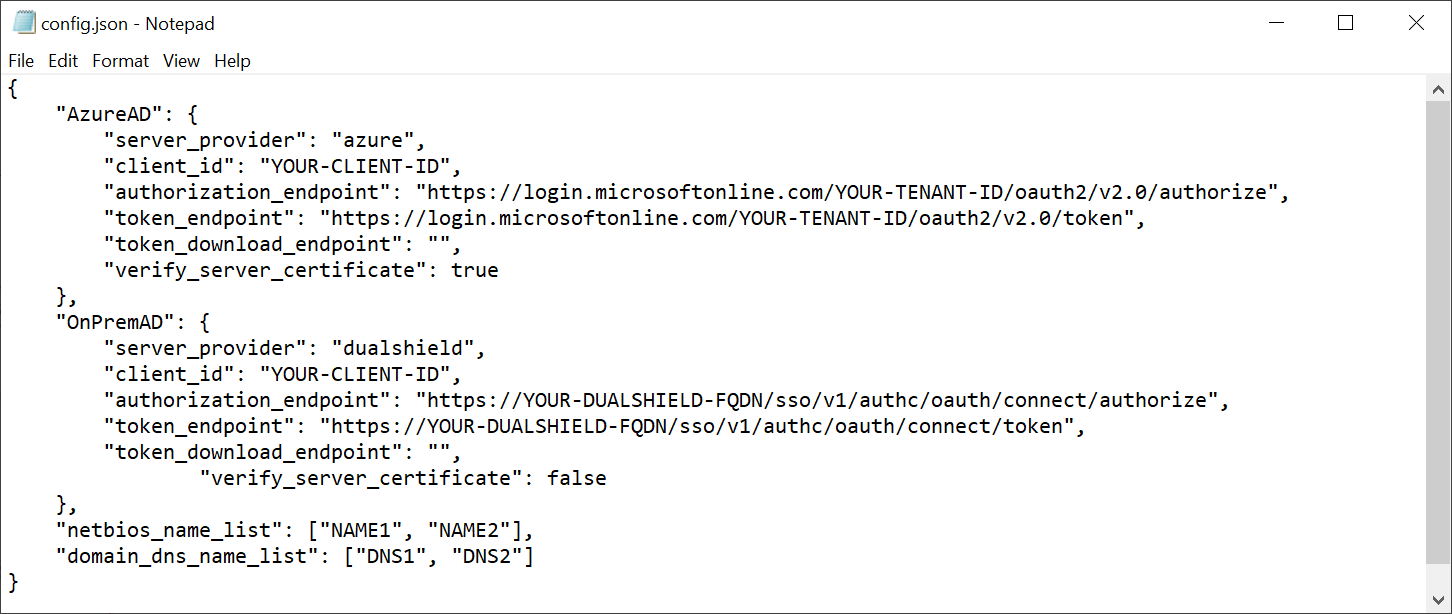
The Deepnet Computer Logon Modern Authentication supports both Azure AD (Entra ID) joined PCs and On-Prem AD joined PCs. The block "Azure AD" includes MFA server settings for Azure AD, and the block "OnPremAD" includes MFA server settings for On-Prem AD.
Enter Azure AD Settings
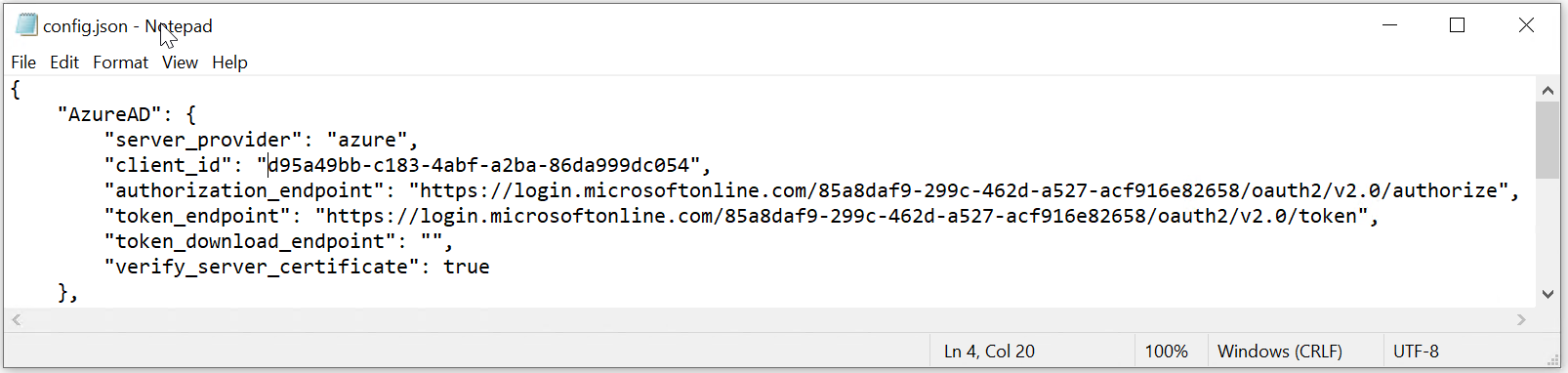
If you have PCs that are joined to the Azure AD, then you need to change "YOUR-CLIENT-ID" and "YOUR-TENANT-ID" in the "AzureAD" data block.
We assume that for Azure AD joined PCs, you will use Azure MFA to authenticate users when the PC is connected to the internet.
If the application you set up for Computer Logon with MFA supports a single tenant only
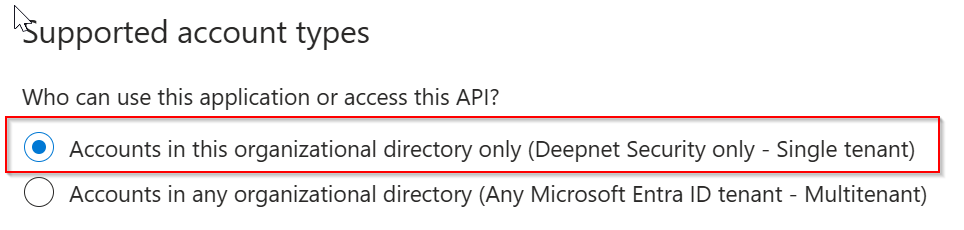
thenThen, in the "AzureAD" block, replace "YOUR-TENANT-ID" in the configuration file with your Tenant ID in the Entra ID.
However, if the application you set up for Computer Logon with MFA supports multitenant
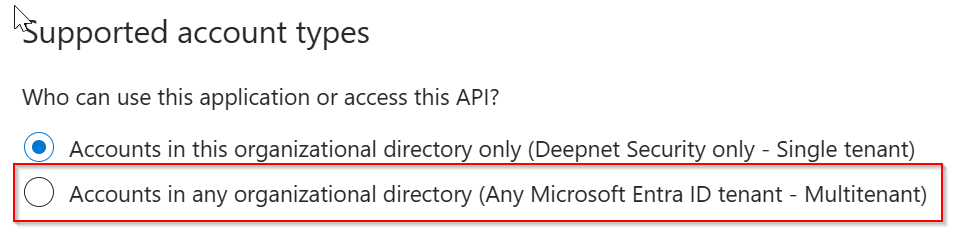
thenThen, in the "AzureAD" block, replace "YOUR-TENANT-ID" in the configuration file with the word "common"
NowNext, replace "YOUR-CLIENT-ID" with the "application Application (client) ID" of the application that you have set up for Computer Logon.
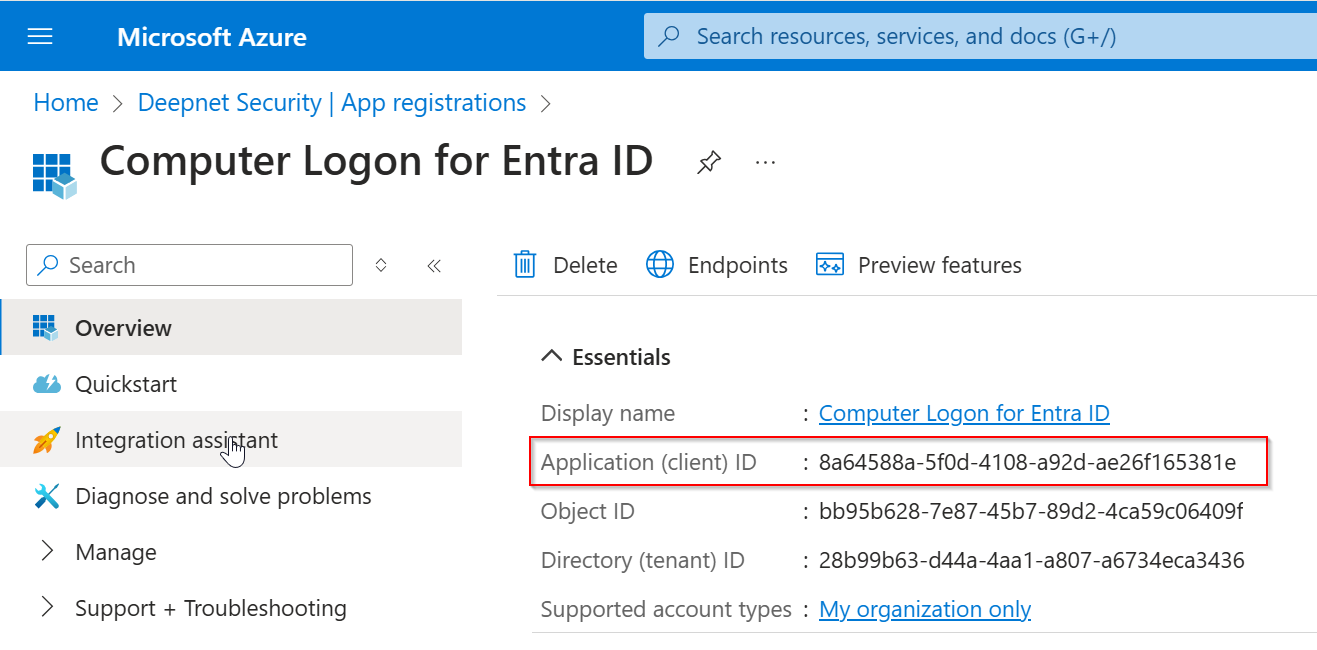
Below is an example:
Enter On-Prem AD Settings
If you have PCs that are joined to the On-Prem AD or hybrid joined, then you need to change "YOUR-CLIENT-ID" and "YOUR-DUALSHIELD-FQDN" in the "OnPremAD" data block.
We assume that for On-Prem AD joined PCs, you will use DualShield MFA to authenticate users when the PC is connected to the network.
Add Domain & NetBios Names
Next, you need to add the list of NetBIOS names and domain DNS names used in your organisation. The Computer Logon solution utilizes NetBIOS names and domain DNS names to differentiate between personal and business accounts.
If you only need to implement Computer Logon MFA for Azure AD, then you do not need to add NetBIOS names.

Save the configuration file.
Step 3: Customise the domain policy
Computer Logon for Entra ID supports many MFA scenarios, including
- MFA for both Entra ID (Azure AD) domain users and local users.
- MFA at bootup login, screen unlock, and elevated access
- MFA when PC is online & offline
For each scenario, it provides a separate set of options that allow you to control whether or not MFA is required, and the frequency of MFA requirement etc.
Those options are in the "domain_policy.json" file.
| Expand | |||||
|---|---|---|---|---|---|
|
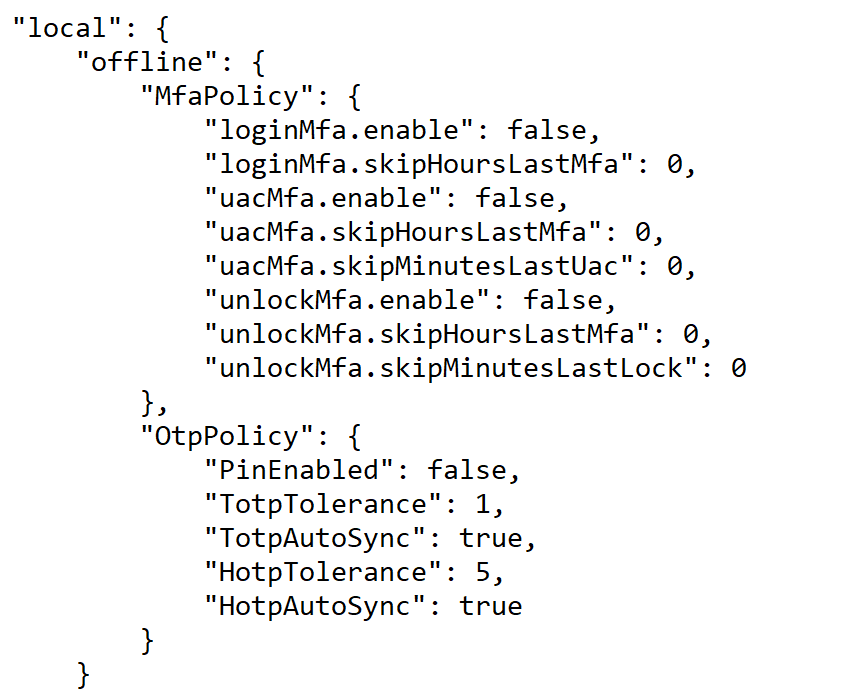
Options for Local Users
| online | offline | |
|---|---|---|
| bootup login | local\offline\MfaPolicy\loginMfa | |
| screen unlock | local\offline\MfaPolicy\unlockMfa | |
| elevated access | local\offline\MfaPolicy\uacMfa |
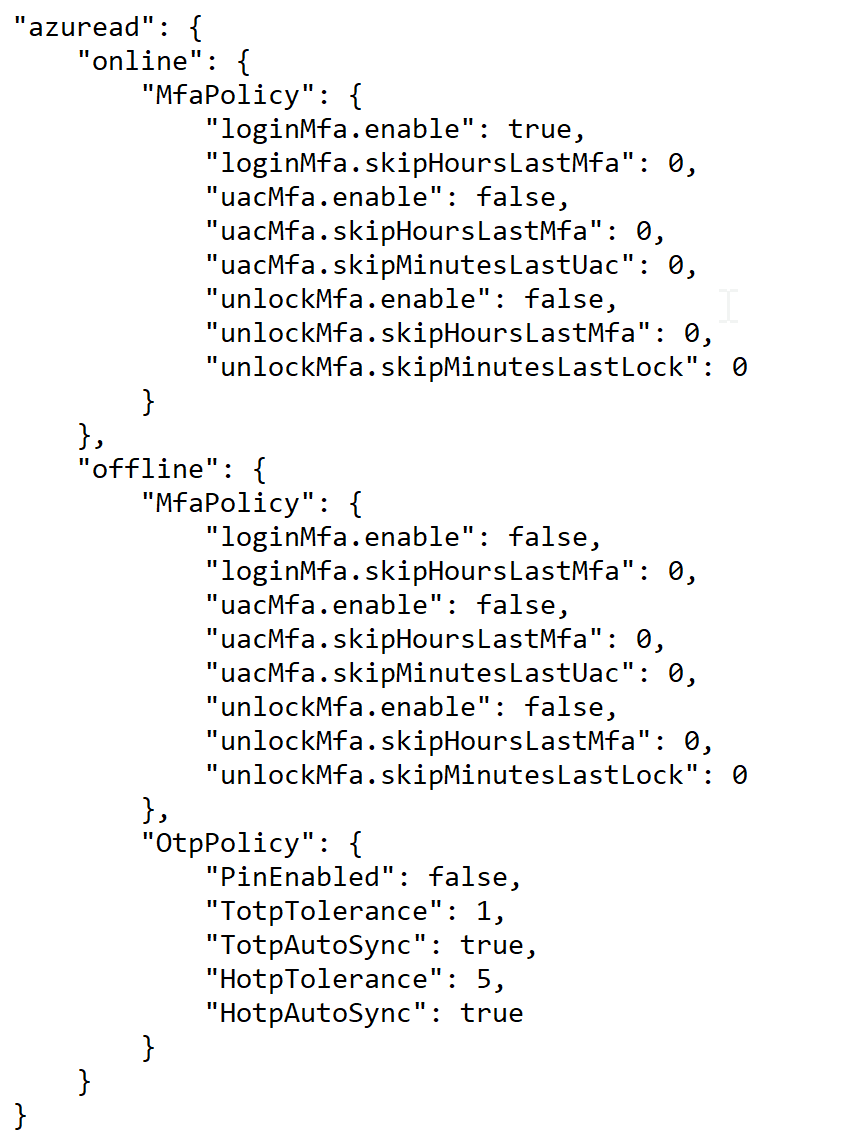
Options for Domain Users
| online | offline | |
|---|---|---|
| bootup login | azuread\online\MfaPolicy\loginMfa | azuread\offline\MfaPolicy\loginMfa |
| screen unlock | azuread\online\MfaPolicy\unlockMfa | azuread\offline\MfaPolicy\unlockMfa |
| elevated access | azuread\online\MfaPolicy\uacMfa | azuread\offline\MfaPolicy\uacMfa |
If you wish to customise some of those options, then you need to edit the "domain_policy.json" file in a text editor and change the corresponding options.
For instances
- if you want to enforce MFA for Azure AD domain users when PC is online on screen unlock, then you need to set the option "azuread\online\MfaPolicy\unlockMfa" to "true"
- if you want to enforce MFA for local users when PC is online on screen unlock, then you need to set the option "local\online\MfaPolicy\unlockMfa" to "true"
| Expand | ||||||
|---|---|---|---|---|---|---|
| ||||||
|
| Expand | ||||||
|---|---|---|---|---|---|---|
| ||||||
|
Step 4: Customise the license key file
| Include Page | ||||
|---|---|---|---|---|
|
