...
| Section |
|---|
|
| Column |
|---|
Select Settings in the navigation pane. Select SSO under USERS in the Control Panel page. Select SAMLv2 from the dropdown box in the Single Sign-On page
|
| Column |
|---|
|
| Panel |
|---|
| borderColor | #9EBEE5 |
|---|
| bgColor | #f0f0f0 |
|---|
| borderWidth | 1px |
|---|
| 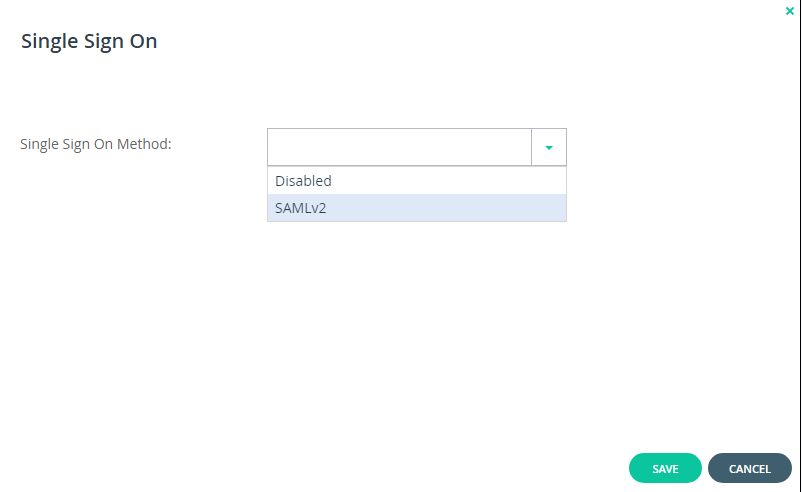 Image Modified Image Modified
|
|
|
Enter the details of the SAML identity provider:
| Section |
|---|
|
| Column |
|---|
The Entity ID/ Issuer ID will match the Entity ID you specified in the DualShield Service Provider. There are two parts for specifying the Sign-In and Log-Out Page URLs The first part is that you will use the SingleSignOnService and SingleLogoutService URLs you copied from the DualShield SSO Server Metadata (see previous section) respectively. The second part is that you will append these URLs with some extra information. e.g. Sign-in page URL | Code Block |
|---|
https://dualshield.yourdomain.com:8074/sso/Login/kvps/DASApplicationName/Ctera |
Log-out page URL | Code Block |
|---|
https://dualshield.yourdomain.com/sso/logout?DASApplicationName=Ctera |
Select the drop down menu corresponding to the SSO server you will be using and click on View.
|
| Column |
|---|
|
| Panel |
|---|
| borderColor | #9EBEE5 |
|---|
| bgColor | #f0f0f0 |
|---|
| borderWidth | 1px |
|---|
|  Image Removed Image Removed 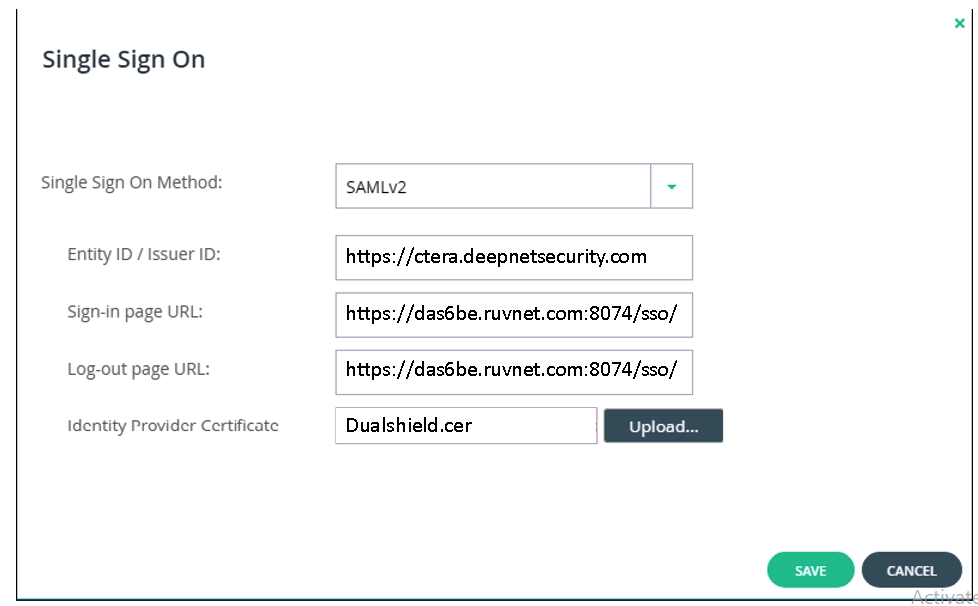 Image Added Image Added
|
|
|
Upload the Idp Certificate file
| Section |
|---|
|
| Column |
|---|
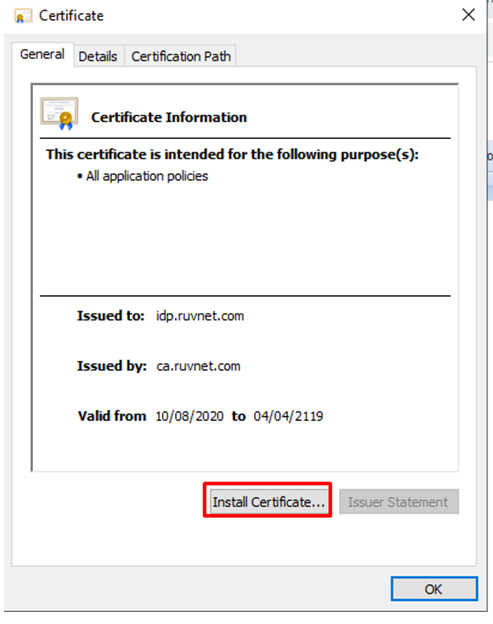
In order to do this, you need to convert the 'crt' file that was downloaded in the previous section to a 'cer' file. To begin, Open the crt file and install the Certificate to your personal folder in Certificate manager the view screen scroll down and click on Display Metadata |
|
| Section |
|---|
|
| Column |
|---|
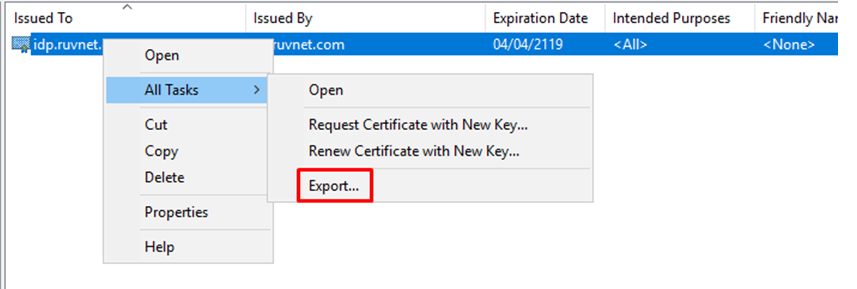
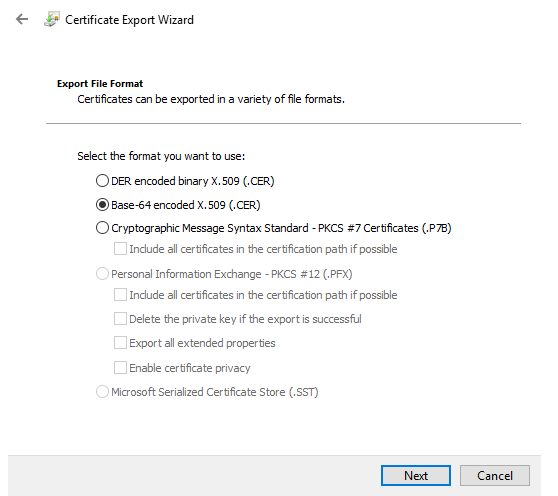
Once installed the Certificate needs to be exported
Export it as a Base-64 encoded X.509 (.CER)Scoll down to where you can see the SingleSignOnService and SingleLogoutService URL. You may want to copy and past this somewhere, ready for the next section. |
|
You will also need to download the IdP Certificate
| Section |
|---|
|
| Column |
|---|
Select the drop down menu corresponding to the SSO server you will be using and click on Download IdP CertificateUpload the exported CER file. |
| Column |
|---|
|
| Panel |
|---|
| borderColor | #9EBEE5 |
|---|
| bgColor | #f0f0f0 |
|---|
| borderWidth | 1px |
|---|
| 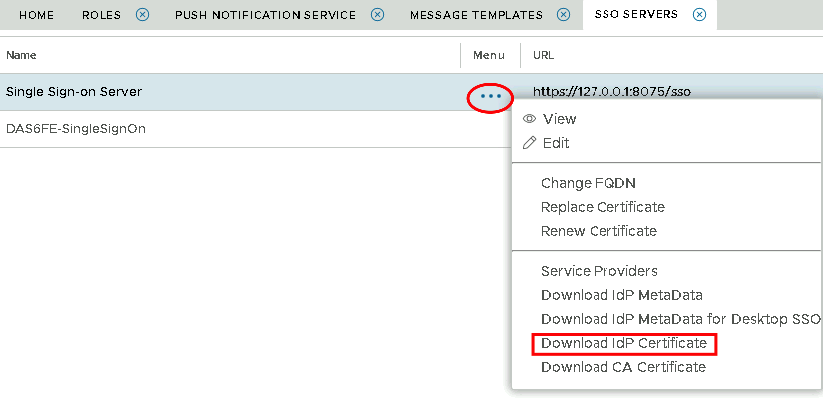 Image Removed Image Removed Image Added Image Added
|
|
|