Create a Radius Logon Procedure
- Login to the DualShield management consoleAdministration Console
- In the main menu, select “Authentication | Logon Procedure”Procedures”
- Click the “Create” “+ CREATE” button on the toolbar
- Enter a friendly “Name” and select “RADIUS” as the Type
 Image Removed
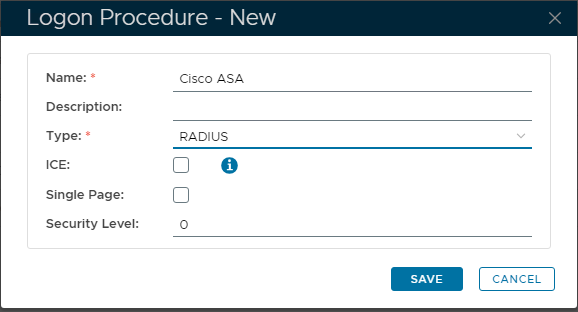 Image Added
- Click “Save”“SAVE” to create.
- Click the Context Menu icon context "..." menu of the newly create logon procedurecreated Logon Procedure, select “Logon Steps”
- In the popup windows, click the “Create” button on the toolbar
- Select the “Static Password” as the authenticator
 Image Removed
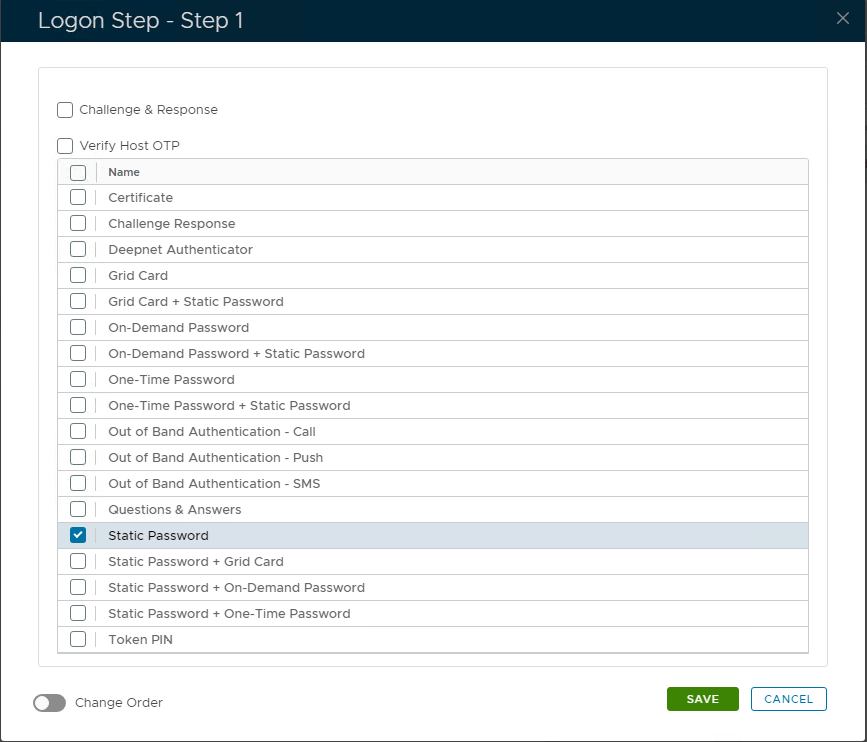 Image Added
- Click “Save”“SAVE” to update.
Create a RADIUS application
- In the main menu, select “Authentication | Applications”
- Click the “Create” button on the toolbar
- Enter “Name”
- Select “Realm”
- Select the logon procedure that was just created
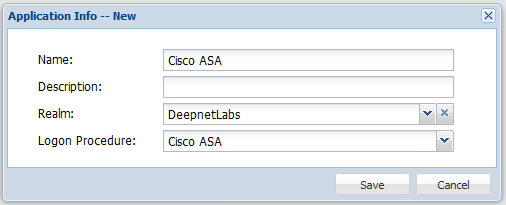
- Click “Save”
- Click the context menu of the newly created application, select “Agent”
- Select Associate the DualShield Radius server, e.g. "Agent-Radius"
 Image Removed
Server Agent:
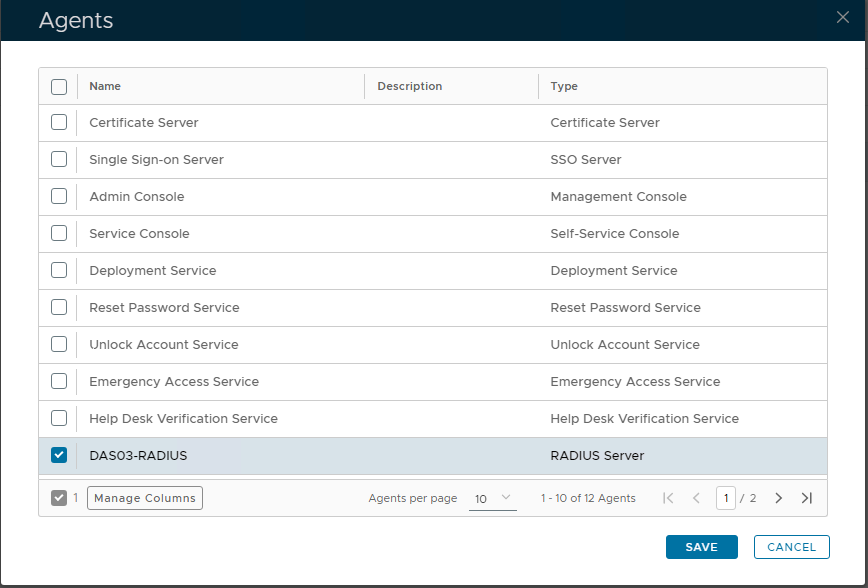 Image Added
- Click “SAVE” to update.Click “Save”
- Click the context menu of the newly created application, select “Self Test”
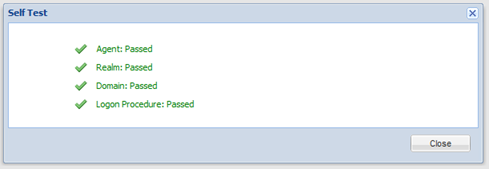 Image Removed
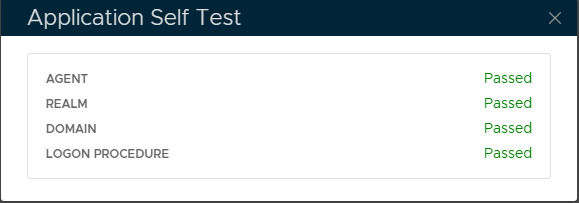 Image Added
Register the Cisco ASA as a Radius Client
- In the main menu, select “RADIUS navigate to “Radius | Radius Clients”
- Click the “Register” “+ CREATE” button on the toolbar
 Image Removed
 - Edit the Client, with the necessary configuration, associating with the existing Radius Server.
- Add the Shared Secret, as used with the Radius Server
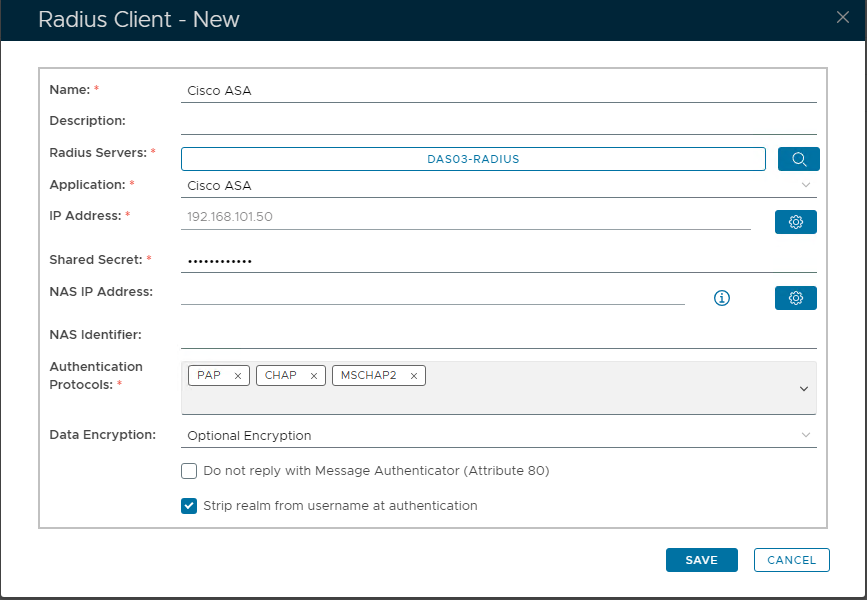 Image Added
Related Articles
{"serverDuration": 49, "requestCorrelationId": "bc52f35be1dfa5fe"}