...
Click on Configure under Single Sign-On
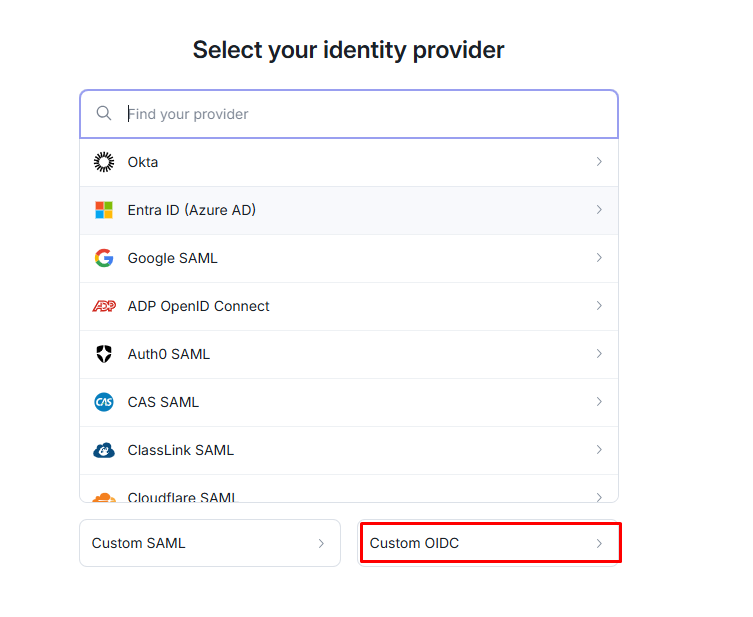
Select Custom OIDC
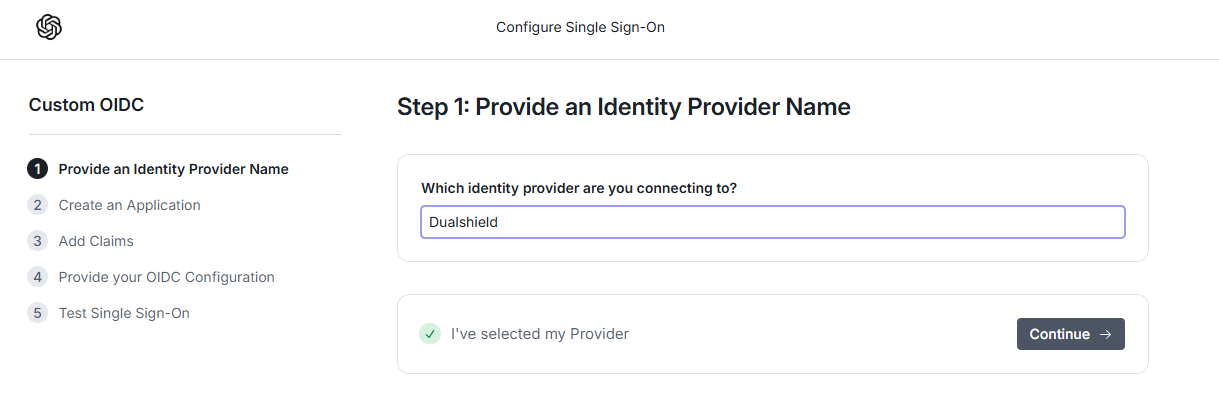
Type a friendly name and then click on Continue
...
Copy out the Login Redirect URI and past paste it in the Service provider edit screen ( see see Create a SSO service provider in DualShield for OIDC Test)
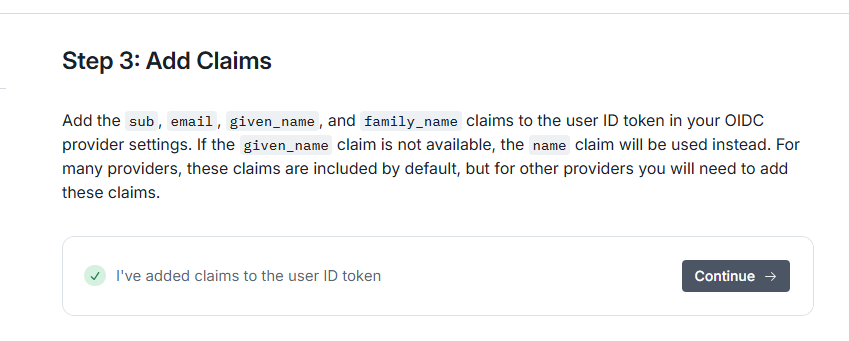
Ignore this and click Continue
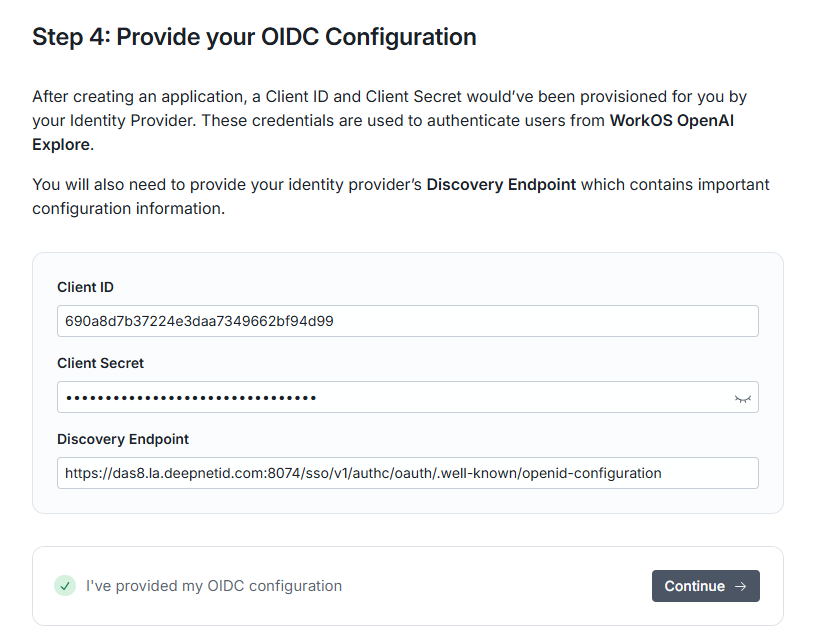
Paste in Client ID and Secret you copied from the Service Provider edit screen on Dualshield.
Paste in the Discovery Endpoint that you copied from the SSO Server edit screen on Dualshield (see Configure DualShield SSO for OpenID Connect)
| Column | |||||||||
|---|---|---|---|---|---|---|---|---|---|
| |||||||||
|
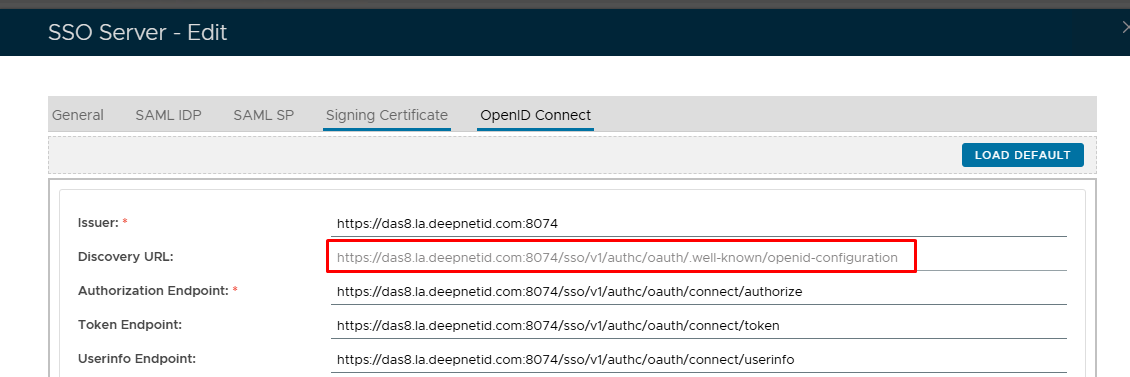
Click Continue
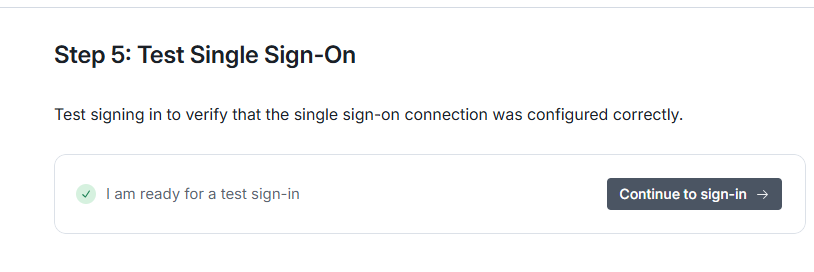
Click Continue to sign in.
If correctly configured it should redirect to the DualShield SSO screen where you will be prompted to enter your credentials.
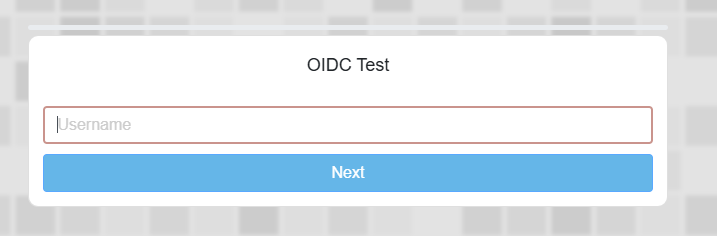
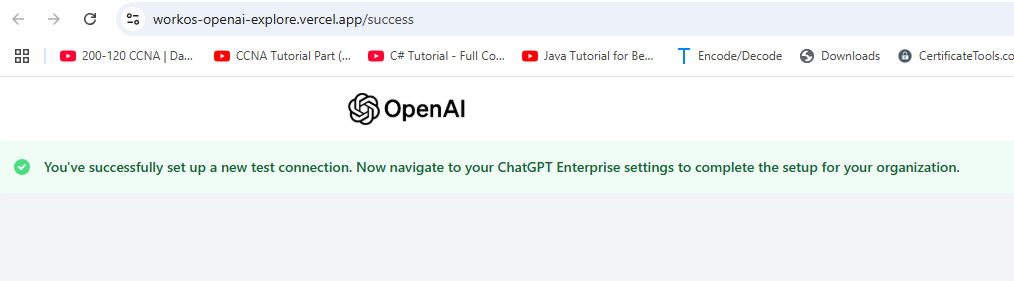
If all good then you will be rewarded with the message below