If you want to make a quick test on OIDC integration, then you can use https://workos-openai-explore.vercel.app/
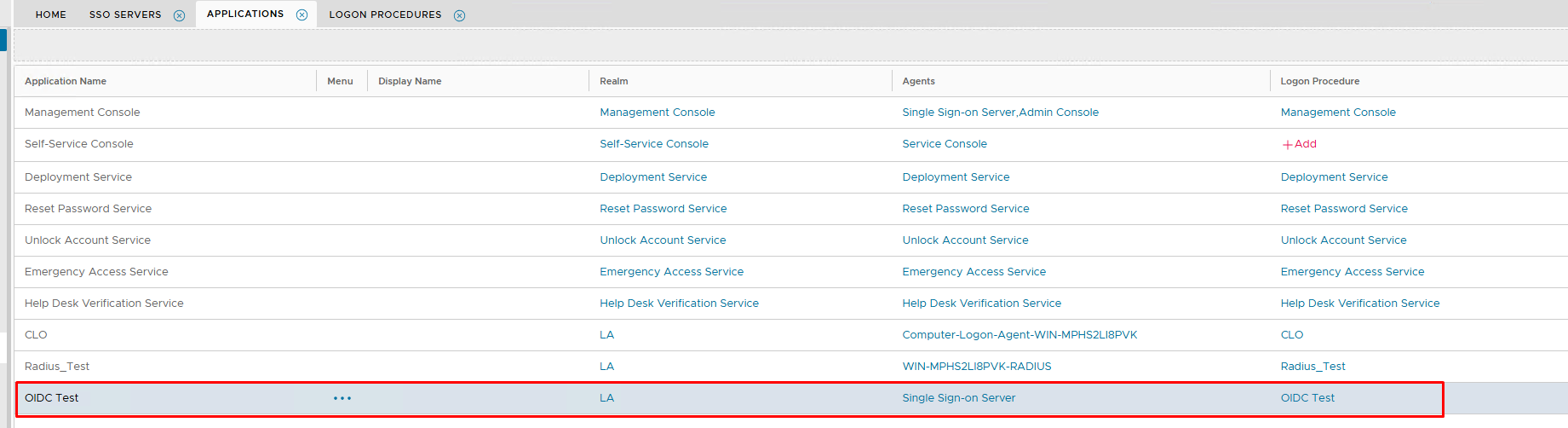
First, let's build an application called OIDC Test on your DualShield server.
You can Builld an application using the Wizard.
You should end up with this entry under Authentication>Applications
Follow the next step..
In the DualShield Admin Console, navigate to "SSO | SSO Servers"
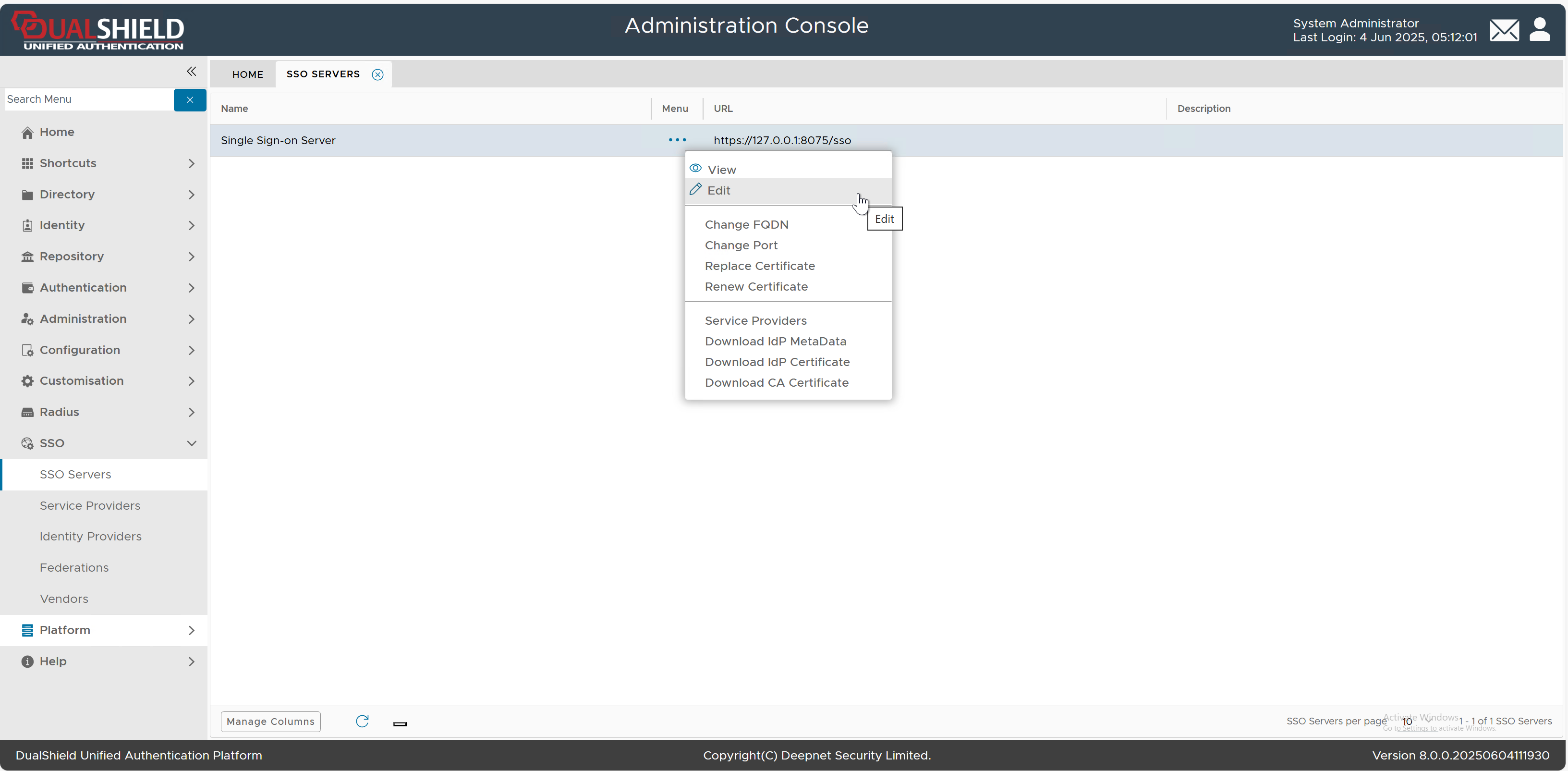
Select "Edit" from the context menu of "Single Sign-on Server"
The SSO Server editor will pop up. Select the "OpenID Connect" tab
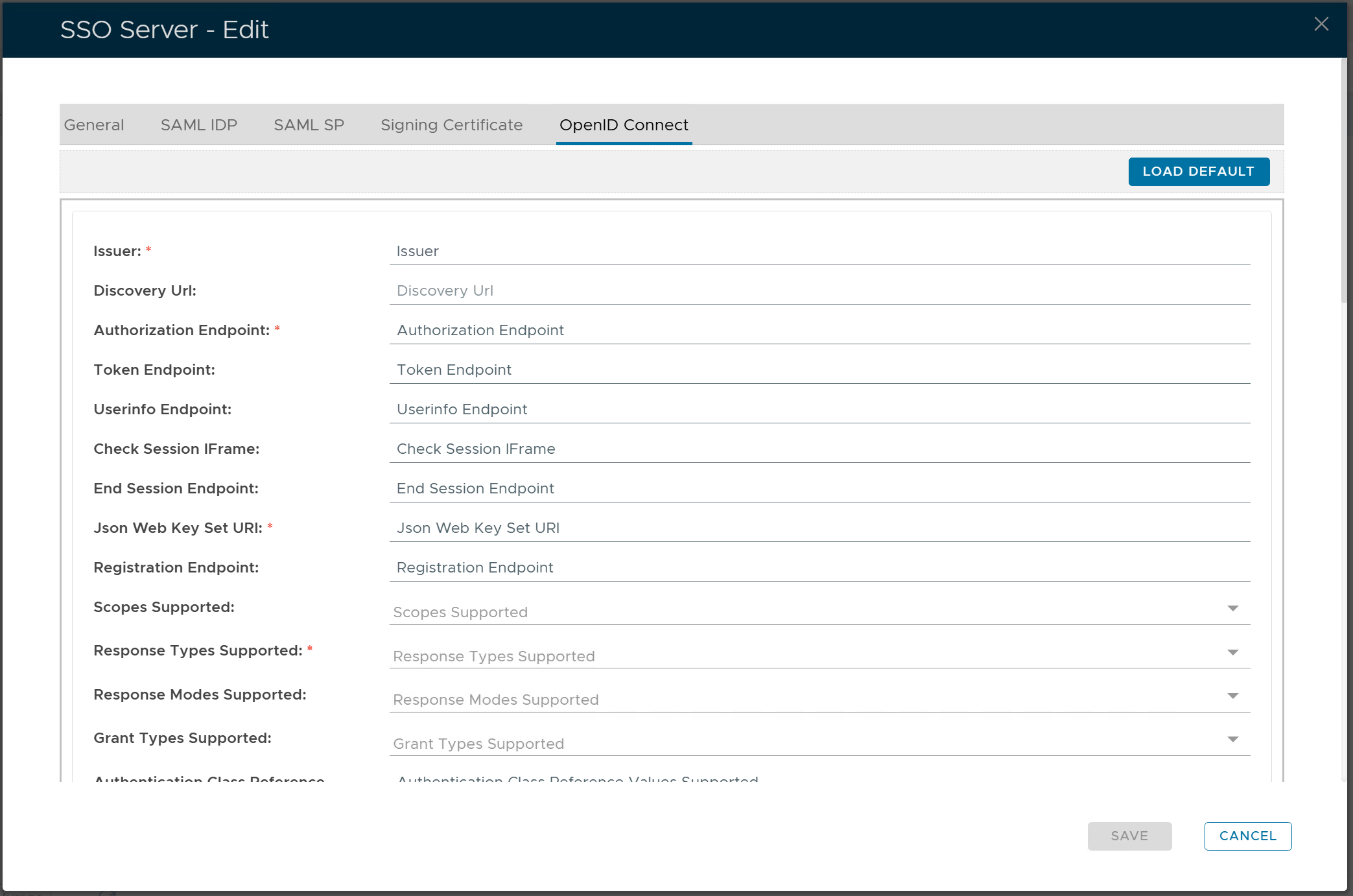
Click the "LOAD DEFAULT" button
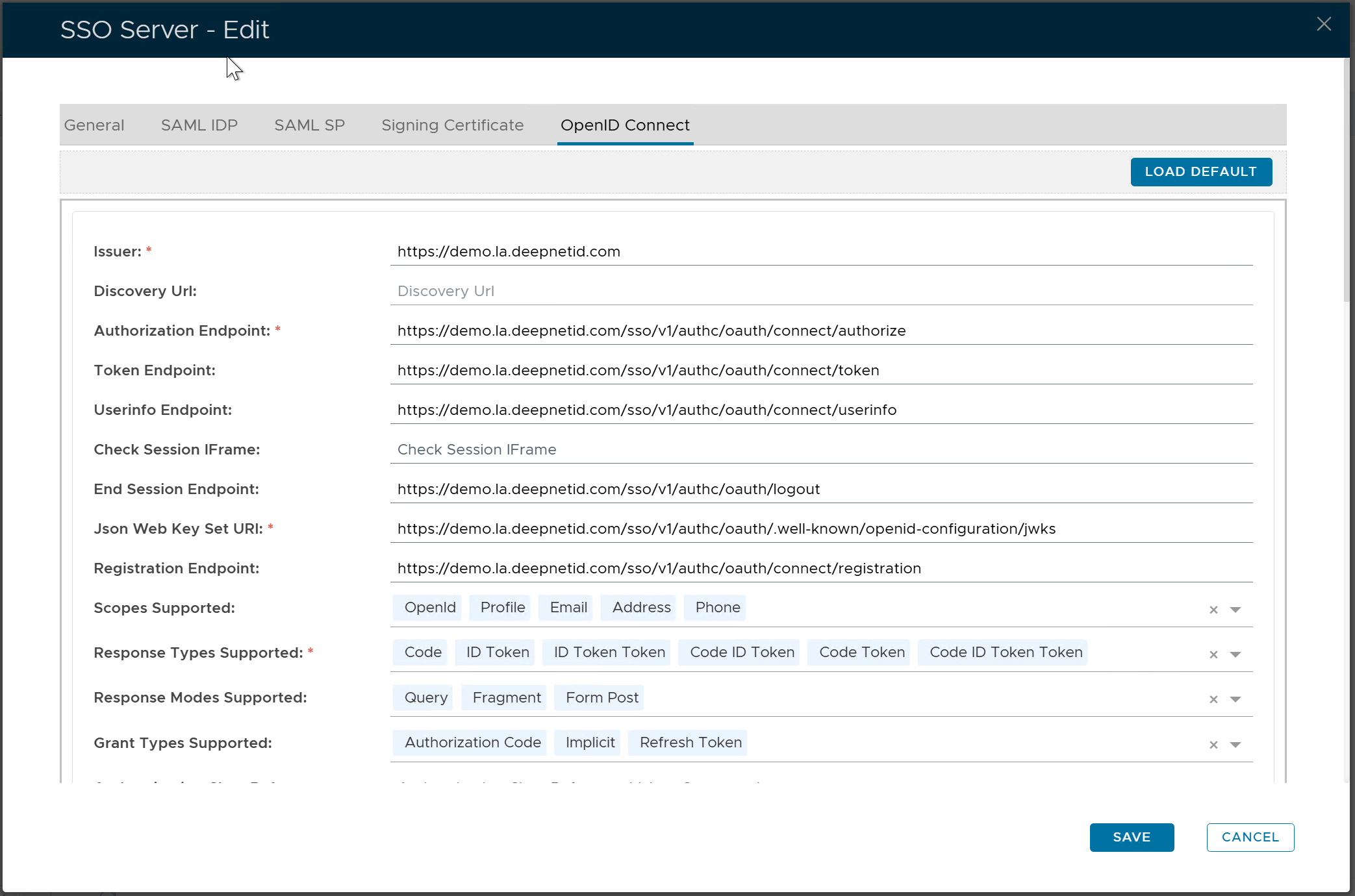
click the "SAVE" button
Make a note or copy out the Authorisation Endpoint as you will need it to input into the OpenAI setup.
You will then need to do the following steps in parallel to each other...
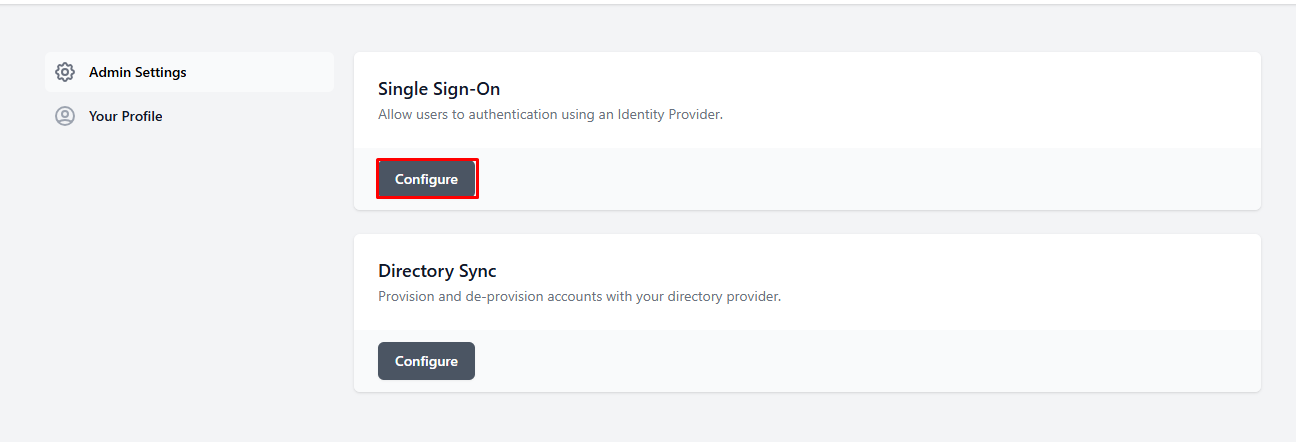
Click on Configure under Single Sign-On
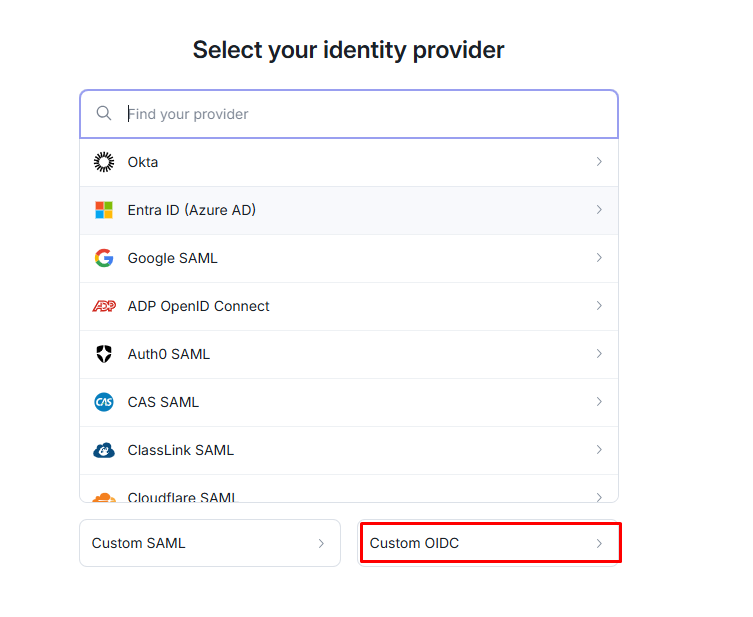
Select Custom OIDC
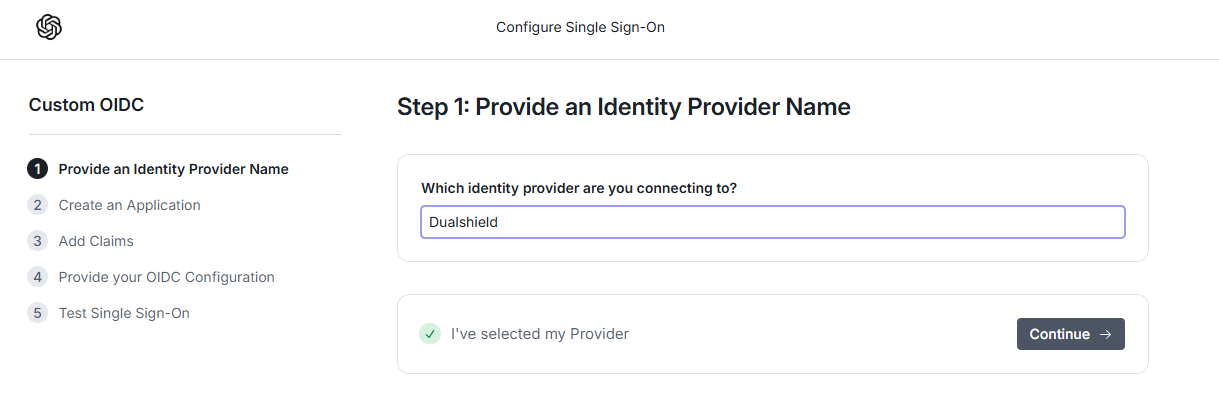
Type a friendly name and then click on Continue
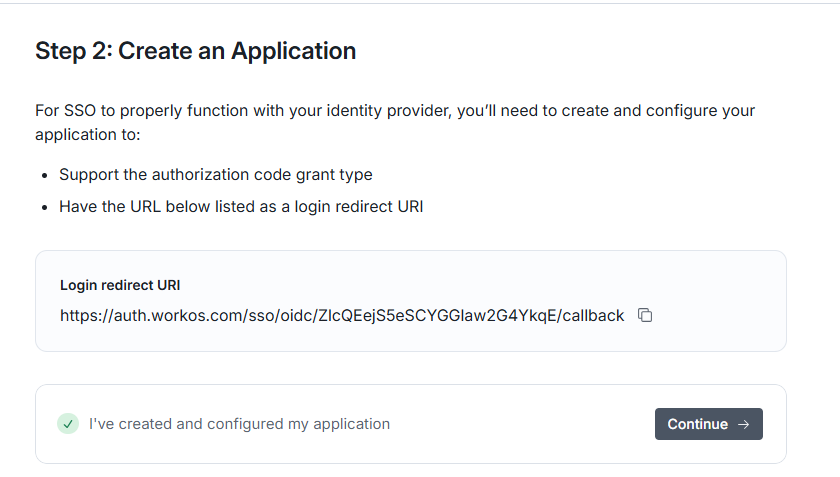
Copy out the Login Redirect URI and paste it in the Service provider edit screen (see Create a SSO service provider in DualShield for OIDC Test)
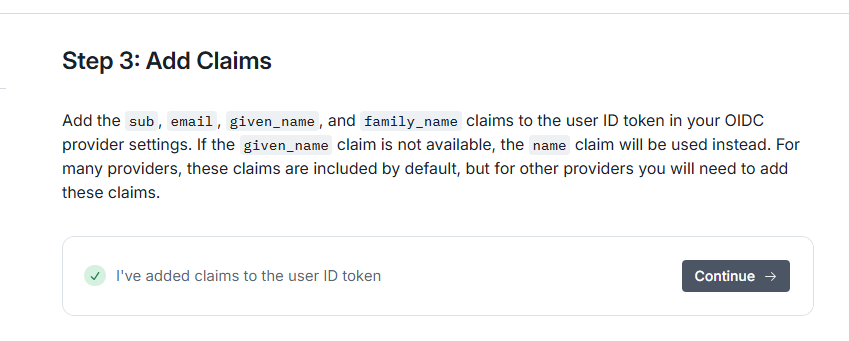
Ignore this and click Continue
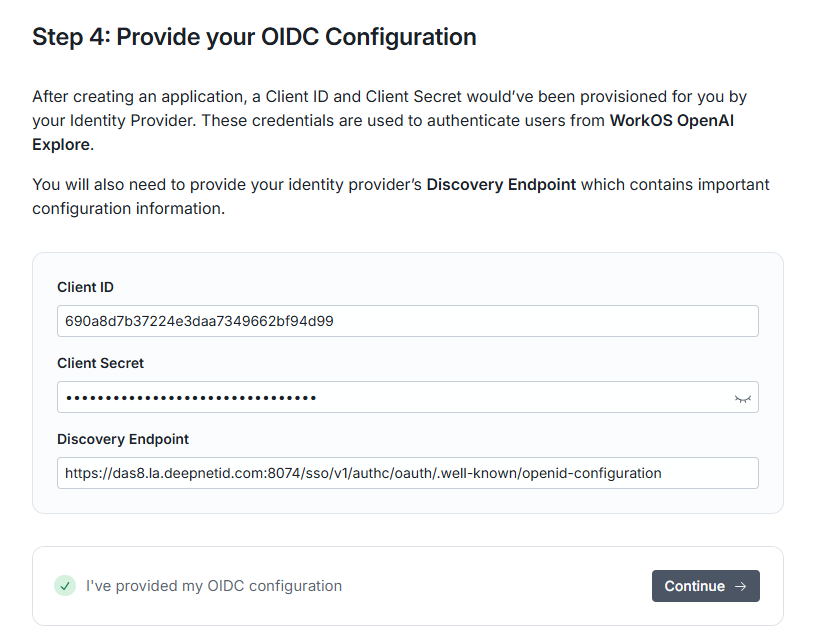
Paste in Client ID and Secret you copied from the Service Provider edit screen on Dualshield.
Paste in the Discovery Endpoint that you copied from the SSO Server edit screen on Dualshield (see Configure DualShield SSO for OpenID Connect)
If you forgot to copy the Discovery URL you can go back in and edit the SSO Server to find it again...
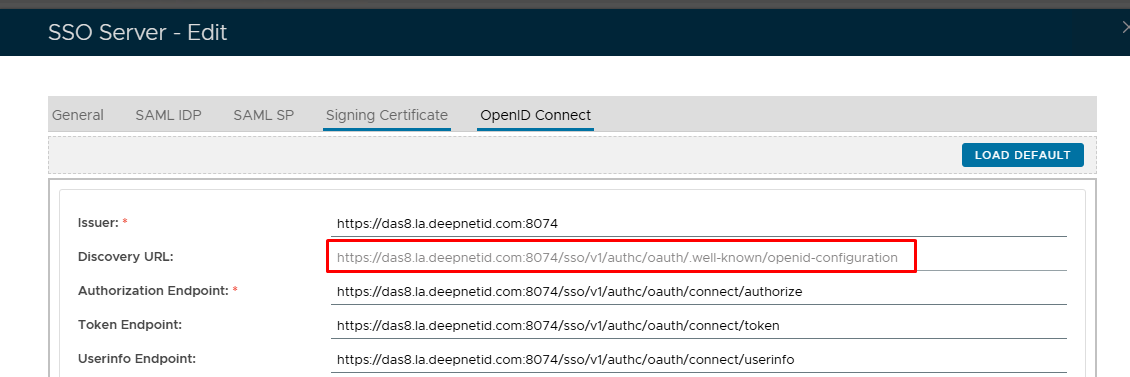
Click Continue
Click Continue to sign in.
If correctly configured it should redirect to the DualShield SSO screen where you will be prompted to enter your credentials.
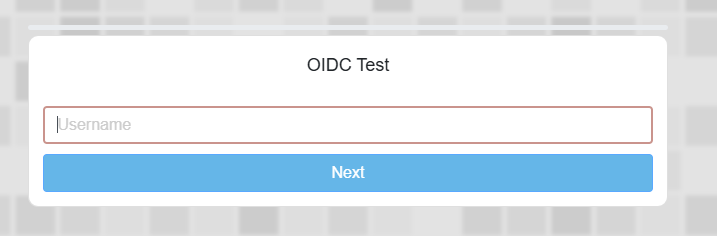
If all good then you will be rewarded with the message below
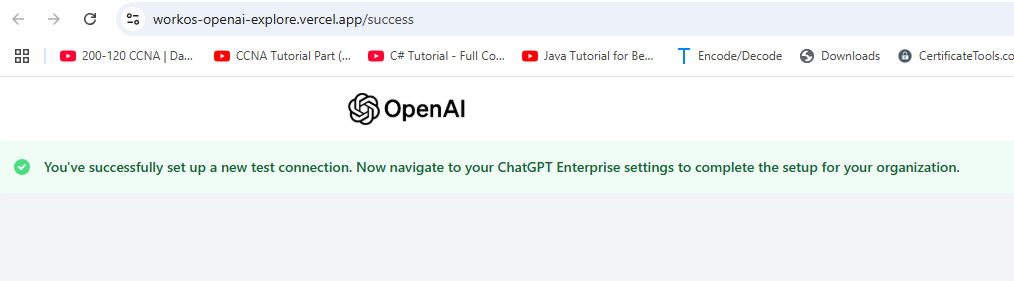
Click "Create" to create a new service provider
Filling the form as below:
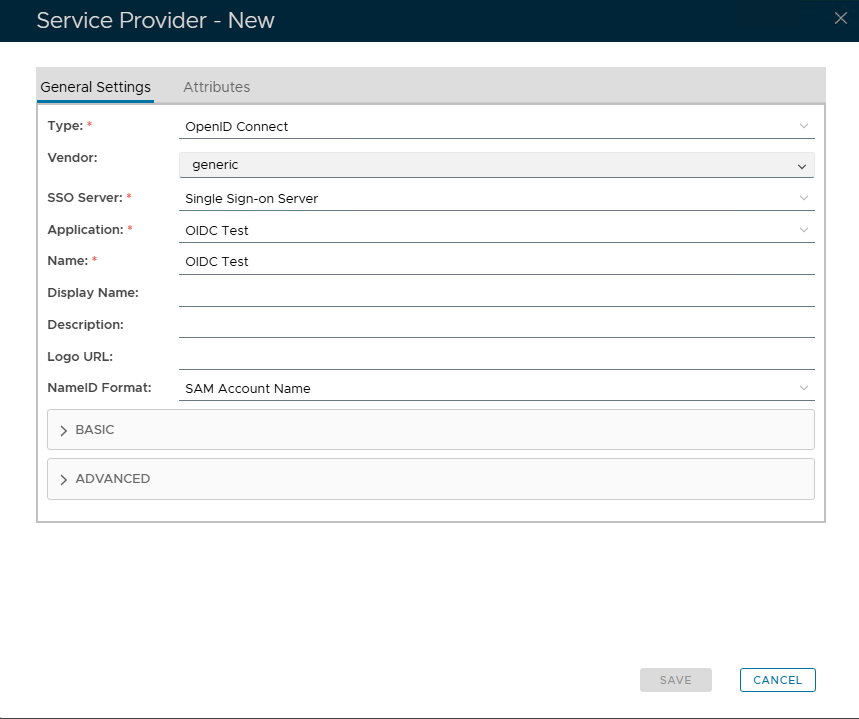
Expand Basic
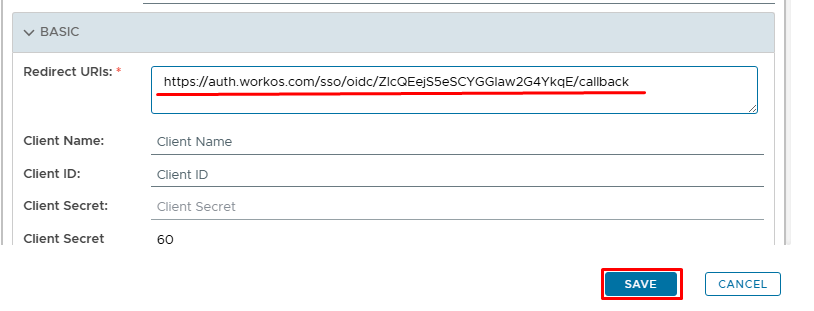
Paste in the Redirect URI that you copied from the OpenAI setup (see Prepare OpenAI for OIDC test connection)
Click Save
Edit the newly created Service Provider and expand the Basic tab again...
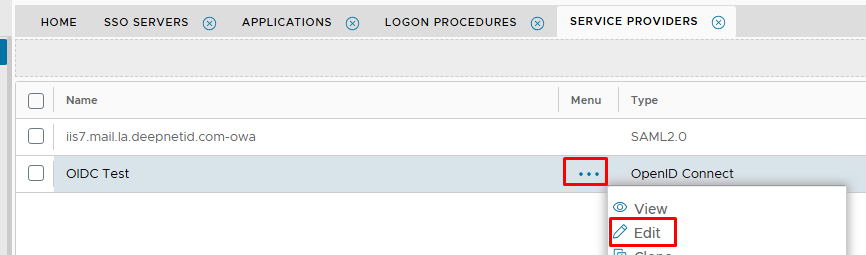
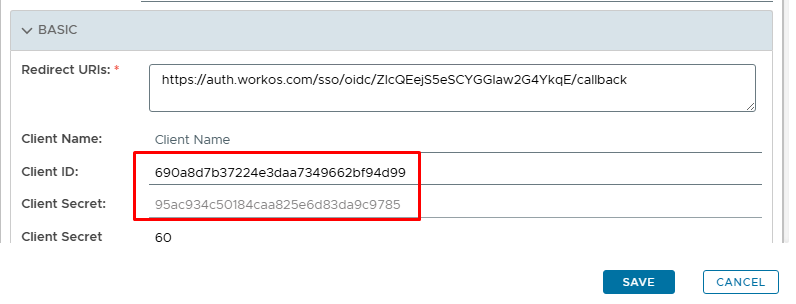
Notice that the Client ID and Client Secret are now populated. Copies these values out as they will need to be added to the OpenAI setup.
Scroll down slightly...
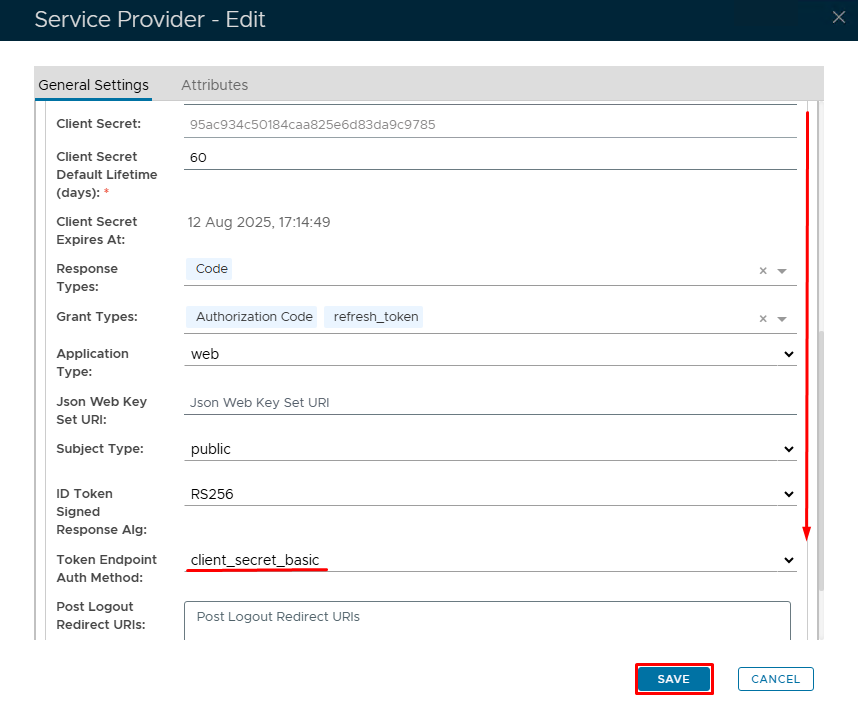
Change Token Endpoint Auth Method to client_secret_basic
Click Save