...
This document assumes that you are using Yubikey in 8 digits.
Step 1
- Insert your Yubikey into your PC
- Launch Yubikey Personalization Tool
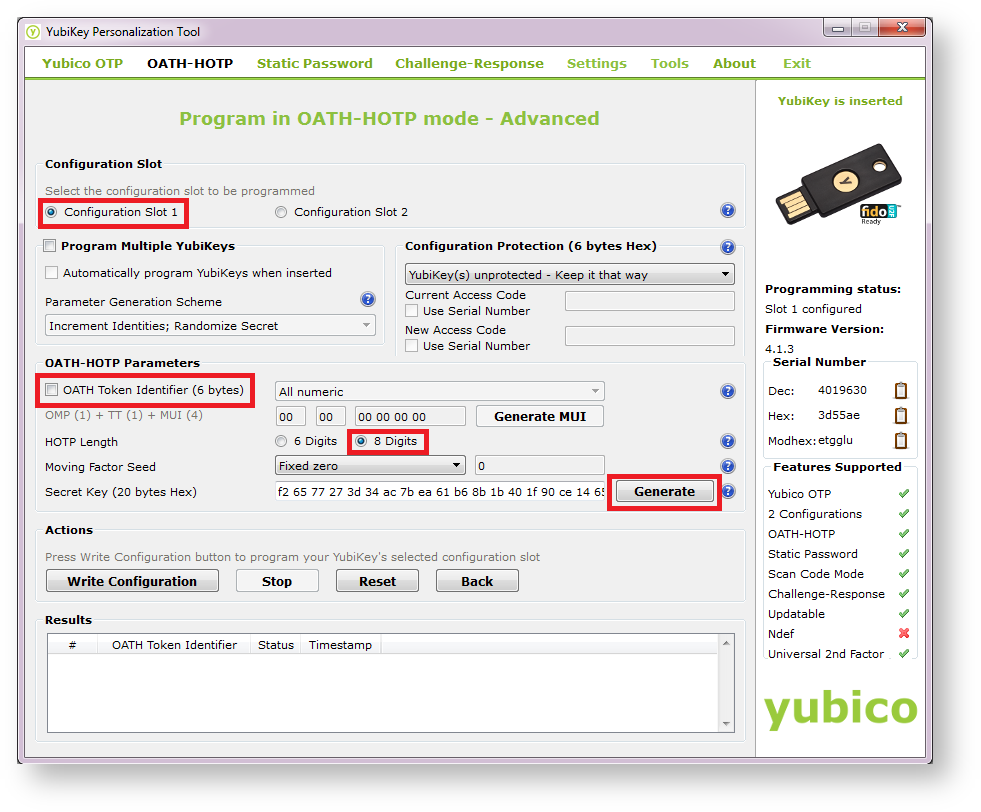
- Select the following options:
- Select "Configuration Slot 1"
- Deselect "OATH Token Identifier"
- Select "8 Digits" in the "HOTP Length" field - Press "Generate"
- Press "Write Configuration" and specify the file path.
The Yubikey Tool will write to the configuration file with data similar to:
LOGGING START,29/10/2015 11:03
OATH-HOTP,29/10/2015 11:03,1,,,f55fbebc24b2931889e9d7f26d37fe3d6d792e90,,,0,0,0,8,0,0,0,0,0,0
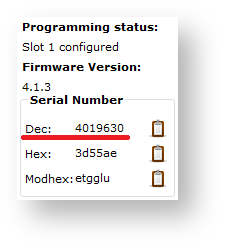
In which, the first column is token seed data, i.e.f55fbebc24b2931889e9d7f26d37fe3d6d792e90.- Make note of the Yubikey token serial number, i.e. 4019630
Step 2
You need to create a DualShield compatible seed file for your Yubikey. Below is the template:
...
| <data> <header> <manufacturerCode>UB</manufacturerCode> <productCode>YK</productCode> <encode>HEX</encode> <encrypt>NONE</encrypt> </header> <tokens> <token> <serial>4019630</serial> <seed>f55fbebc24b2931889e9d7f26d37fe3d6d792e90 </seed> </token> </tokens> </data> |
Step 3
You will need to create a new authentication product for Yubikey in DualShield.
- Log into your DualShield Management Console
- Select "Authentication | Products" from the main menu
- Click "Create" on the toolbar
- Complete the production creation page as below (assuming that you will configure your Yubikey to support OATH/HOTP with 8-digit display.
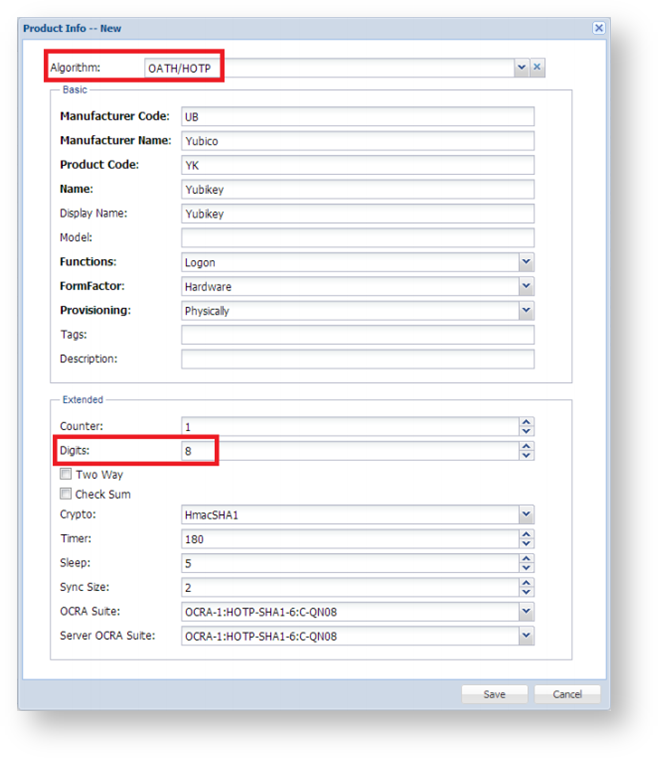
- Click "Save" button
Step 4
You can now import your token seed file.
...
You can now assign Yubikey tokens to your users.