Follow the steps below:
| Table of Contents |
|---|
Download SP Metadata from SPTEST
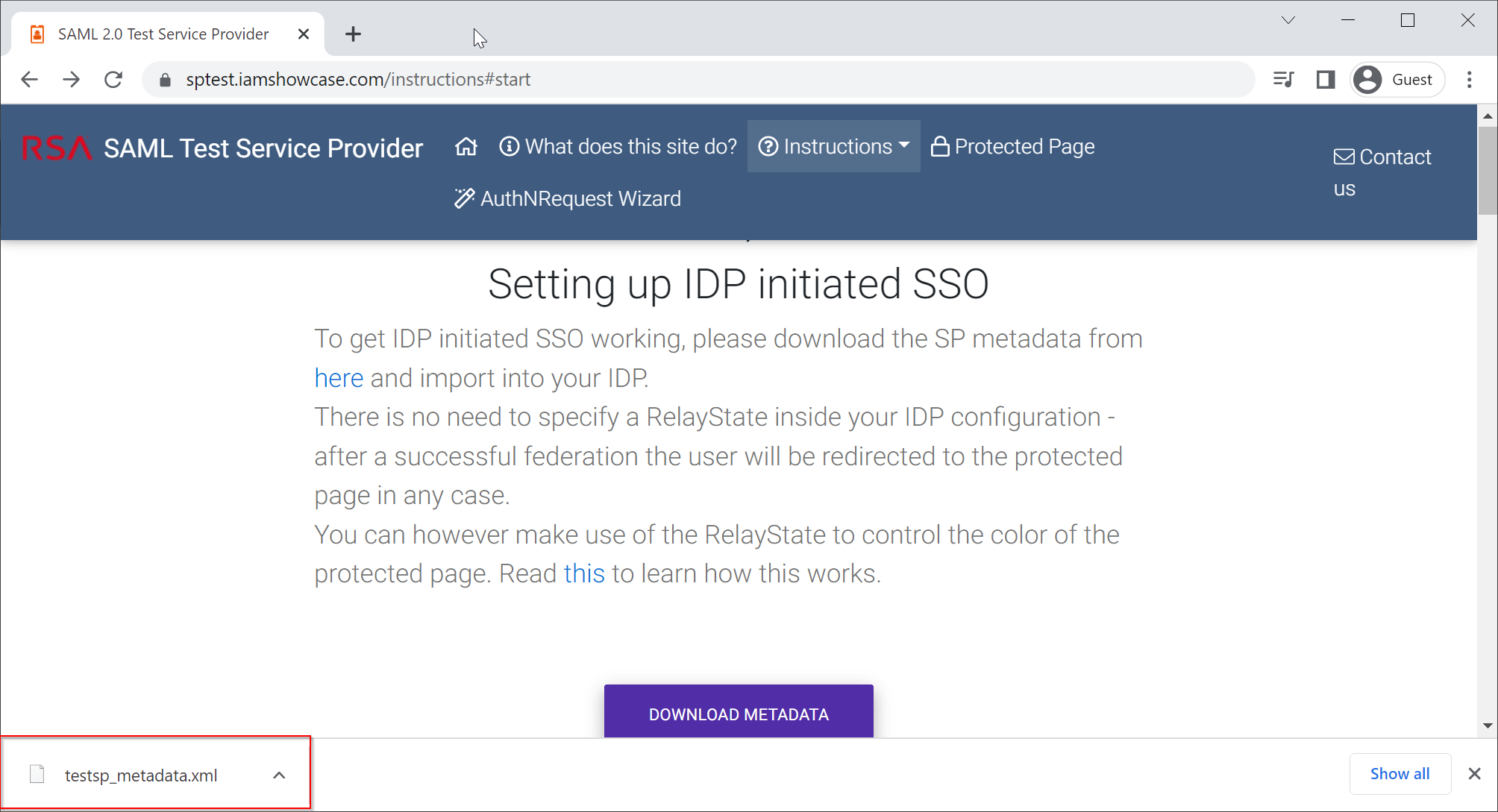
Visit https://sptest.iamshowcase.com/instructions#start

Right click "DOWNLOAD METADATA" and select "Save link as"
A file called "testsp_metadata.xml" will be downloaded and saved in your local drive
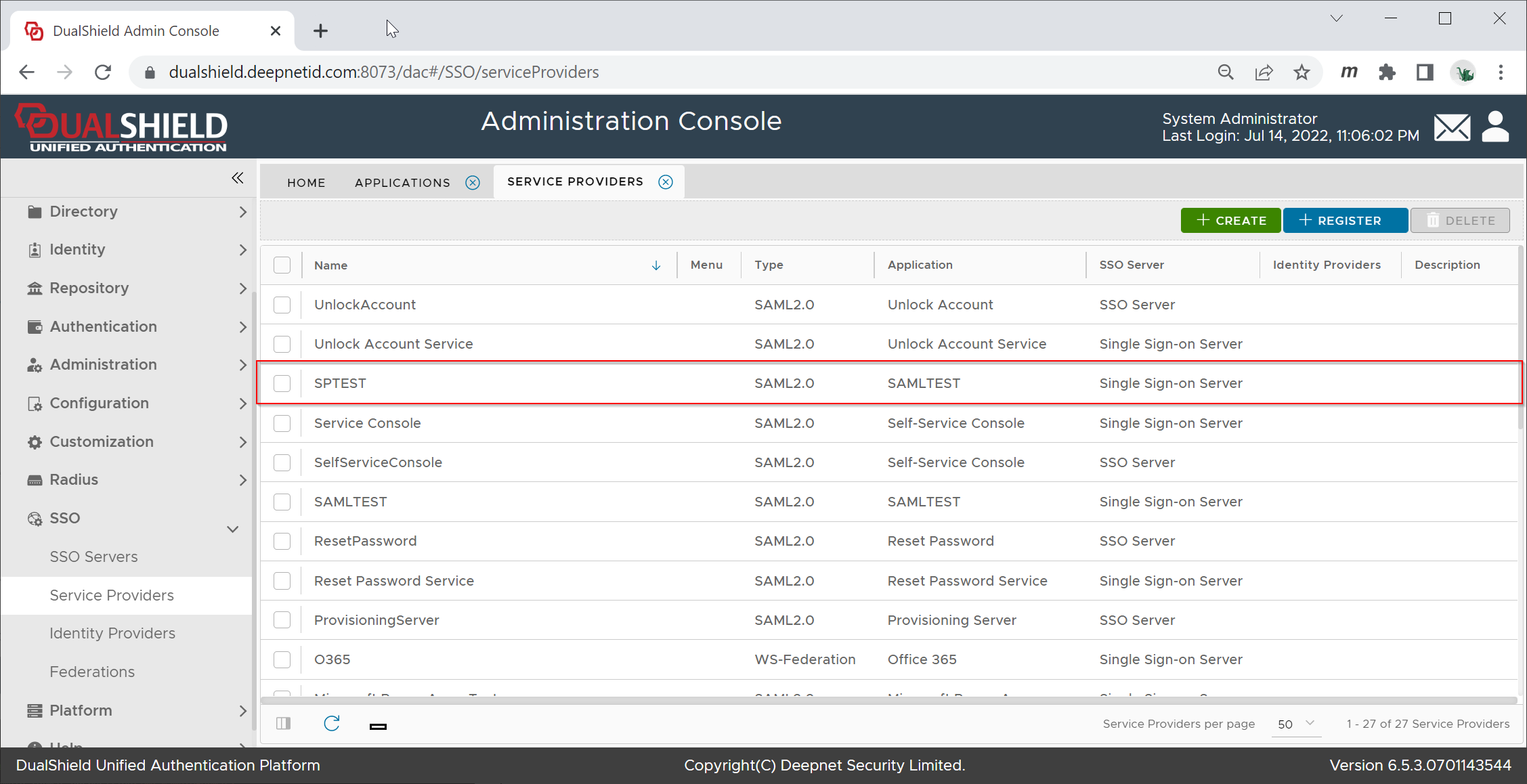
Create SP in DualShield
In your DualShield Admin Console, navigate to "SSO | Service Providers"
Click the "Create" button, and fill in the form as below:
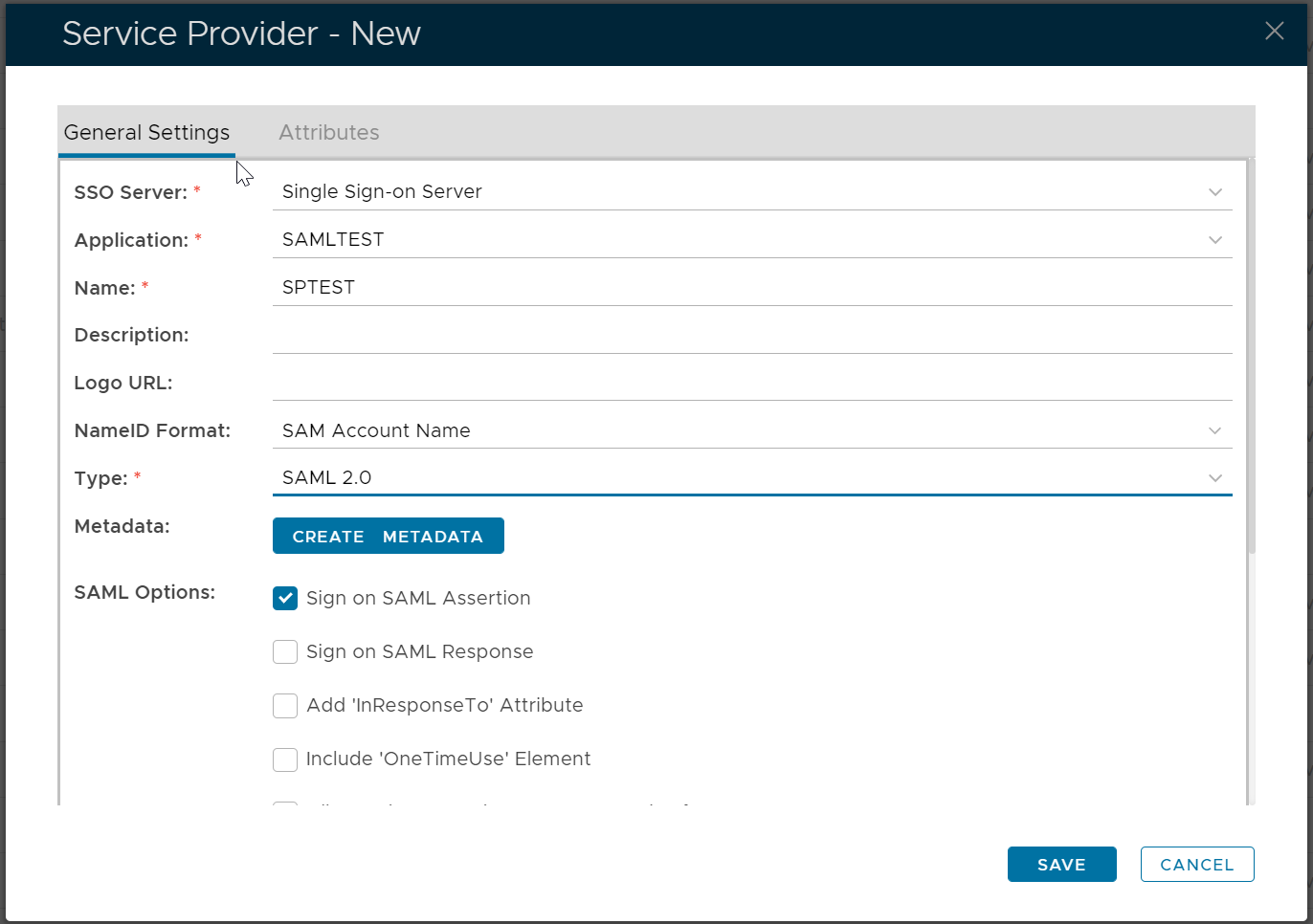
Click the "Create Metadata" button
Open the file "testsp_metadata.xml" in a text editor, copy its context and paste it into the Metadata box below:
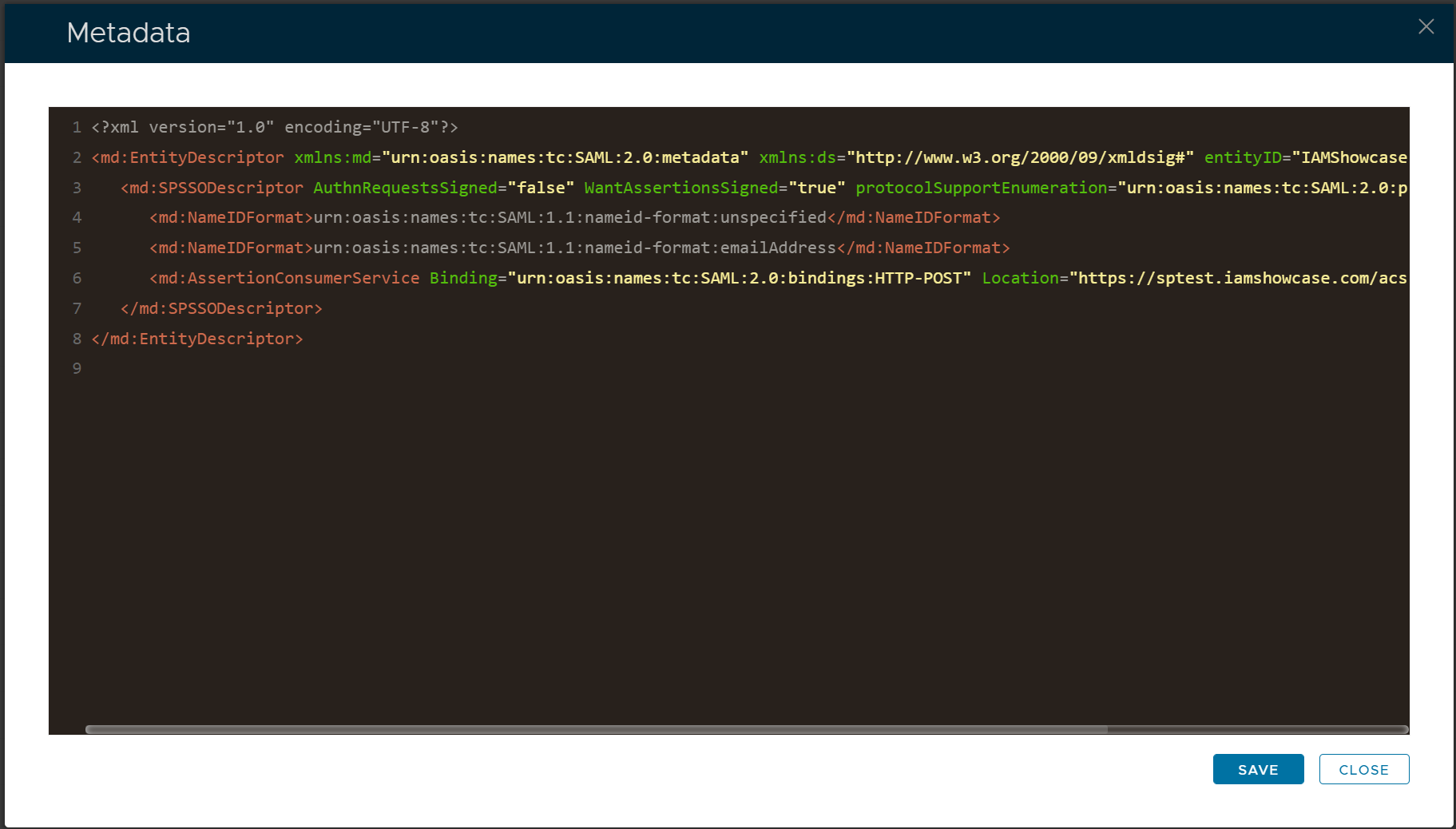
Click Save
Download IdP Metadata from DualShield
| Include Page | ||||
|---|---|---|---|---|
|
Upload IdP Metadata to SPTEST
Visit https://sptest.iamshowcase.com/instructions#start again
Scroll down to "Upload your metadata file"
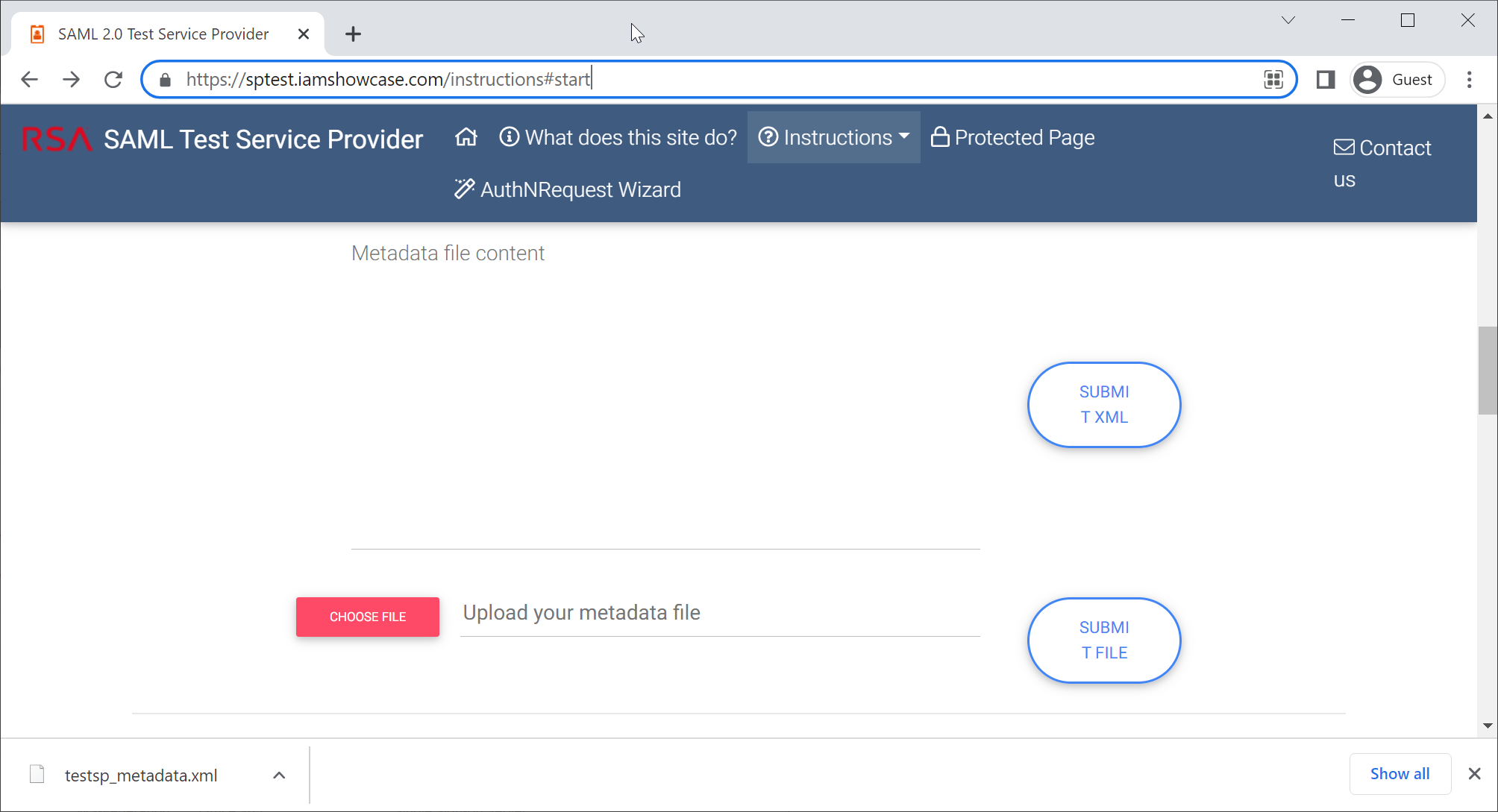
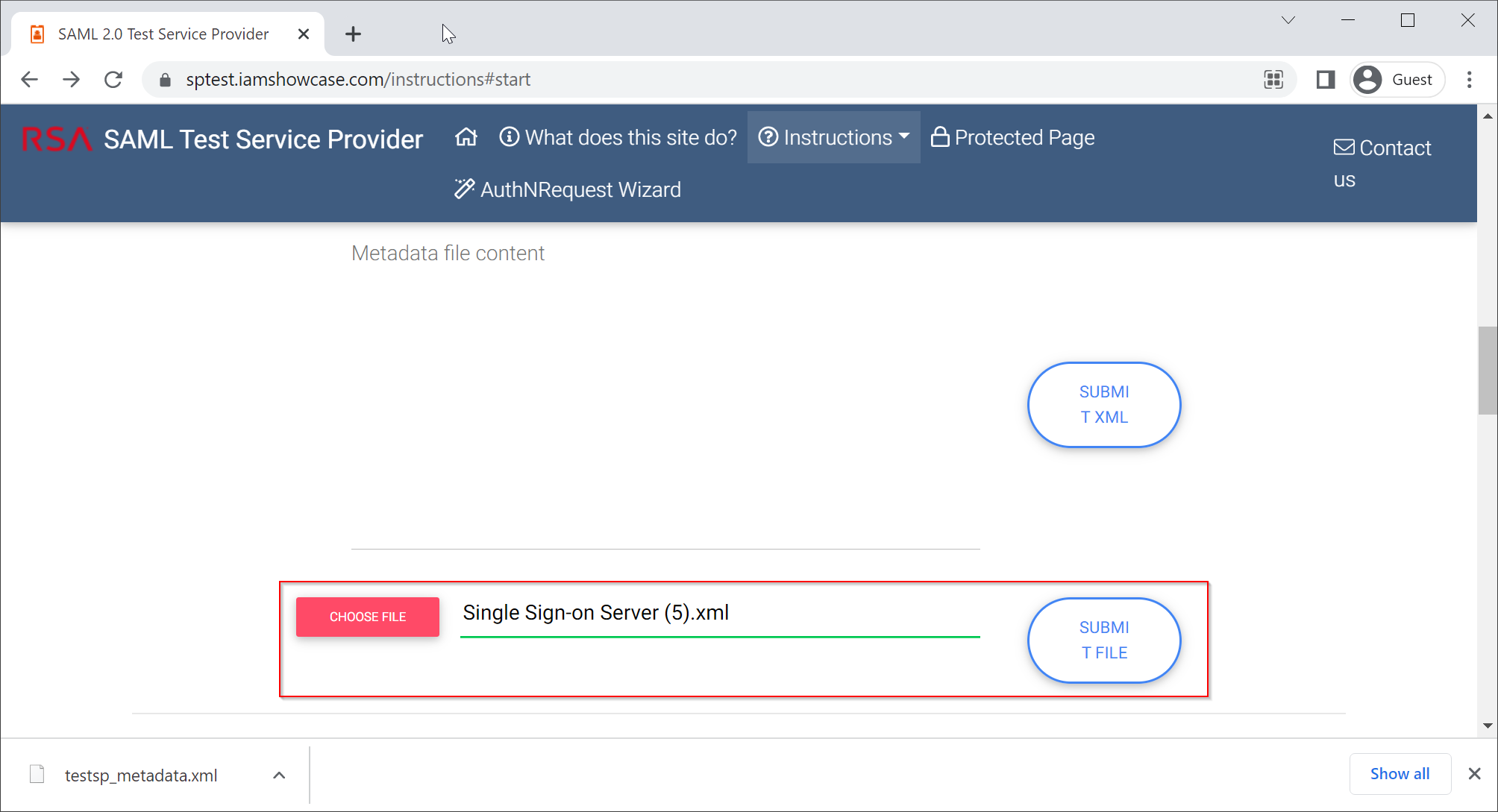
Choose the IdP Metadata file, click "Submit File"

Click "COPY URL to CLIPBOARD"
Test SAML Integration
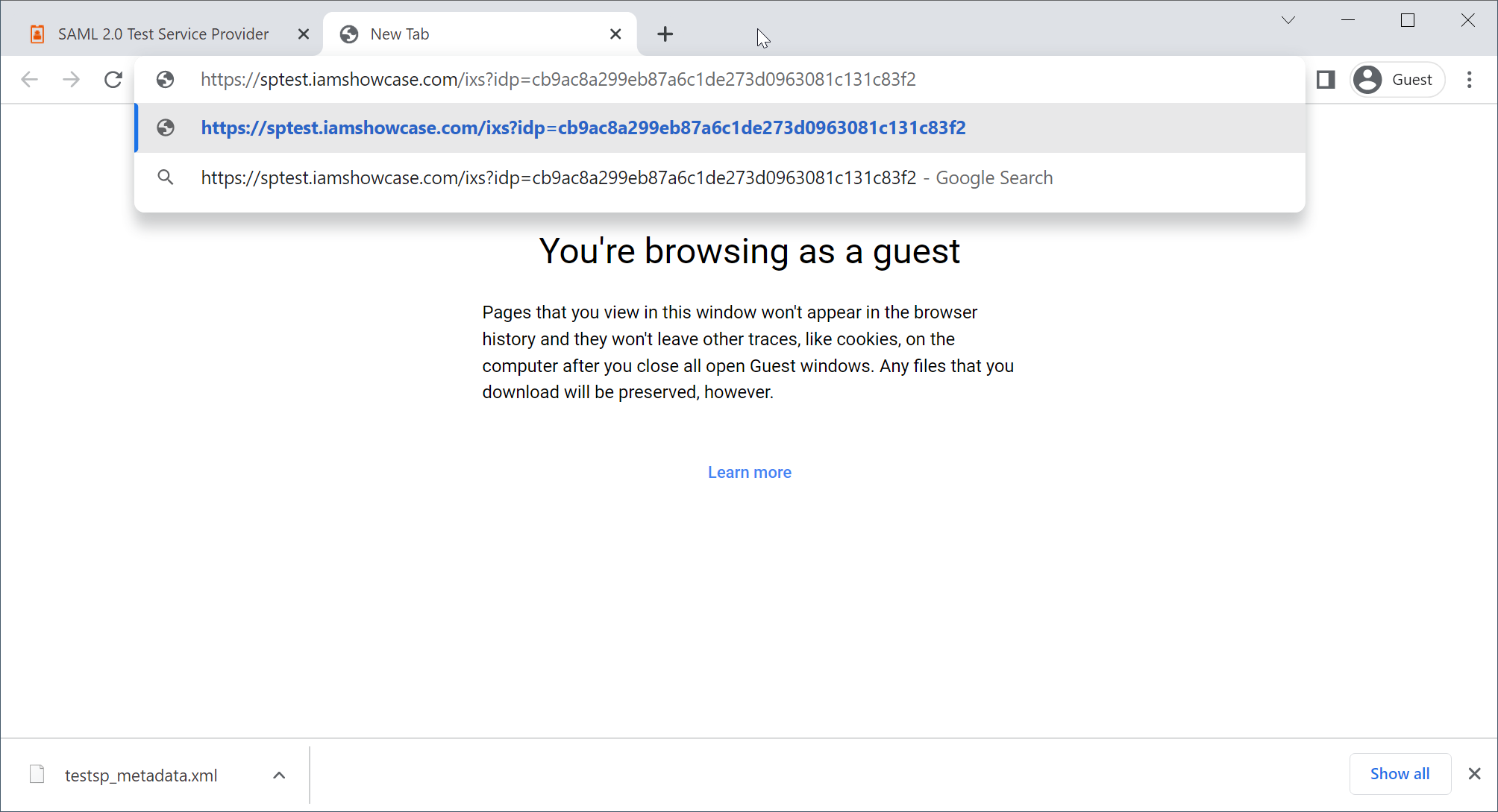
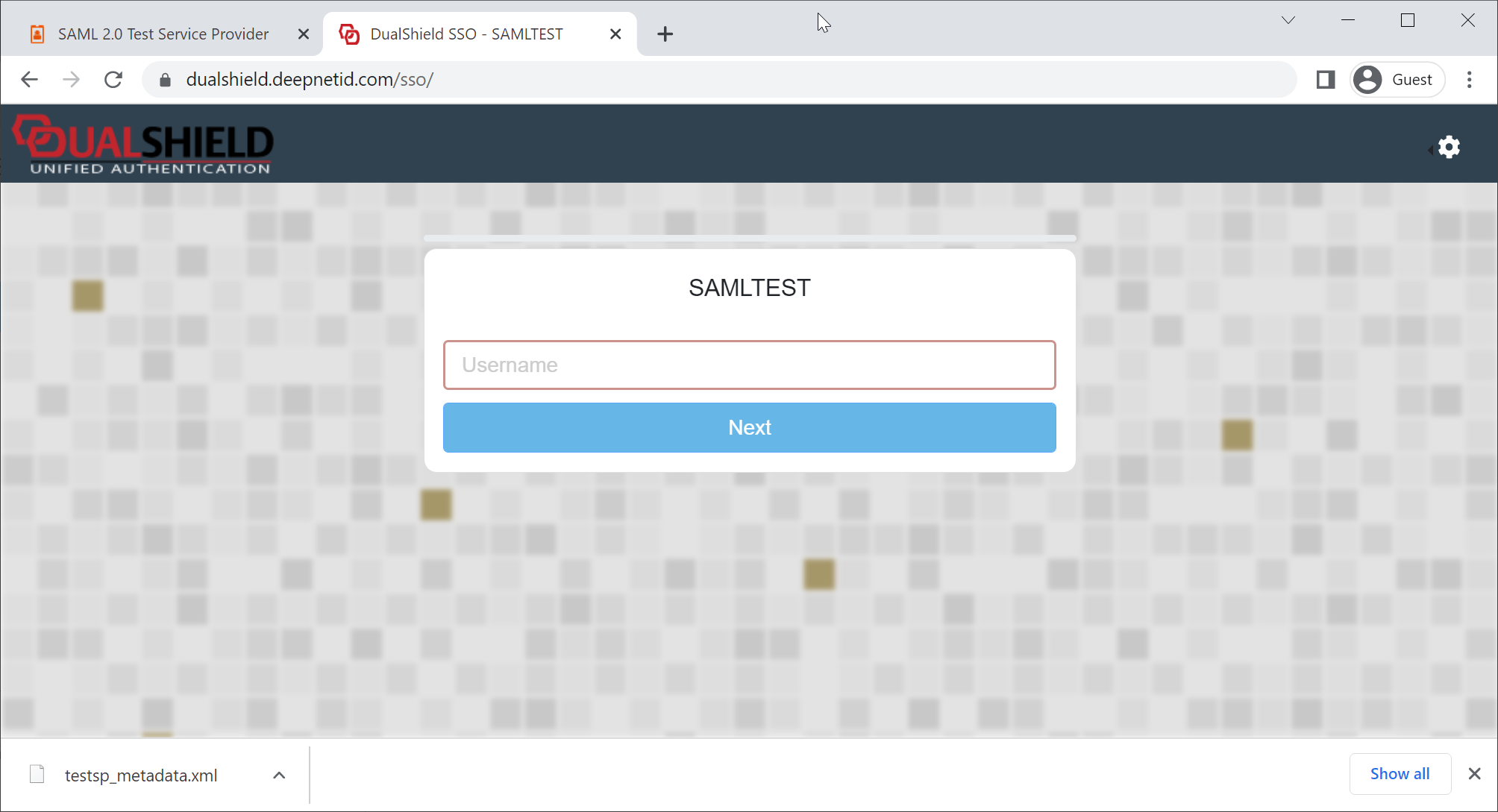
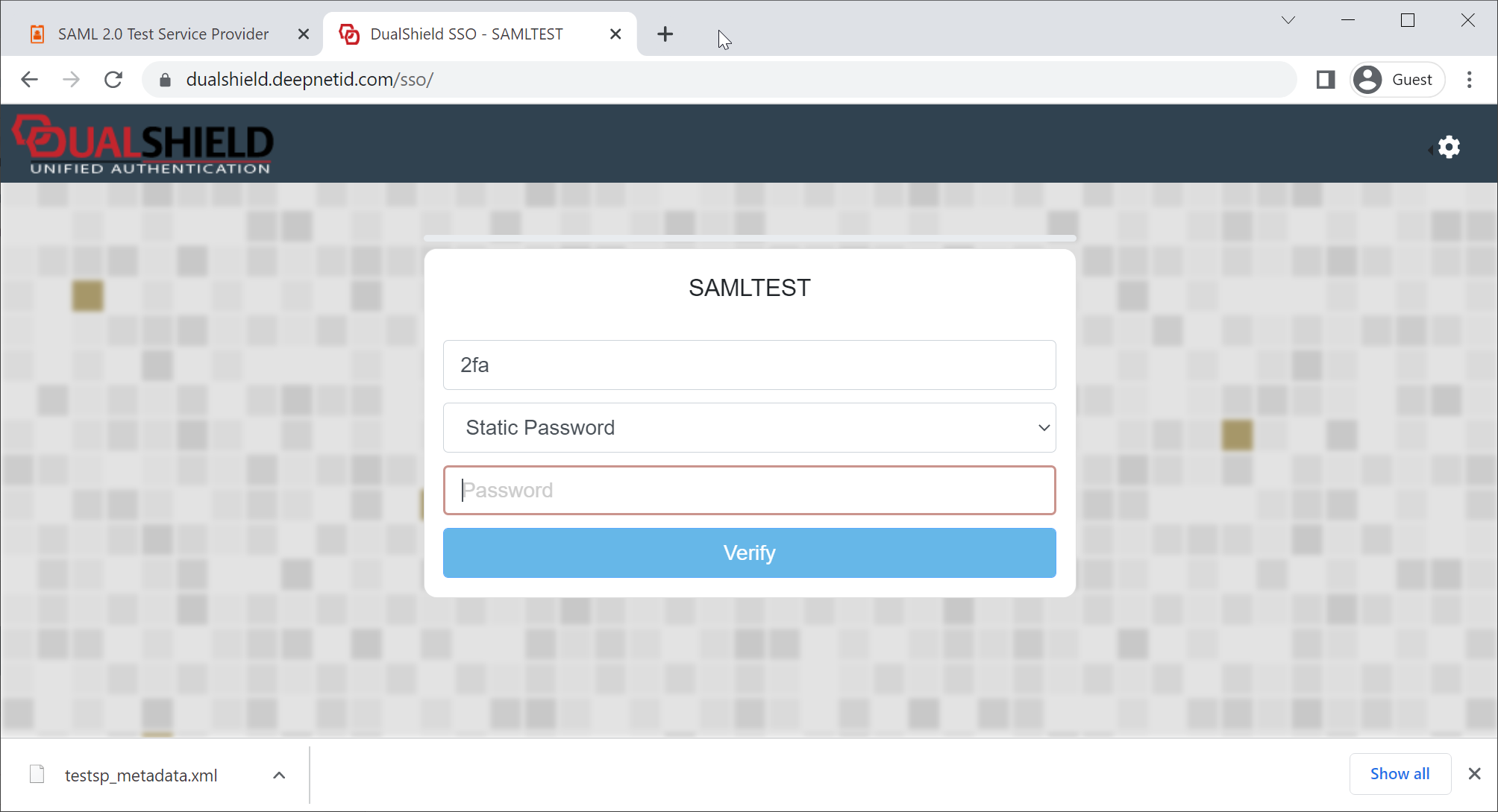
Open a new browser tab, paste the URL copied from SPTEST