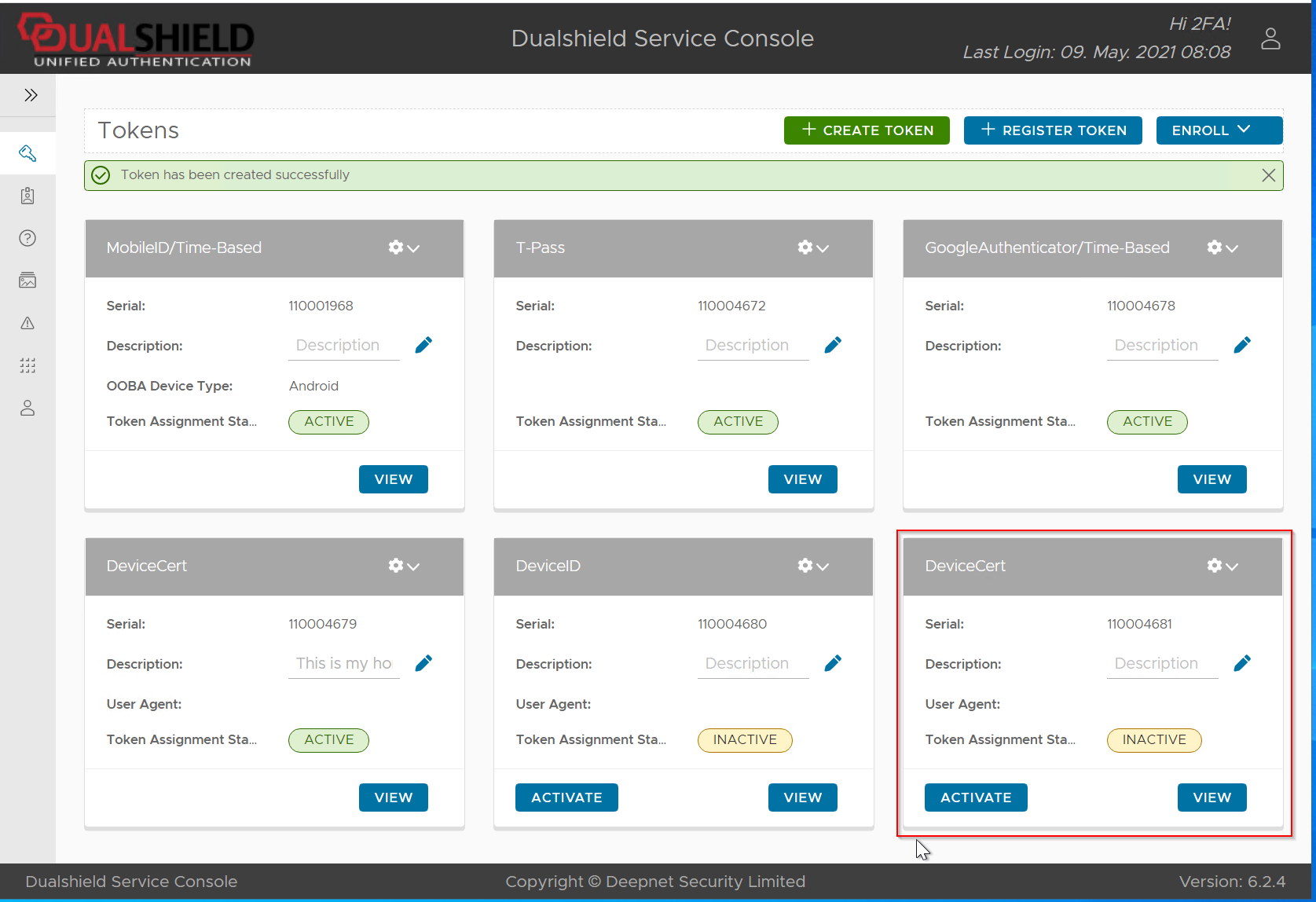
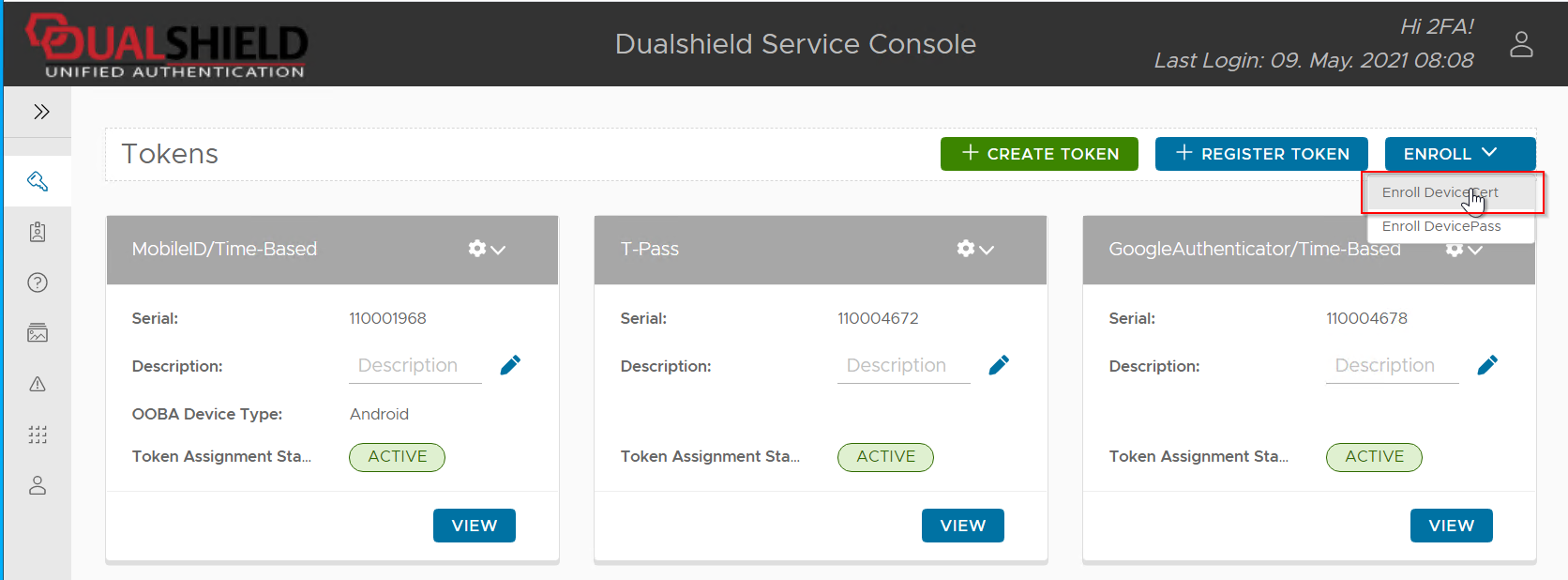
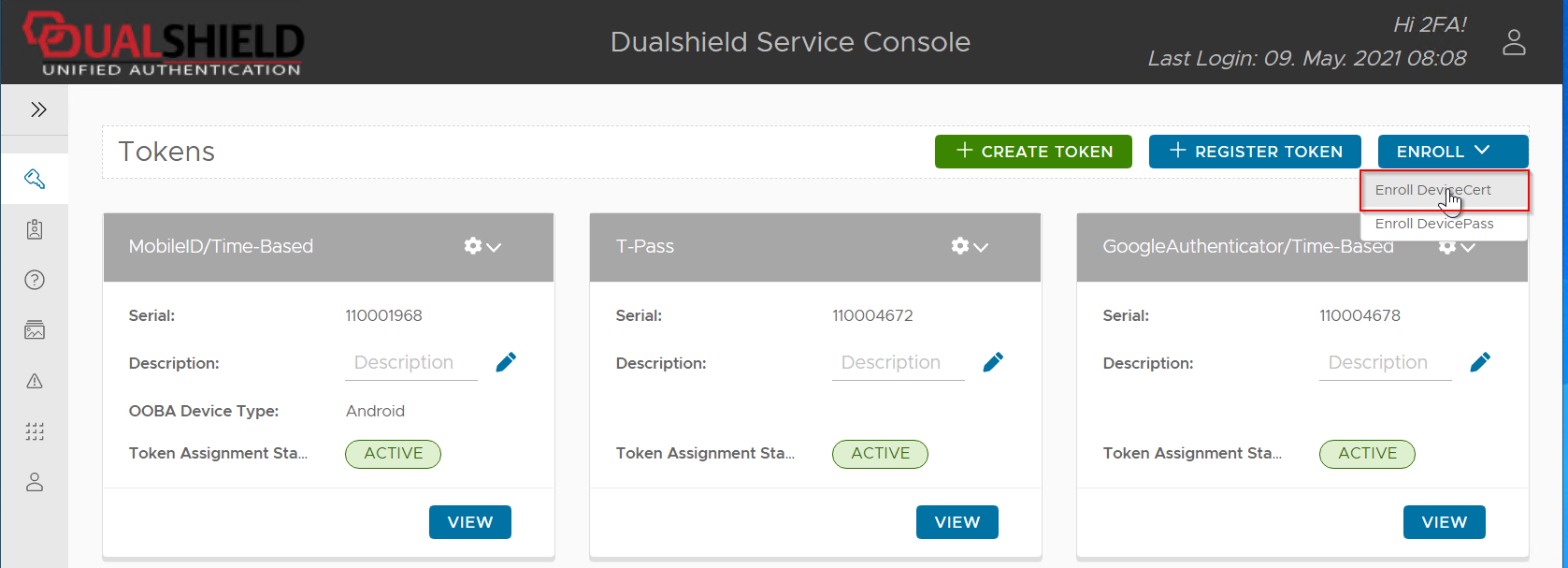
Click the "Enroll" button on the top right corner and select "Enroll DeviceCert"
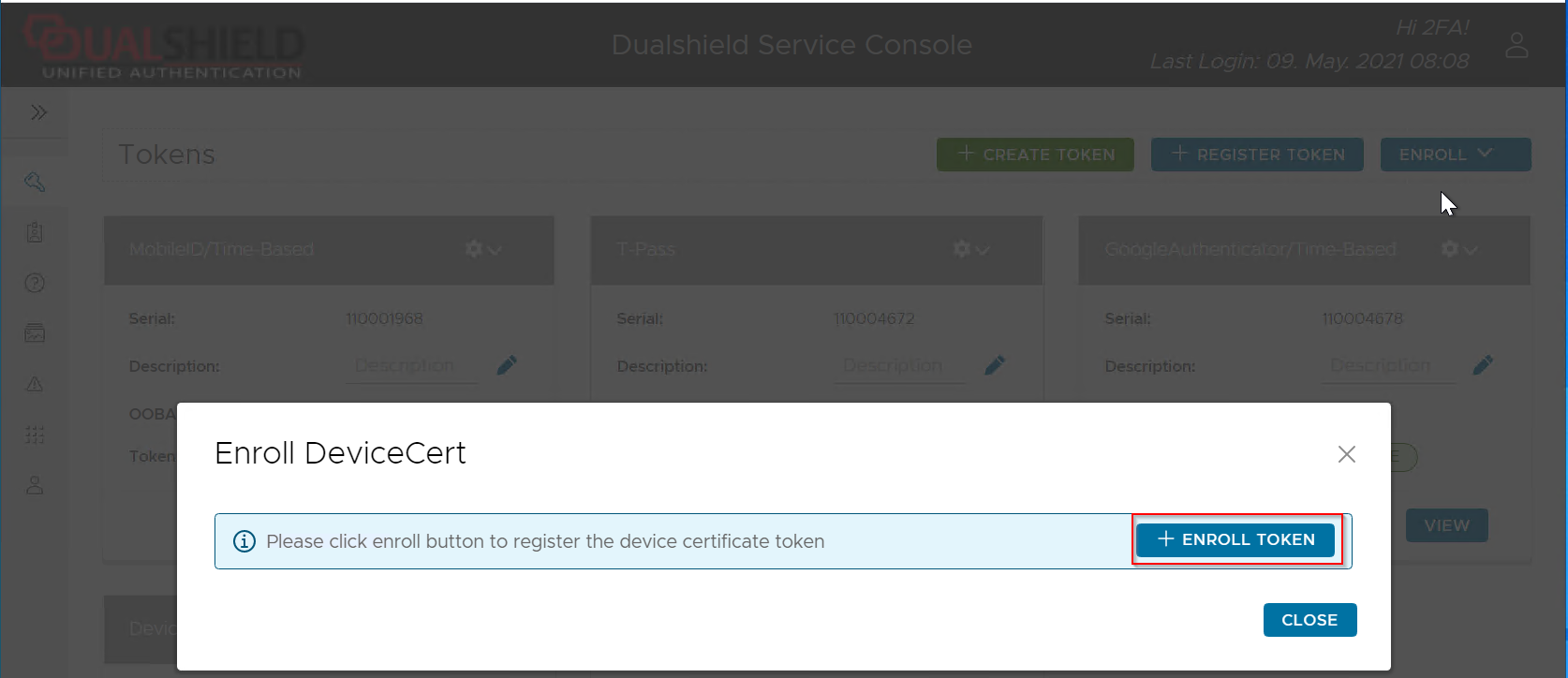
Then click "Enroll Token" to start the enrollment process.
DeviceCert registration and renewal require an application called DualShield Device Manager.
If the DualShield Device Manager has not been installed on this computer, then you will be prompted:
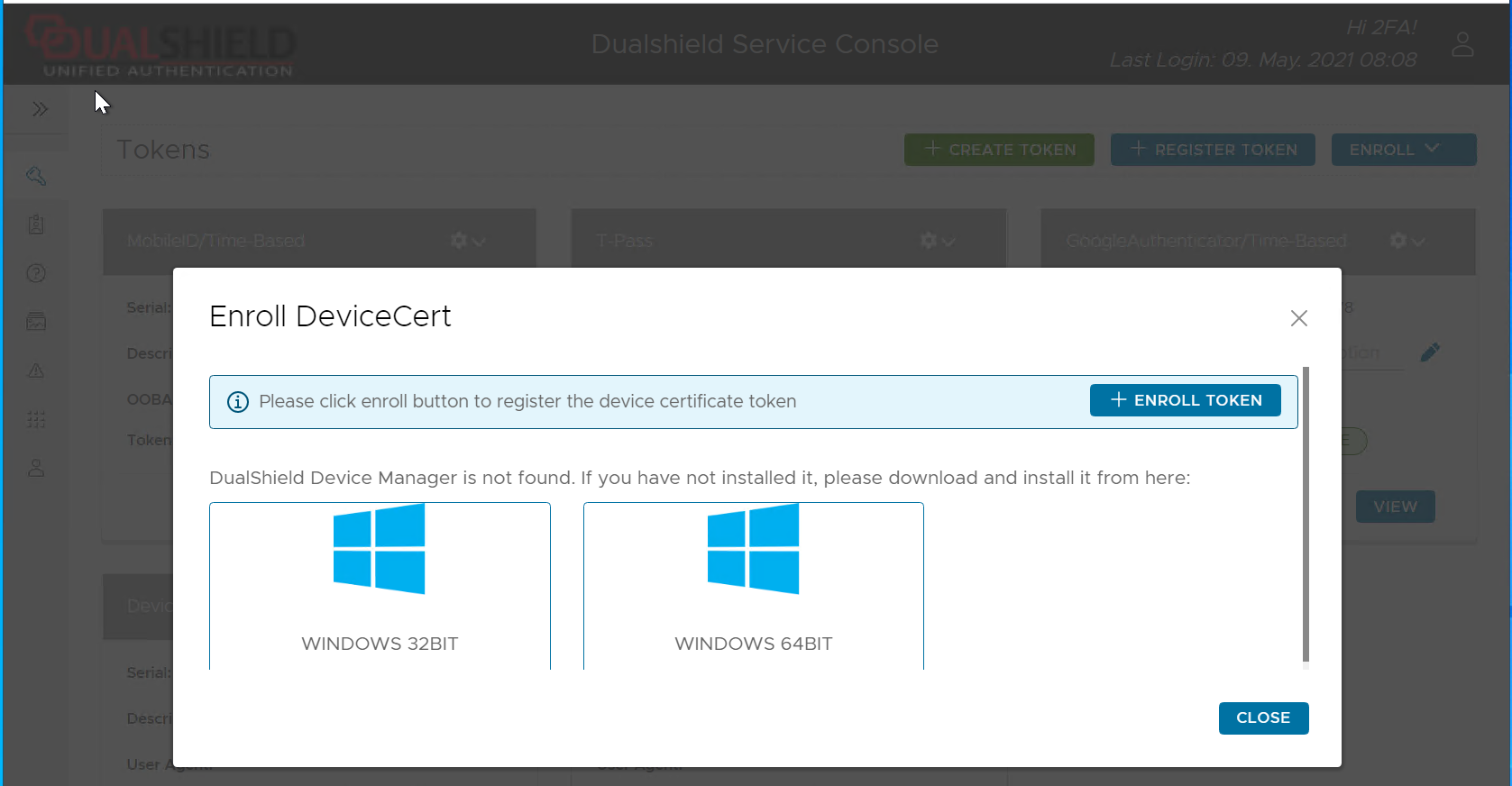
Click on "Windows 64bit" or "Windows 64bit" to download the appropriate DualShield Device Manager:
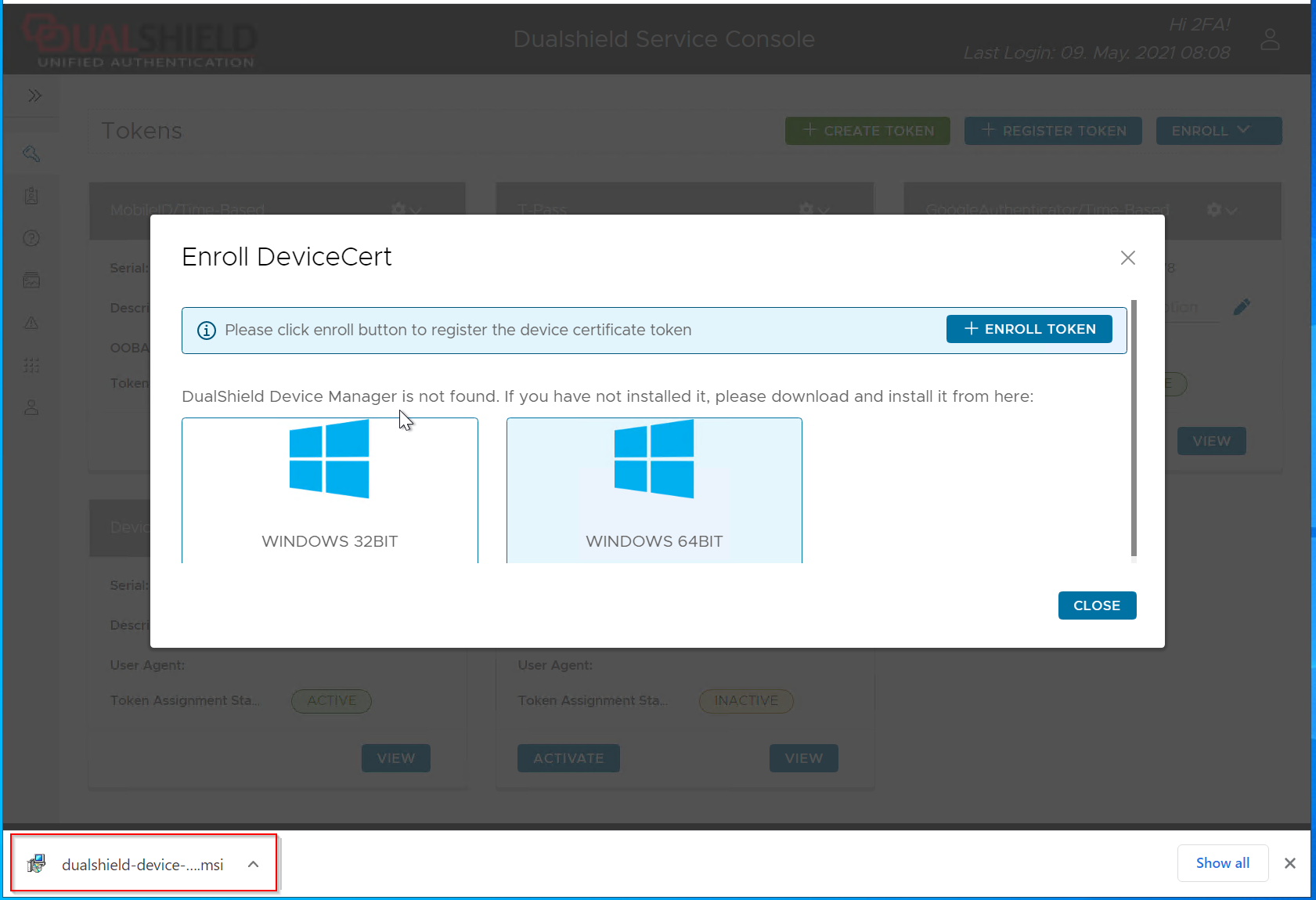
Then, click the file that has been downloaded to start the installation of DualShield Device Manager
| Expand | ||||||
|---|---|---|---|---|---|---|
| ||||||
|
Once the DualShield Device Manager has been successfully installed, go back to the DeviceCert Enrollment window:
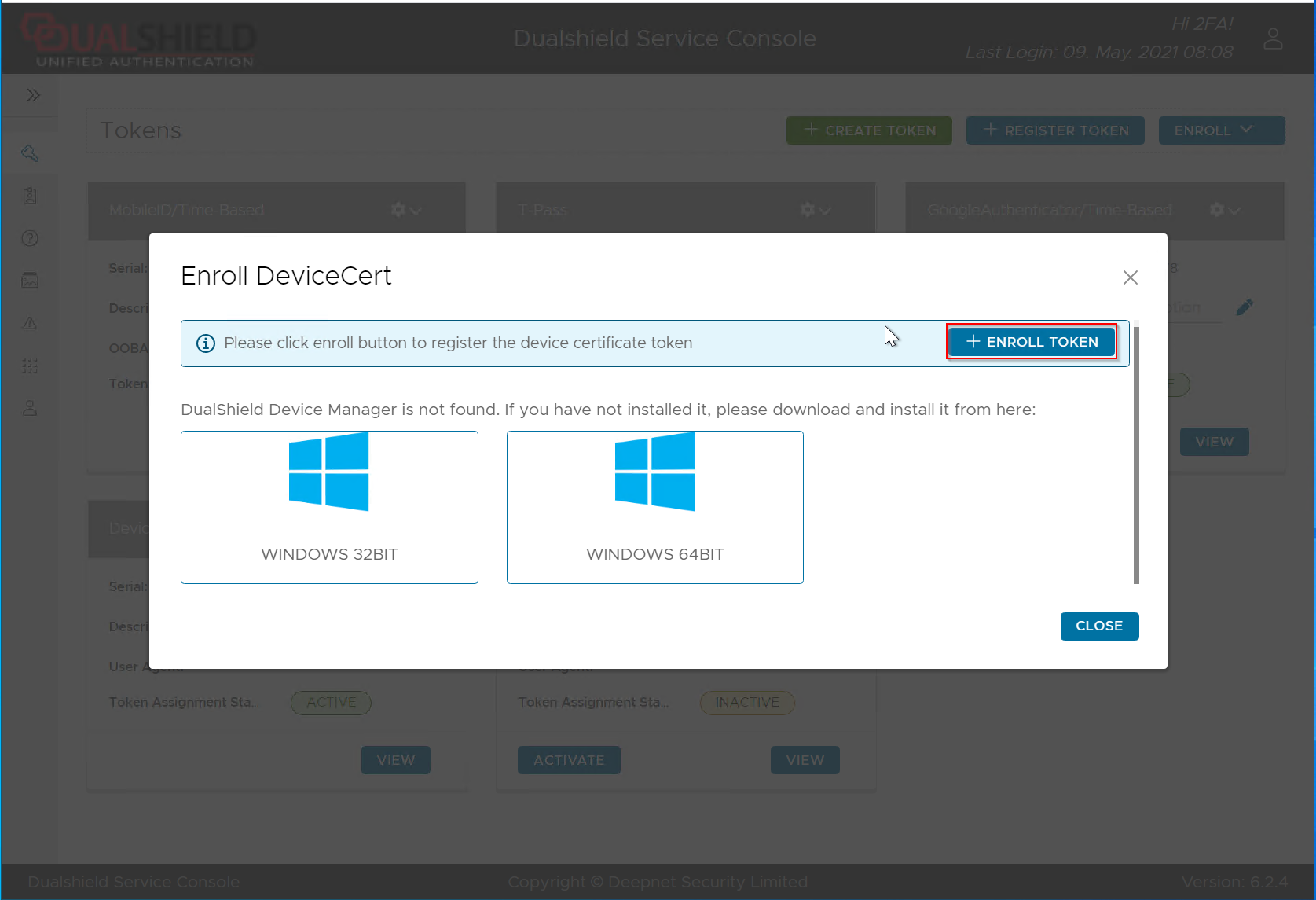
Click the "Enroll Token" button to continue.
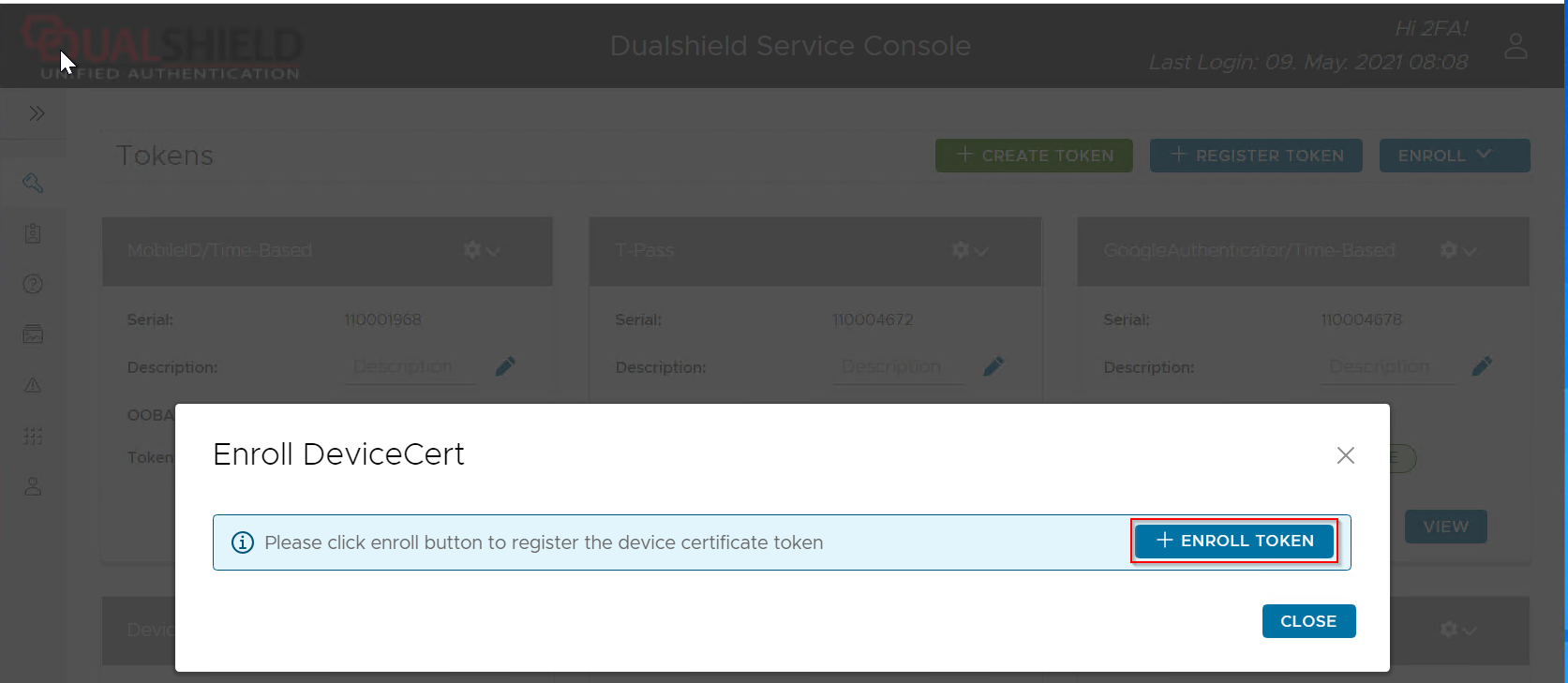
You will then be prompted below. (If you do not get the prompt below, then
| Expand | ||
|---|---|---|
| ||
Click the "Close" button to close the popup window. Then click the "Enroll" button on the top right corner and select "Enroll DeviceCert"
 |
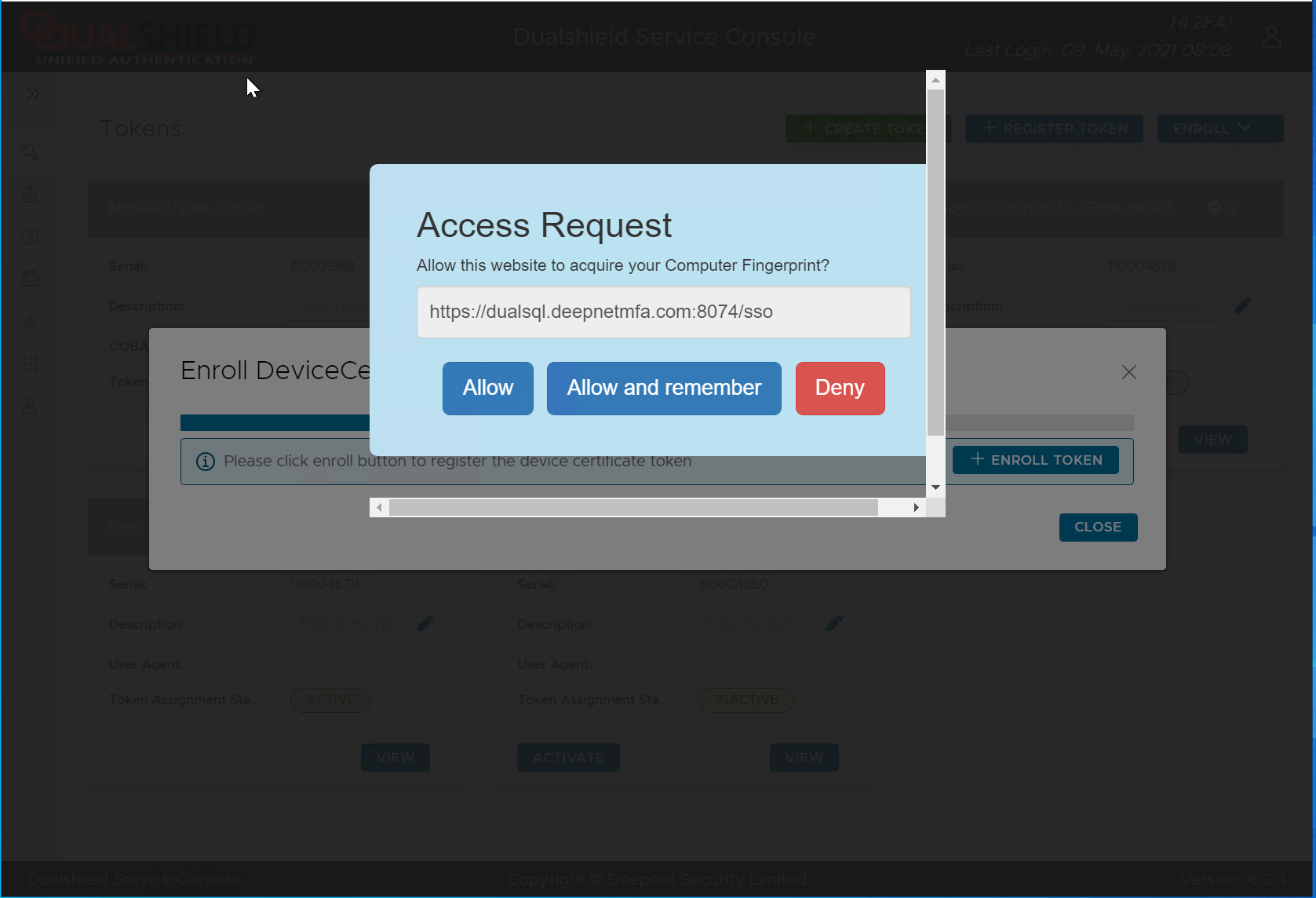
Click "Allow and remember"
Then, the DeviceCert should be registered and marked as being inactive.