...
| Section |
|---|
|
| Section |
|---|
|
| Column |
|---|
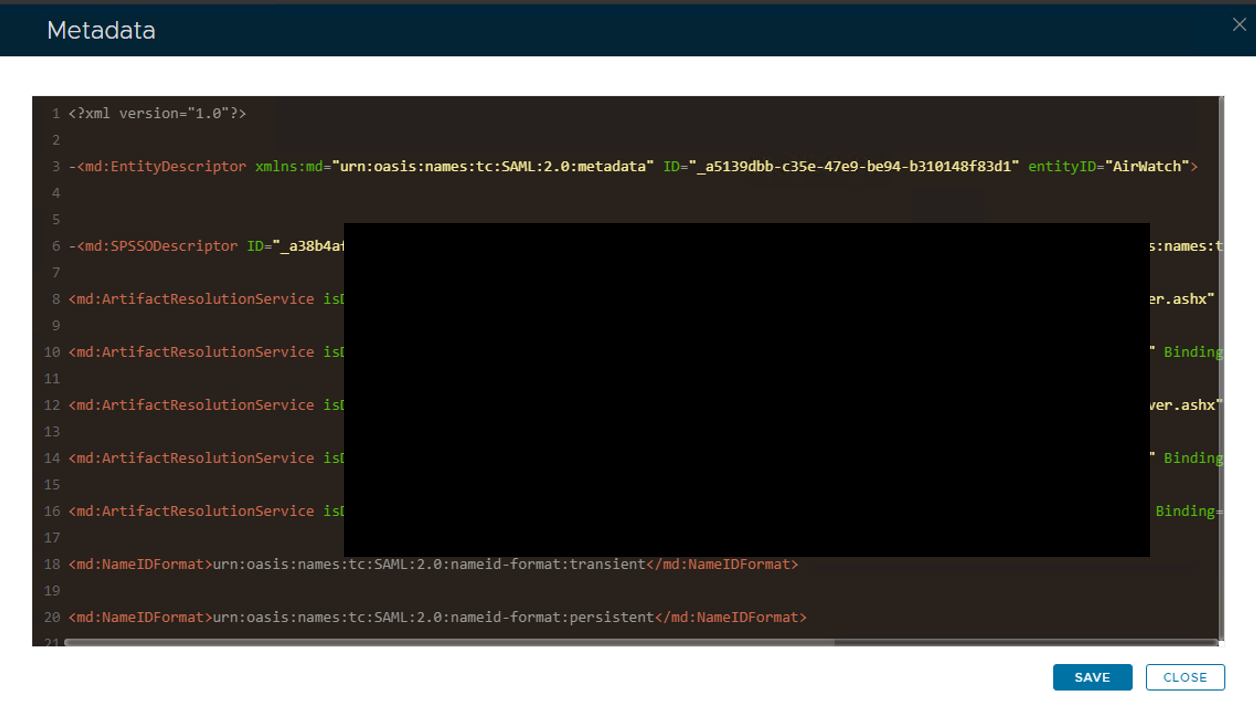
Copy and paste the edited file into the Service Provider Metadata Windows and click Save
|
| Column |
|---|
|
| Panel |
|---|
| borderColor | #9EBEE5 |
|---|
| bgColor | #f0f0f0 |
|---|
| borderWidth | 1px |
|---|
| 
|
|
|
|
| Section |
|---|
|
| Column |
|---|
Please set the SAML Options as below. |
| Column |
|---|
|
| Panel |
|---|
| borderColor | #9EBEE5 |
|---|
| bgColor | #f0f0f0 |
|---|
| borderWidth | 1px |
|---|
| 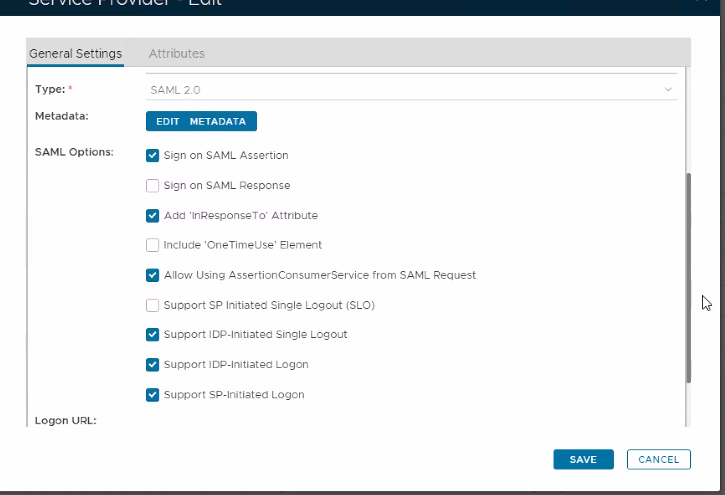 Image Added Image Added
|
|
|
Click on  Image Added on the top right.
| Section |
|---|
|
| Column |
|---|
Fill in the details as per screenshot on right and make sure you select SAML 2.0 as Type.
Click on Create Metadata |
| Column |
|---|
|
| Panel |
|---|
| borderColor | #9EBEE5 |
|---|
| bgColor | #f0f0f0 |
|---|
| borderWidth | 1px |
|---|
| 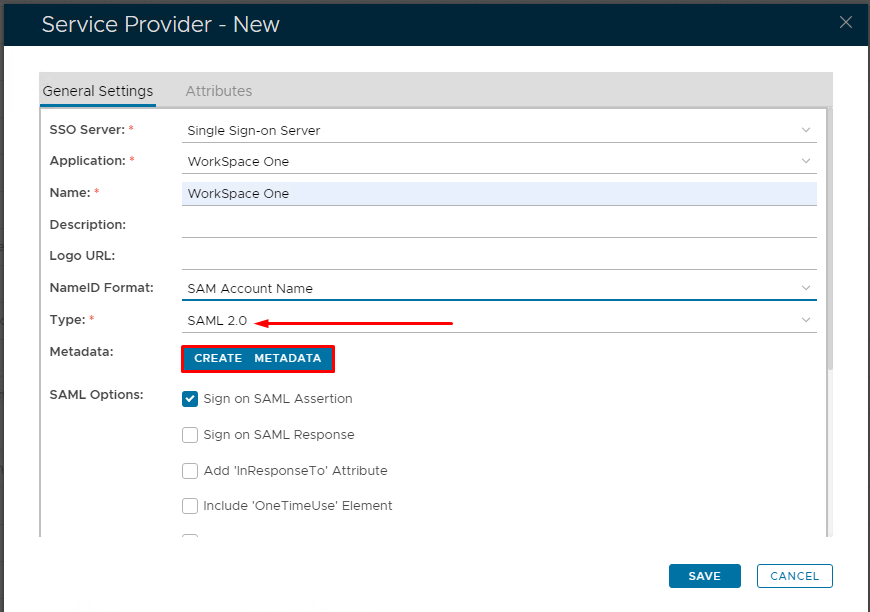 Image Added Image Added
|
|
|
| Section |
|---|
|
| Column |
|---|
Open the Service Provider Metadata file you obtained in Workspace One Configuration. Copy and past the metadata into Notepad or Notepad ++. Remove the last three ACS locations and edit the file so it looks as follows.
|
| Column |
|---|
|
| Panel |
|---|
| borderColor | #9EBEE5 |
|---|
| bgColor | #f0f0f0 |
|---|
| borderWidth | 1px |
|---|
|  Image Added Image Added
|
|
|
| Section |
|---|
|
| Section |
|---|
|
| Column |
|---|
Copy and paste the edited file into the Service Provider Metadata Windows and click Save
|
| Column |
|---|
|
| Panel |
|---|
| borderColor | #9EBEE5 |
|---|
| bgColor | #f0f0f0 |
|---|
| borderWidth | 1px |
|---|
| Image Added |
|
|
|