We need to configure the following client settings for the MFA device group we created earlier, e.g. "DualShield MFA"
Table of Contents
...
| border | true |
|---|
| Column |
|---|
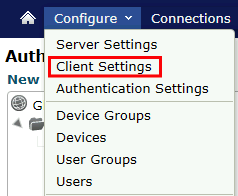
Click on Configure>Client Settings |
...
| width | 60% |
|---|
| Panel | ||||||
|---|---|---|---|---|---|---|
| ||||||
|
...
| border | true |
|---|
| Column |
|---|
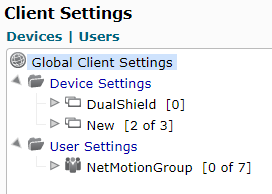
Option - You may apply the following settings to device or user groups or just apply globally. |
...
| width | 60% |
|---|
| Panel | ||||||
|---|---|---|---|---|---|---|
| ||||||
|
...
| border | true |
|---|
...
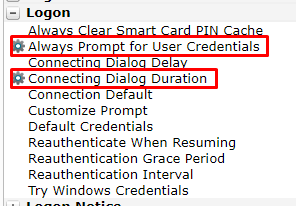
There are two settings that need to be applied. The settings are found in the middle pane under Logon
...
Always Prompt for User Credentials
...
| width | 60% |
|---|
| Panel | ||||||
|---|---|---|---|---|---|---|
| ||||||
|
1. Go to Mobility console > Configure > Client Settings.
2. In the left pane, select the Device Group we created earlier for MFA, e.g. DualShield MFA
3. In the middle pane, select "Logon | Select the option Always Prompt for User Credentials
...
| border | true |
|---|
"
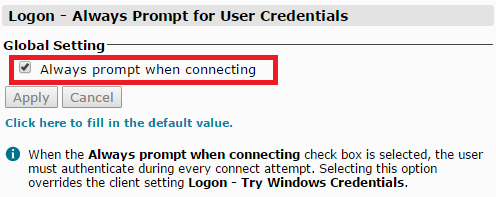
4. In the right pane, select "DualShield MFA Group Settings Override"
5. Enable "
...
Always prompt when connecting"
6. Click "Apply" to save the settings
...

...
| width | 60% |
|---|
| Panel | ||||||
|---|---|---|---|---|---|---|
| ||||||
|
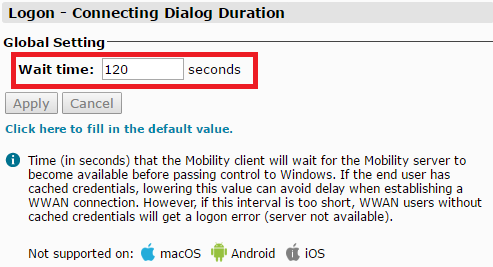
Select the option Connecting Dialog Duration
...
| border | true |
|---|
| Column |
|---|
Change Wait time to 120 seconds Click Apply |
...
| width | 60% |
|---|
| Panel | ||||||
|---|---|---|---|---|---|---|
| ||||||
|
Related Articles
Connecting Dialog Duration
1. In the middle pane, select "Logon | Connection Dialog Duration"
2. In the right pane, select "DualShield MFA Group Settings Override"
3. Enable "Always prompt when connecting"
4. Click "Apply" to save the settings

...