...
| Expand | ||||||||||
|---|---|---|---|---|---|---|---|---|---|---|
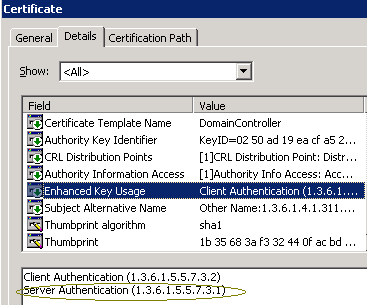
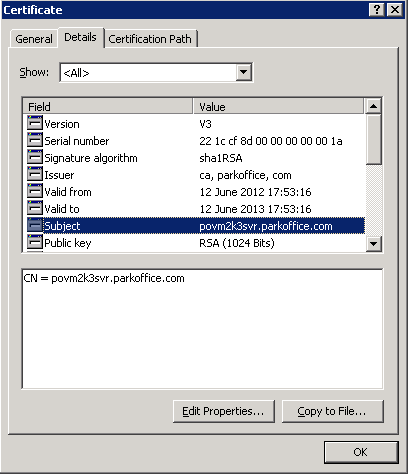
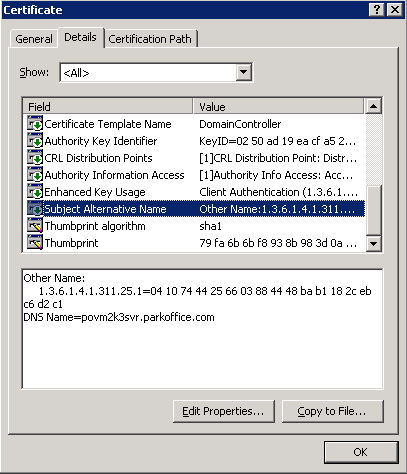
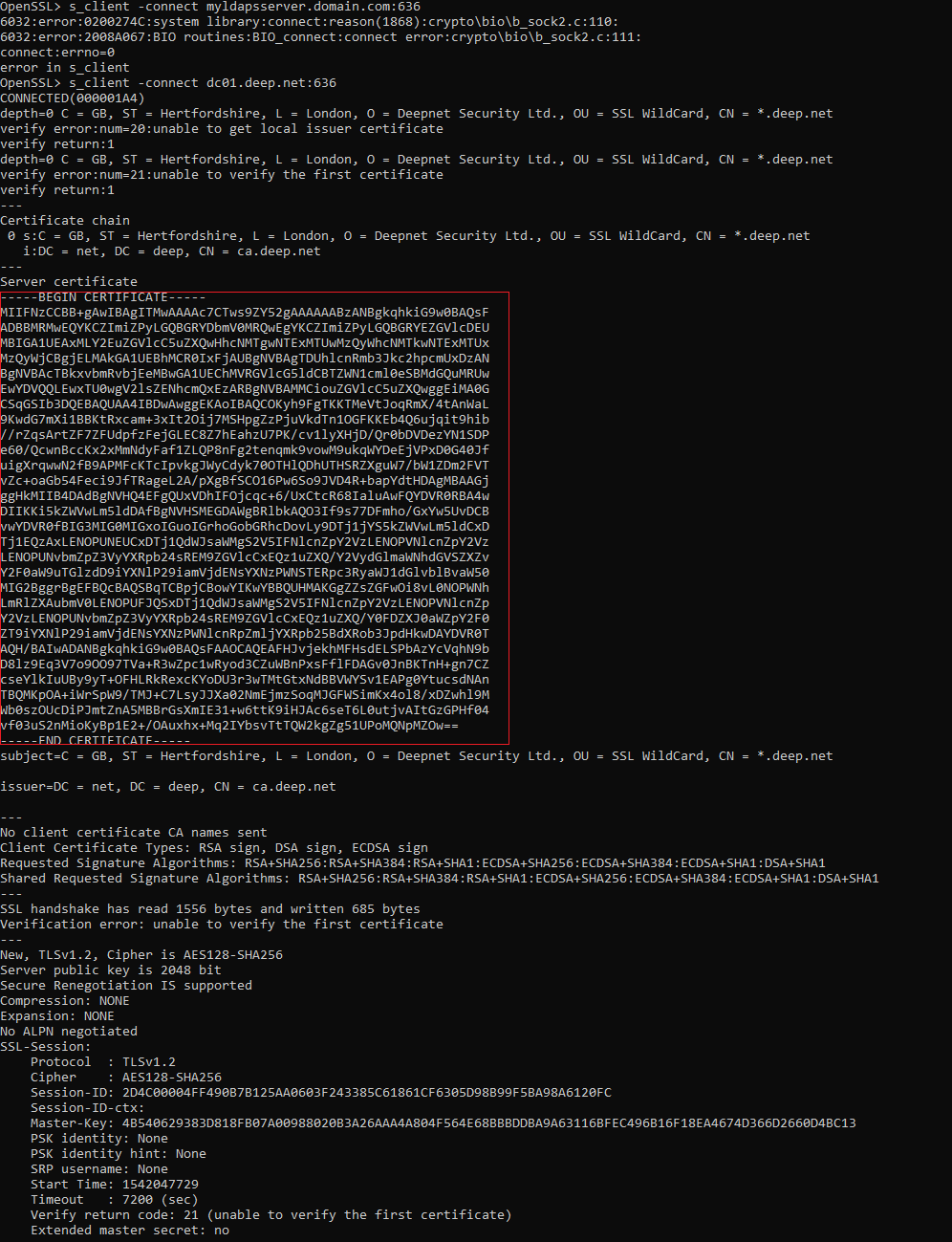
Export CA Certificate from the AD ServerOnce your AD server is configured to accept LDAPS connection, you need to export the CA certificate from your AD server. The CA used to sign the LDAPS certificate is not necessary to be the one of your Certification Authority, so the safe way to locate the CA is to follow the steps below. First, you need to find the SSL certificate of the AD server. There are 2 ways:
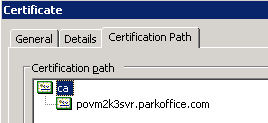
Once you have found the SSL certificate of the AD server, double click the certificate, go to the tab "Cetification Path"
In our example, the CA to sign the LDAPS certificate is the highlighted one "ca". To export the CA certificate:
Import CA Certificate into DualShieldNext, you need to import the CA certificate into your DualShield's keystore. DualShield's keystore is a JAVA keystore and there is a tool included in the DualShield that can be used to import certificates. Follow the steps below:
you should now see the Portecle's user interface:
Please note that if you can double click the file portecle.jar to run this utility, then it is very likely that you have another JRE installed on this machine that is NOT the one used in DualShield. In that case, please choose the menu "Open Keystore File..." instead, then locate the file "cacerts" under DualShield installation folder.
Alternatively, you can import a root or intermediate CA certificate to an existing Java keystore with following command C:\Program Files\Deepnet DualShield\jre\bin\keytool -import -trustcacerts -alias root -file yourca.crt -keystore C:\Program Files\Deepnet DualShield\jre\lib\security\cacerts Once you have successfully import your AD's CA certificate into your DualShield's keystore, restart the DualShield server. |

...
Modify the Identity Source on DualShield
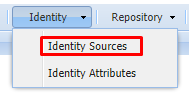
Click on Identity>Identity In the DualShield Admin Console, navigate to Identity > Identity Sources
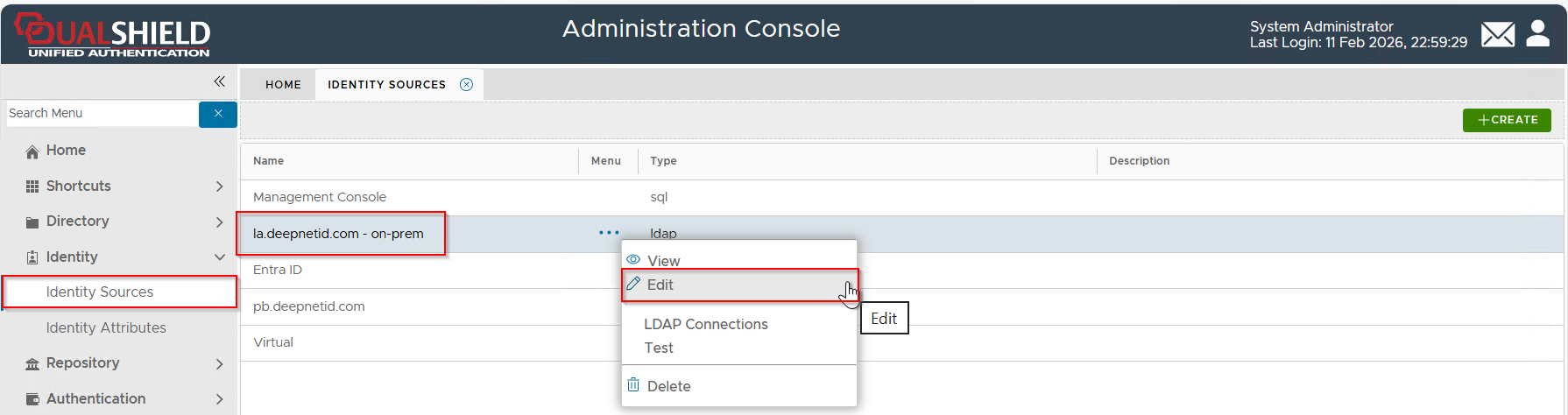
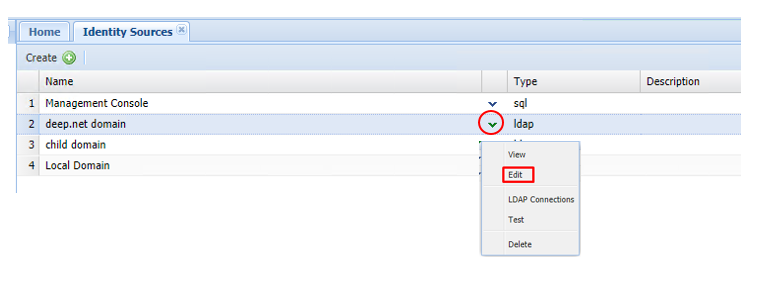
Select "Edit" from the context menu of Click on the drop down arrow next to the identity source that you wish to modify and click Edit from the drop down.
Click on the Connection tab in the edit window:

change the ldap protocol to ldaps in Directory URL

, e.g. la.deepnetid.com
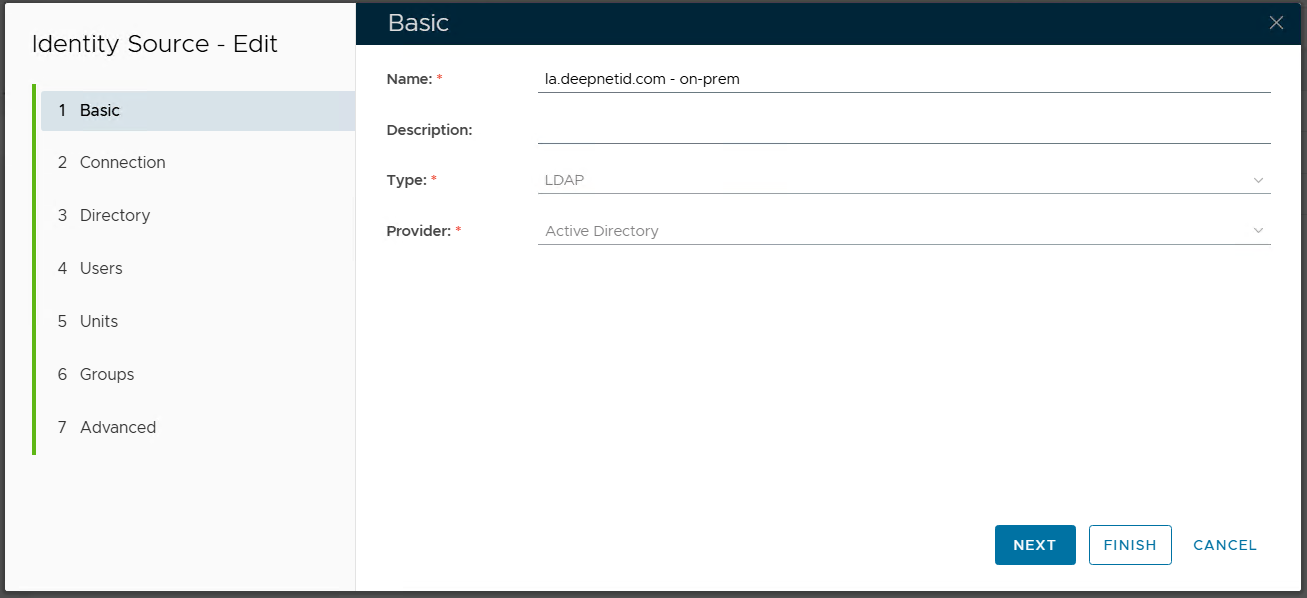
Select the "2 - Connection" tab
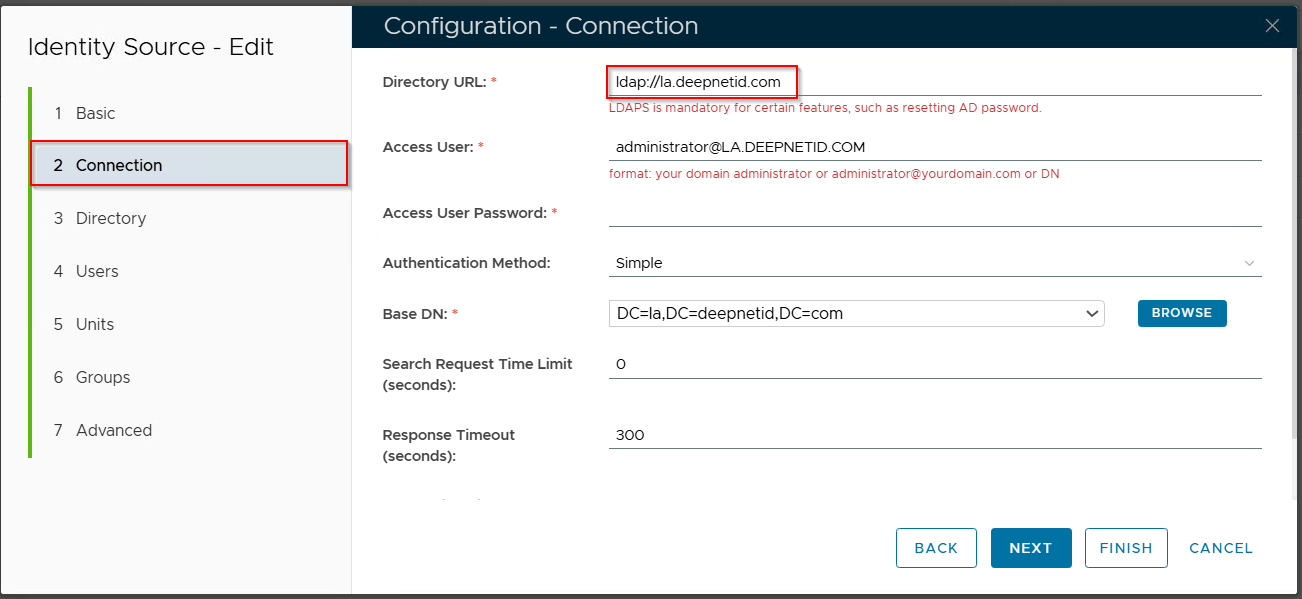
In the Directory URL box, change "ldap://" to "ldaps://"
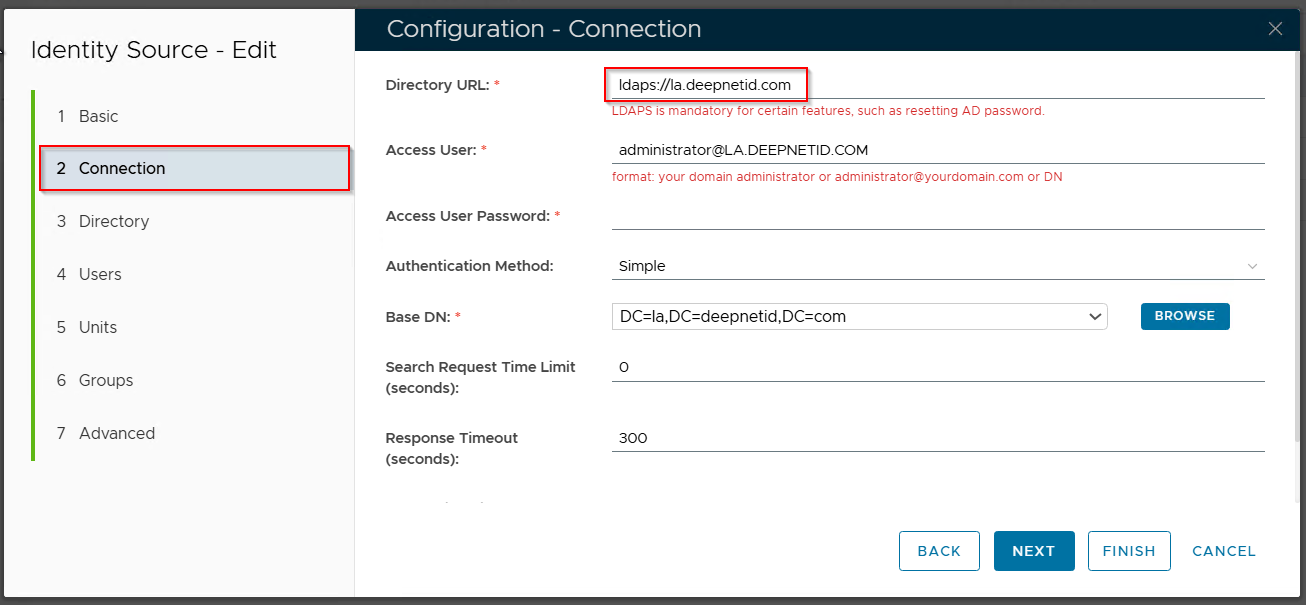
Click the "FINISH" button to save the change.Click Save