Log in to your Github account, when you seed the logon screen you will now be able to use the option "Continue with passkey";
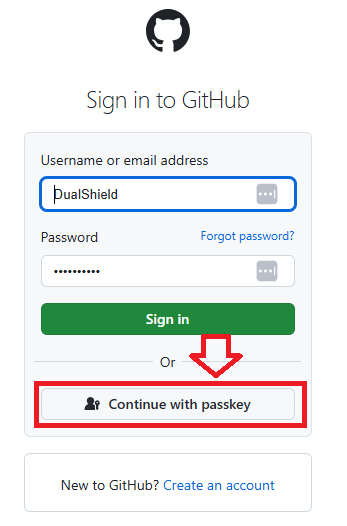
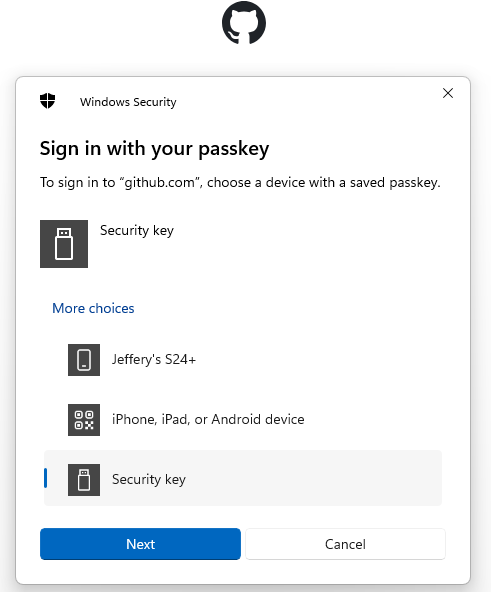
Click on this option, and you will be asked to sign in with your passkey.
Select the option "Security key", then click  ;
;
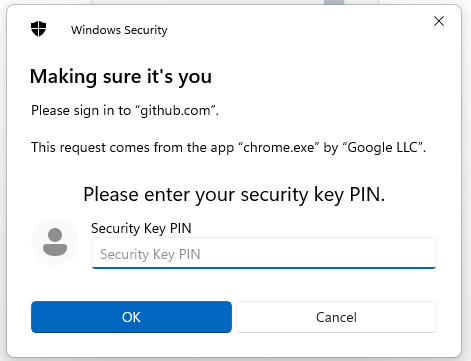
You will now be prompted to enter the PIN code for your Fido2 key.
At the prompt "Security Key PIN", enter the PIN code, then click  .
.
(in the case of a Fido key with a fingerprint reader you will need to swipe your finger on the key);
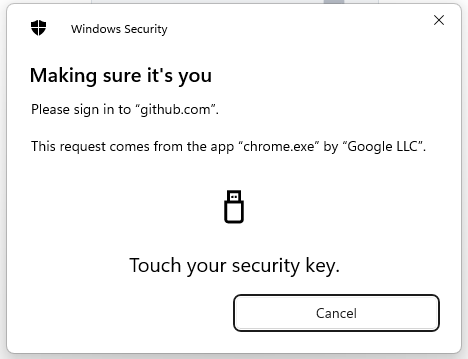
You are now prompted to touch the key (to prove you are present and giving permission for the key to be used).
Touch the necessary area on your Fido key;
Once you have touched the Fido2 Key you will be logged in to your GitHub account.