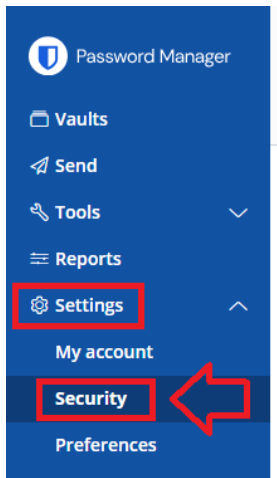
Passwordless logon is enabled by logging in to your Bitwarden account then navigating to "Settings | Security";
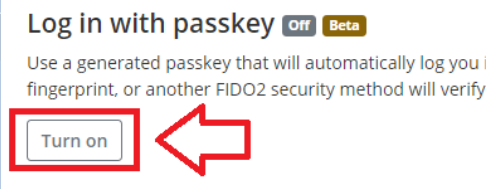
Scroll down to the section Log in with passkey, then click on the button  ;
;
You will then be prompted for your master password;
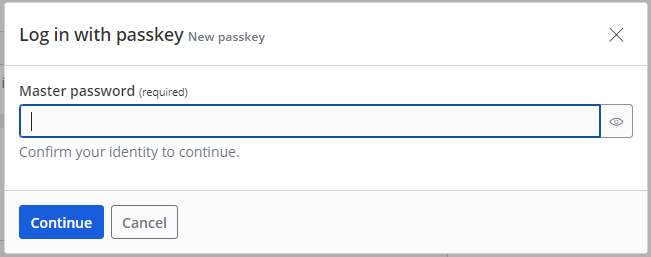
Enter you master password then click  , and you will be prompted where to save your passkey;
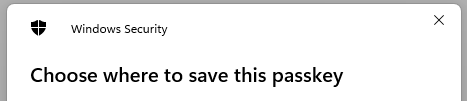
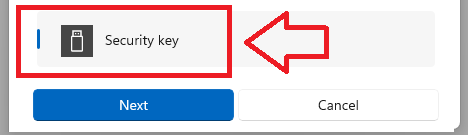
The options presented will depend upon what devices you have used before.
Select "Security key", then click 
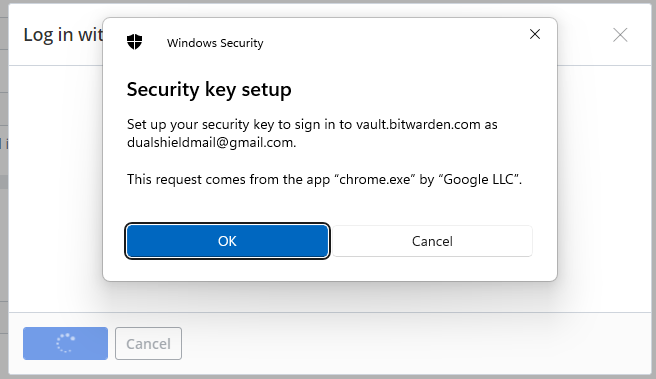
You are then prompted to setup your security key, insert your key into a USB port then click  ;
;
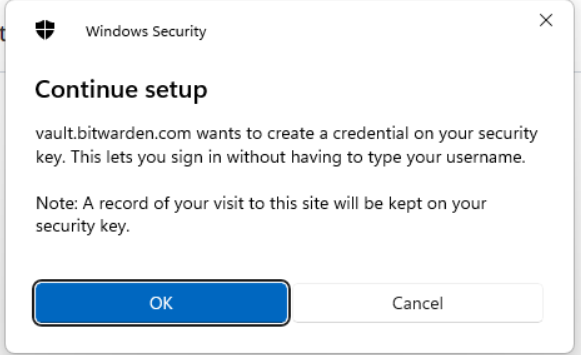
A new window titled "Continue setup" will now open, click ;
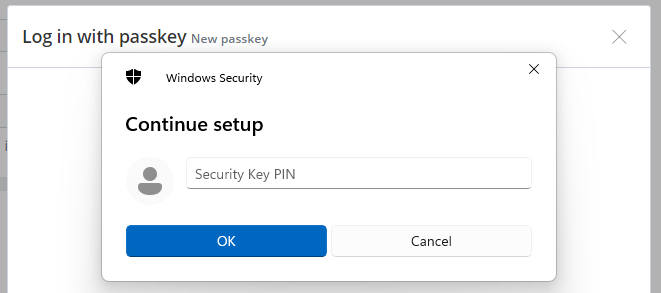
Enter the PIN code of your Fido key, then click ;
You are now asked to touch the Fido key (and at this point you should see the light flashing on your Fido key);
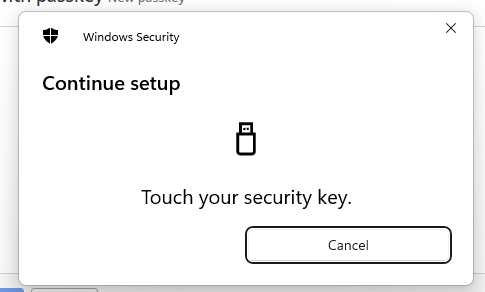
Touch the key, and you will be notified that the passkey has been created;

You can now supply a Name for your key, then click 
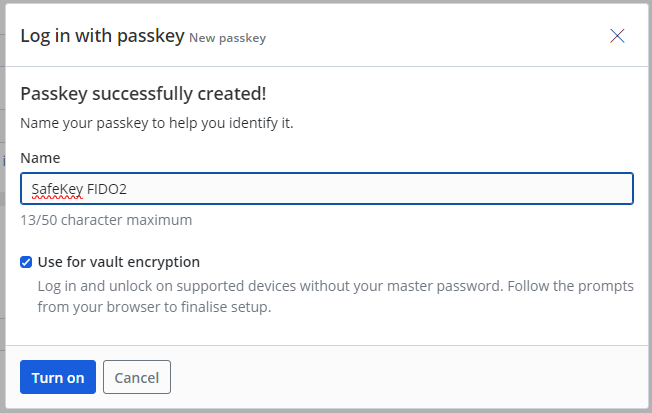
To complete the enabling process you will need to test logging in using the Fido key.
Select the security key, type in your PIN, then touch the key and you will see the following prompt confirming the passkey is turned on;