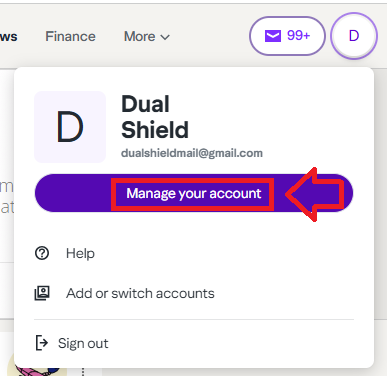
Log in to your Yahoo account, then select the option "Manage your account";
Then from the yahoo sub-menu, select the option "Security";

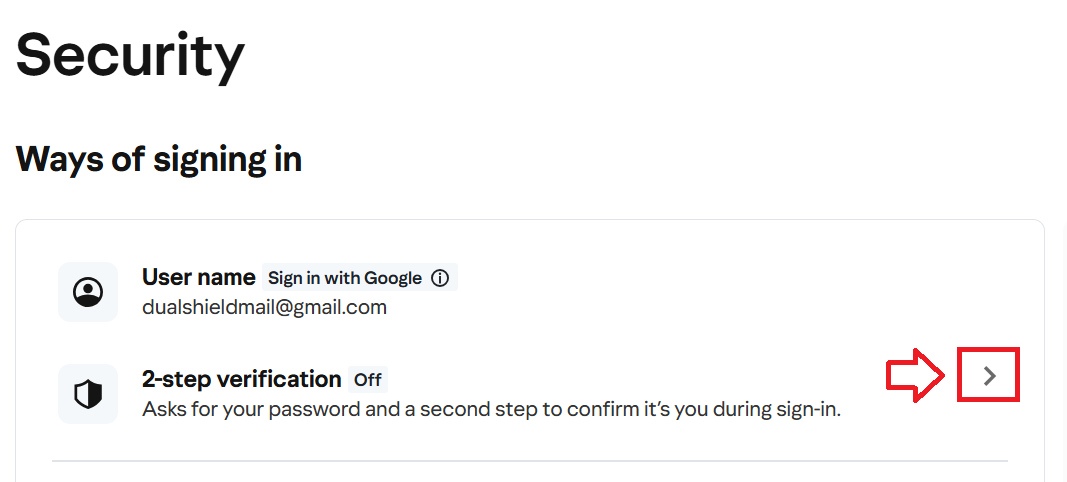
Before you Fido key can be used during the Yahoo logon process, you will first need to enable 2-step verification.
Click on the ">" symbol (see below);
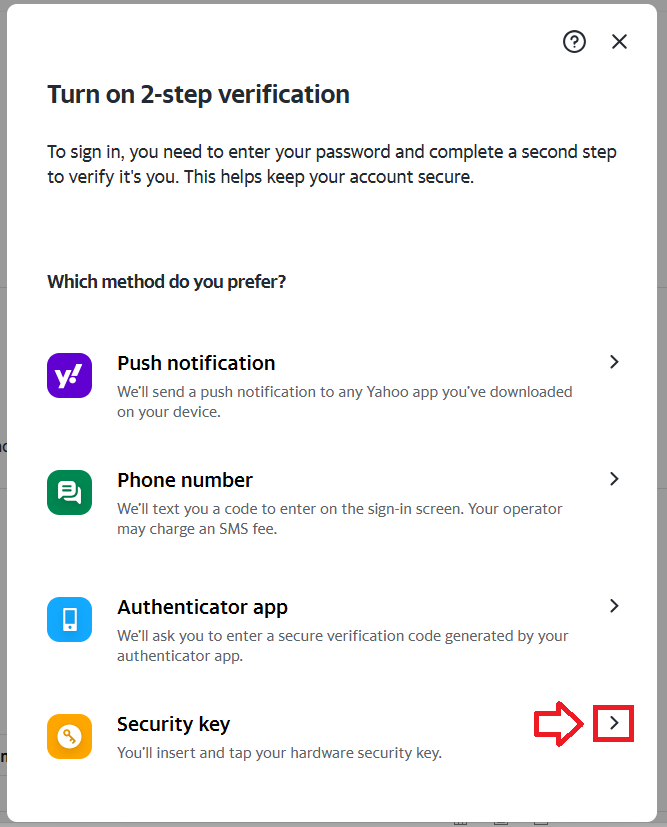
From the list available authentication methods select "Security Key";
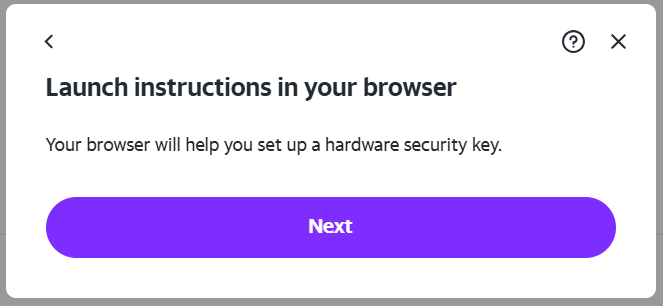
You will now notified to follow instructions in your browser, click  ;
;
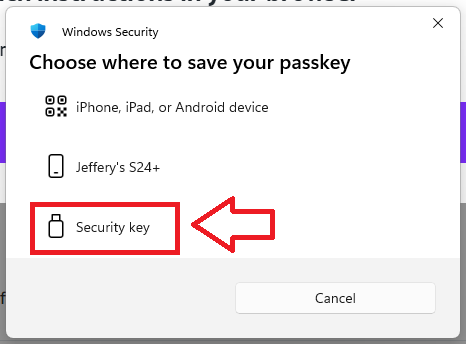
A new window titled "Windows Security" will now open, click on the option "Security key";
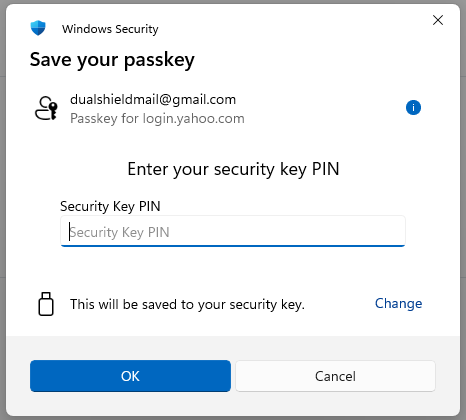
You will now be prompted to enter the PIN code for your Fido2 key.
At the prompt "Security Key PIN", enter the PIN code, then click  .
.
(in the case of a Fido key with a fingerprint reader you will need to swipe your finger on the key);
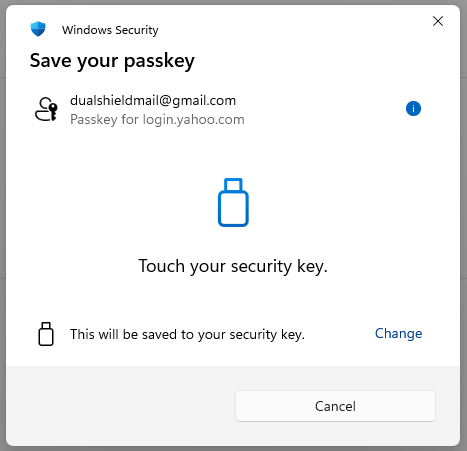
You are now prompted to touch the key (to prove you are present and giving permission for the key to be used).
Touch the necessary area on your Fido key;
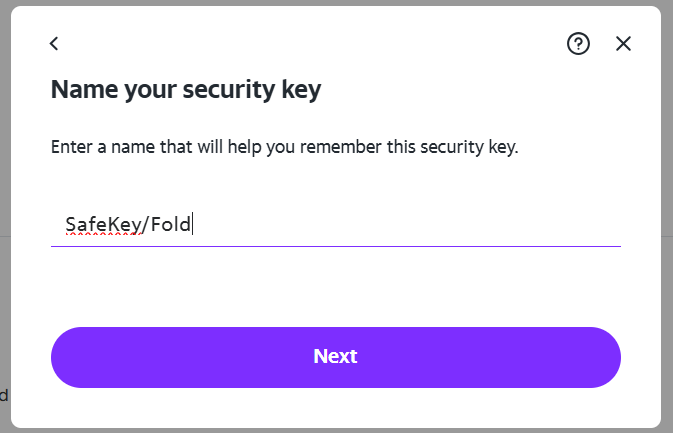
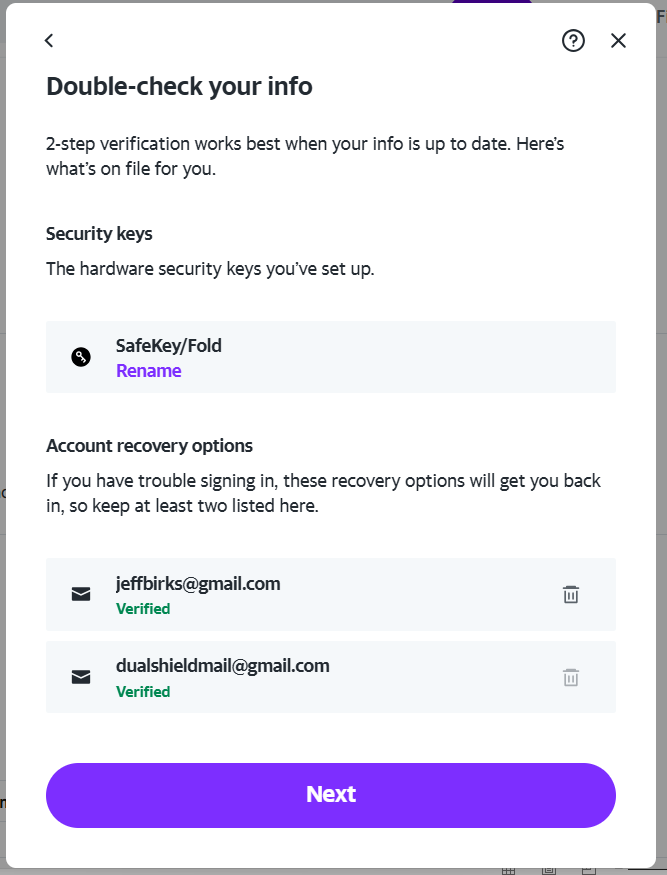
You will then be asked to name your security key.
At the prompt "Enter a name that will help you remember this security key", type a suitable name then click ;
You will then be asked to double check the details for your key, after checking click ;
The FIIDO2 key will be registered with eBay, and you will be shown confirmation that the passkey has been added as a two=step verification method;
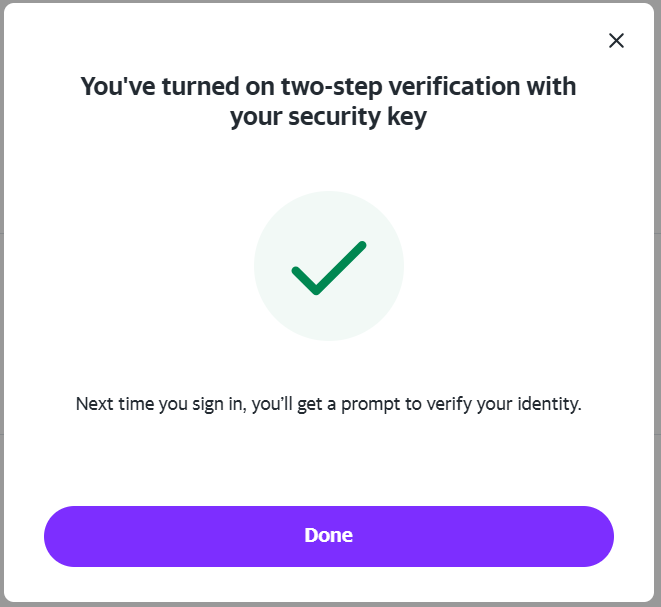
The key can now be used as an authentication method when logging in to Yahoo.