Visit https://www.google.com/, and sign in to your Google account (using the  button),
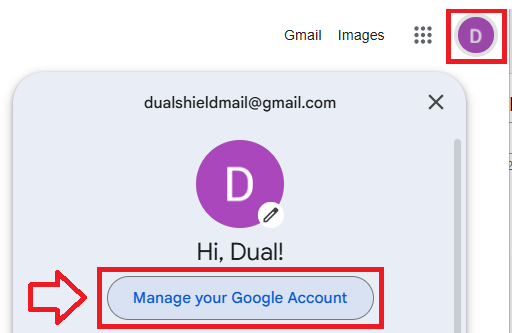
Once logged in click on your user icon (top right), then click on the "Manage your Google Account" link;
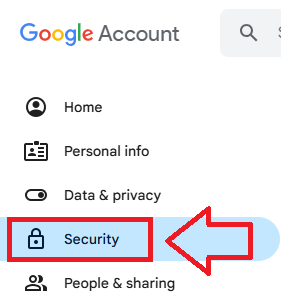
In the left hand menu column, click on the security menu option;
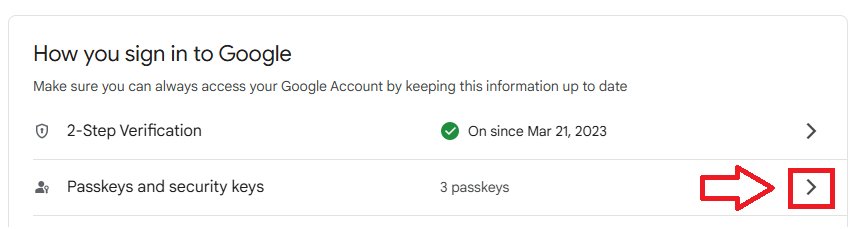
The central area of the window will now show your security settings, scroll down to the section "How to sign in to Google", then click on "Passkeys and security keys";
The page will now change to show Passkey and security keys registered with your Google account, and this is where you will add your Fido2 key.
Click on the "Create a passkey" link;
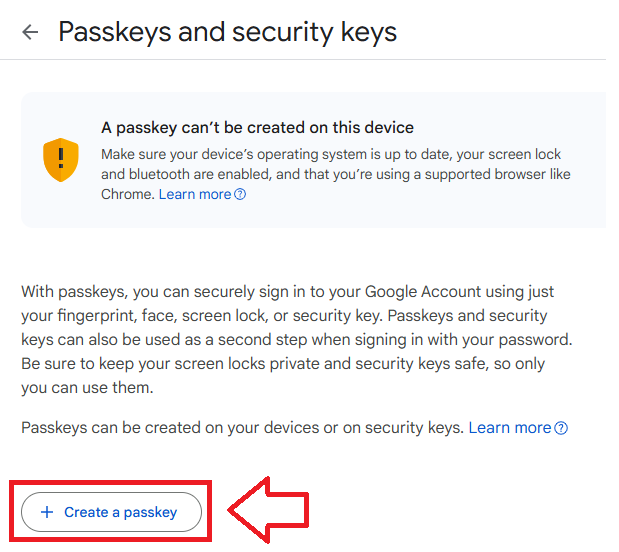
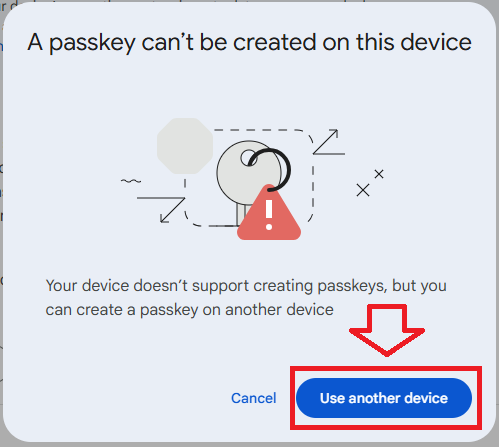
On a Windows PC you will now be informed that a passkey cannot be created on this device, click on the "Use another device" button;
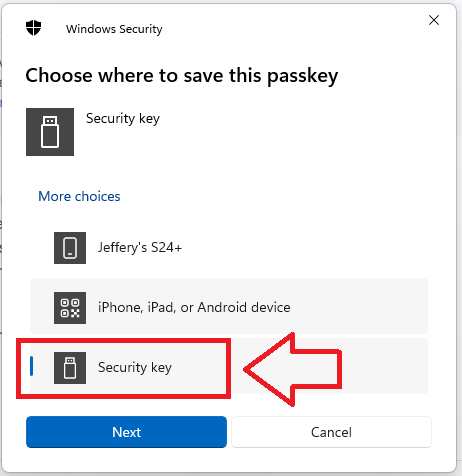
A list of options for where the passkey can be stored will now be displayed.
We will be storing the encryption keys locally on our Fido2 key, so click on "Security key", then click  ;
;
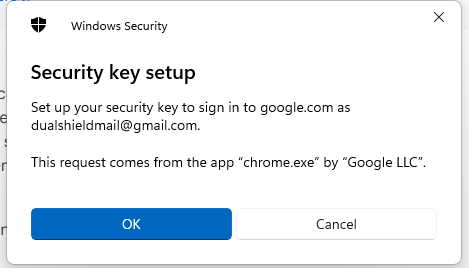
You are now notified that access to google will be prepared with your Fido2 security key - click  to proceed to the next step;
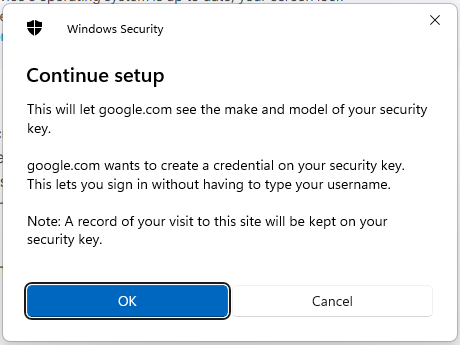
Google will now ask permission to examine your Fido2 key, insert the key into a USB port then click ;
At this point you will be asked to provide the PIN code that protects your Fido2 key;
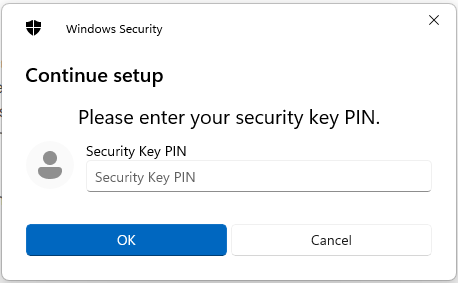
Enter the PIN code for your key then click  , and you will be asked to touch the button on your key (if your model has a fingerprint reader you may be asked to provide a finger swipe instead);
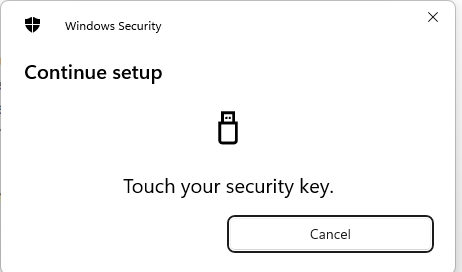
Provided you press the button on the Fido2 key in the allowed time, the passkey details will be stored on your Fido2 key, and you will be presented with the following confirmation;
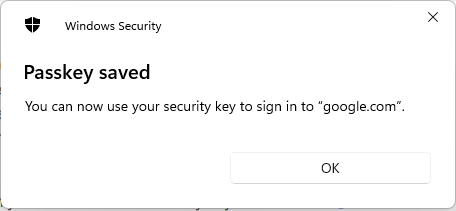
You will now see confirmation that the Fido2 key is now added as a passkey authentication method that can be used when logging in to your Google account;
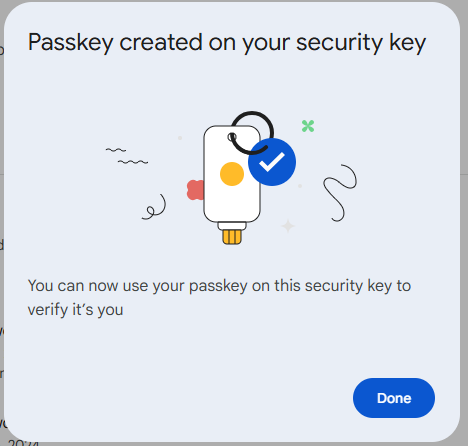
If you now return to your Google Account passkeys and security keys settings, you will find that the new FIDO2 security key has been added as a newly registered passkey;
