Adobe is an American multinational software company famous for its creativity and multimedia software, including Photoshop for image editing, Illustrator for vector graphics, and Premiere Pro for video editing, all part of the Adobe Creative Cloud.
Once you have registered your FIDO2 key with Adobe, the key will be ready to be used as an authentication method when accessing your account.
Register your FIDO2 key in your Adobe account
Before you can use your FIDO2 key as an access method for your Adobe account you will need to register the key with Discord using the following procedure;
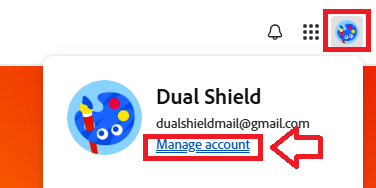
- Log in to your Adobe Account, then using the user icon (top right), click on the link "Manage account";
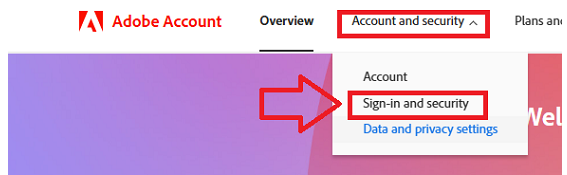
From the dropdown "Account and security", select the option "Sign-in and security";
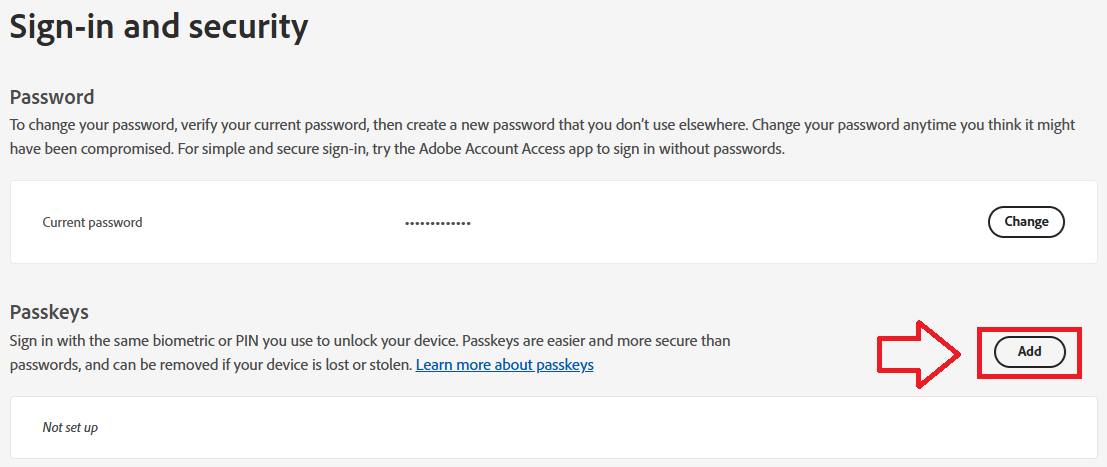
In the section "Passkeys", click on the button "Add";
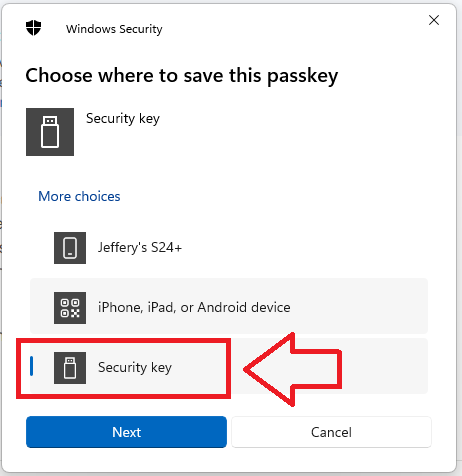
We will be storing the encryption keys locally on our Fido2 key, so click on "Security key", then click
 ;
; 
You are now notified that access to Amazon will be prepared with your Fido2 security key - click
 to proceed to the next step;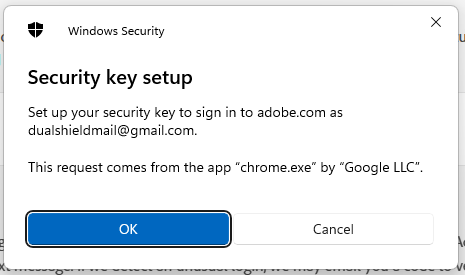
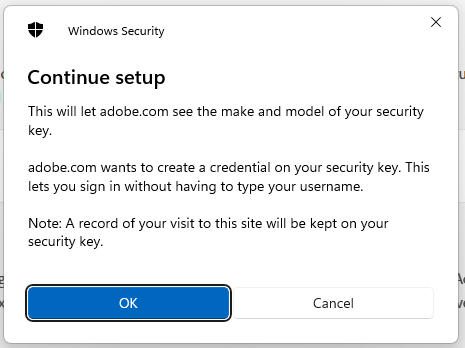
You will now be asked to give permission for your Fido2 key to be examined, insert the key into a USB port then click
;
At this point you will be asked to provide the PIN code that protects your Fido2 key;
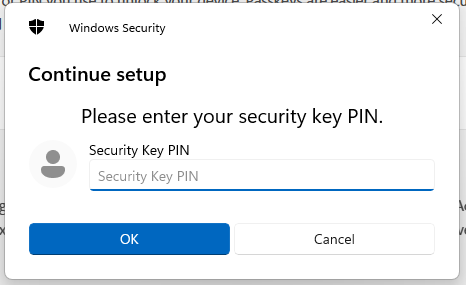
Enter the PIN code for your key then click
 , and you will be asked to touch the button on your key (if your model has a fingerprint reader you may be asked to provide a finger swipe instead);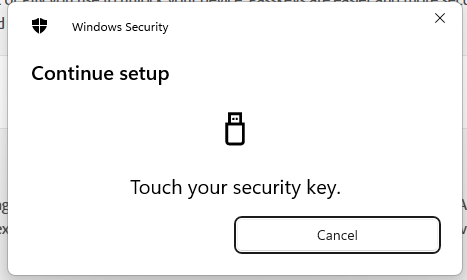
Provided you press the button on the Fido2 key in the allowed time, the passkey details will be stored on your Fido2 key, and you will be presented with the following confirmation;
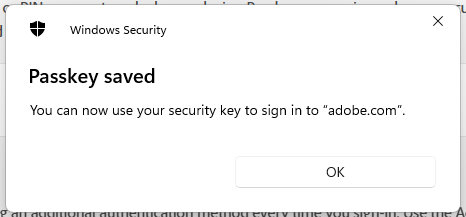
Click "OK", and you will be shown the final confirmation that the Fido2 key is now able to be used as an authentication method, and the new authentication method will be added to your list;

You Fido key is now ready to be used when you next login to Adobe.
Signing in to your Adobe account with a FIDO2 key
Once you have registered you FIDO2 key with Adobe the key will be ready to be used as an authentication method when accessing your account;
- Log in to your Adobe Account by supplying your username into the logon screen, but when prompted for your password, click on the option "Sign in with passkey";
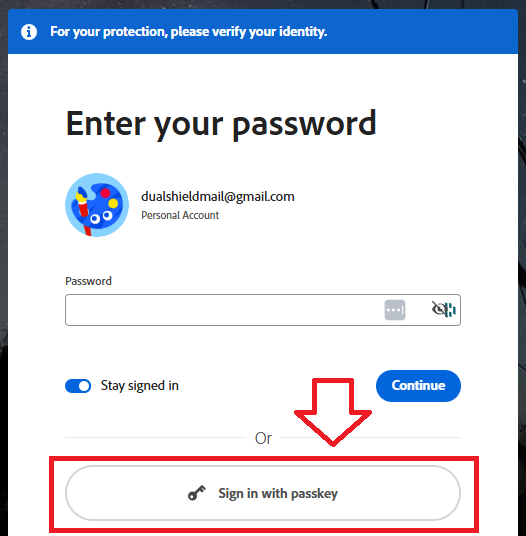
Insert you Fido2 key into an available USB port, Select "Security key";
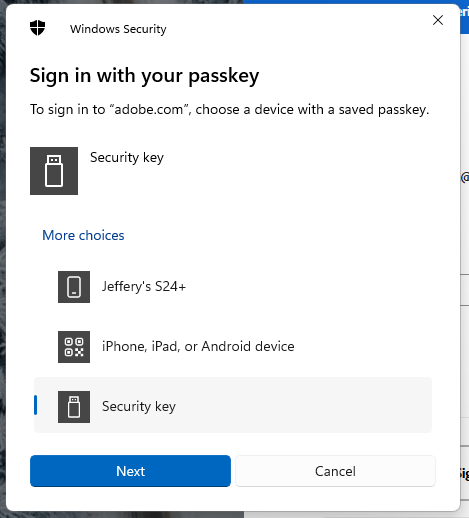
Click
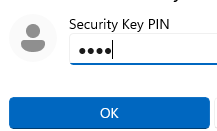
 , and you will prompted to enter the PIN code for your Fido key;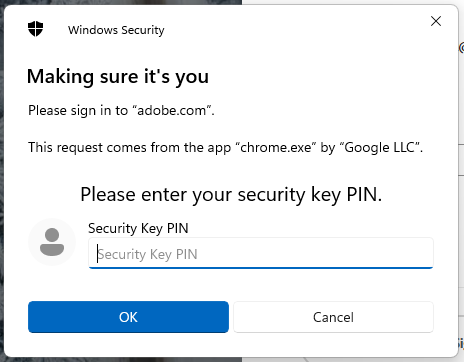
At the "Security key PIN" prompt, supply the PIN code for your Fido2 key, then click
 .
. #
#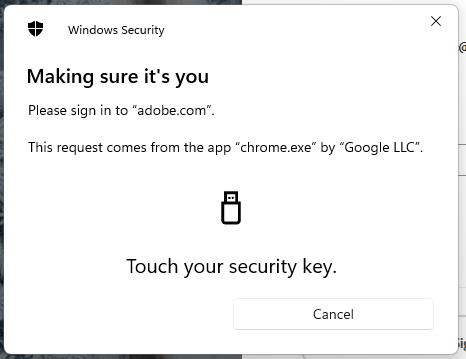
Once the key has been touched you will be logged in to your Adobe account.
Related Articles
