Register your FIDO2 key in your ZeroTier account
Before you can use your FIDO2 key as an access method for your ZeroTier account you will need to register the key with ZeroTier using the following procedure;
- Log in to your ZeroTier Account, then click on the submenu option "Account";

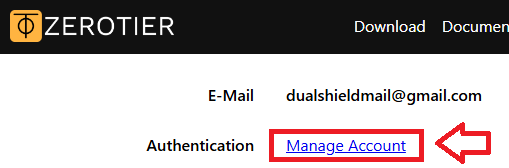
You then click on the link next to the Authentication prompt: "Manage Account" (see below);
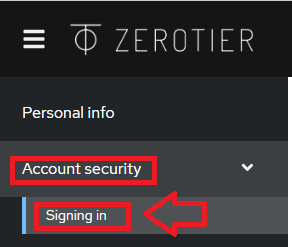
Expand the section "Account security", then click on the link "Signing in";
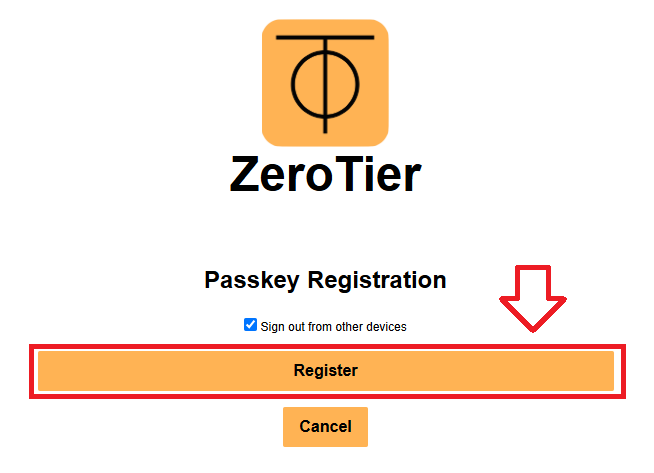
Next, scroll down the central section of the web page until you reach the section "Passkey", then click on "Set up Passkey";

You are now prompted to register your Fido2 key, insert the key into an available USB port then click
 ;
;
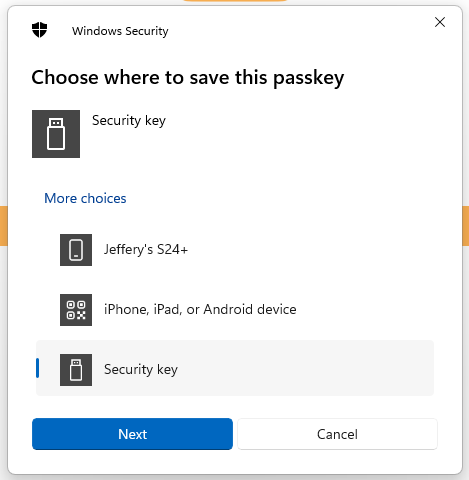
When asked where to save this passkey, select the option "Security Key", then click
 ;
;
You are now notified that access to google will be prepared with your Fido2 security key - click
 to proceed to the next step;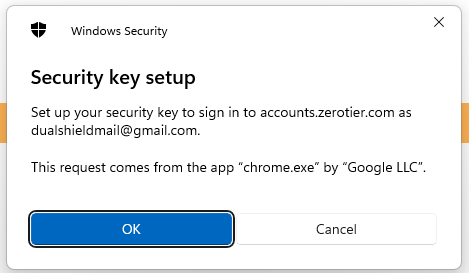
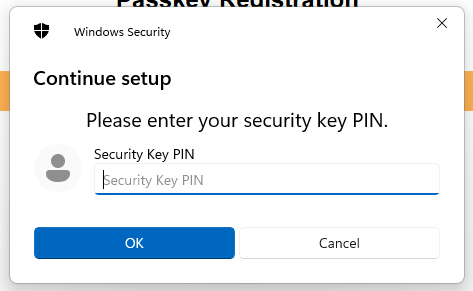
You will now be prompted to enter the PIN code for your Fido2 key.
At the prompt "Security Key PIN", enter the PIN code, then click
 .
. (in the case of a Fido key with a fingerprint reader you will need to swipe your finger on the key);
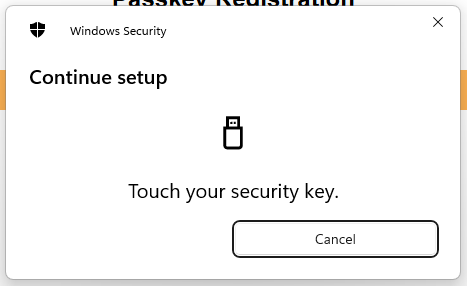
You are now prompted to touch the key (to prove you are present and giving permission for the key to be used).
Touch the necessary area on your Fido key;
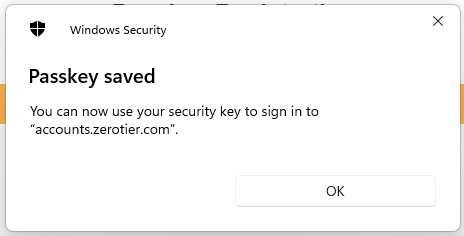
You are then notified that the passkey has been saved, click
;
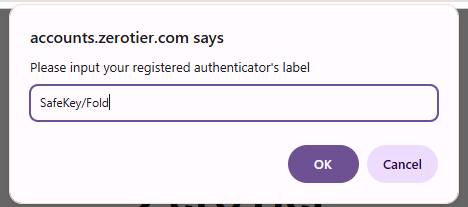
You will now be prompted to name this new authentication method.
At the prompt "Security key name", provide a name for your device then click
 ;
;
Your authentication options will be updated to include your newly registered Fido key;
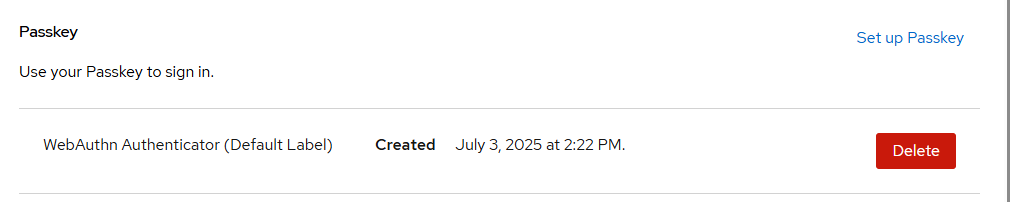
Your Fido2 key will now be ready to use when you next log in to your ZeroTier account.
Signing in to a ZeroTier portals with your FIDO2 key
Once you have registered you FIDO2 key with ZeroTir the key will be ready to be used as an authentication method when accessing your account;
- Log in to your ZeroTier Account by supplying your username and password.
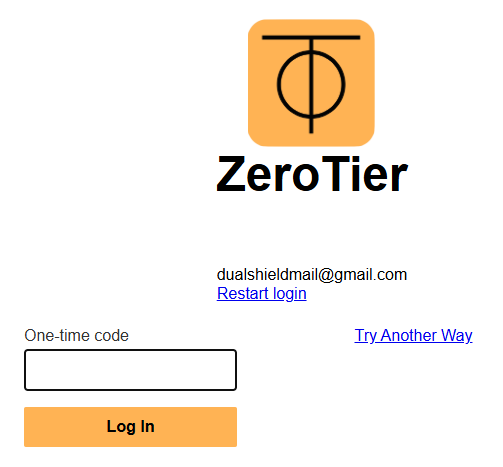
You will be presented with your default MFA authentication method (in the example below OTP authentication via an authentication app).
If you are not presented with the Fido2 option click "Try Another Way";
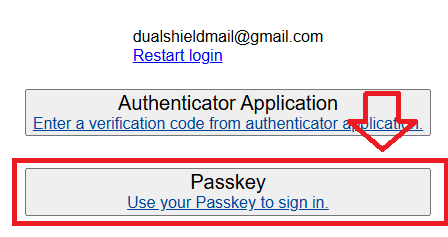
You are then presented with all available authentication options, select "Passkey";
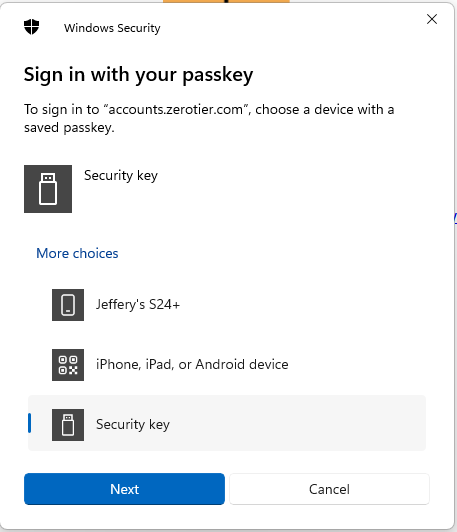
When asked where to save this passkey, select the option "Security Key", then click
 ;
;
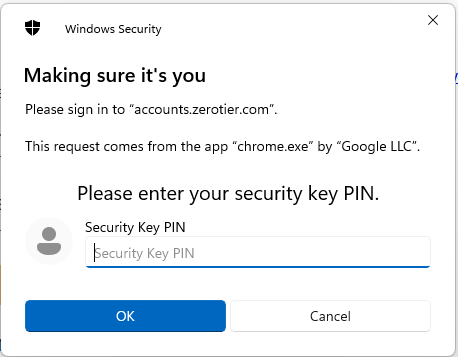
At the "Security key PIN" prompt, supply the PIN code for your Fido2 key, then click
 ;
;
You will now be asked to touch the Fido2 key (in the case of a Fido key with a fingerprint reader you will need to swipe your finger on the key);
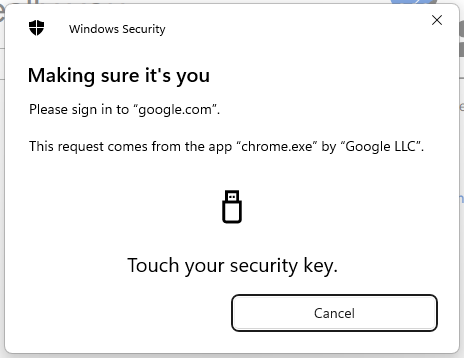
Once the key has been touched you will be logged in to your ZeroTier account.
Related Articles