Register your FIDO2 key in your Synology account
Before you can use your FIDO2 key as an access method for your Synology account you will need to register the key with Salesfoce using the following procedure;
- Sign in to the your Synology account, then from the options in the left hand column, select "Security";
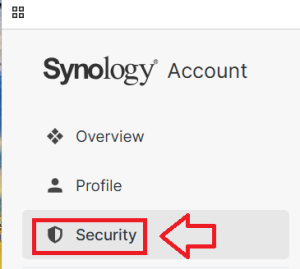
The title of the main section of the page will change to "Security", scroll down to the section "Security Key", then click on "Enable";

If you have not yet added any authentication factors you will be presented with the following messages, select


In order to add a Fido key as an authentication factor you will now need to select "Security Key", then click

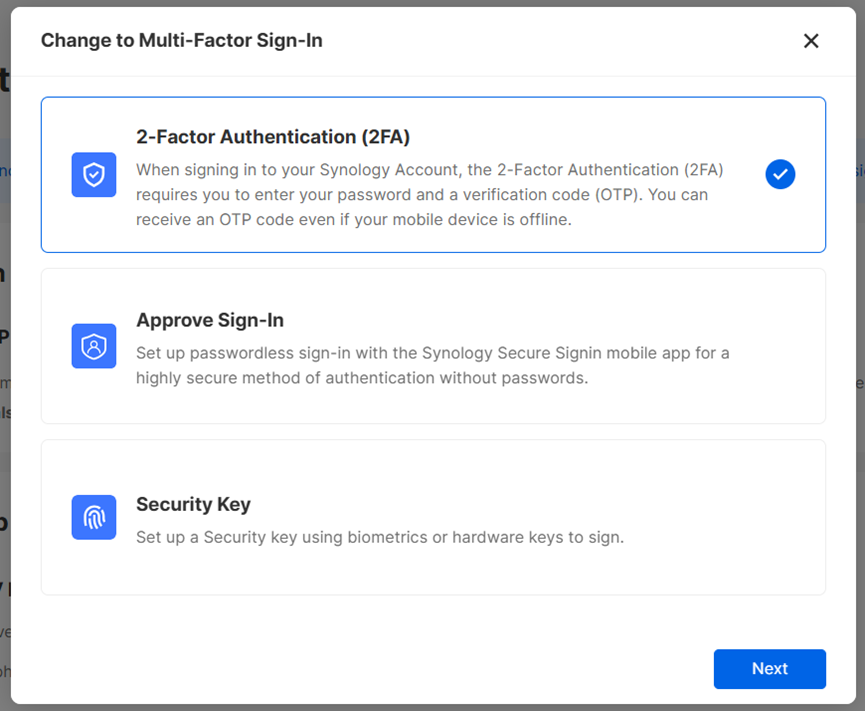
The following confirmation screen will now show, click
 ;
;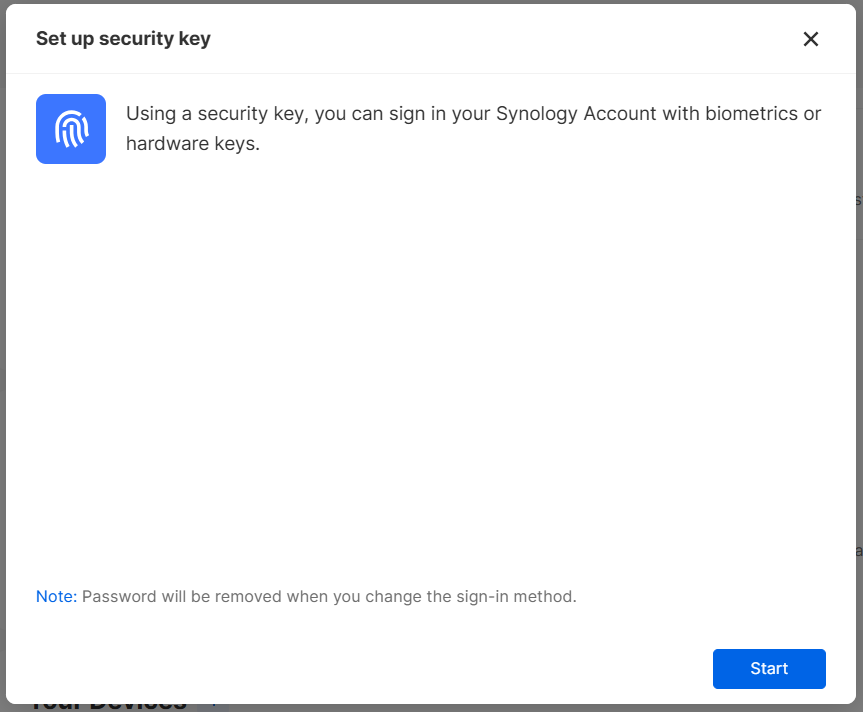
In order to create a passkey using your Fido key, click

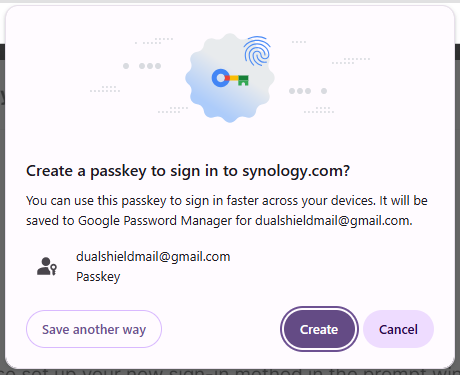
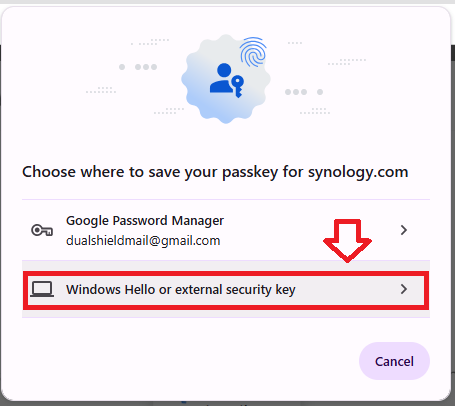
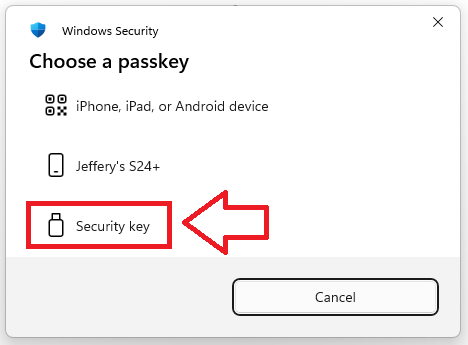
Select the option "Windows Hello or external security key";
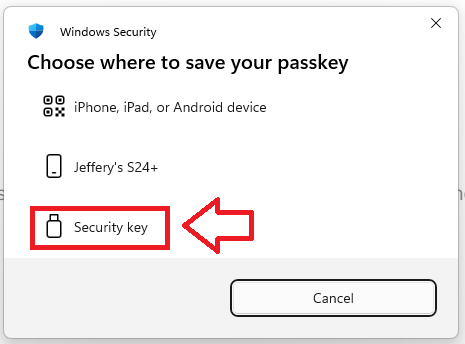
Then select the option "Security key";
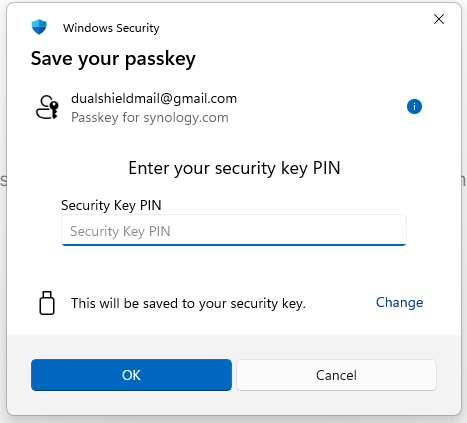
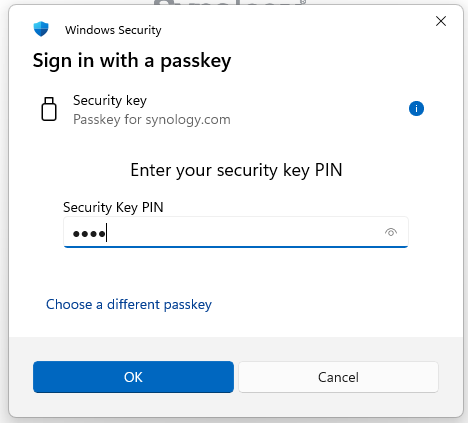
If you key is PIN protected you will need to supply the PIN code then click
 ;
;
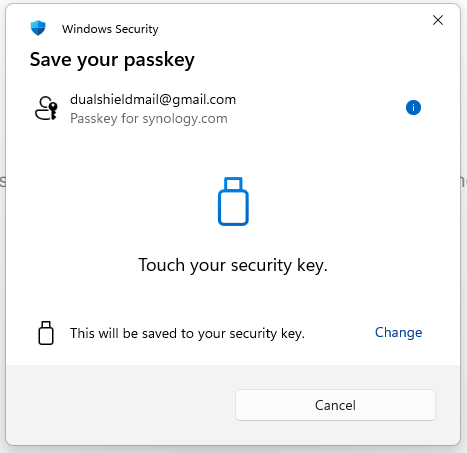
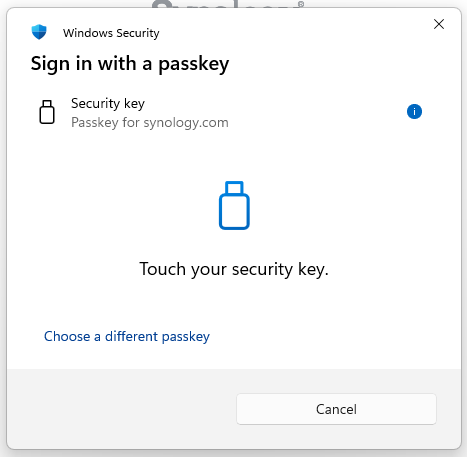
You are now prompted to touch the key (to prove you are present and giving permission for the key to be used).
Touch the necessary area on your Fido key;
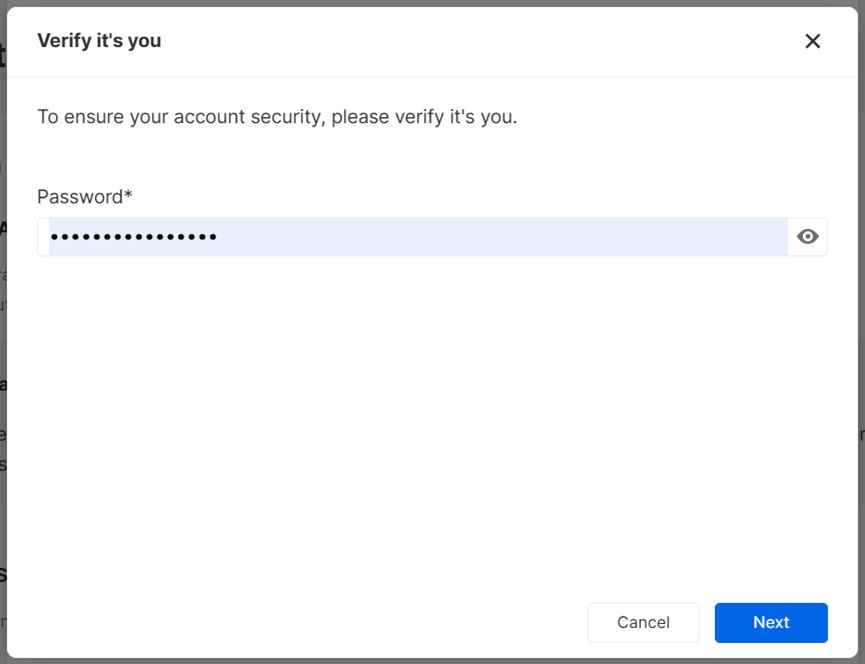
Once you have touched the Fido2 Key will need to verify it is you that is about to add this new device as an authentication method.
Enter your password then click
 ;
;
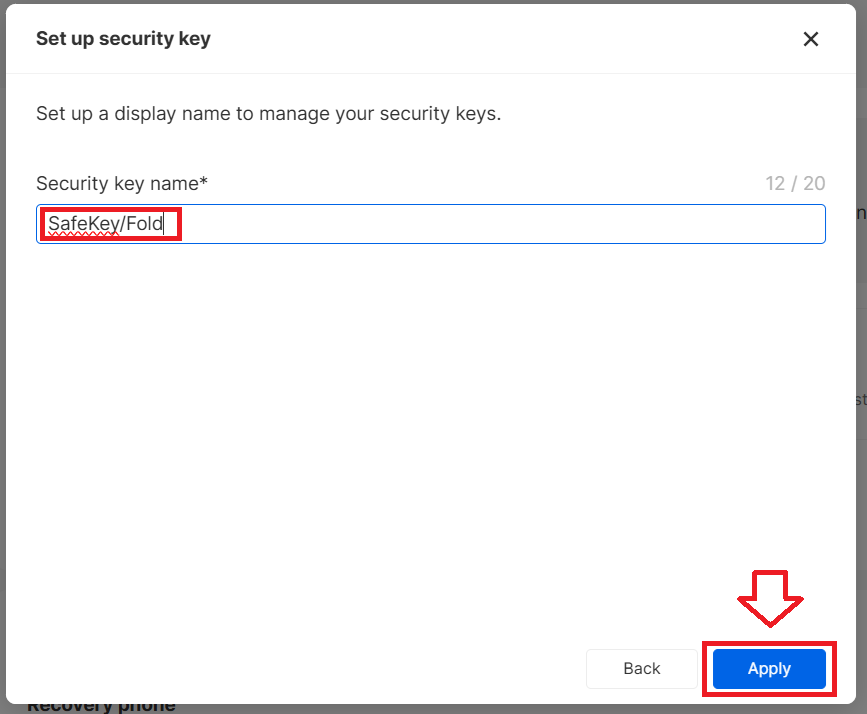
Provide a suitable name for your security key, then click
 ;
;
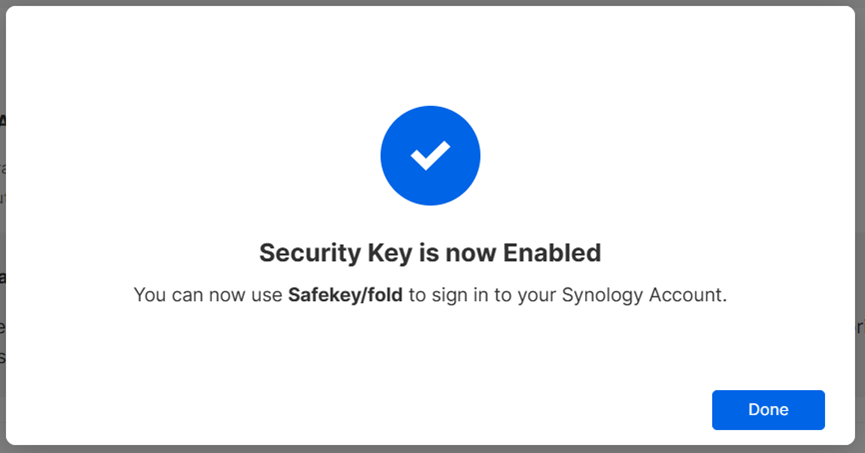
You will now be notified that your Fido2 key is enabled, click
 ;
;
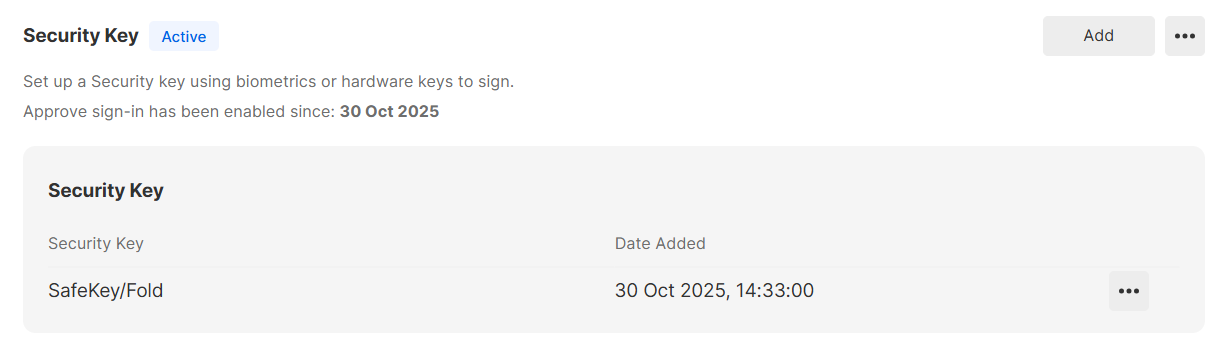
The Fido key will now be added as an active authentication device (example below), and is ready to be used when you next log in to your account.
Signing in to an Synology account with a FIDO2 key
Once you have registered you FIDO2 key with Synology the key will be ready to be used as an authentication method when accessing your account;
- Sign in to the your Synology account, then you will be presented with the list of available authentication methods (which now include the Security key option;
You will now be prompted to enter the PIN code for your Fido2 key.
At the prompt "Security Key PIN", enter the PIN code, then click
 .
. (in the case of a Fido key with a fingerprint reader you will need to swipe your finger on the key);
Next you will asked to touch the key;
Once the key has been touched you will be logged in to your Synology account.
Related Articles