Register your FIDO2 key in your Salesforce account
Before you can use your FIDO2 key as an access method for your Salesforce account you will need to register the key with Salesfoce using the following procedure;
- Log in to your Salesforce account as an administrator, click on the cog icon, then click on the button "Open Advanced Setup" (example below);

In the left hand column scroll down to the section "SETTINGS", then expand the section "Identity", then click on the sub-section "Identity Verification", then tick the option "Let users verify their identity with a physical security key (U2F or WebAuthn);

To allow users to verify using Fido2 keys, ensure that this option is ticked;

You will also want to enforce MFA during user login.
If this is desired, then scroll down to the section "Multi-Factor Authentication (MFA)", then tick the option "Require multi-factor authentication (MFA), for all direct UI logins to your Salesforce.org";

Once this option has been selected, scroll to the end of this list then click
 , and the settings will be updated;
Next, under your user icon click on the settings link (example below);

Then in the left hand column, in the "My Personal information" section, click on the link "Advanced User Details";
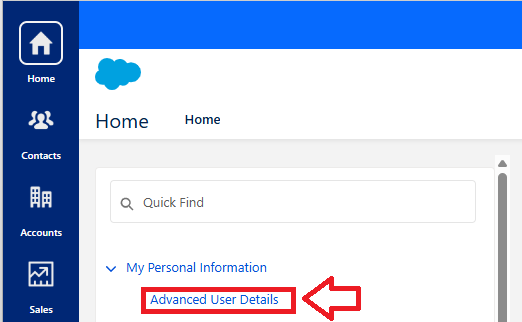
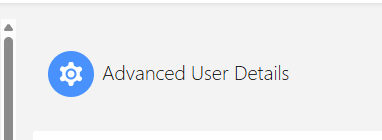
In the centre of the screen there is now a section headed "Advanced User Details";
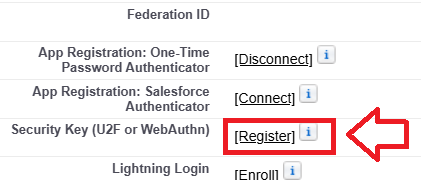
Scroll down this section until you find the setting "Security Key (U2F or WebAuthn)", then click on the "Register" link;
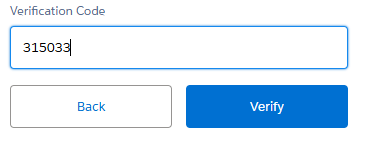
You will now be asked to verify your identity
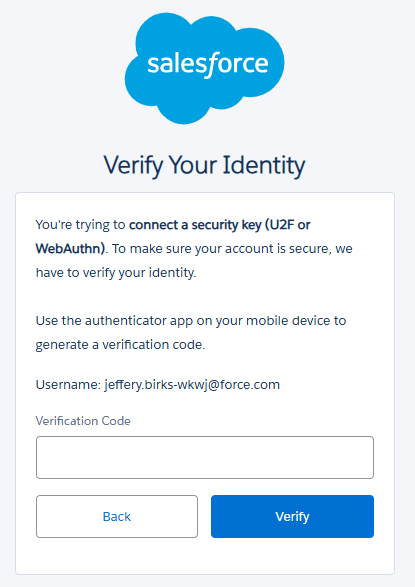
Obtain an OTP code from your authentication app (or programmable token), enter it into the requested field, then click
 ;
;
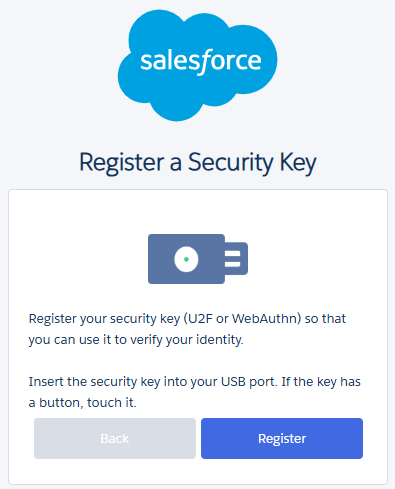
You are now ready to register a Fido2 key with Salesforce, and will presented with the following screen, click
 ;
;
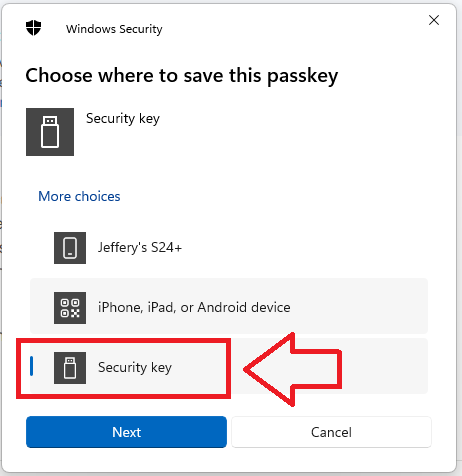
When asked where to save this passkey, select the option "Security Key", then click
 ;
;
You are now notified that access to google will be prepared with your Fido2 security key - click
 to proceed to the next step;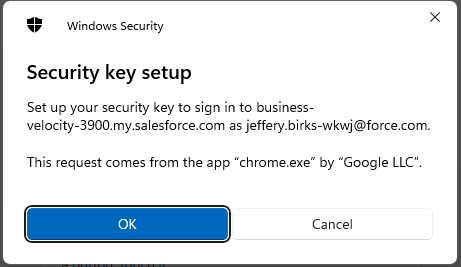
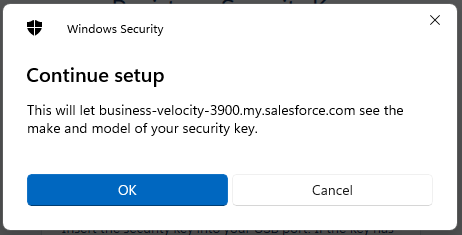
Next you are asked for permission for the site to access your Fido2 key, insert the key into an available USB port then click
 ;
;
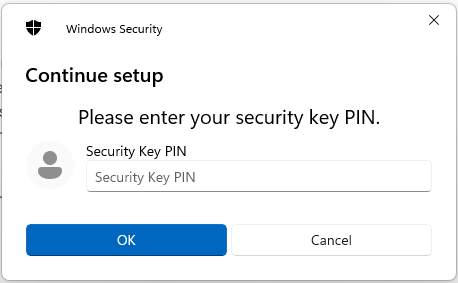
At this point you will be asked to provide the PIN code that protects your Fido2 key;

Enter the PIN code for your key then click
 , and you will be asked to touch the button on your key (if your model has a fingerprint reader you may be asked to provide a finger swipe instead);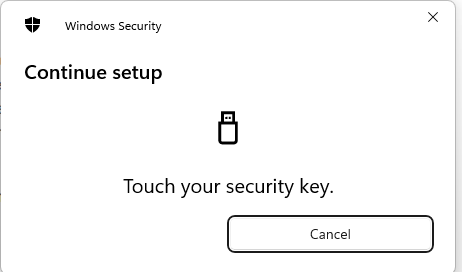
Provided you press the button on the Fido2 key in the allowed time, the passkey details will be stored on your Fido2 key, and you will be presented with the following confirmation;

Click "OK", and the FIIDO2 key will be registered with Salesforce as soon as you verify the key.
To verify the key first click on the
 button;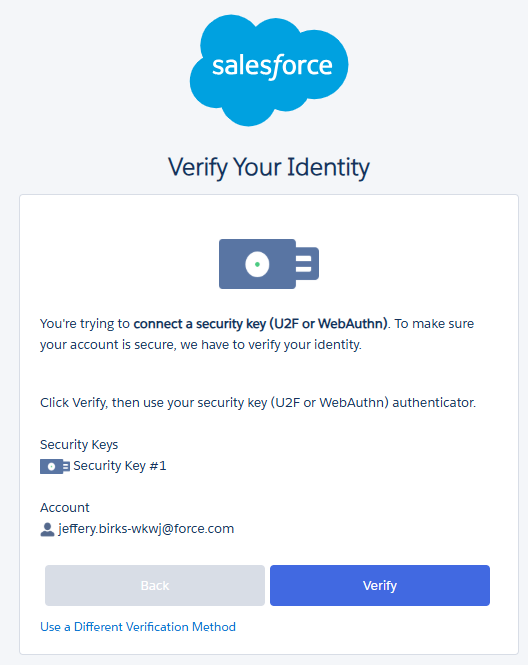
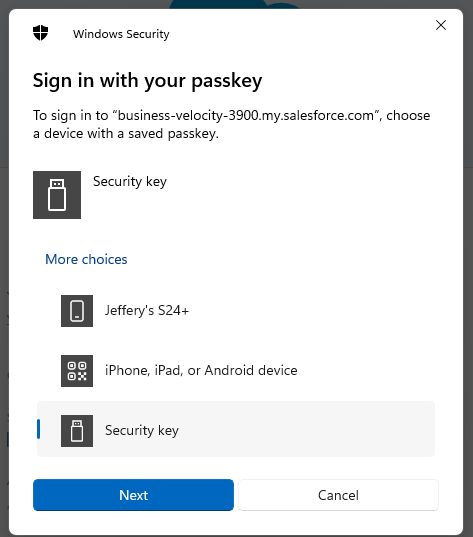
Once again you need to select your security key (click on "Security key", then click
 ;
;
Enter the PIN on your key, then click
 ;
;
Touch the security key;

And your Fido2 key will be registered with Salesforce.
Signing in to an Salesforce account with a FIDO2 key
Once you have registered you FIDO2 key with Salesforce the key will be ready to be used as an authentication method when accessing your account;
- In a web browser, sign in to your salesforce account (providing your email address in the usual way);
After supplying your email address you will no longer be asked for your password, but instead you will see a screen similar to the following
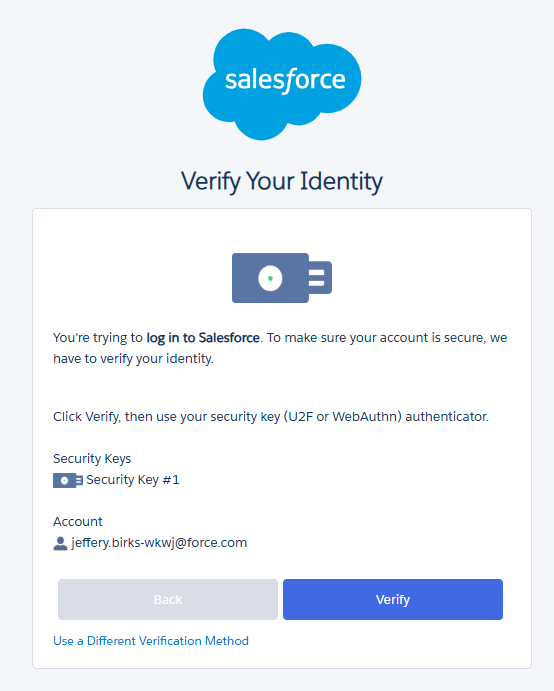
Click
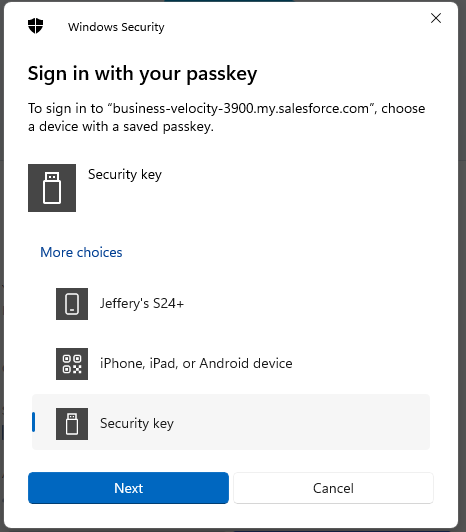
 , and you will be presented with a list of passkey options.
Insert you Fido2 key into an available USB port, Select "Security key", then click
 ;
;
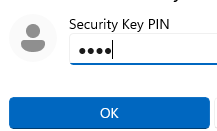
At this point you will be asked to provide the PIN code that protects your Fido2 key;
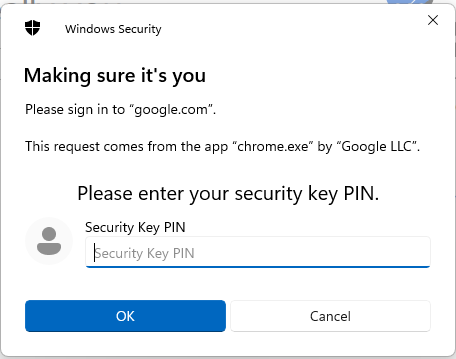
At the "Security key PIN" prompt, supply the PIN code for your Fido2 key, then click
 ;
;
You will now be asked to touch the Fido2 key (in the case of a Fido key with a fingerprint reader you will need to swipe your finger on the key);
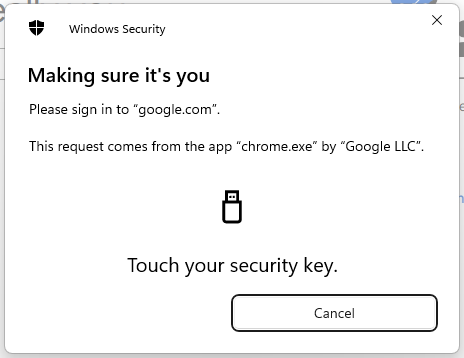
Once the key has been touched you will be logged in to your Salesforce account.
Related Articles