Register your FIDO2 key in your Rublon account
Before you can use your FIDO2 key as an access method for your Rublon account you will need to register the key with Rublon using the following procedure;
- Log in to your Rublon account, then select the option "Security Keys";
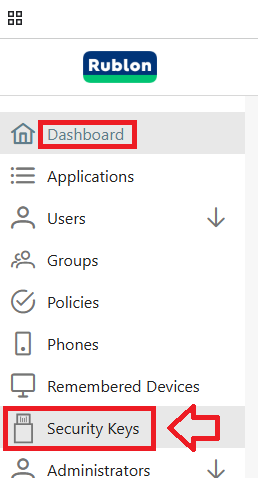
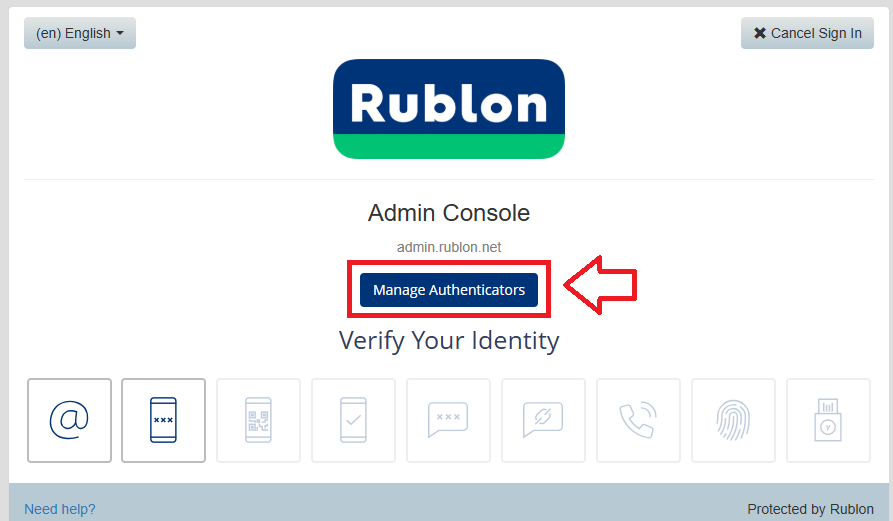
After logging in you will be presented with the currently available authentication methods.
To ad Fido2 keys as an authentication method click on the option
 ;
;
Before adding an new authentication method you will first need to confirm your identity using one of the currently added methods;
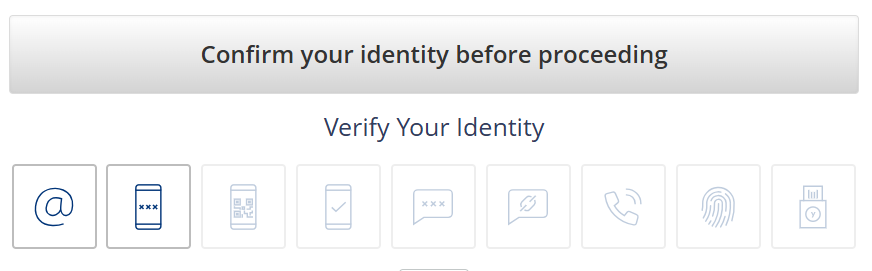
Click on one of the currently available options and after verifying your identity click on the
 button;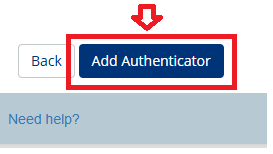
You can now add your Fido key as an authentication option by selecting the option "WebAuthn/U2F Security Key (hardware token)", then clicking
 ;
;
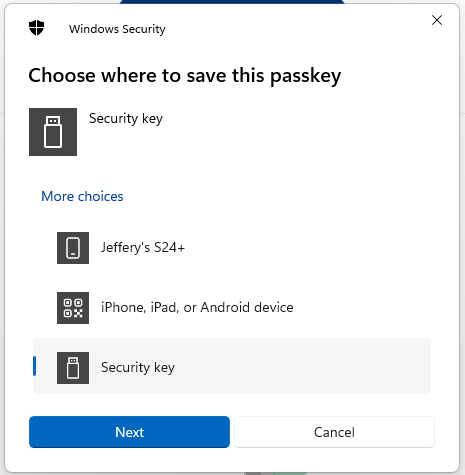
You will now be prompted to specify the device that is to be added as a passkey.
Select the option "Security key", then click
 ;
;
You are now notified that access to google will be prepared with your Fido2 security key - click
 to proceed to the next step;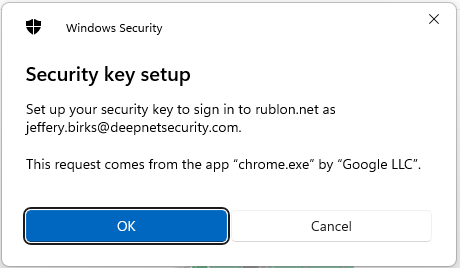
You will be asked to touch the button on your key (if your model has a fingerprint reader you may be asked to provide a finger swipe instead);
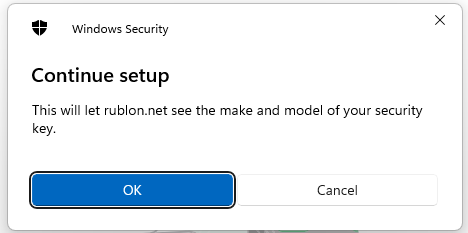
You will now be prompted to enter the PIN code for your Fido2 key.
At the prompt "Security Key PIN", enter the PIN code, then click
 .
. (in the case of a Fido key with a fingerprint reader you will need to swipe your finger on the key);
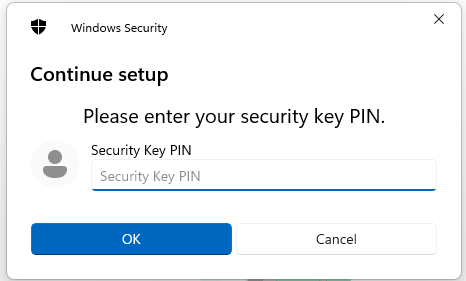
You are now prompted to touch the key (to prove you are present and giving permission for the key to be used).
Touch the necessary area on your Fido key;
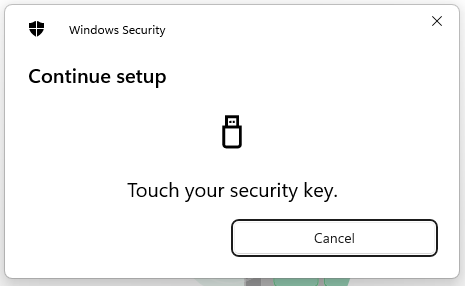
Once you have touched the Fido2 Key will be added as a passkey authentication method to your Rublon account.
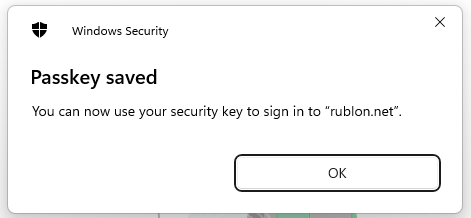
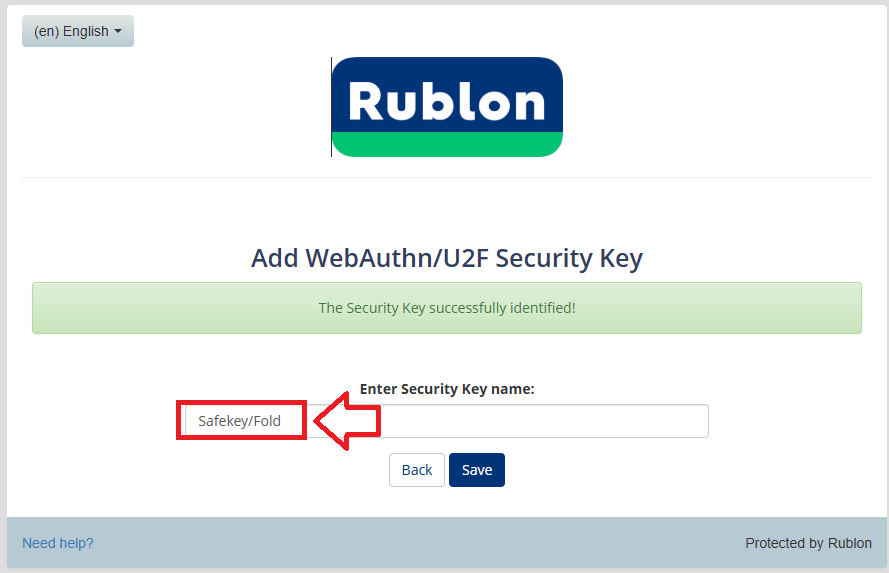
Click "OK", and you will be asked to provide a name for the key. Supply a suitable name then click

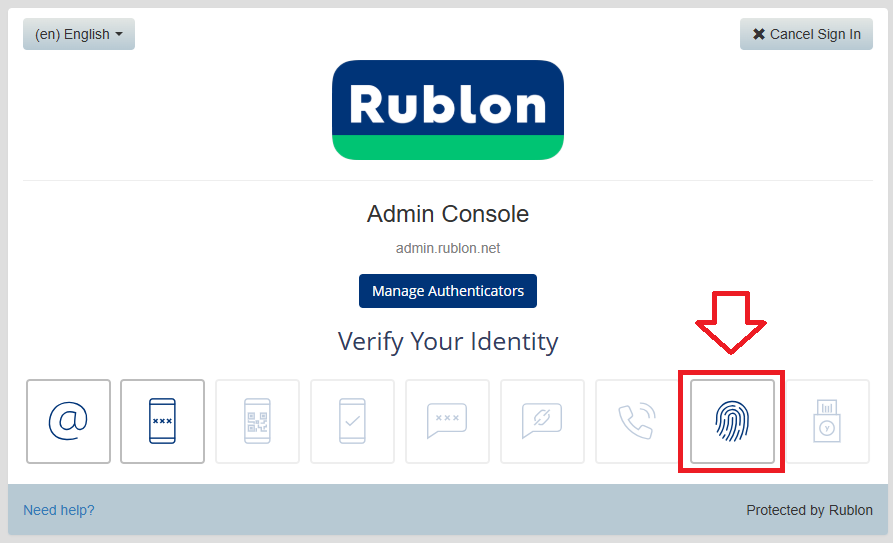
You will now find that the icon for the Fido security key is now enabled (the fingerprint icon indicated below);
Signing in to an Rublon account with a FIDO2 key
Once you have registered you FIDO2 key with Rublon the key will be ready to be used as an authentication method when accessing your account;
- Log in to your Rublon account, then you will be presented with the list of available authentication methods (which now include the fidokey option;
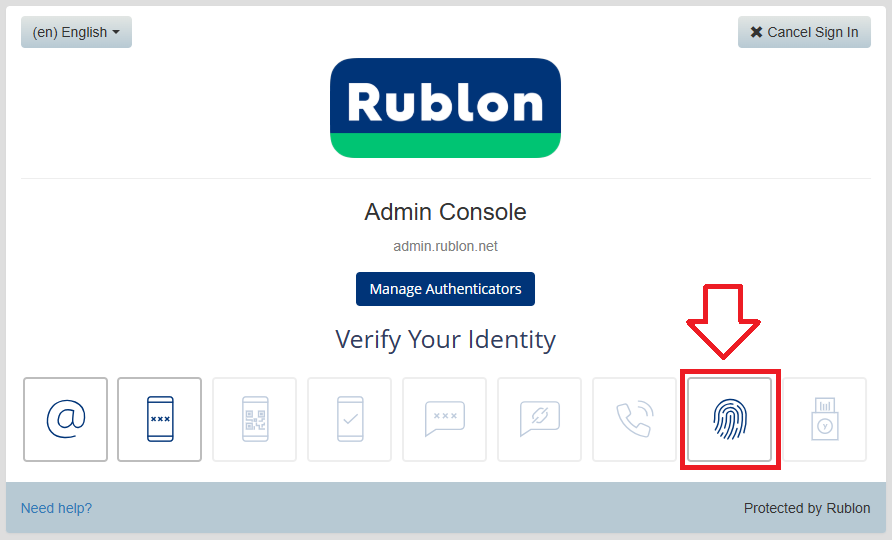
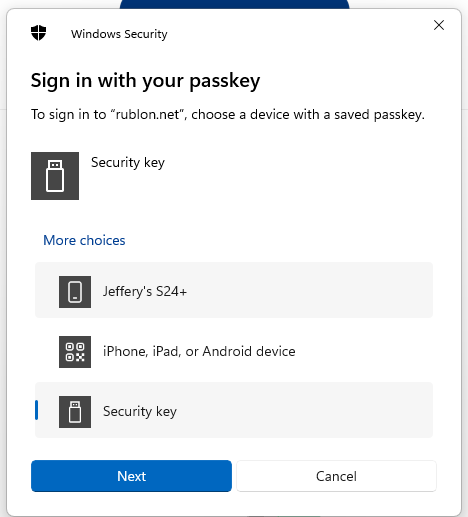
Click on the fingerprint icon, then when prompted to sing in with your passkey select the option "Security Key", then click
 ;
;
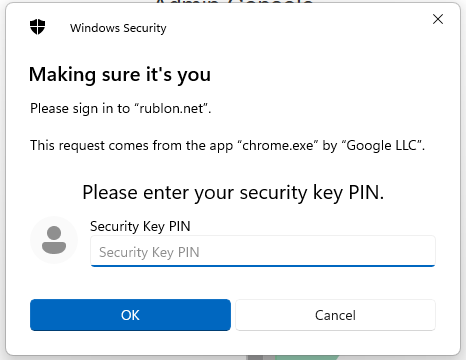
You will now be prompted to enter the PIN code for your Fido2 key.
At the prompt "Security Key PIN", enter the PIN code, then click
 .
. (in the case of a Fido key with a fingerprint reader you will need to swipe your finger on the key);
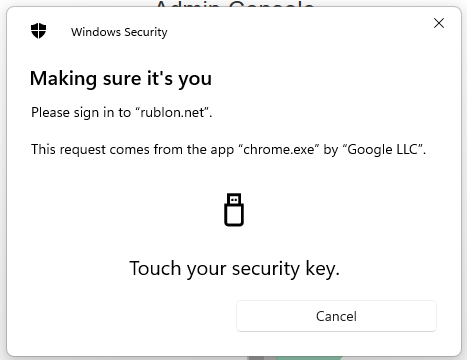
You are now prompted to touch the key (to prove you are present and giving permission for the key to be used).
Touch the necessary area on your Fido key;
Once you have touched the Fido2 Key you will be logged in to your Rublon account.
Related Articles