Register your FIDO2 key in with Logto
Use the follow procedure to register your key with Logto;
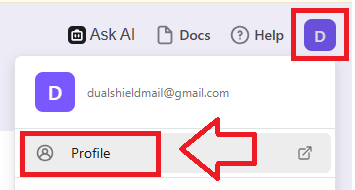
- Sign in to the your Logto account, then after clicking on your user icon select the option "Profile";
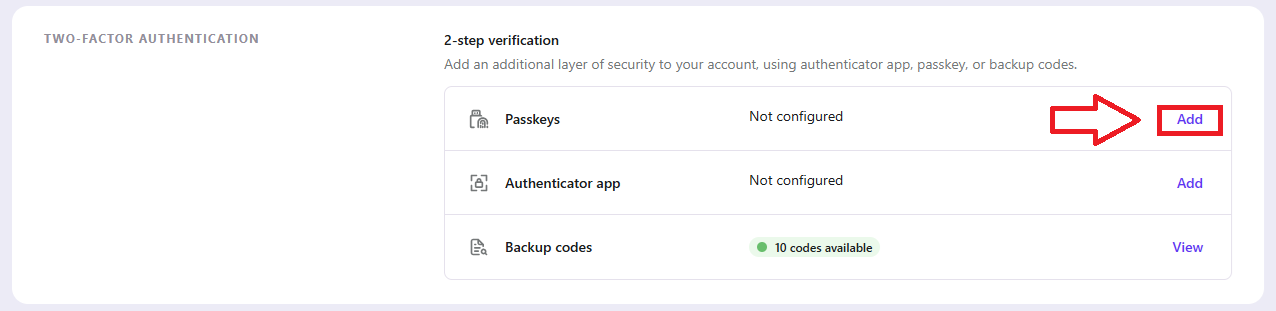
In the section "Account Settings", scroll down to the "Two-Factor Authentication" section, then against the option "Passkeys", click on the "Add" link;
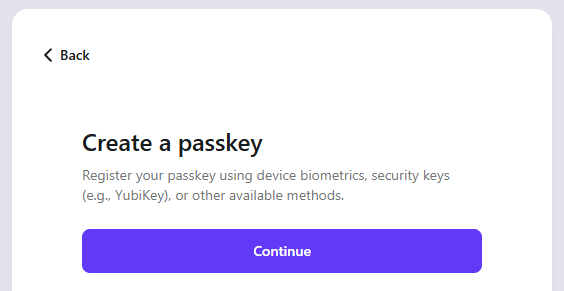
A window will open titled "Create a passkey", click
 ;
;
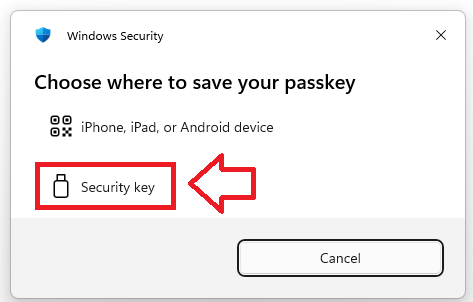
You will now asked to specify where the passkey will be saved, select the option "Security key";
You will now be prompted to enter the PIN code for your Fido2 key.
At the prompt "Security Key PIN", enter the PIN code, then click
 .
. (in the case of a Fido key with a fingerprint reader you will need to swipe your finger on the key);
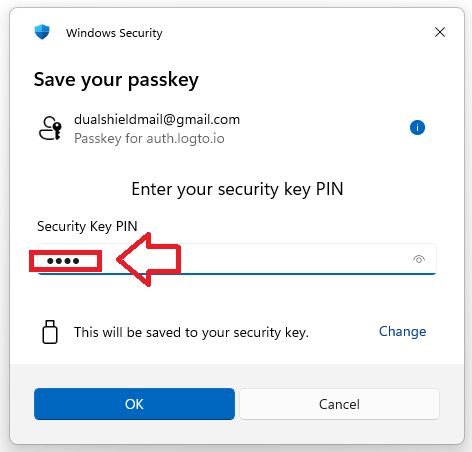
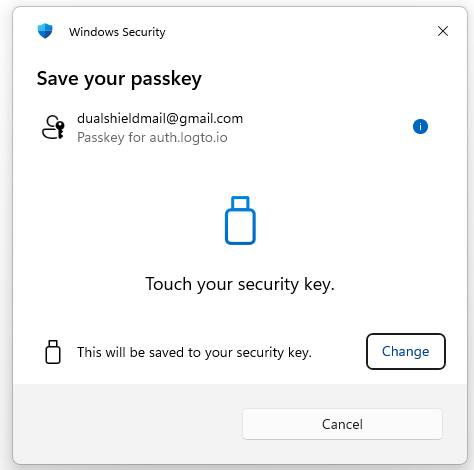
You are now prompted to touch the key (to prove you are present and giving permission for the key to be used).
Touch the necessary area on your Fido key;
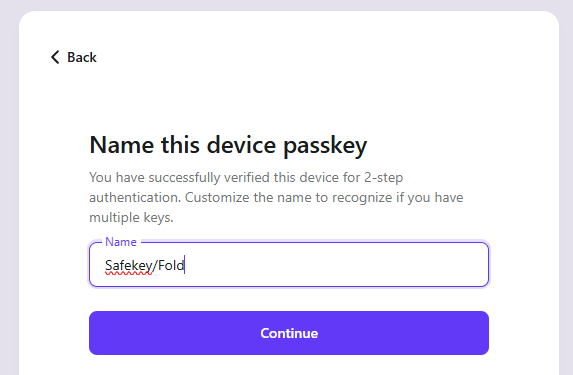
Finally you are prompted to name the Fido2 key, enter a suitable name for your key then click
 ;
;
You passkey authentication method will now have been added as a logon option for Logto, and will show as a new passkey option in your account settings;

Signing in to Logto with a FIDO2 key
Once you have registered you FIDO2 key with Logto, the key will be ready to be used as an authentication method when accessing your Logto account;
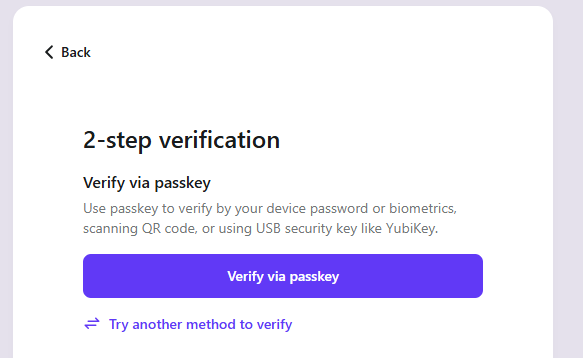
- In a web browser, Sign in to the your Logto account, but once you have supplied your username and password you will now be offered the option to verify your account with a passkey.
Insert you Fido2 key into an available USB port, then select the option "Verify via passkey".
A new window will now open titled "Choose a passkey", select the option "Security key";
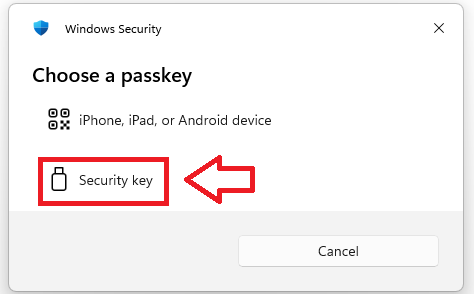
You will now be prompted to enter the PIN code for your Fido2 key.
At the prompt "Security Key PIN", enter the PIN code, then click
 .
. (in the case of a Fido key with a fingerprint reader you will need to swipe your finger on the key);
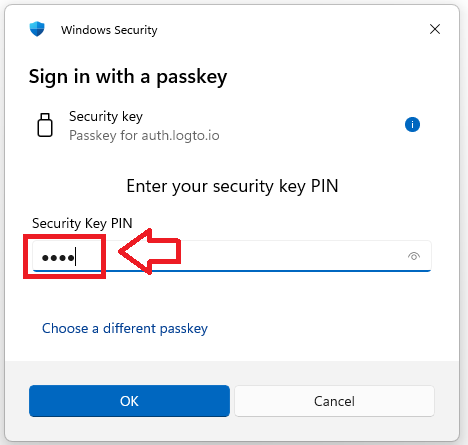
You are now prompted to touch the key (to prove you are present and giving permission for the key to be used).
Touch the necessary area on your Fido key;
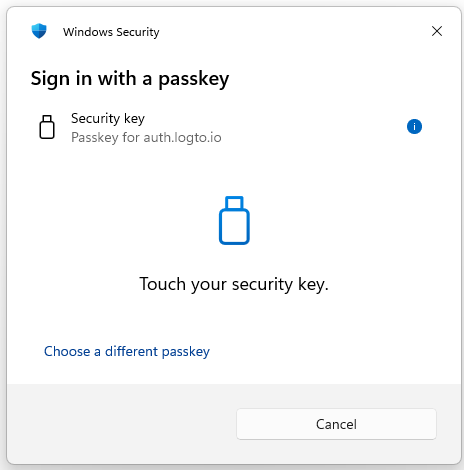
Once you have touched the key you will then be logged in to your Logto account.
Related Articles
