Register your FIDO2 key in your Keeper
Use the follow procedure to register your key with Keeper;
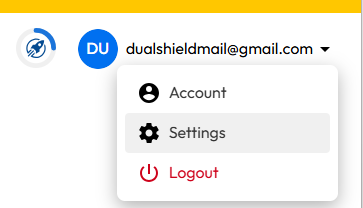
- Sign in to the you Keeper account,, then via the user dropdown select the option "Settings";
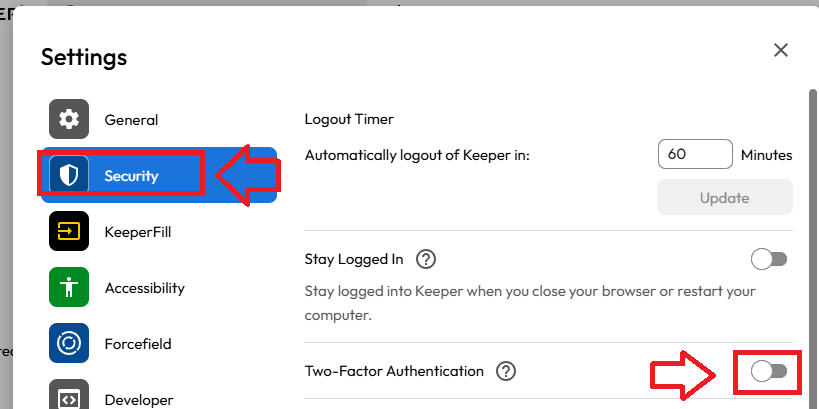
From the settings sub-menu select "Security", then enable the "Two-Factor Authentication" option using the slider (indicated below);
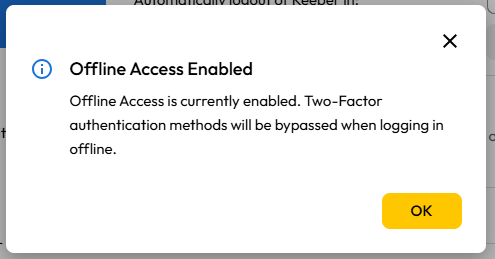
A new window titled "Offline Access Enabled" will show, click
 ;
;
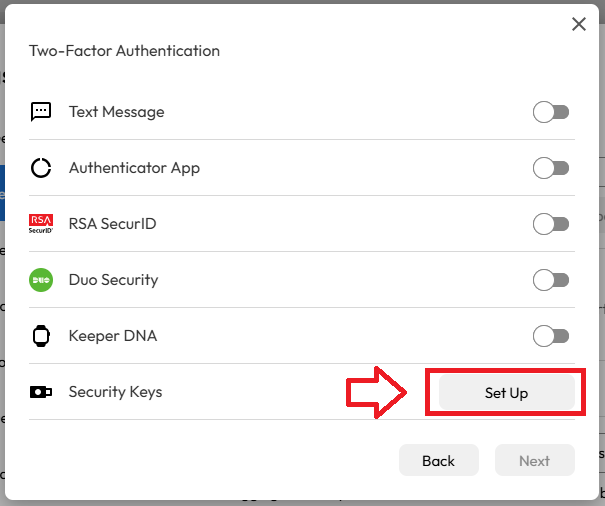
You will now be presented with a list of possible authentication options, then in the section "Security Keys", click on "Set up";;
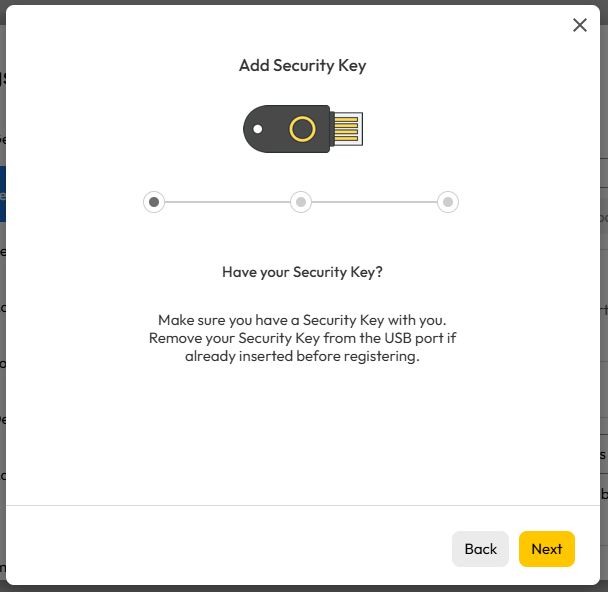
A new window will open titled "Add Security Key", click
 ;
;
You are then asked to name your security key and insert it into a USB port;
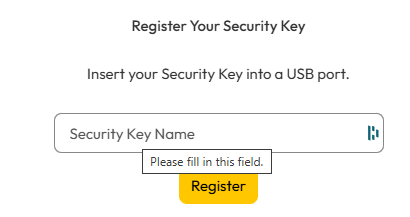
Provide a suitable name for the key, insert it into a USB port, then click
 ;
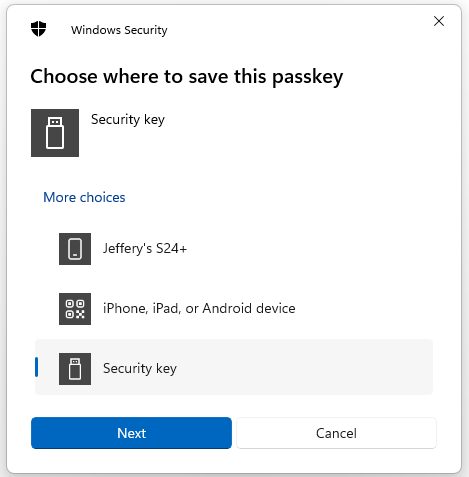
;A list of options for where the passkey can be stored will now be displayed.
We will be storing the encryption keys locally on our Fido2 key, so click on "Security key", then click
 ;
; 
You are now notified that access to google will be prepared with your Fido2 security key - click
 to proceed to the next step;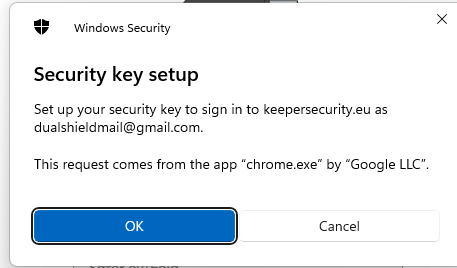
Keeper will now ask permission to examine your Fido2 key, insert the key into a USB port then click
;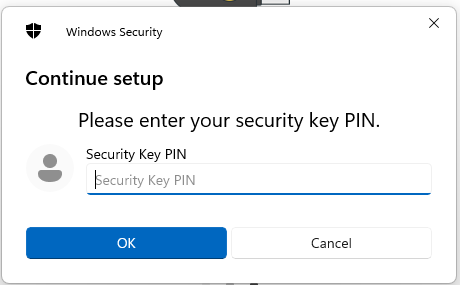
Enter the PIN code for your key then click
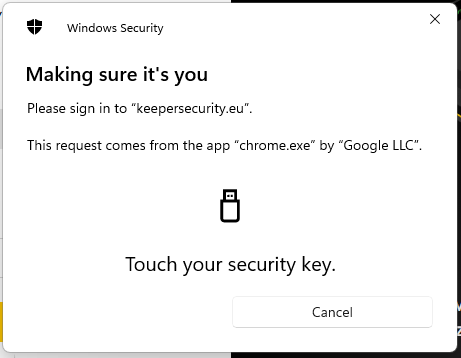
 , and you will be asked to touch the button on your key (if your model has a fingerprint reader you may be asked to provide a finger swipe instead);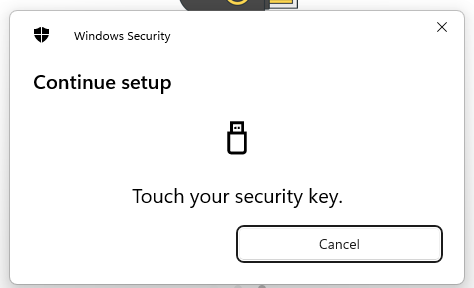
Provided you press the button on the Fido2 key in the allowed time, the passkey details will be stored on your Fido2 key, and you will be presented with the following confirmation;
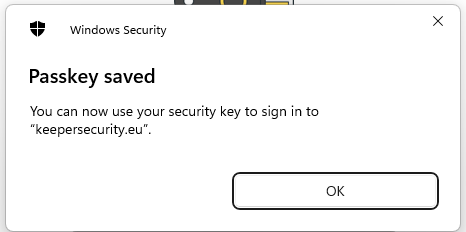
Click "OK", and you will be shown final confirmation the key has been registered.
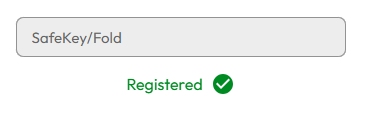
Click
 , and you key will be ready for use next time you log in to keeper.
Signing in to Keeper with a FIDO2 key
Once you have registered you FIDO2 key with Keeper, the key will be ready to be used as an authentication method when accessing your Keeper account;
- Sign in to the you Keeper account,, and once you have supplied your email address and clicked
 you will be asked to supply your fido key;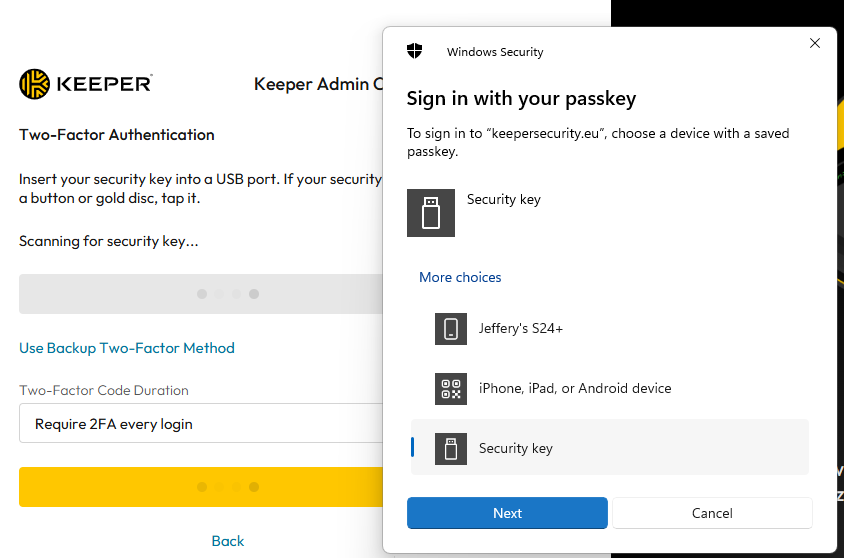
Select "Security key", insert your key into a spare USB port, then click
 .
.You will now be asked to type in the PIN code for your FIDO key;
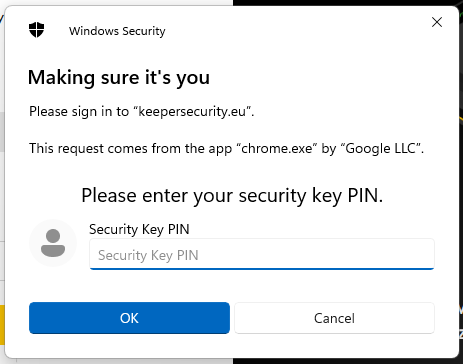
Enter your PIN then click
 ;
;
You will then be asked to supply your master password;
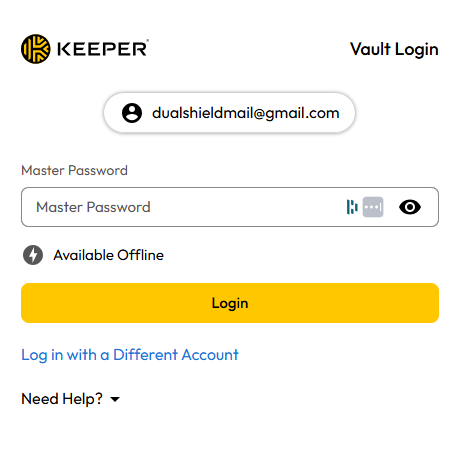
Type in your master password then click
 and you will gain access to your Keeper account.
Related Articles