Register your FIDO2 key in your Docusign account
Before you can use your FIDO2 key as an access method for your Docusign account you will need to register the key with Docusign using the following procedure;
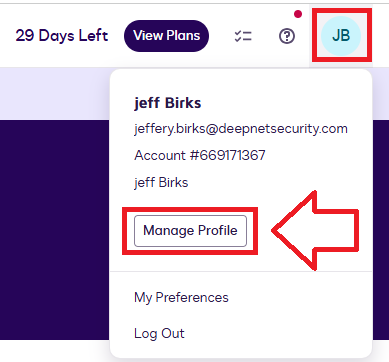
- Log in to your Docusign account, use the user icon (top right of logon screen) then click on the option "Manage Profile";
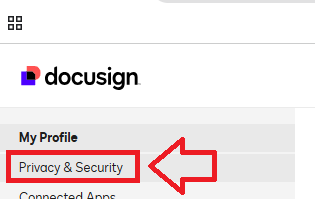
Then, in the left hand column, in the section "My Profile", select "Privacy & Security";
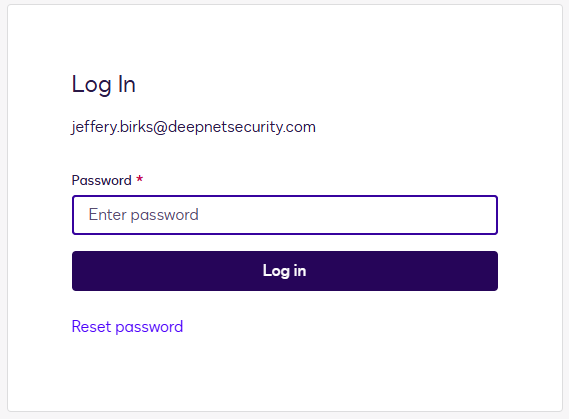
At this point you will need to verify your identity by logging in with your username and password.
Enter your user credentials then click on
 ;
;
Scroll down to the section "Login Security", and at the prompt "Two-Step Verification", use the slider to enable this feature;

Scroll down to the section "Passwordless Login", use the slider to enable passwordless logins;
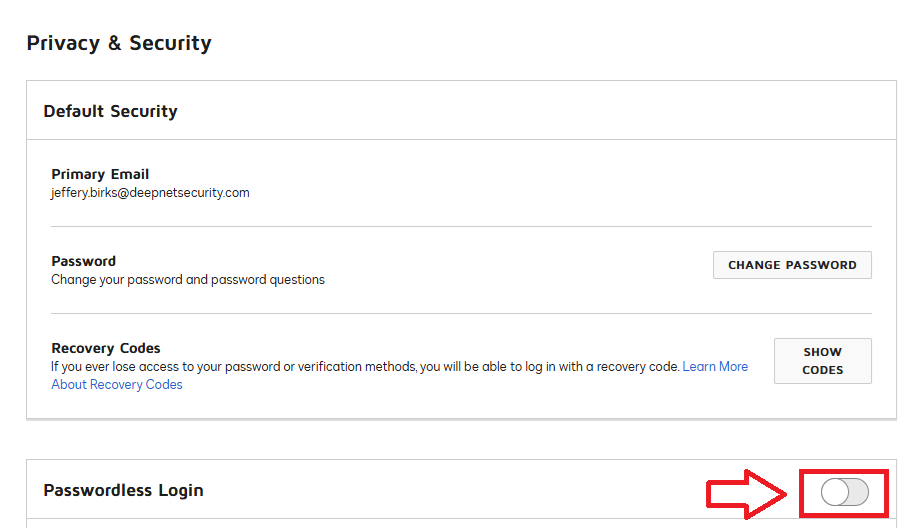
To enabled passwordless logons using your Fido key click on "ADD SECURITY KEY";
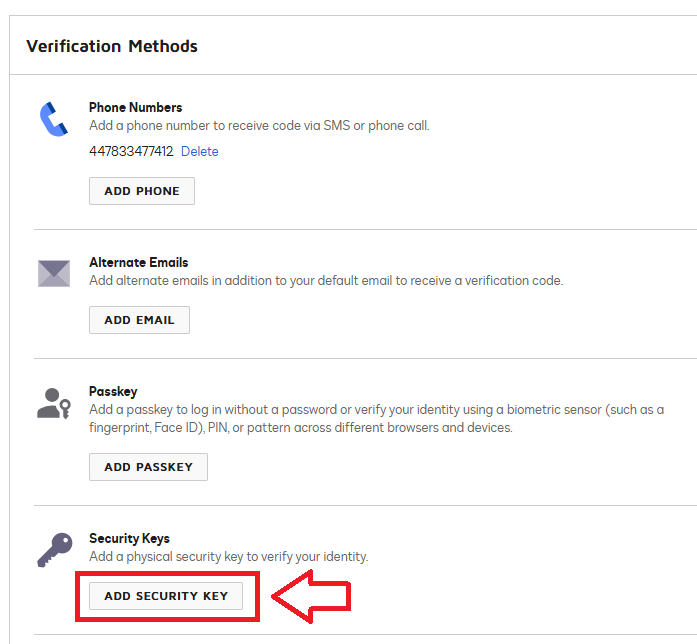
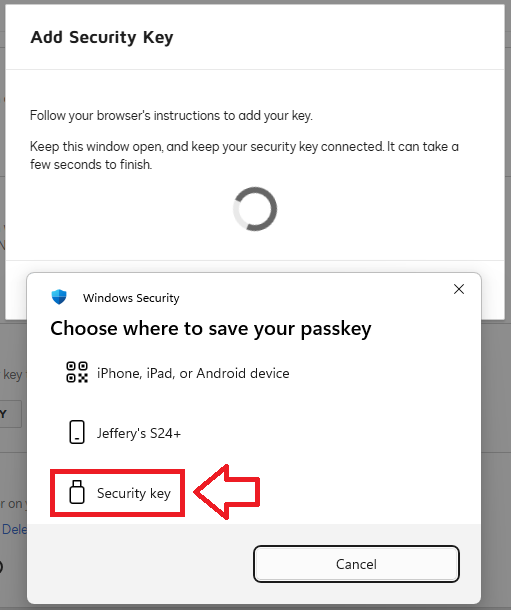
When asked where to save this passkey, select the option "Security Key";
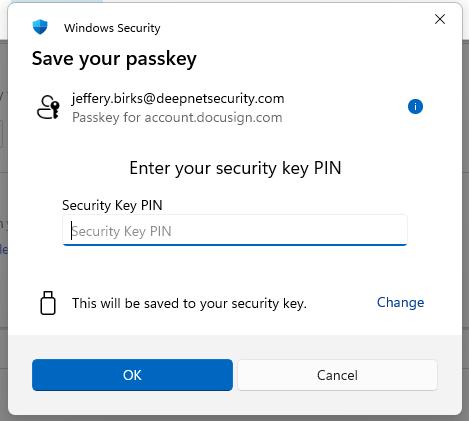
At this point you will be asked to provide the PIN code that protects your Fido2 key.
At the prompt "Security key PIN", enter your code then click
 ;
;
You will now be asked to touch the Fido2 key (in the case of a Fido key with a fingerprint reader you will need to swipe your finger on the key);
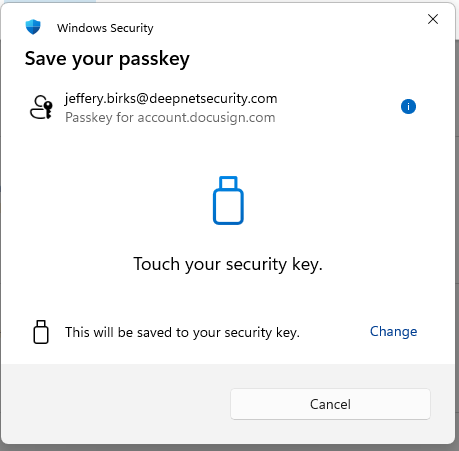
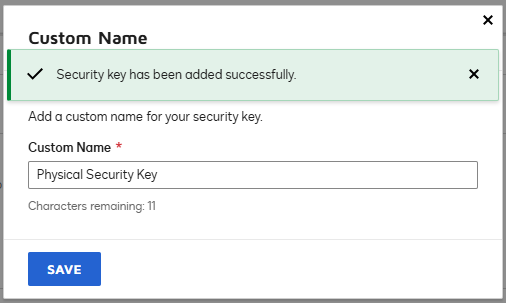
Provided you press the button on the Fido2 key in the allowed time, you will be prompted to name the newly created Fido key.
At the prompt "Custom Name", supply a name for your key then click
 ;
;
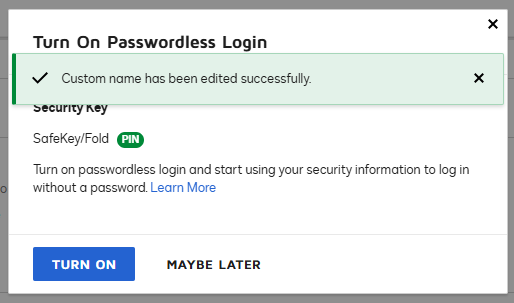
After naming the key you will be given the option to turn on passwordless Login.
Passworless logins are option, but if required then click
 .
.If you prefer to use the Fido key as one of the authentication methods, then click

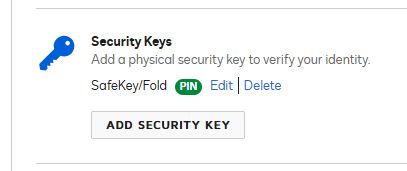
The Fido key will now show as an enabled verification method;
Signing in to an Docusign account with a FIDO2 key
Once you have registered you FIDO2 key with Docusign the key will be ready to be used as an authentication method when accessing your account;
- Log in to your Docusign account, by supplying your email address, but instead of supplying your password you now have the option to log in using your passkey;
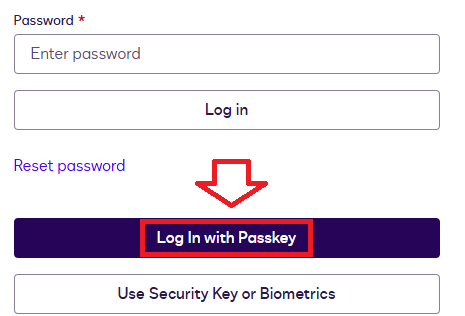
Click on the
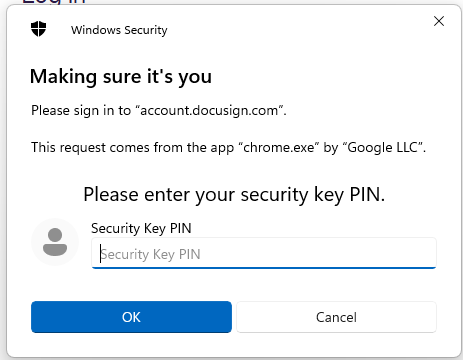
 button, and you will be prompted to enter the PIN code for your Fido2 key.
At the prompt "Security Key PIN", enter the PIN code, then click
 .
. (in the case of a Fido key with a fingerprint reader you will need to swipe your finger on the key);
Next you will asked to touch the key;
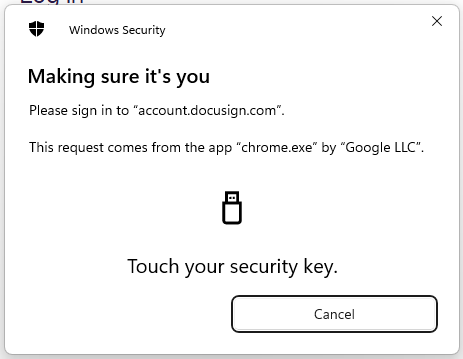
Once the key has been touched you will be logged in to your Docusign account.
Related Articles