Changing a PIN on a FIDO2 security key on MacOS and Linux systems
To change an existing PIN code, first launching the windows setting home page then selecting your sign-in options;
- Open up the windows settings home page (press windows and "I" keys at the same time);
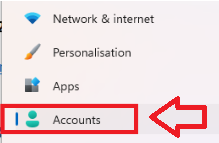
In the left hand column, select "Accounts" to open the user accounts settings;
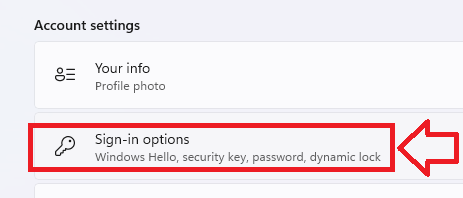
Scroll down the right hand column to the "Accounts Settings" section, then select "Sign-in Options";
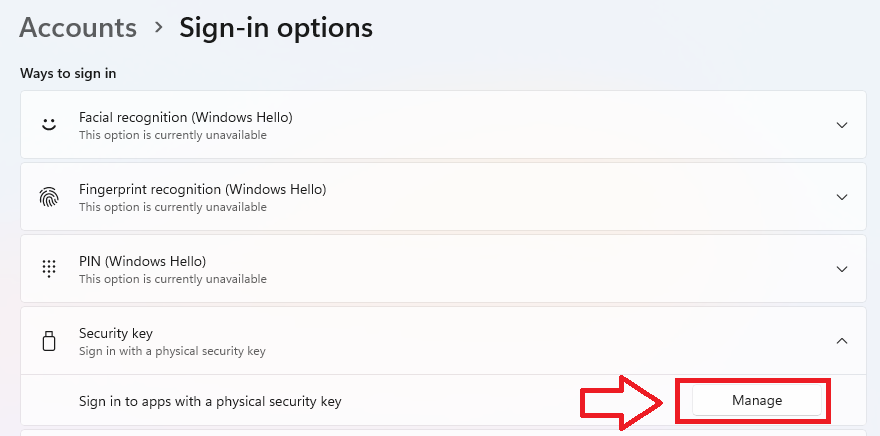
In the section "Security key", click on the "Manage" button;
Related Articles
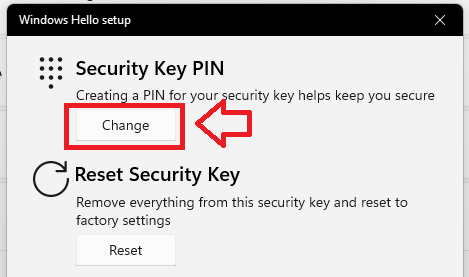
Click on the "Change" button;
 .
.
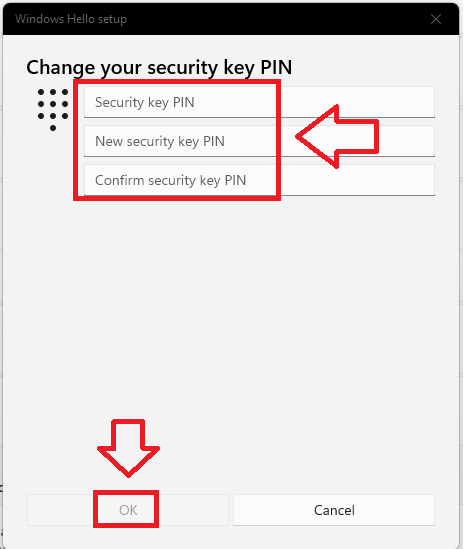
You will then be prompted to change your existing PIN to a new one.
Enter you current PIN and two copies of the new replacement PIN code, then click "OK";
Changing a PIN on a FIDO2 security key on MacOS and Linux systems
For Mac and Linux systems it is possible to change a PIN using a tool that is built into the latest version of the Chrome browser.
This tool is available in the latest Chrome browser in macOS and Linux core system.
Users can find this tool in “Chrome Settings” => “Privacy and security” => “Manage security keys” . This tool provides the capability to manage PIN, fingerprint and credentials inside the security key and reset the device.