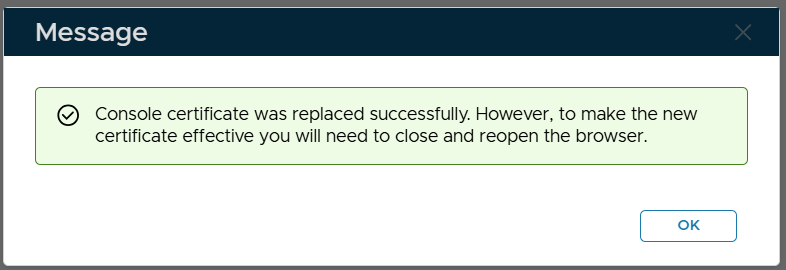
If you have an existing SSL certificate in a PFX file, then you can import it into the DualShield server to be used as a server or web SSL certificate.
In the Admin Console, select "Repository | Certificates | Server Certificates"
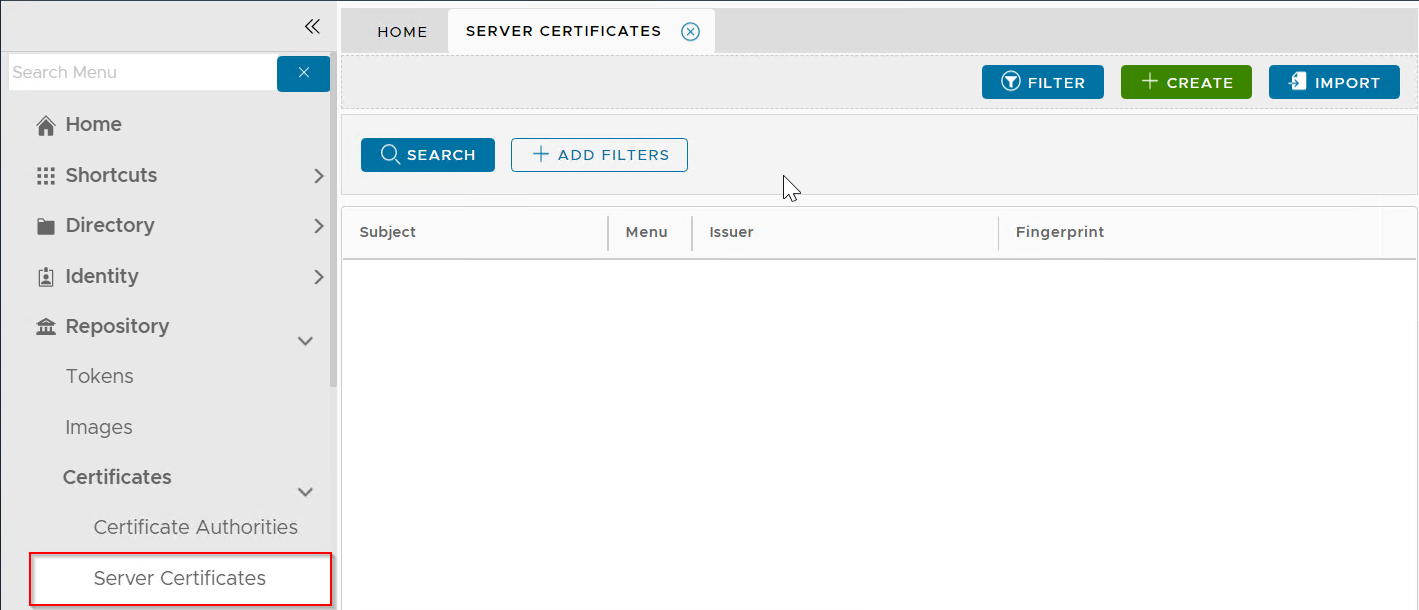
Click the "Import" button
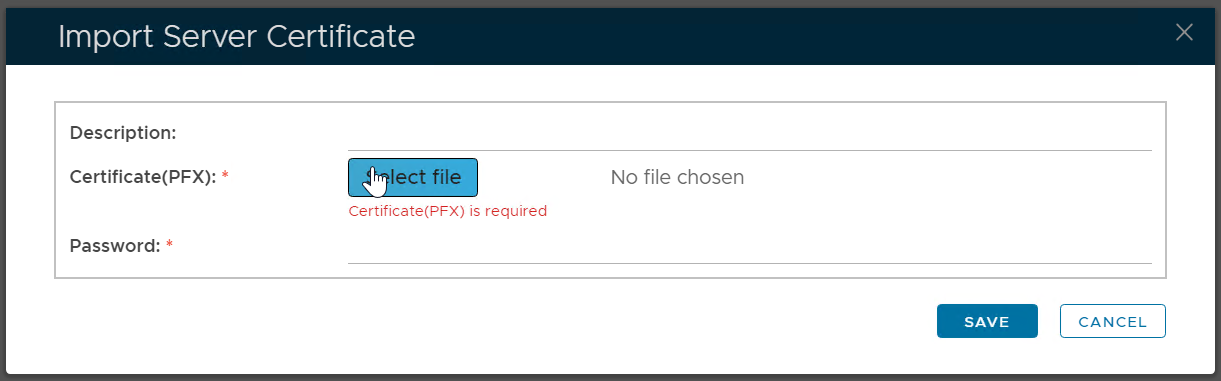
Enter a description
Select the certificate PFX file to be imported
Enter the password of the PFX file
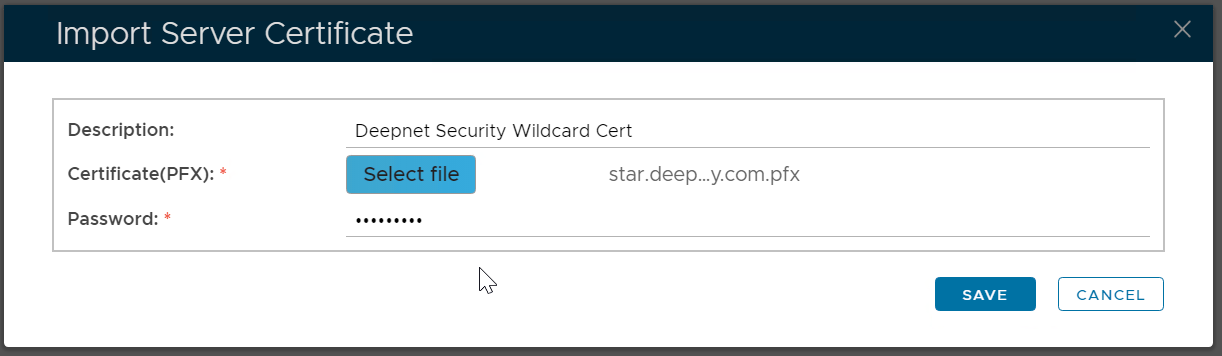
Click "Save"
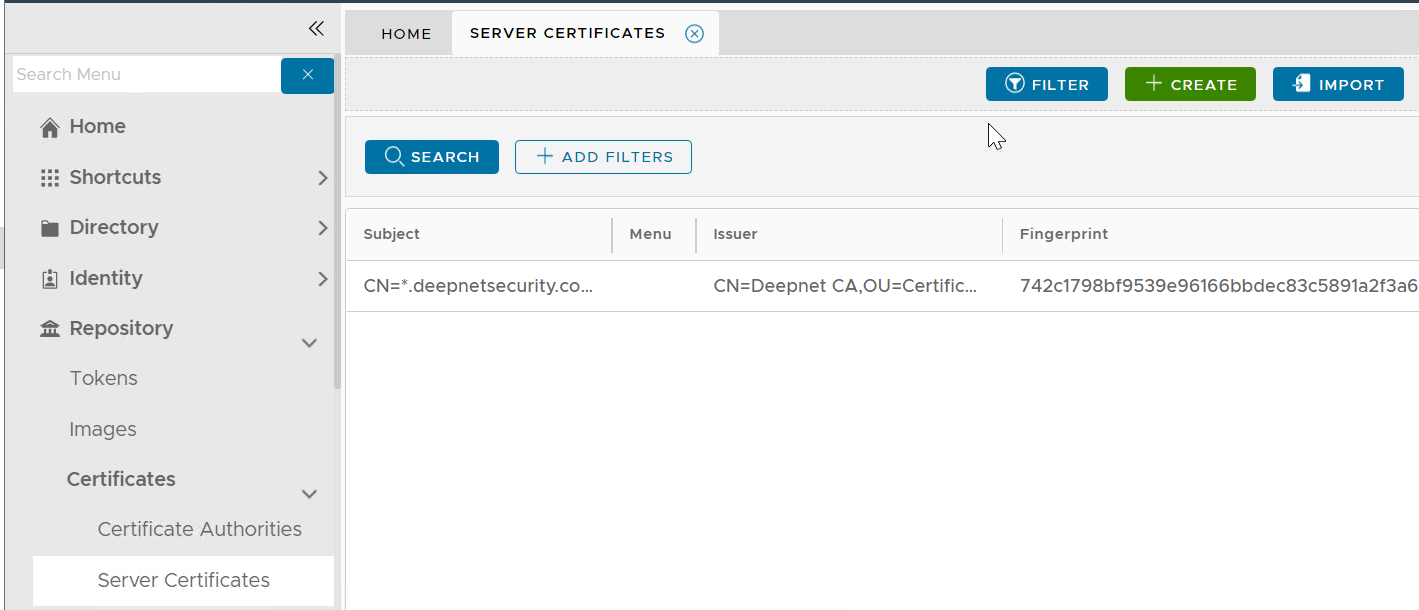
Please note that this does not automatically update the web certificate of your DualShield consoles. If you wish to do that then...
If you already have the PFX file of the new certificate generated from a 3rd-party tool, then please follow the guide below.
Navigate to "SSO | SSO Servers", click the context menu of "Single Sign-On Server"
Select "Replace Certificate" from the context menu

The "Replace Console Certificate" window will pop up:
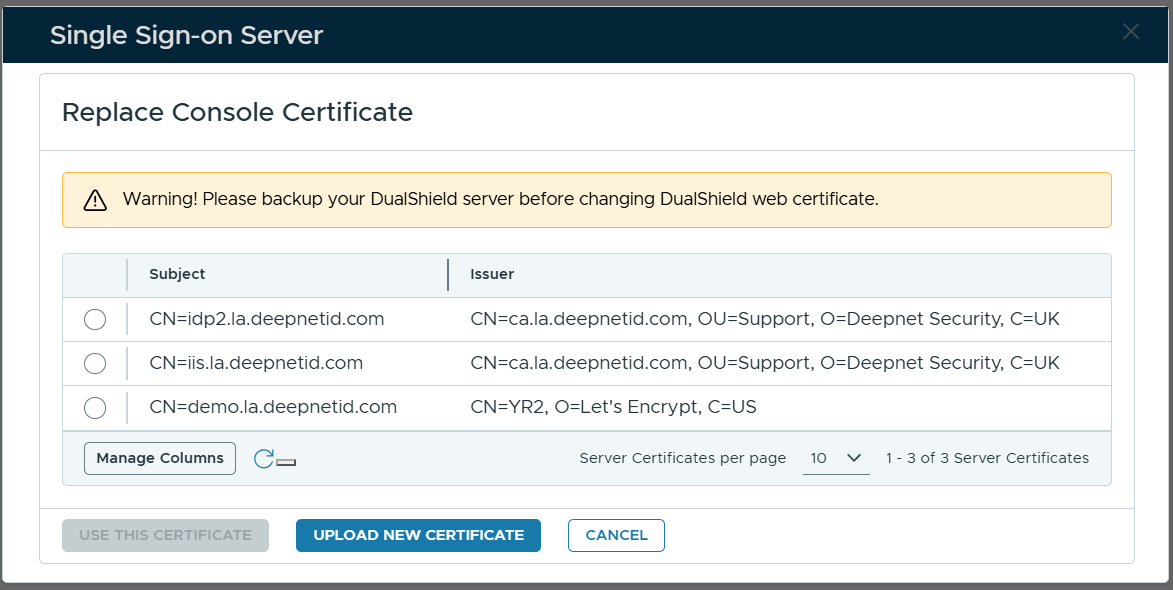
Select the certificate to be used
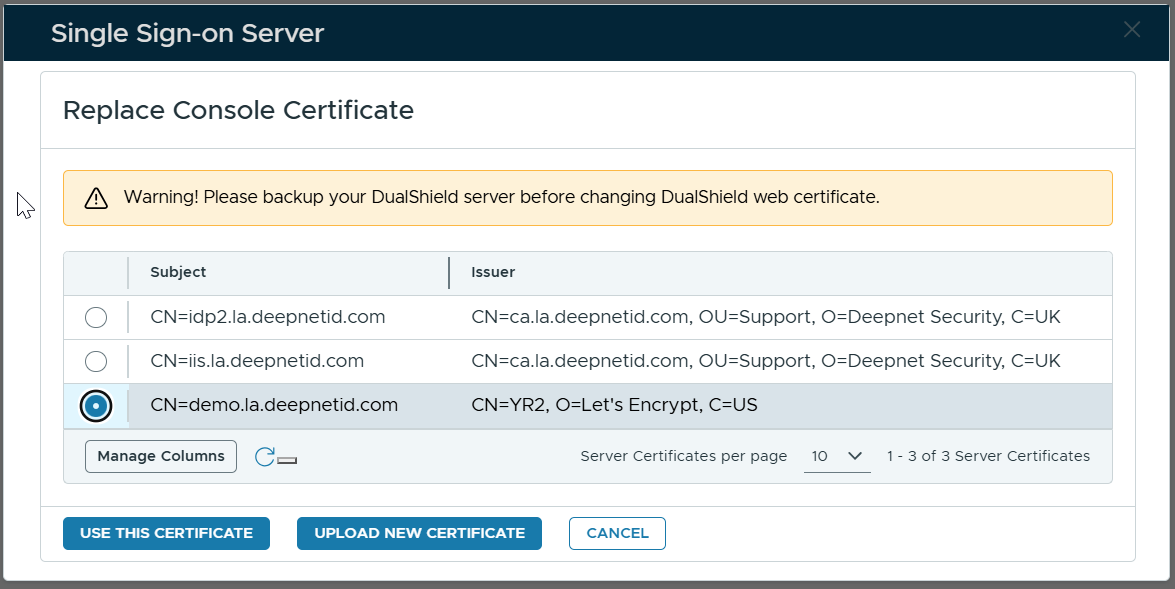
Click "Use This Certificate"