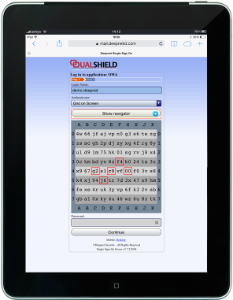
GridGo is an on-demand, on-screen security grid that is delivered to the user’s logon screen in real time.

This policy provides options that control GridGo Authentication (an on-demand, on-screen security grid that is delivered to the user’s logon screen in real time).

The following system policy settings are for the policy "GridGo default policies", in the category "GridGo";
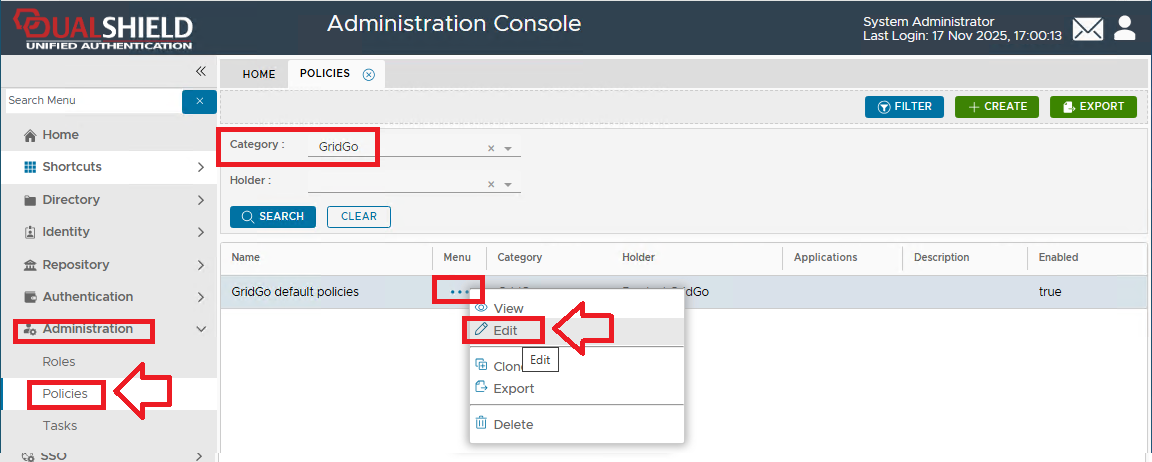

After editing the policy a new window will open titled "Policy - Edit";
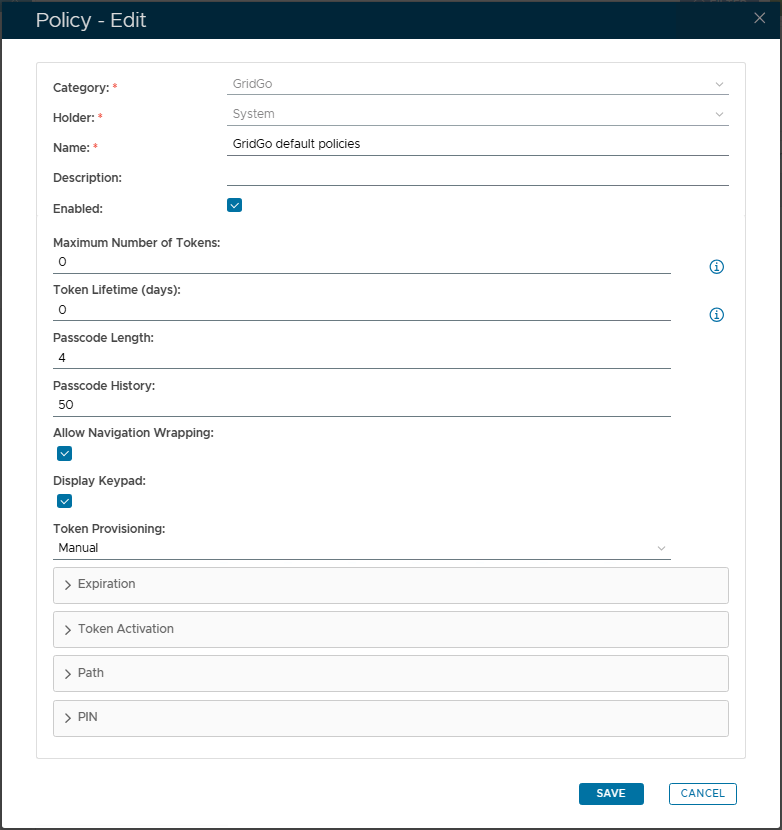



The category for this policy is "GridGo" (this property cannot be edited).

The holder of this policy is "System" (this property cannot be edited).

The name assigned to identify the GridGo default policy by the System Administrator.

The System Administrator may use this field to annotate this policy.

This option allows the System Administrator to enable or disable this policy.


The maximum number of GridGo tokens allowed in a user account (enter "0" if there is no limit).

This value indicates how many days the token will be active (enter "0" if there is no limit).

This value specifies the number of characters in a  passcodes.

This value specifies the maximum number of passcodes that can be kept in the History List (this list is used to avoid repeat usage of recent passcodes).

This option specifies if navigation wrapping is allow in passcodes (navigation wrapping is where the path passes from on side of the grid to the other).

This option determines if a keypad is displayed.

The default Provisioning setting for GridGo is "Manual".


Expandable Policy Sections


The expandable sections can be broken down as follows;


EXPIRATION

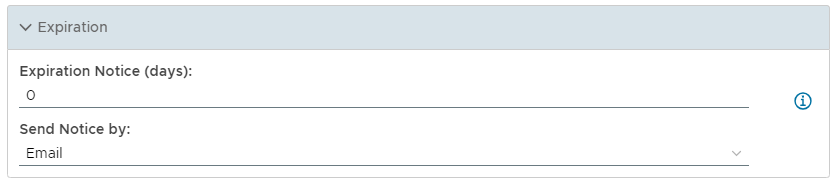
The purpose of the section "Expiration" is to allow the system administrator to specify how much notice users should have before a message is sent out warning that a token is expiring, and how that message should be sent.


┌─  EXPIRATION  ─────────────────────────

States the number of days before the token expires (if this is set to 0, then the token will not expire).


This option allows you to specify how notice of token expiry is sent to the user (either by SMS or Email).

.

└──────────────────────────────────────┘

TOKEN ACTIVATION

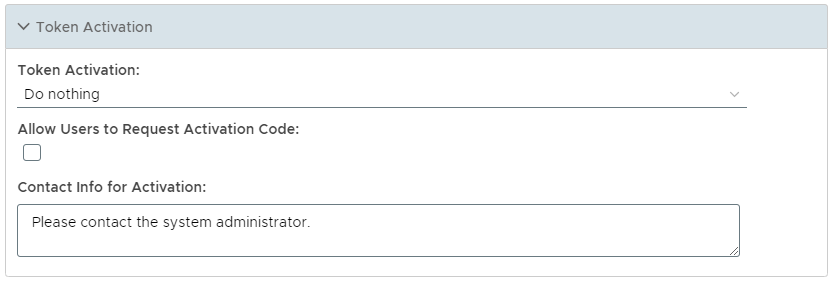
The purpose of the section "Token Activation" is to allow the system administrator to specify how token activation takes place, and what messages are sent when this is required.


┌─  TOKEN ACTIVATION  ───────────────────

Automatically activate the token when created or assigned
The token is automatically activated and usable as soon as it is created or assigned to the user.

Send Activation Code to the user when crated or assigned
The token is not activated after it is created or assigned, and not usable until it is activated by the user.

Do Nothing
The token is not activated after it is created or assigned, and not usable until it is activated by the user, and DualShield will not send an Activation Code to the user.


This setting determines if the users can request an activation code from the available portals.


This message will be sent via a message channel to the user whenever the system administrator wants the user to get in contact.

└───────────────────────────────────────────────┘

There are three options in the Token Activation policy setting;
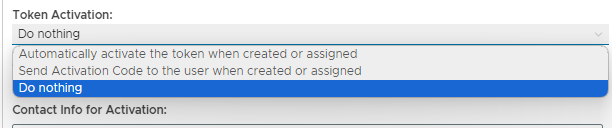
    • Automatically activate the token when created or assigned

      The token is automatically activated and usable as soon as it is created or assigned to the user.

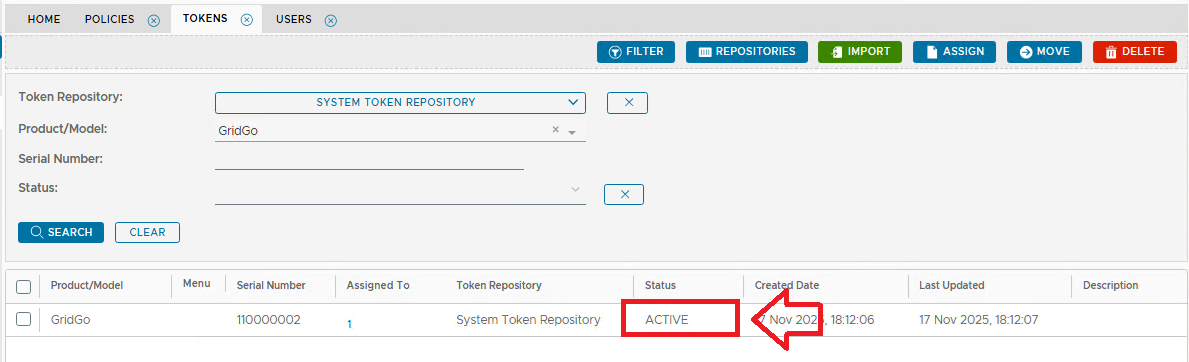
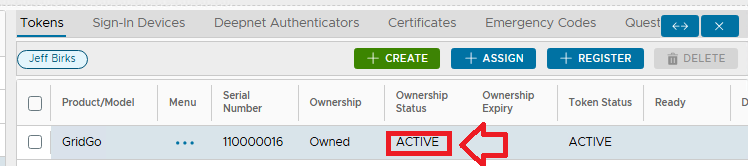
      Upon creation of new tokens of this type the token ownership status is set to "ACTIVE";
    • Send Activation Code to the user when crated or assigned

      DualShield will automatically send an Activation Code to the user via the specified Message Channel.

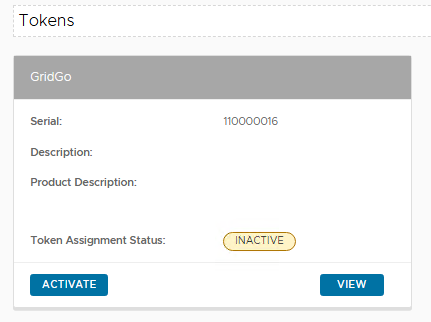
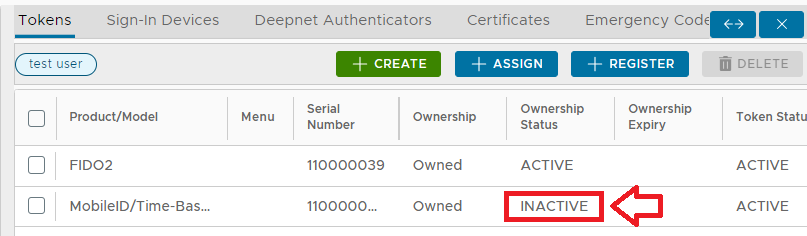
      Upon creation of new tokens of this type the token ownership status is set to "INACTIVE";

      Although the token is inactive, an activation link is sent to the users email account that provides an activation link;

      After clicking on the link the user is shown the token details for the currently inactive token;, and may activate the token by clicking on  the button;

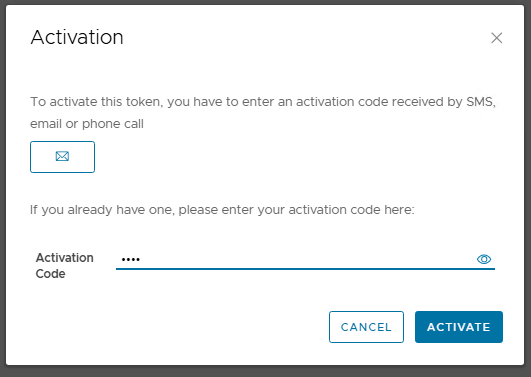
      Click on , supply the activation code emailed to you, then click ;

      After clicking on the button the status of the token will change to "ACTIVE";
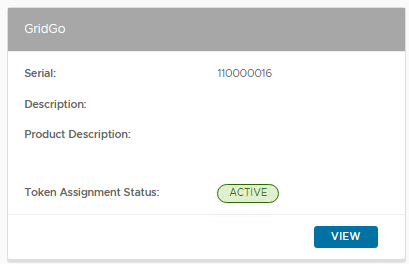
      The status change can also be confirmed on the management console;
    • Do Nothing

      The token is not activated after it is created or assigned, and not usable until it is activated by the user, and DualShield will not send an Activation Code to the user.

      When this option is set, token creation during user authentication will cause a token to be created (during authentication), the token will be created inactive, and the user will be prompted for the token activation code, and the required activation code will be sent to the user;
 PATH

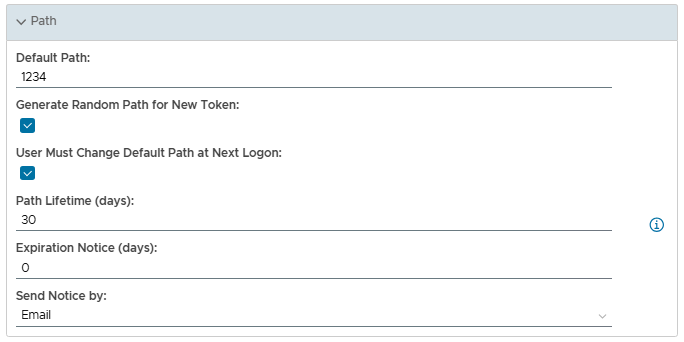
The purpose of the section "Path" is to allow the system administrator to determine the parameters for the default path (either set or generated) when the token is created.


┌─  PATH  ─────────────────────────────────────────

This option allows the system administrator to determine a default path.


If this option is selected then when new tokens are created they will be given randomly generated paths.


If this option is selected the user will be required to change the path upon their next logon.


This option specifies how many days the path will be active (before it is automatically expired).


States the number of days before the token expires (if this is set to 0, then the token will not expire).


This option allows you to specify how notice of token expiry is sent to the user (either by SMS or Email).

└────────────────────────────────────────────────┘

PIN

An OTP token can optionally have a PIN. This is the so-called “Token PIN” or “Server PIN”, not the “User PIN” or “Client PIN”.

A User/Client PIN is a PIN that the user set up on the client to lock the GridGo client software from being accessed by unauthorised people. A User/Client is not a part of the token and is never submitted to the server in the authentication process.

A Token/Server PIN is a PIN that the user set up on the server as an extra password to be attached to an OTP (one-time password) generated from his/her GridGo token each time at logon. For instance, if an OTP is 123456 and PIN is 0987 then the password submitted in the authentication process is 1234560987, assuming that the PIN is set to be appended to OTP by the PIN policy.


┌─  PIN  ──────────────────────────────────────────

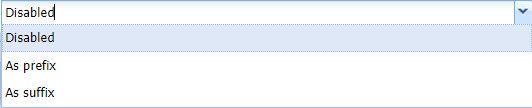
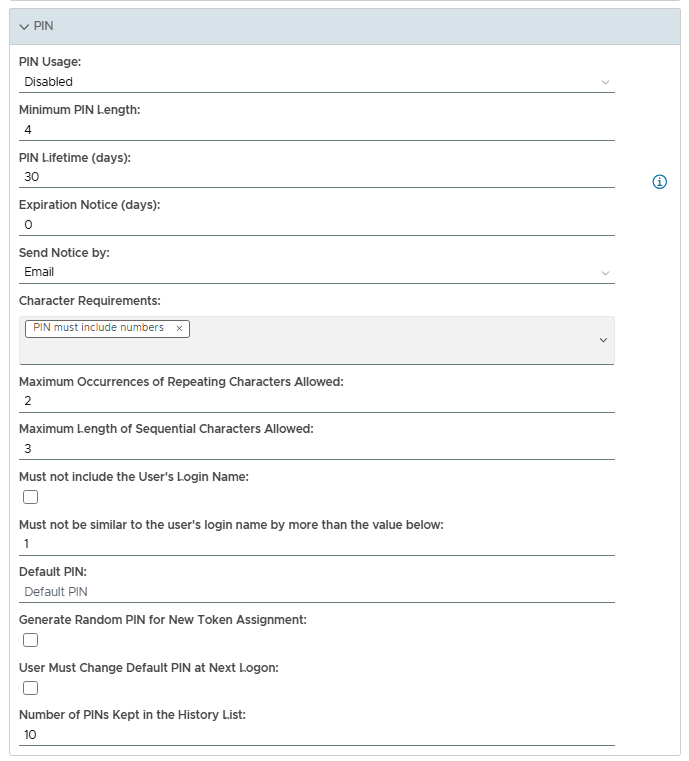
This option allows the systems administrator to determine how the PIN is used;

  • Disabled
    If this option is selected the PIN feature is disabled.

  • As prefix
    If this option is selected the PIN is used as a prefix.
  • As suffix.
    If this option is selected the PIN is used as a suffix

This option specifies the minimum length (in characters) of the PIN.


This option specifies how many days the PIN will be active (before it is automatically expired).


States the number of days before the token expires (if this is set to 0, then the token will not expire). 


This option allows you to specify how notice of token expiry is sent to the user (either by SMS or Email).


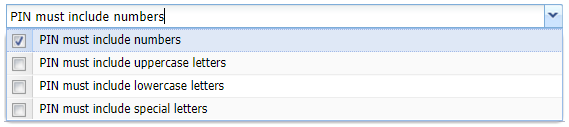
This option states the obligatory components of the PIN (zero, 1, many or all options may be selected)


Specify how many how many times a pair of characters may repeat (default = 2).

e.g. "ABCAB" will be 2 repeating pairs.


Specify how many ascending or descending character will be allowed (default = 3).

e.g. "ALKSDFABCFKL" is 3 ascending sequential characters.


If this checkbox is selected the PIN cannot include the user's login name (default = false).


This option allows you to specify to what extent the PIN includes the user's login name.


If supplied, this PIN will be used when the token is created (until the PIN is changed by the user).


If this option is selected, then all newly assigned tokens will have a random PIN generated for them.


If this option is selected, then when the user next logs in they will be forced to change the PIN.


The PIN history list prevents duplicate PINS being used within recent history (as defined by the size of the list).


└────────────────────────────────────────────────┘
 

  • No labels