To download offline tokens from the SafeID Token Service (STS), follow the steps below:
Configure the Token Download Endpoint
In the Deepnet Configuration Editor, navigate to "MFA Platform / MFA Provider / Entra ID Joined PC"
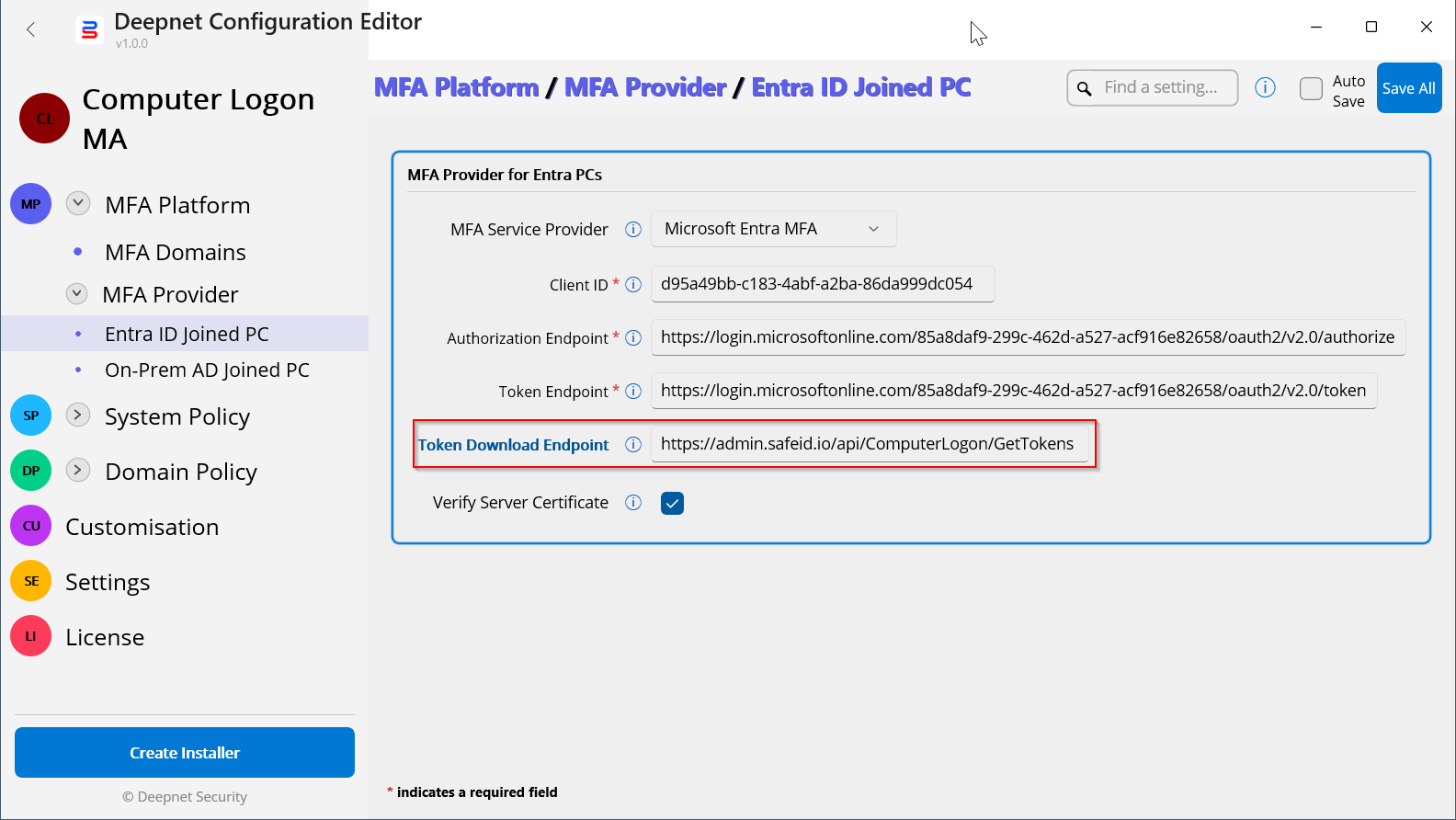
In the "Token Download Endpoint" box, enter "https://admin.safeid.io/api/ComputerLogon/GetTokens"
Save the change.
Configure the SafeID Token Service
In your SafeID Token Service account, you need to create a Computer Logon policy.
Sign in to the SafeID Token Service admin console
Navigate to "Policies", click the "Add+" button
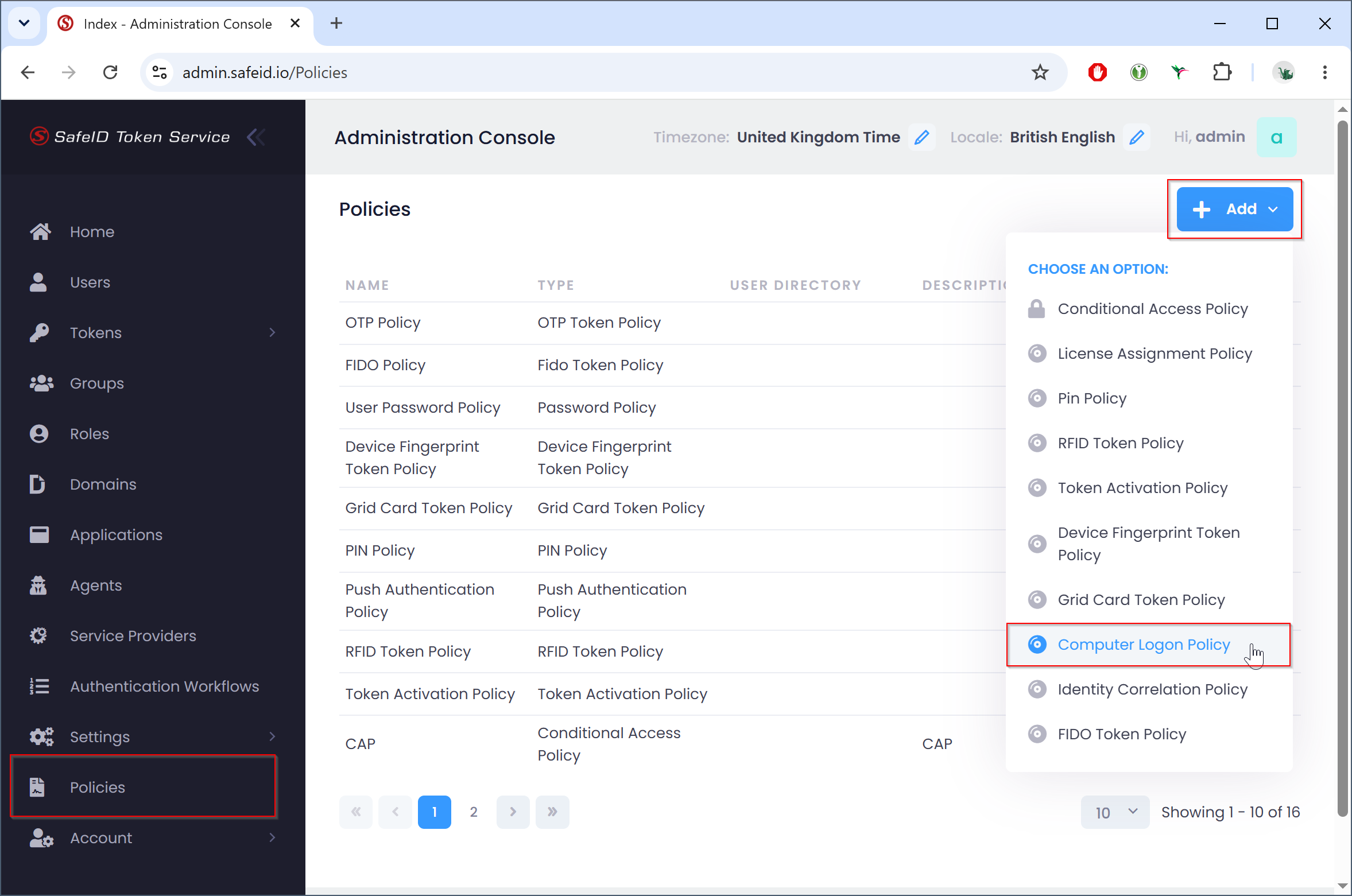
Select "Computer Logon Policy"
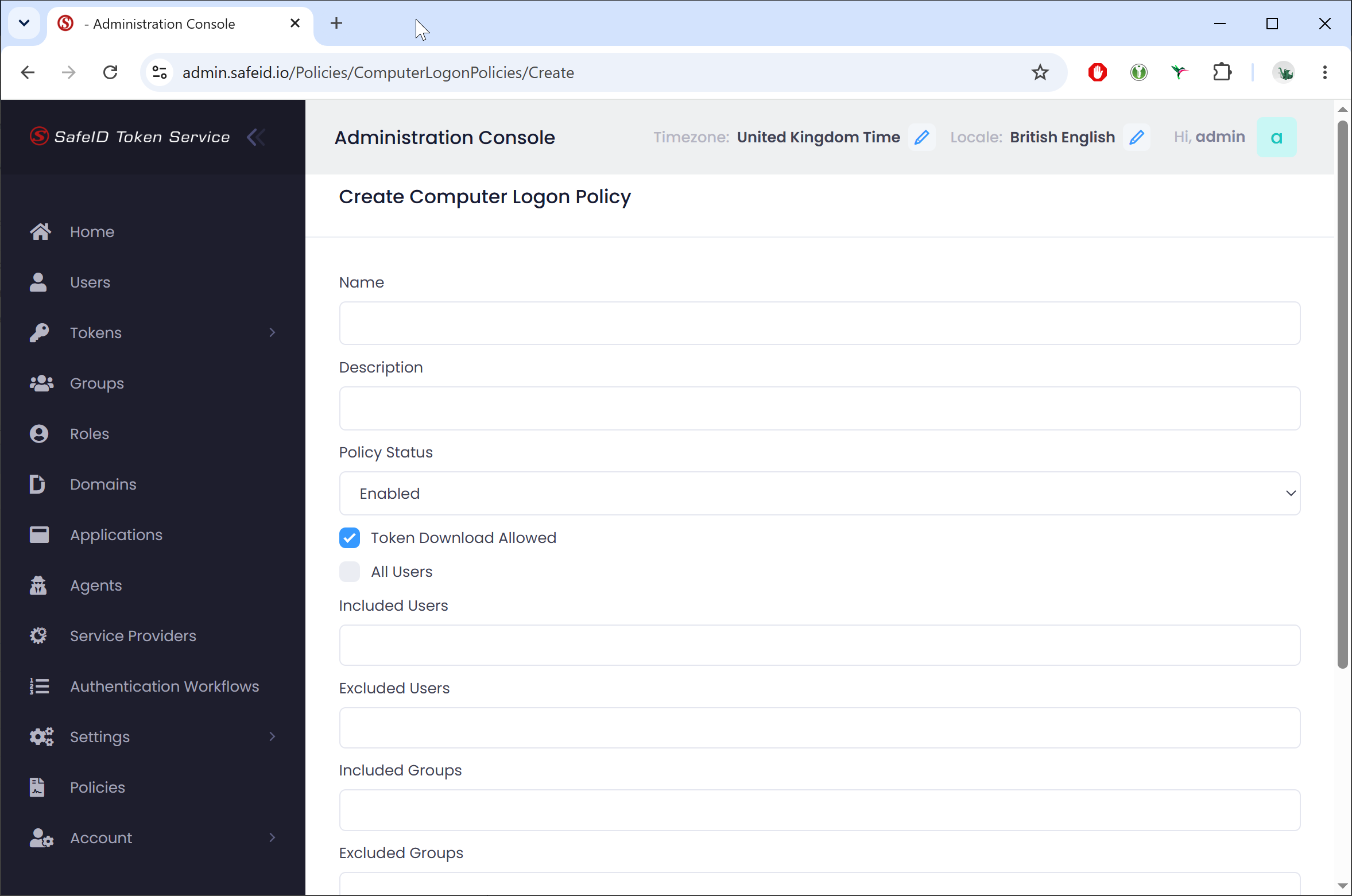
Name the policy, e.g. "Computer MFA Logon Policy"
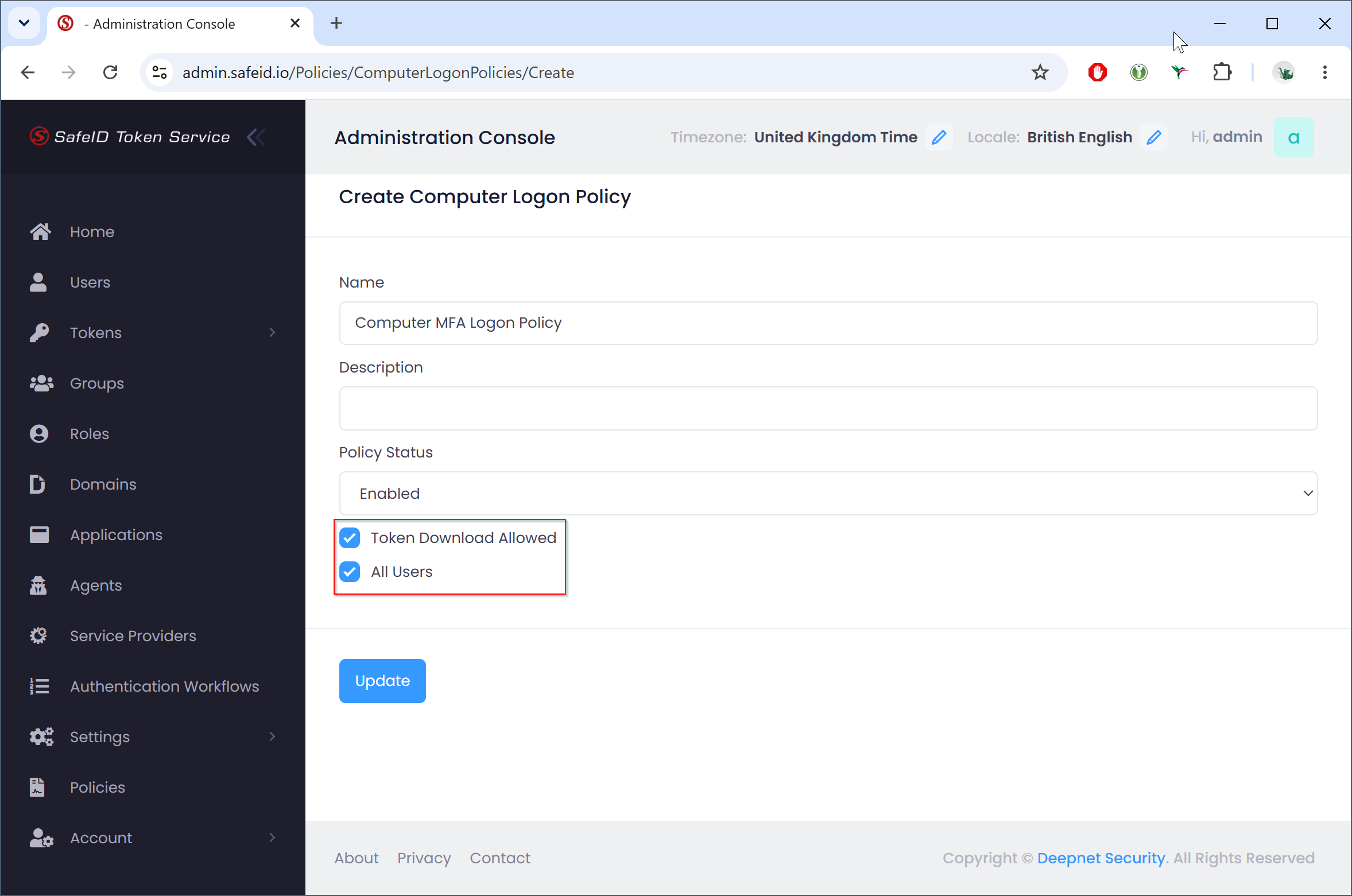
Enable the "Token Download Allowed" option, and bind the policy to all users or to specific users only.
Click the "Update" button to save the policy
Now, navigate to "User Directory"
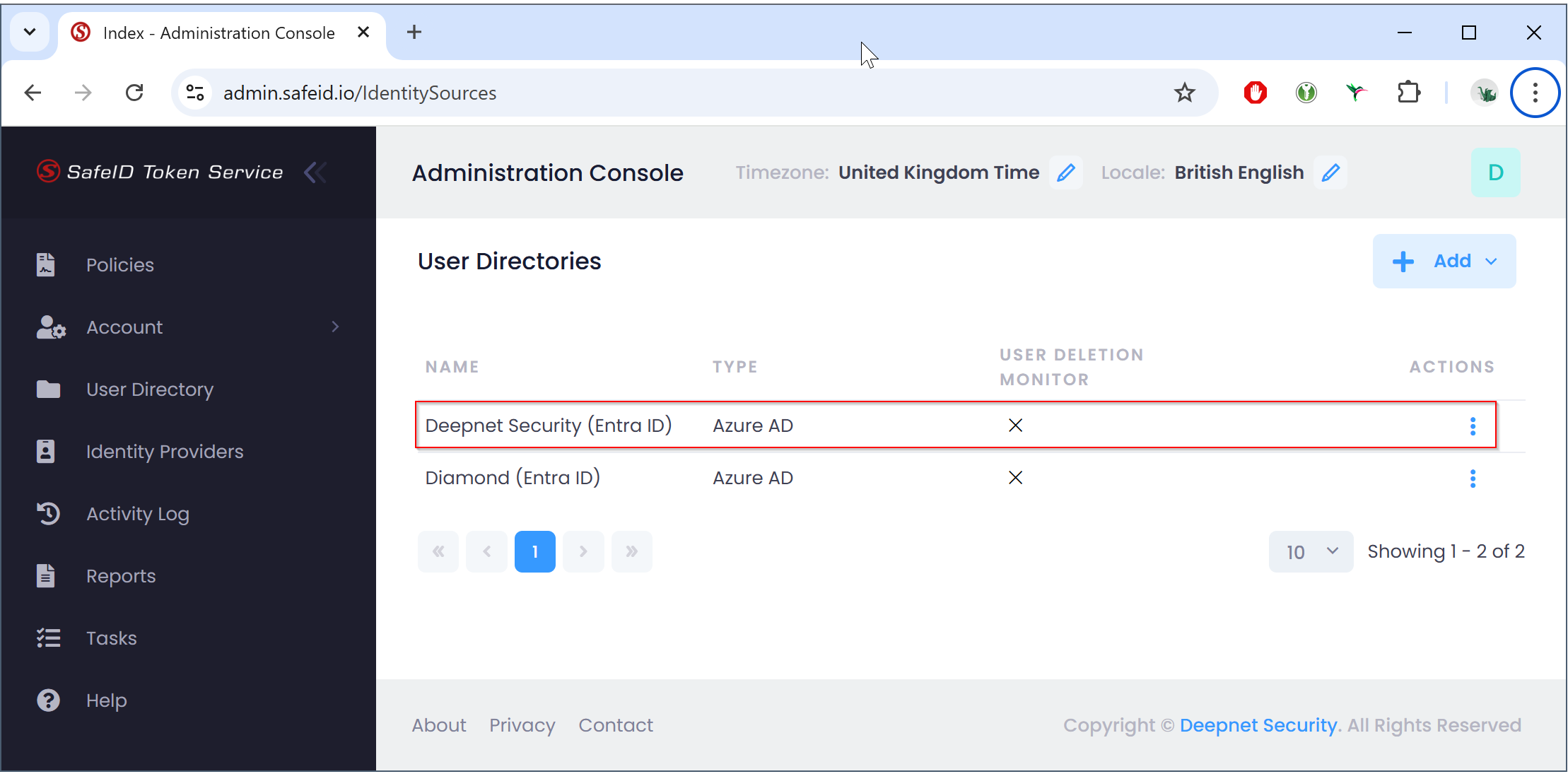
Click the ACTIONS menu of your Entra ID user directory, e.g. "Deepnet Security (Entra ID)" and select "Edit":
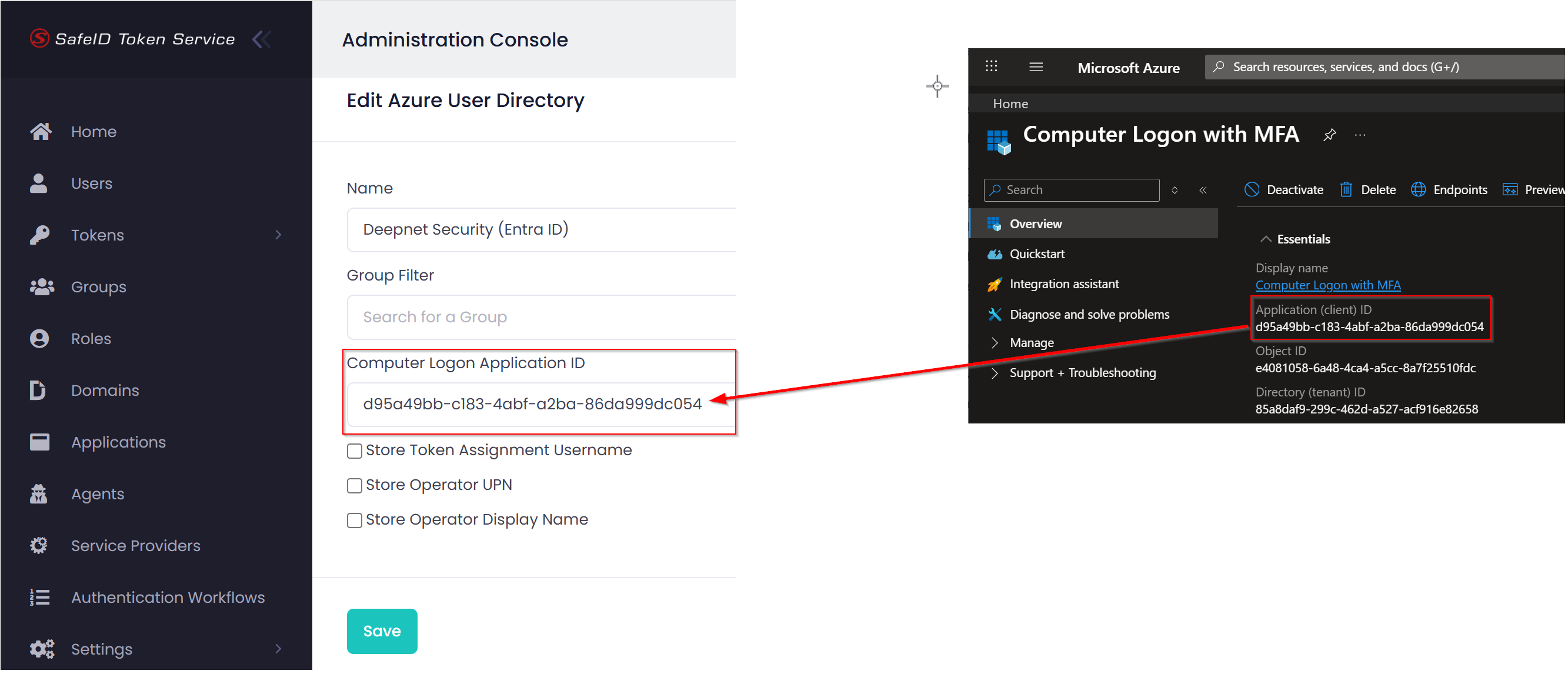
Copy the Application (client) ID of the enterprise application that you had set up for Computer MFA Logon in your Entra ID tenant, and paste it into the "Computer Logon Application ID" box.
Finally, click the "Save" button to save the change.