This document will introduce how to set up the client certificate in Postman to access DualShield authentication server.
Register the Agent
To register an agent, you must first create the following objects in DualShield:
- A domain
- A realm
- A logon procedure
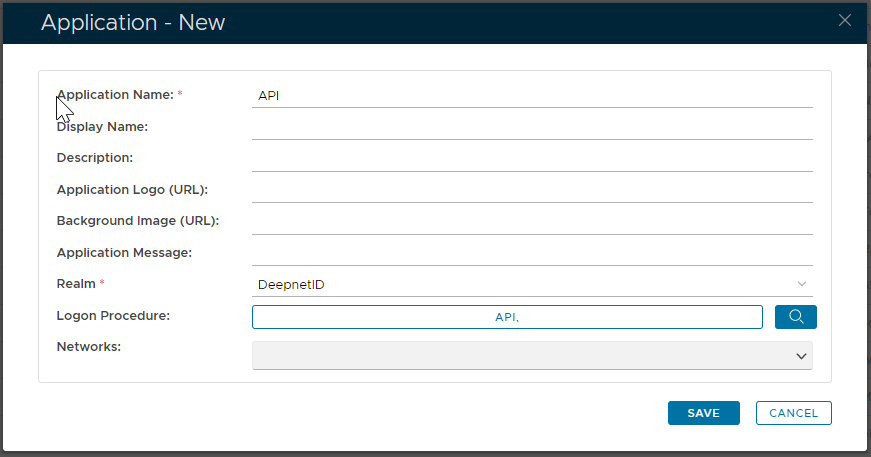
- An application
The type of the logon procedure should be set as "Web SSO"
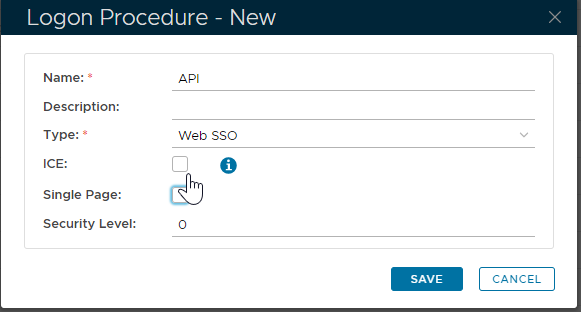
The logon procedure does not have to contain any logon steps.
To register an API agent, select "Authentication | Agents" in the main menu, then click the "Registration" button in the toolbar. 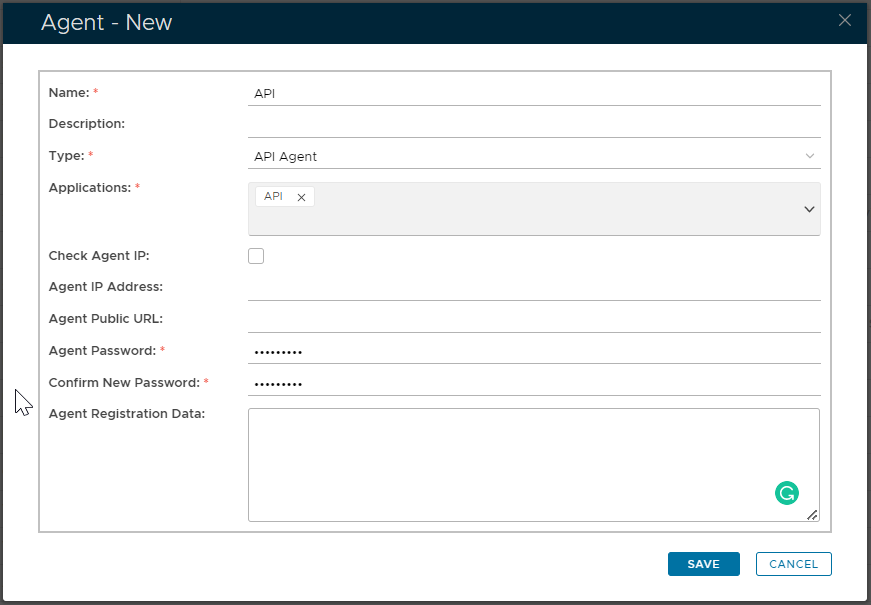
| Field | Value |
|---|---|
| Type | The type of the agent must be set to "API Agent". |
| Application | Select the application that you have created for the agent. |
| Check Agent IP | You can enable the "Check Agent IP" option for extra security. If this option is selected then you must provide the IP address of the machine where your application is running. |
| Agent Password | The communication protocol between the agent, i.e. your application and the DualShield is always HTTPS, therefore DualShield will create an SSL certificate for the agent. This is the password to be used to secure the agent SSL certificate. |
| Agent Registration Data | The Agent Registration Data is not required. |
Assign the role to the Agent
- Click the context menu of the new agent
- Select "Roles"
- Select "API Agent", the click "Save" button to close the dialog.
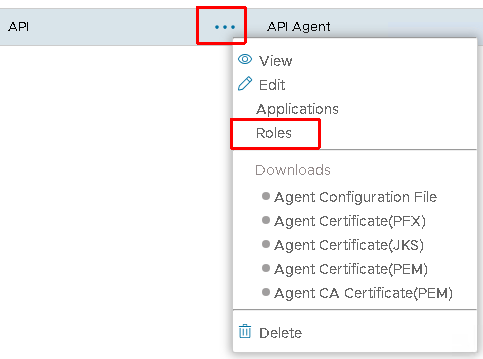
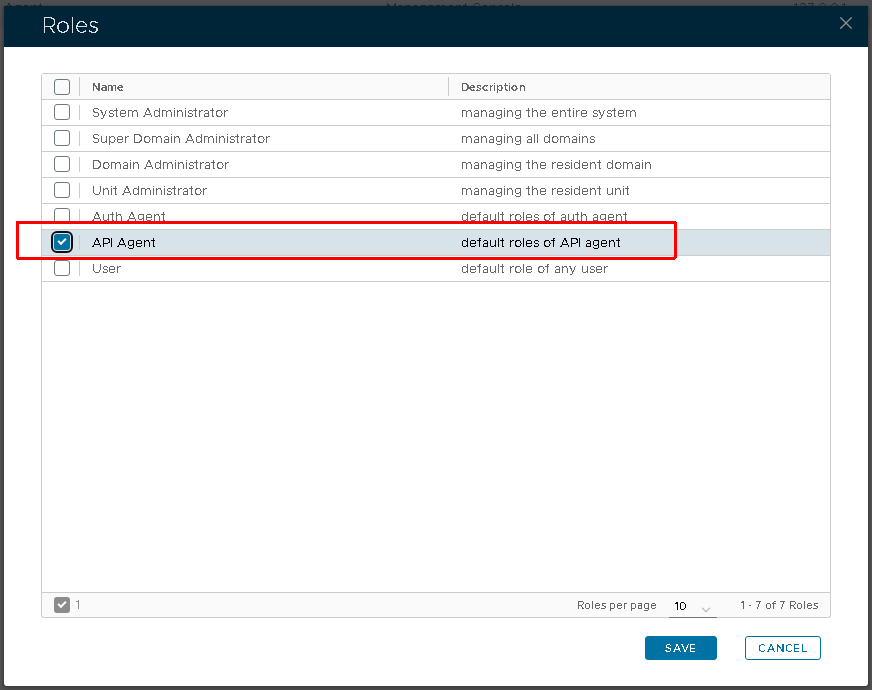
The default permission of the role is defined as:
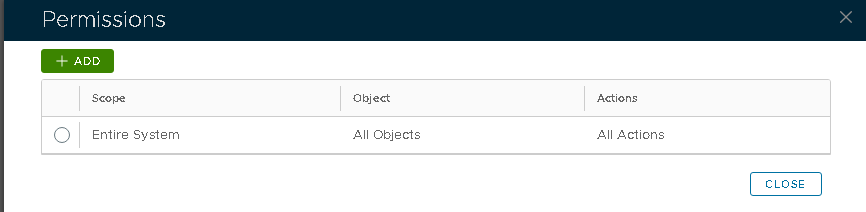
You may modify it as needed. If necessary, you can also create a custom role and assign it to the agent to achieve more granular permission control.
More information about role/permission control can be found in here: Roles
Download the Agent Certificate
PEM Format Certificate
To download a PEM format certificate, in the Agents list, click the context menu of your agent and select "Downloads | Agent Certificate (PEM)". The certificate will be saved as "API.pem". This PEM certificate contains both the certificate and the private key.
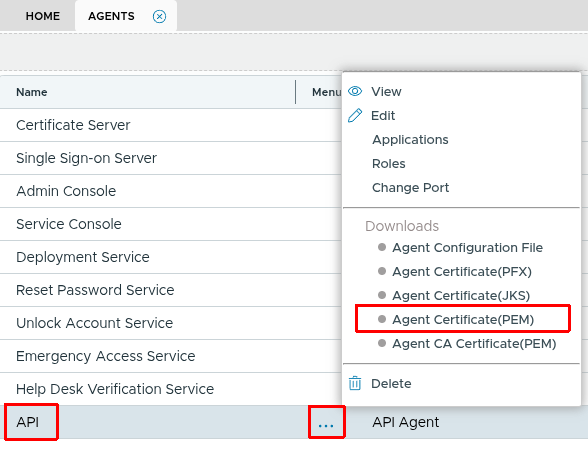
If you are using some programming language, like python, you might want to extract the private key separately. You can use the OpenSSL tool:
openssl rsa -in API.pem -out apikey.pem
apikey.pem is the certificate's unencrypted private key.
PFX Format Certificate
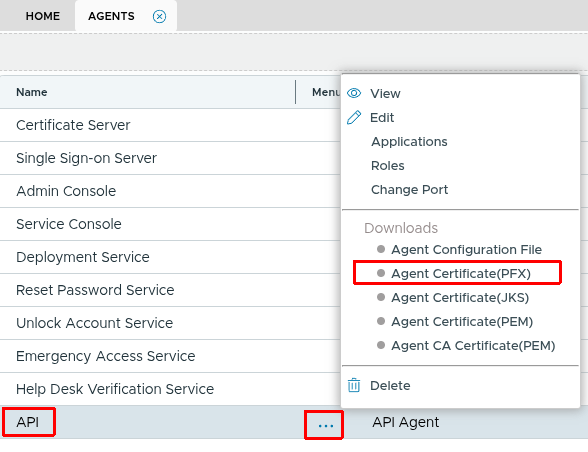
To download a PKCS12 format certificate, select "Downloads | Agent Certificate (PFX)". The certificate will be saved as "API.pfx". The agent password will be used to protect the pfx certificate.
JKS Format Certificate
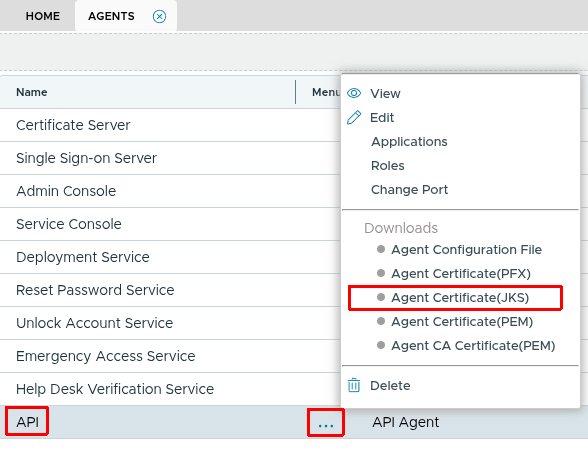
if your application code is in JAVA, you can download a JKS store directly by selecting "Downloads | Agent SSL Certificate (JKS)". The certificate will be saved as "API.jks".
Add Client Certificate on Postman
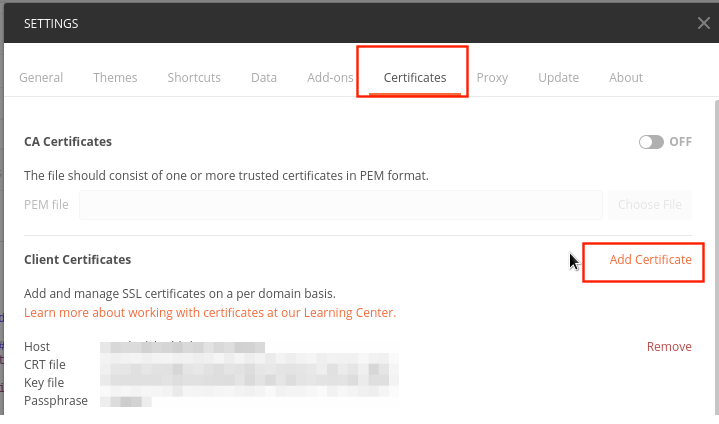
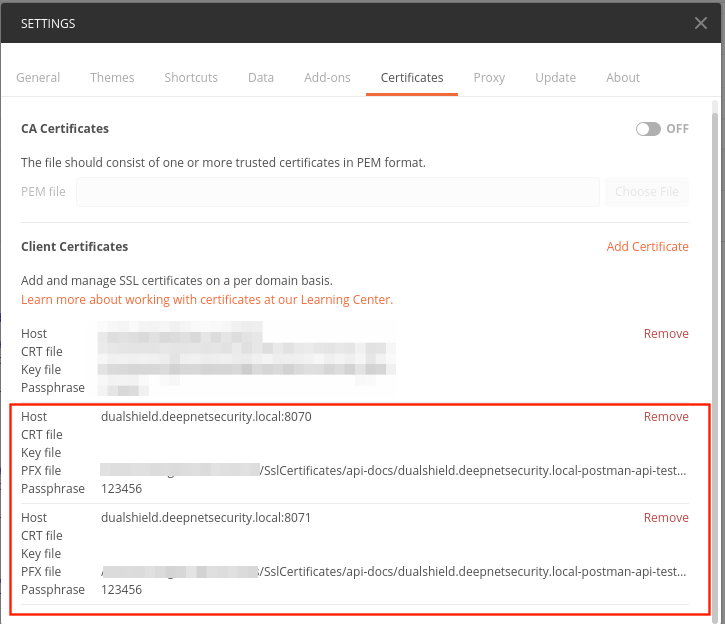
This Postman Official Document introduces how to add client certificate in Postman Client. You can also follow the steps below:
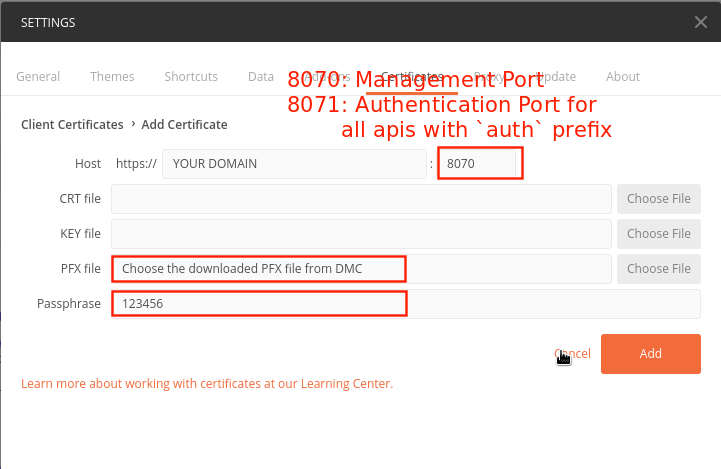
If you want to access both of 8070 and 8071 port, you need to add two client certificates like this:
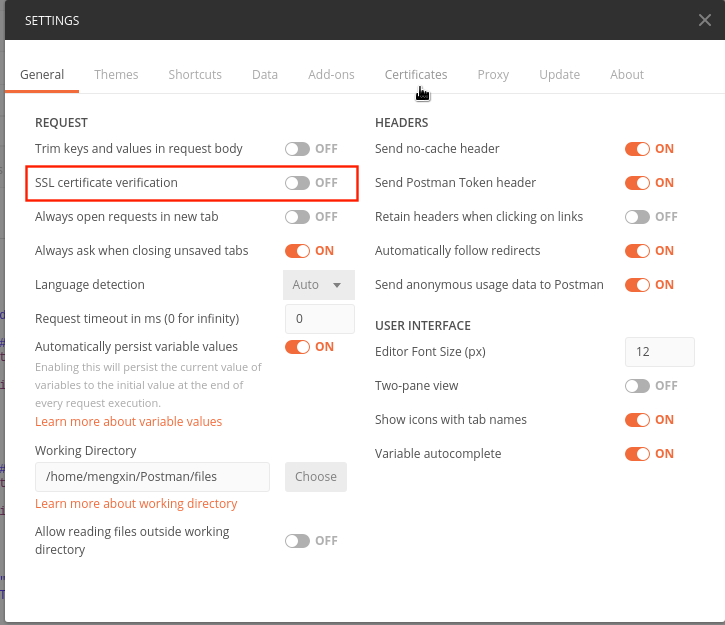
Disable the SSL certificate verification
By default, the Postman will verify all the SSL request with public CA, so if you use the self-sign certificate for your domain, please disable this option
Troubleshooting
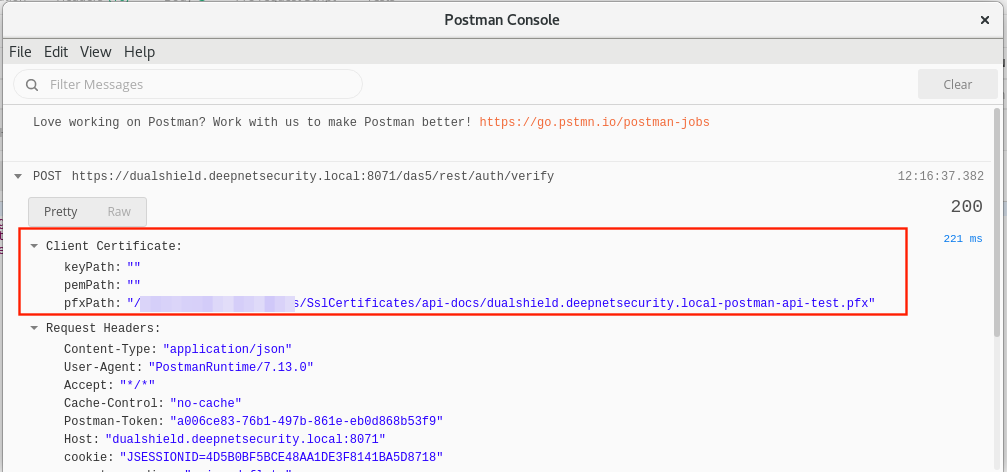
The Postman support debug every request, you can open the Postman Console to check every request:
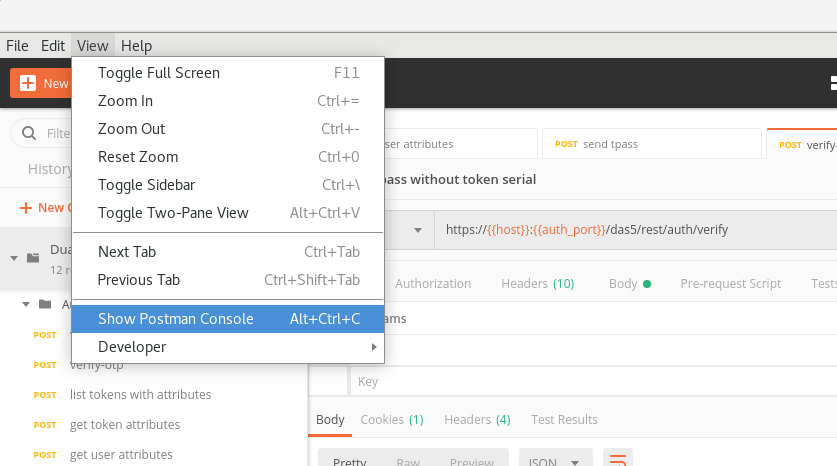
If the client certificate is configured right, you will see the API request like this, which include `Client Certificate`