Configure SAML Role Permission
The “Administer Configuration SAML” role permission is required to use SAML to access Secret Server. To grant a user this permission from an administrator account:
Go to Admin > Roles. The Roles page appears.
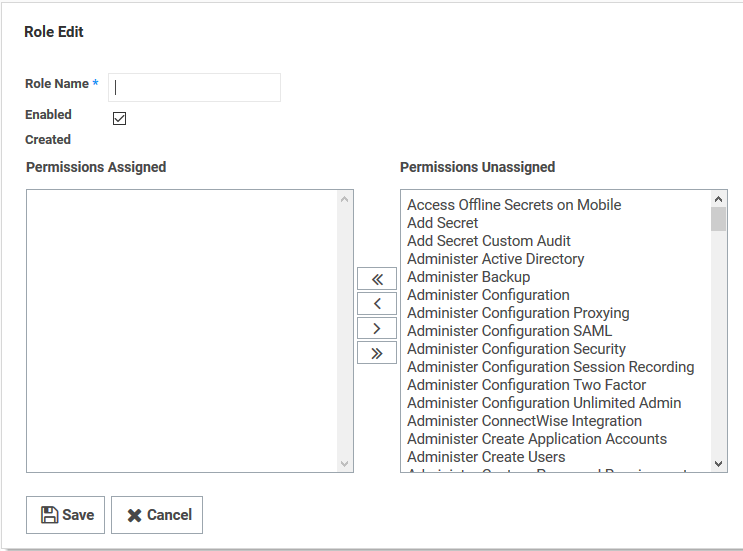
Click the Create New button. The Role Edit page appears:
Type the name, such as SAML, in the Role Name text box.
Click to select the Enabled check box.
Click Administer Configuration SAML in the right side Permissions Unassigned list box.
Click the < button to move the permission to the other side.
Click the Save button.
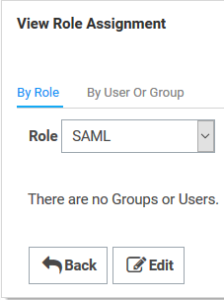
Click the Assign Roles link of the newly created role. The View Role Assignment page appears
Click the Role dropdown list to select the role you just created.
Click the Edit button.
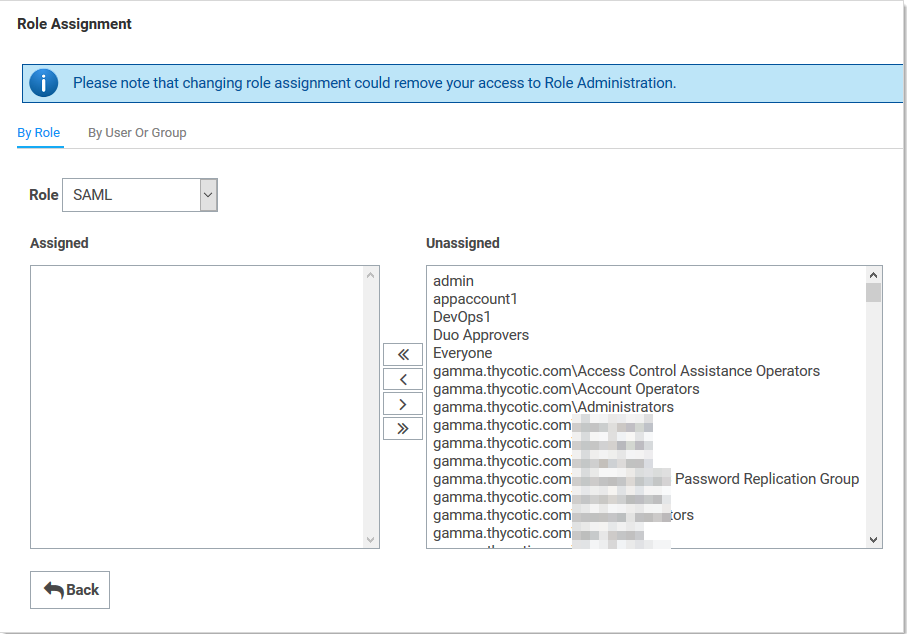
On the Role Assignment page move the desired users to the Assigned list using the same method as before
Click the Save Changes button.
Configure SAML SSO:
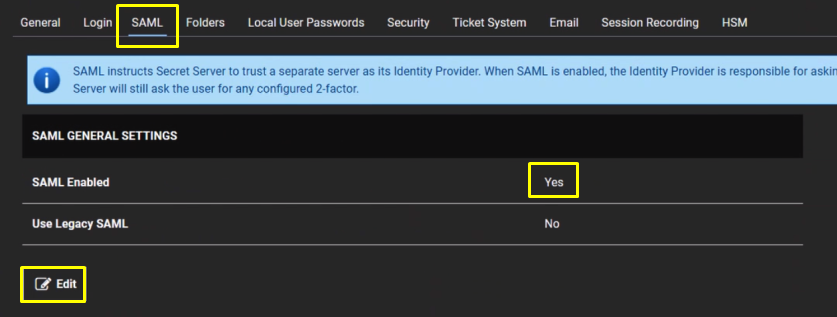
Navigate to Admin > Configuration.
Click the SAML tab
Click the Edit button in the SAML General Settings section.
Click to select the SAML Enabled check box.
Click the Save button.
You will also need to download the IdP Certificate
Upload the exported CER file.
