Bitwarden is a highly used password manager that uses published open source code that is used to secure and managing sensitive online data such as passwords, passkeys, and credit cards. By default access to your Bitwarden vault is protected by you master password, but access to your account can be further protected by using your SafeKey Fido device.
You can use our SafeKey range of Fido keys during the Bitwarden logon procedure by using the keys either as a passwordless FIDO2 solution (using the key and a PIN code), or you can use the keys as a second factor in a two step login solution.
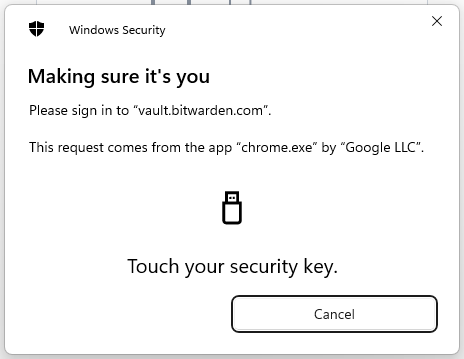
Once the Fido key has been added (either as a passwordless solution, or as an activated an additional authentication step) the Fido key will be requested during authentication (example below);
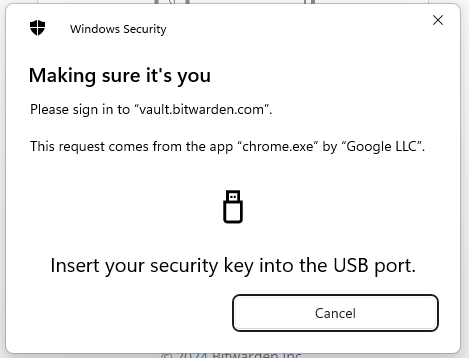
Using a Safekey Fido device as a second factor during Bitwarden Logon
If you want your Safekey Fido device to be requested after supplying your username and master password (i.e. as a second factor during logon), then use the following setup procedure;
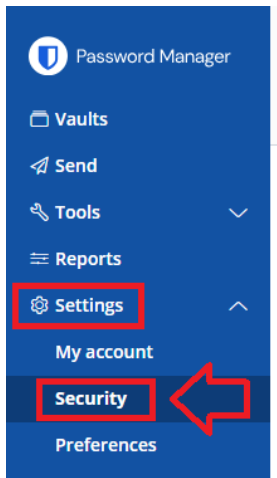
- Two-step authentication using your Fido key is enabled by logging in to your Bitwarden vault account (with admin access), then use the password manager to navigate to "Settings | Security";
Select the tab "Two-step login", then next to the icon for "FIDO2 WebAthn" click on the
 button;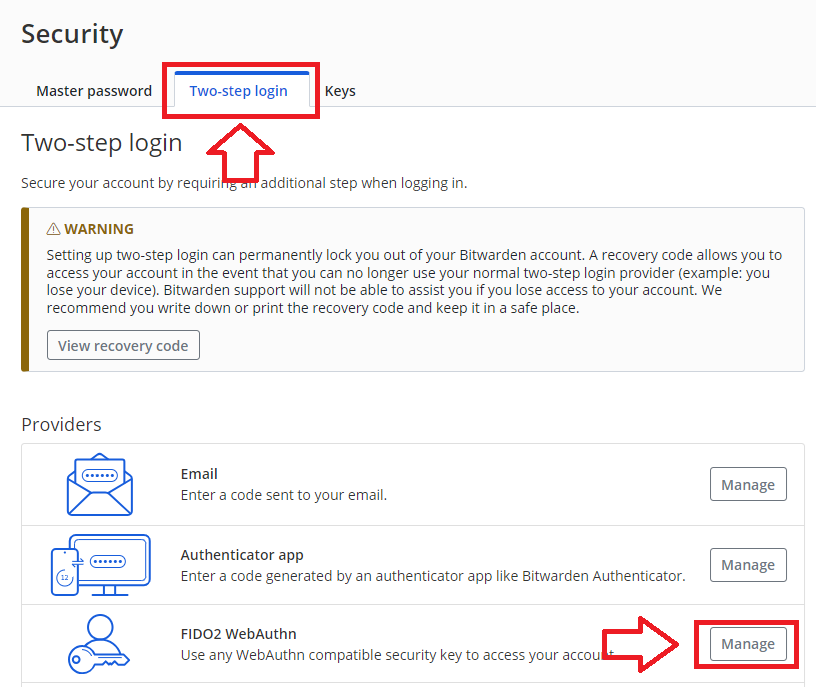
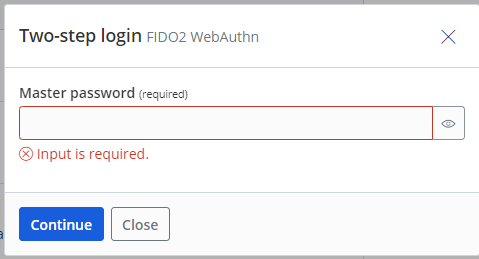
For security reasons you will now be asked to provide your Master Password, enter your password then click
 ;
;
At the prompt "Name", supply a suitable name for your key then plug in your key into a USB port.
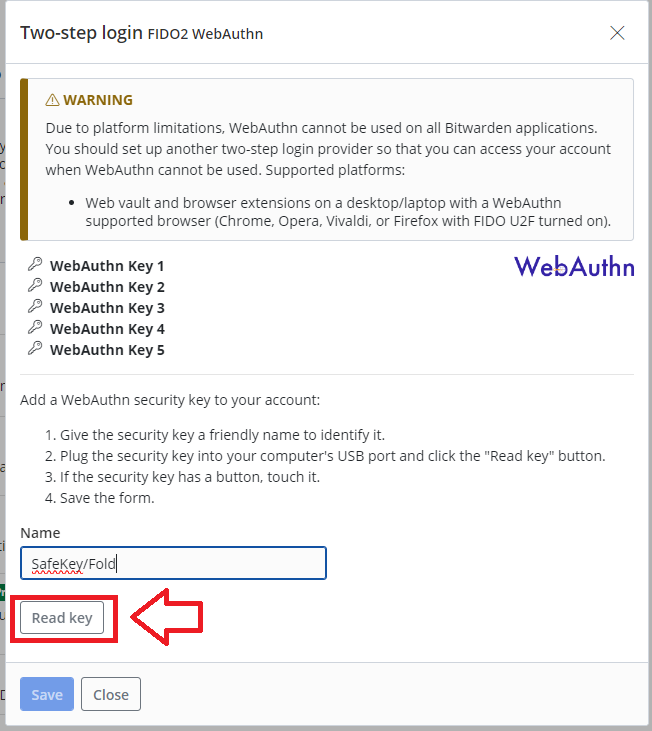
After providing a suitable name for your key insert it into a USB port on your computer then click the
 button.
When Bitwarden has detected your key you will be prompted to select where your passkey will be saved;
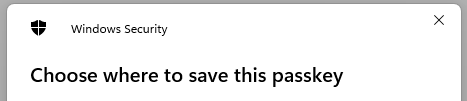
The options presented will depend upon what devices you have used before.
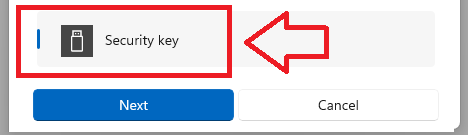
Select "Security key", then click

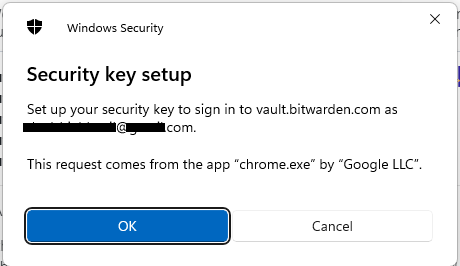
You are then prompted to confirm setup of your security key, click
 ;
;
You are now asked to touch the Fido key (and at this point you should see the light flashing on your Fido key);
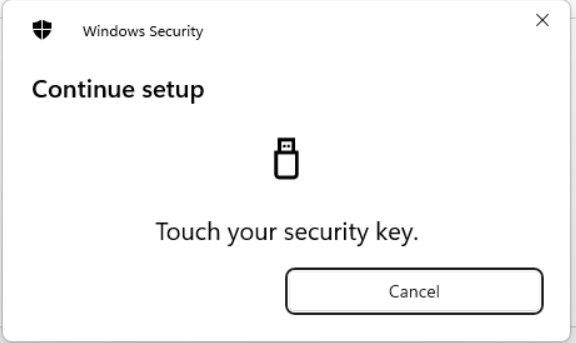
Touch the key, and you will be notified that the passkey has been created;
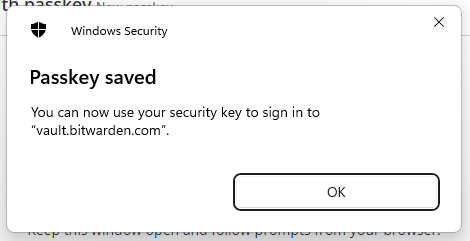
Finally, click on the
 button to activate the security key for two-step login and you will see the following prompt confirming the passkey is activated;
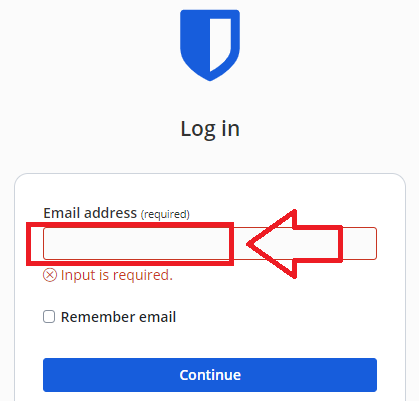
- After navigating to "https://bitwarden.com/" and click on the "Log in" option, at the email address prompt enter your email address then click
 ;
;
Enter your master password then click "Log in with master password";
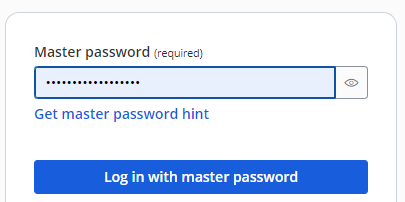
You will now be asked to sing in using your passkey, select "Security key", then click

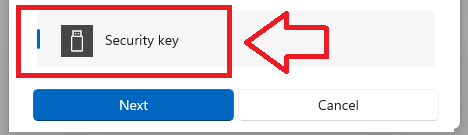
You are now asked to touch the Fido key (and at this point you should see the light flashing on your Fido key);
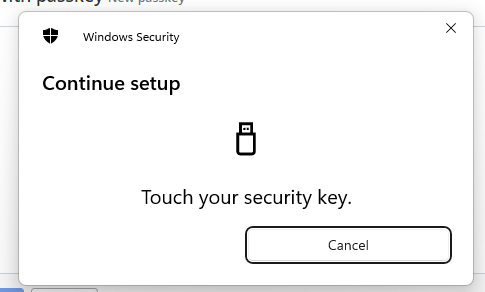
After touching the key you will gain access to your Bitwarden account.
Bitwarden Passwordless Logon using SafeKey
As an alternative to logging in using your master password followed by your Fido key, it is also possible to log in to your account using just the Fido key and your PIN code (although the PIN code can be thought of as a type of password, this process is normally referred to as a passwordless logon).
You can enable Passwordless logons after following the setup procedure;
- Passwordless logon is enabled by logging in to your Bitwarden account then navigating to "Settings | Security";
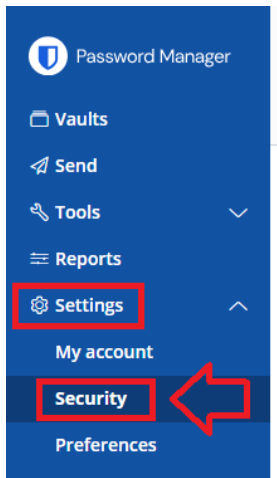
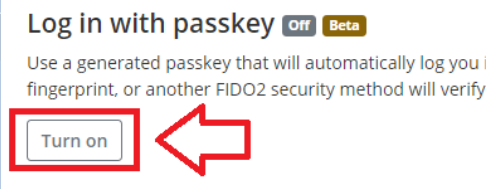
Scroll down to the section Log in with passkey, then click on the button
 ;
;
You will then be prompted for your master password;
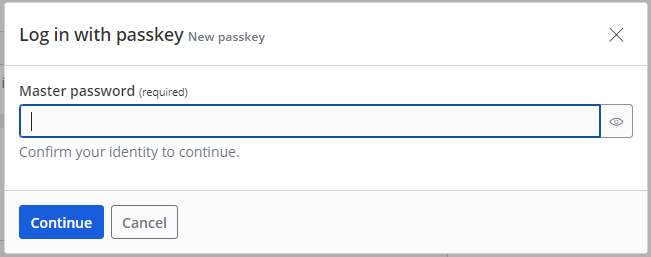
Enter you master password then click
 , and you will be prompted where to save your passkey;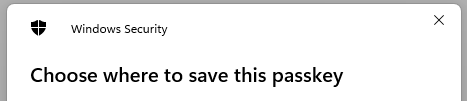
The options presented will depend upon what devices you have used before.
Select "Security key", then click

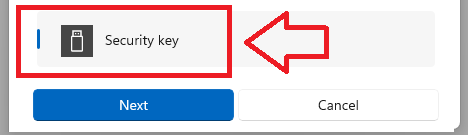
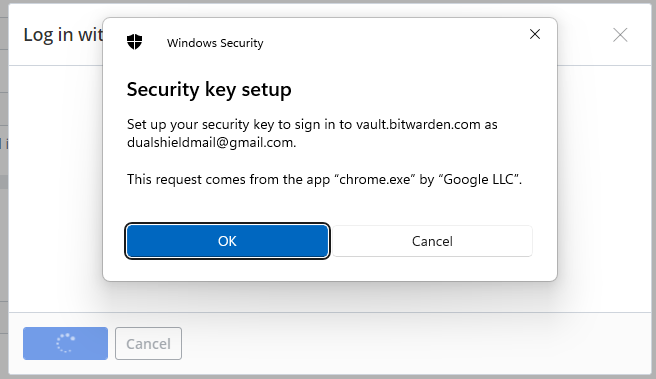
You are then prompted to setup your security key, insert your key into a USB port then click
 ;
;
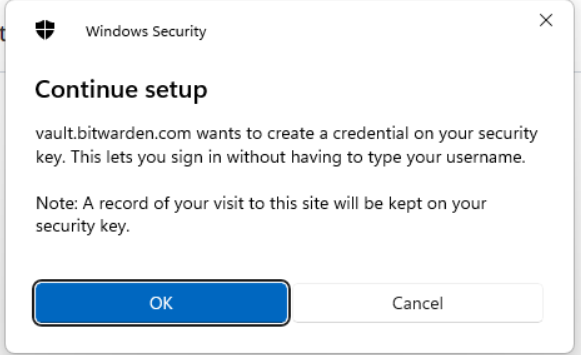
A new window titled "Continue setup" will now open, click
;
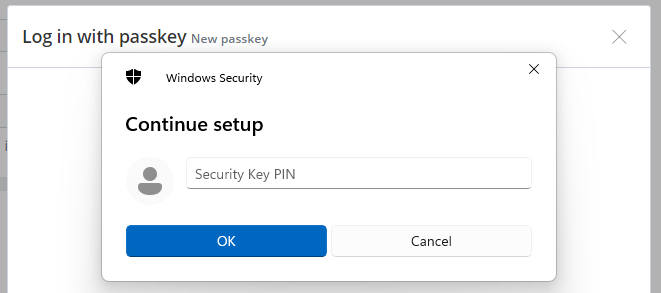
Enter the PIN code of your Fido key, then click
;
You are now asked to touch the Fido key (and at this point you should see the light flashing on your Fido key);
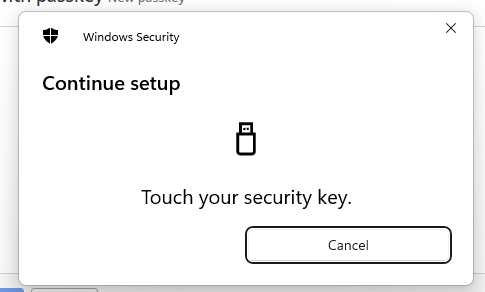
Touch the key, and you will be notified that the passkey has been created;

You can now supply a Name for your key, then click

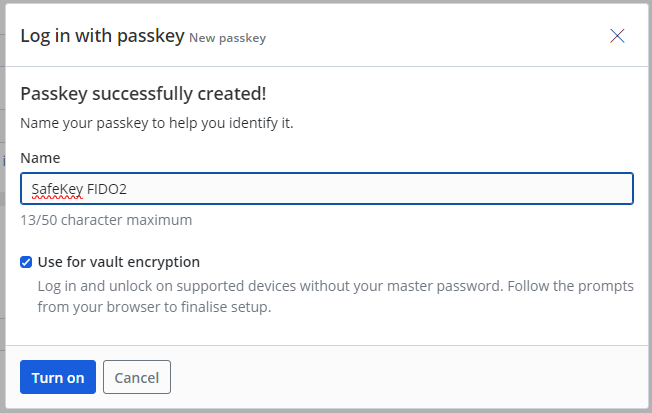
To complete the enabling process you will need to test logging in using the Fido key.
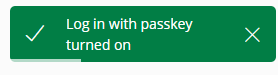
Select the security key, type in your PIN, then touch the key and you will see the following prompt confirming the passkey is turned on;
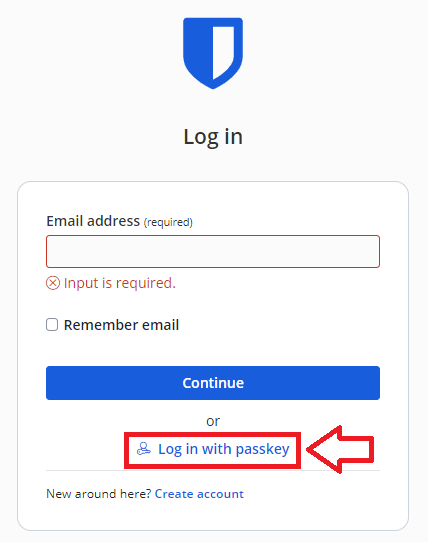
- After navigating to "https://bitwarden.com/" and click on the "Log in" option, then at the login screen select "Log in with passkey";
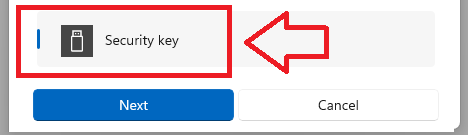
Select "Security key", then click

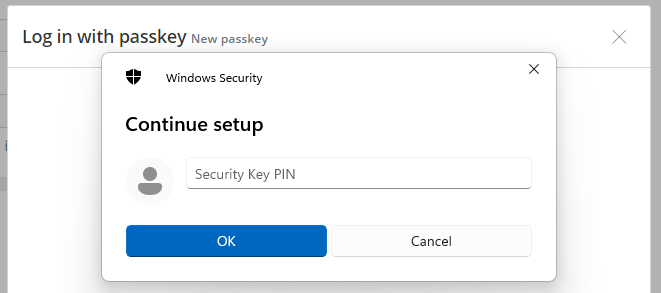
Enter the PIN code of your Fido key, then click
 ;
;
You are now asked to touch the Fido key (and at this point you should see the light flashing on your Fido key);
After touching the key you will gain access to your Bitwarden account
Related Articles