A soft token is created and assigned one at a time, right in the browser — no physical device involved.
1. Click "Add Token"
On the Soft Tokens tab, this creates a new soft token — the simplest option for most staff, since there's no device to hand out. A dialog titled Add Token opens.
Click the highlighted "Add Token" button
2. Assign it and create it
Click the Assign To box — this is required, since a soft token always belongs to someone. That opens a Choose User panel alongside the dialog; search the tenant directory by name or email and click the person you want to assign the token to.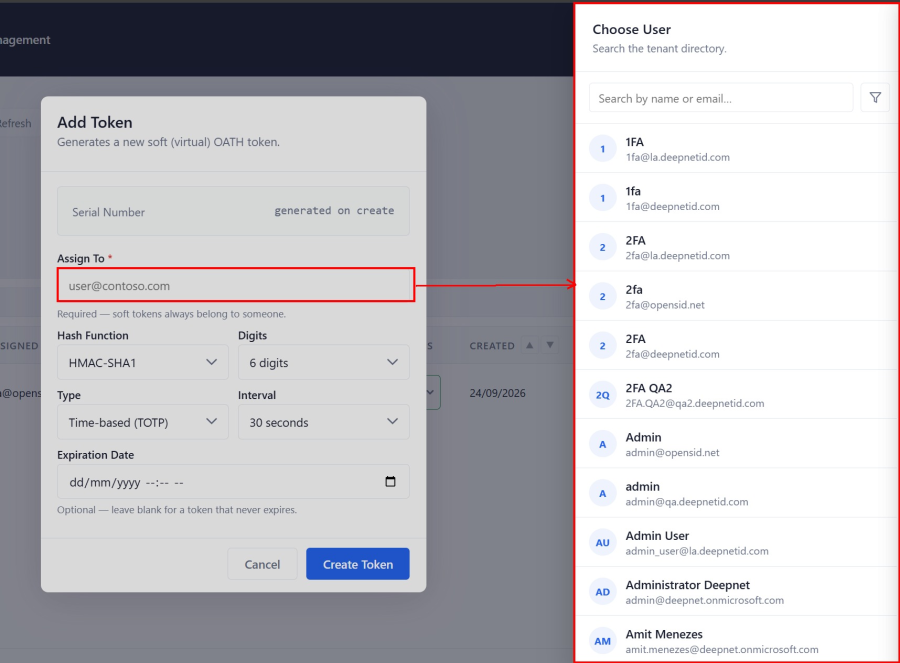
Click "Assign To" to open the Choose User panel, then pick who the token belongs to Only real accounts in your organization's directory show up here — there's nothing to type by hand, so there's no risk of a typo'd address.
Once assigned, the Serial Number is generated automatically. Hash function, digits, type, and interval can be edited for the desired OATH token. The default values are set for the default standard used in Microsoft and available software authenticator apps. Expiration Date is optional — leave it blank for a token that never expires. Click Create Token.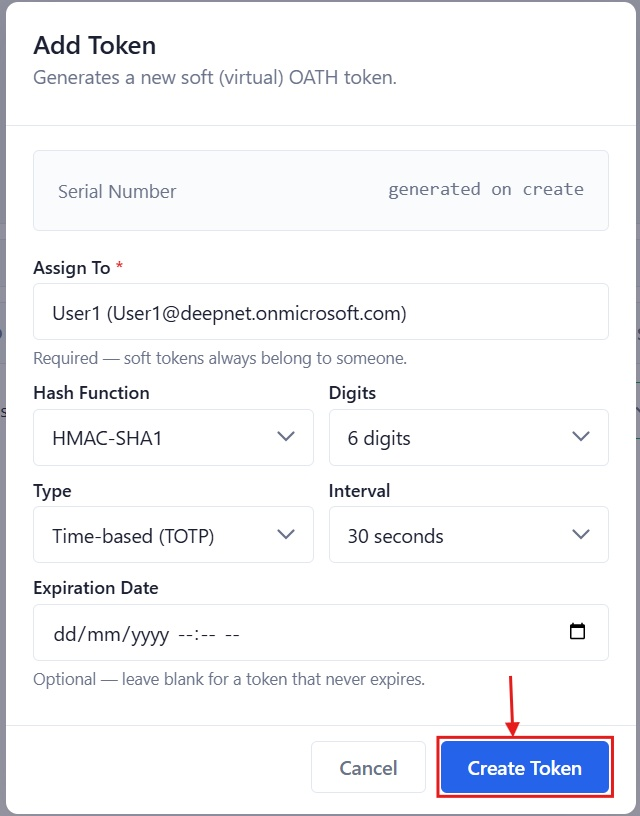
Fill in "Assign To", then click "Create Token"
Overview
Content Tools