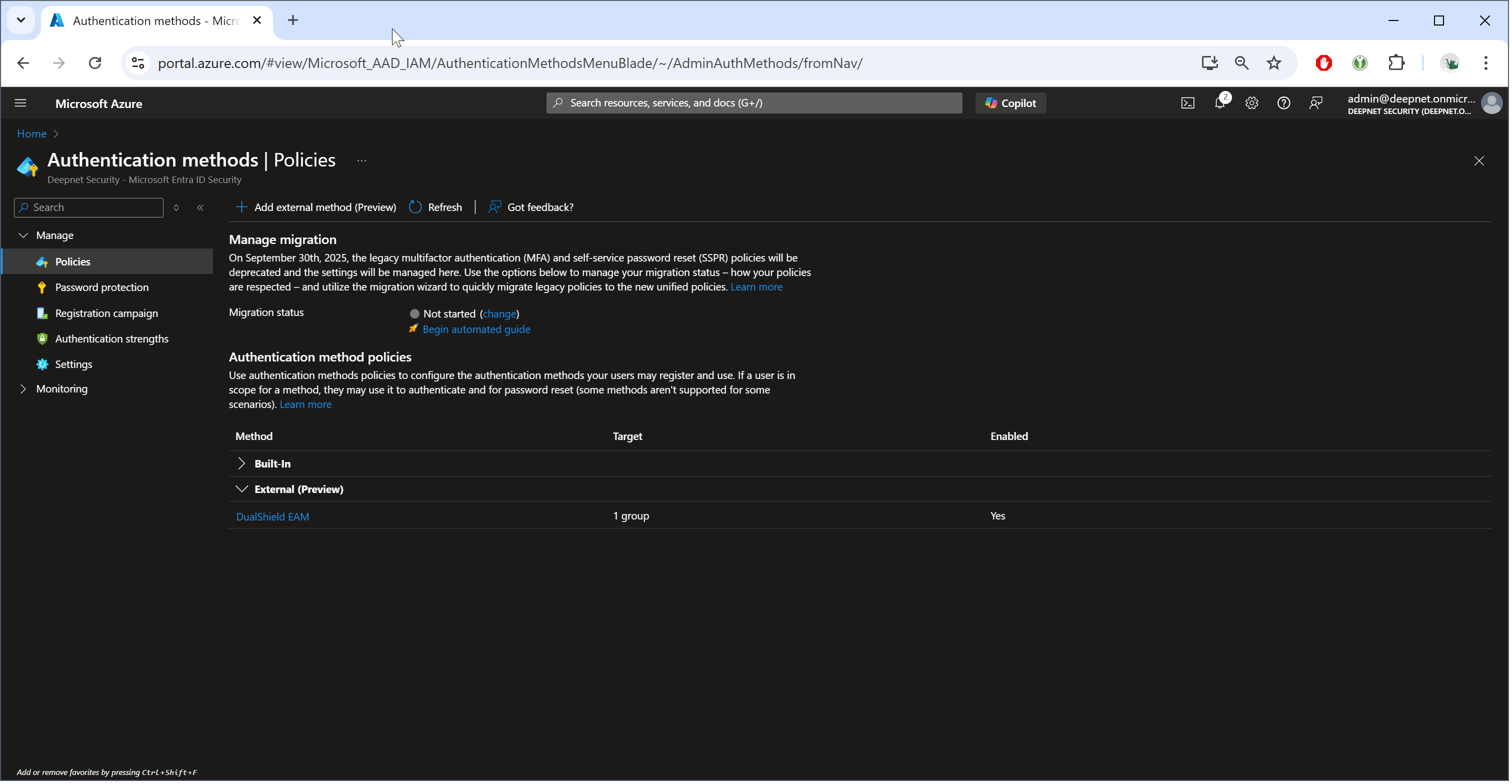
In Entra ID, navigate to "Authentication methods | Policies
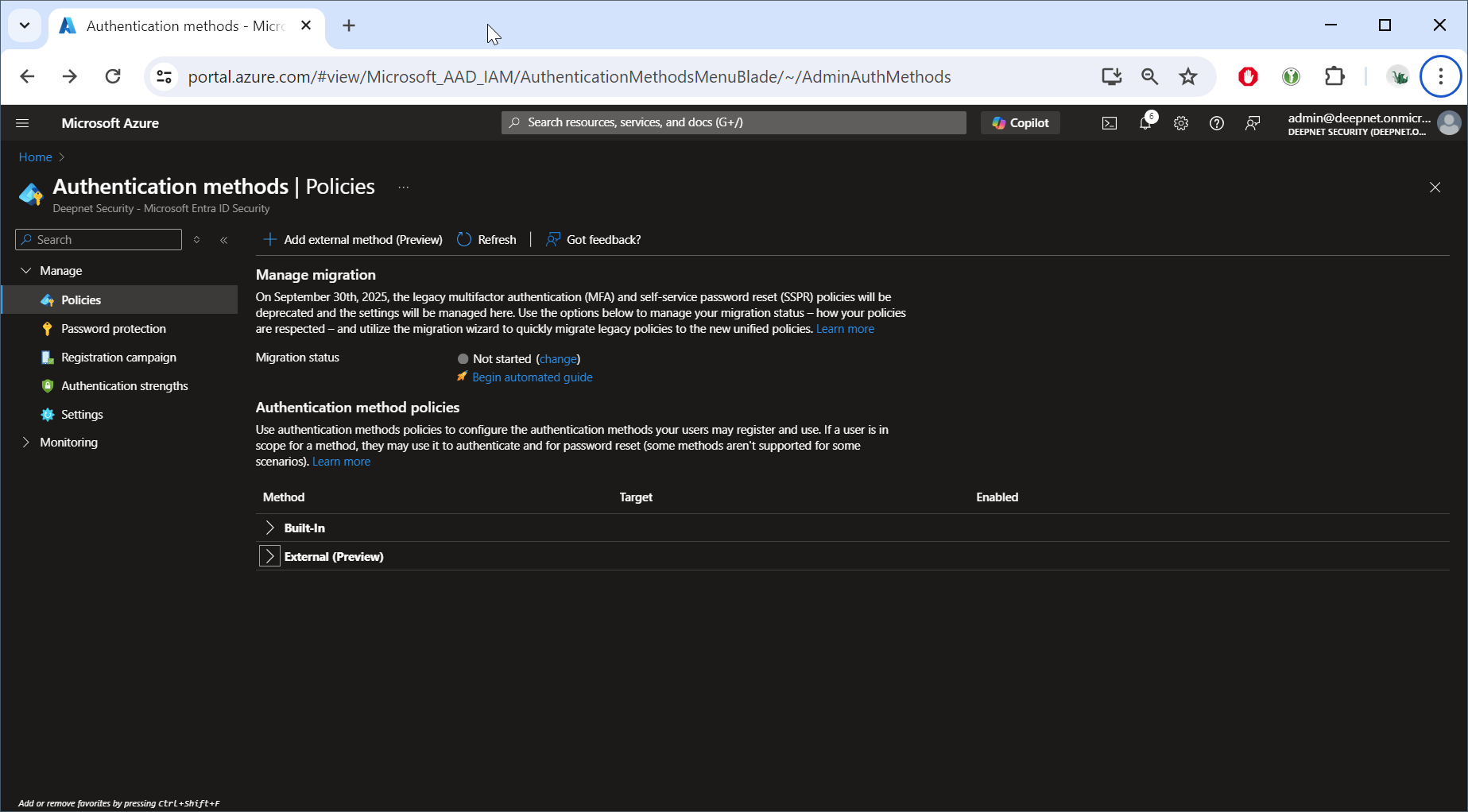
Click "Add external method (Preview)"
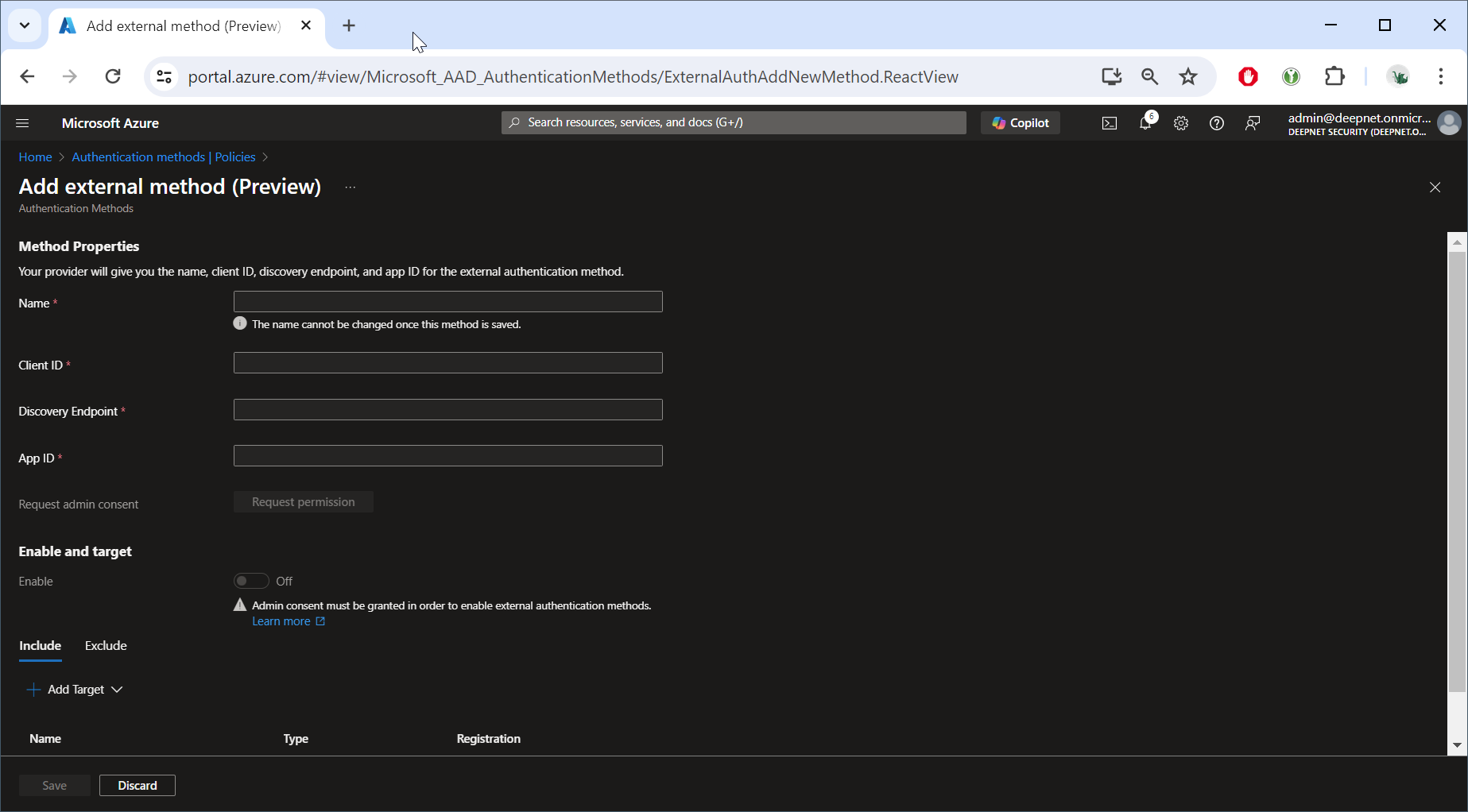
| Field | Value |
|---|---|
| Name | name of the new external authentication method, e.g. "DualShield (EAM)" |
| Client ID | The Client ID of the service provider created in your DualShield server for EAM integration, e.g. "Entra ID EAM"
|
| Discovery Endpoint | https://Your-DualShield-SSO-Server-FQDN:8074/sso/v1/authc/oauth/.well-known/openid-configuration Please note that if your SSO Server is using port 443, then you do not need to include the port number after your server FQDN. For best results copy out the Discovery URL that has been specified under the OpenID Connect configuration in your SSO Server Edit Window on your Admin Console...
|
| App ID | The Application ID of the enterprise application created in your Entra ID tenant for EAM integration, e.g. "DualShield EAM"
|
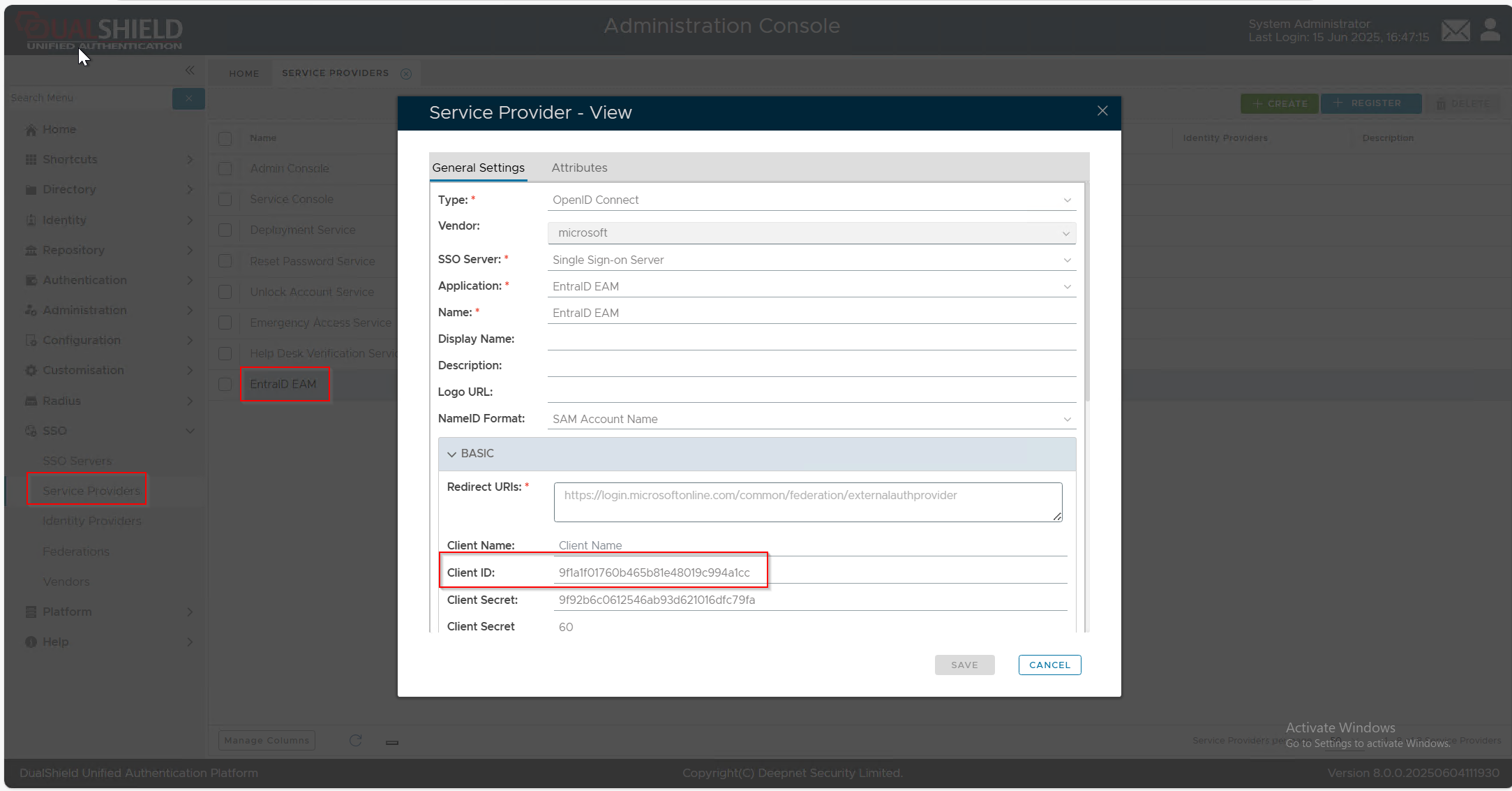
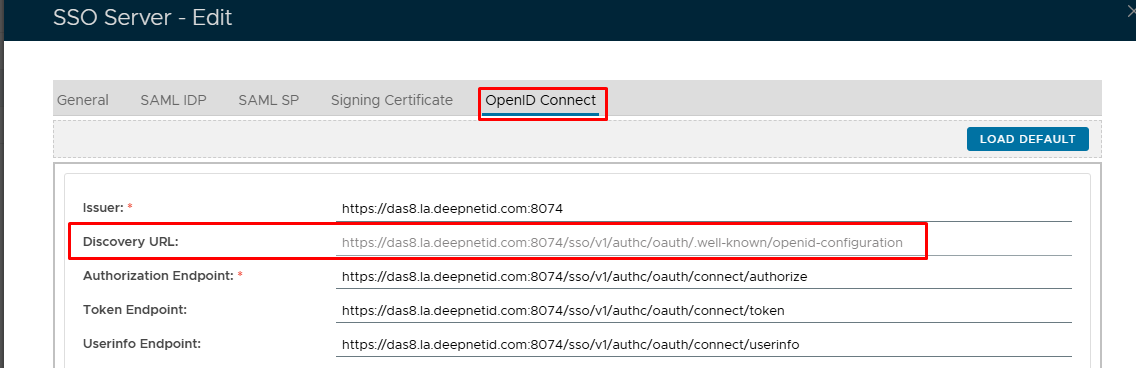

If you do not have sufficient permissions, then you will see the button "Request permission"
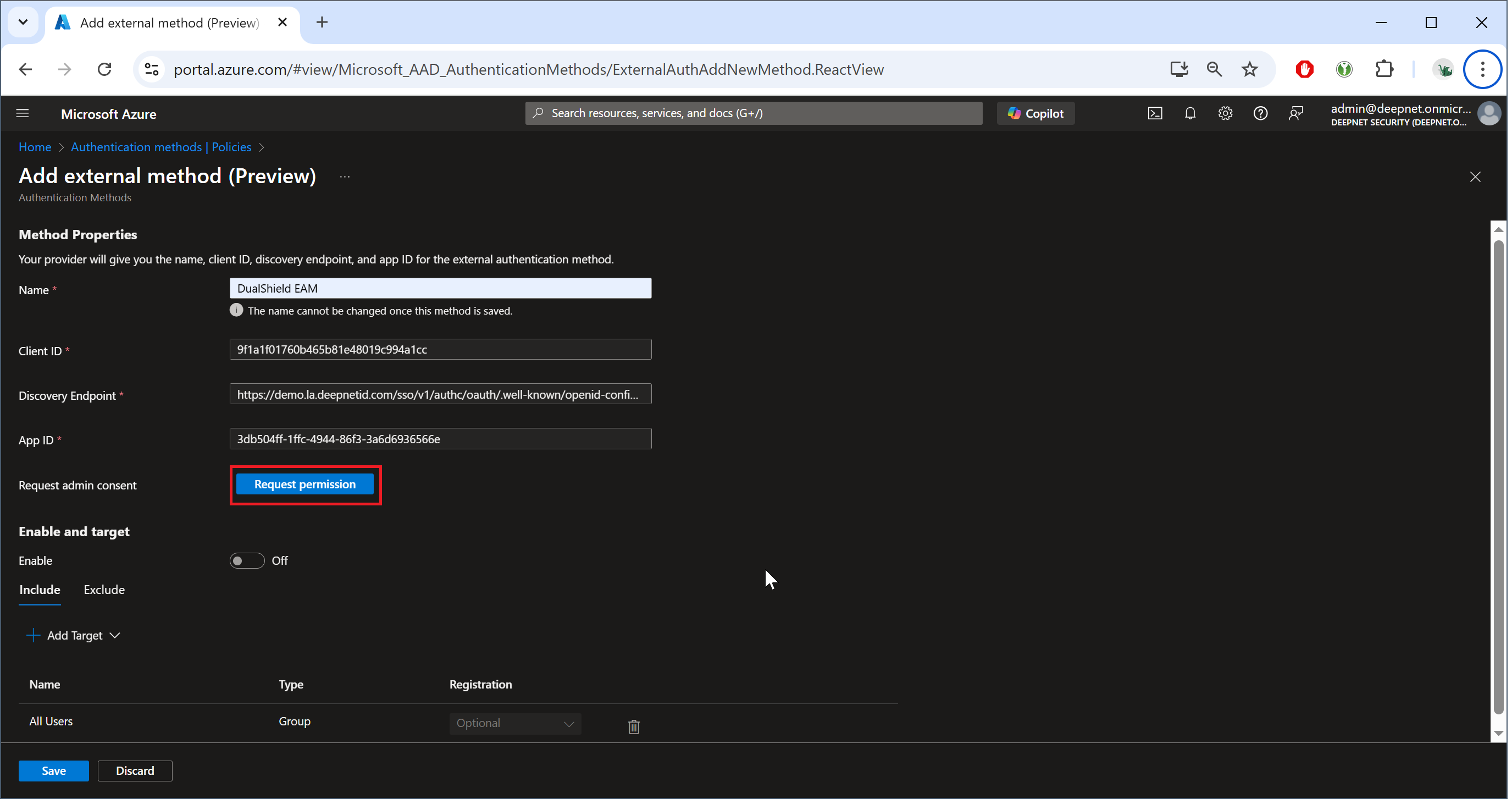
To continue, click the button "Request permission"
A browser window will pop up and ask you to select an account.
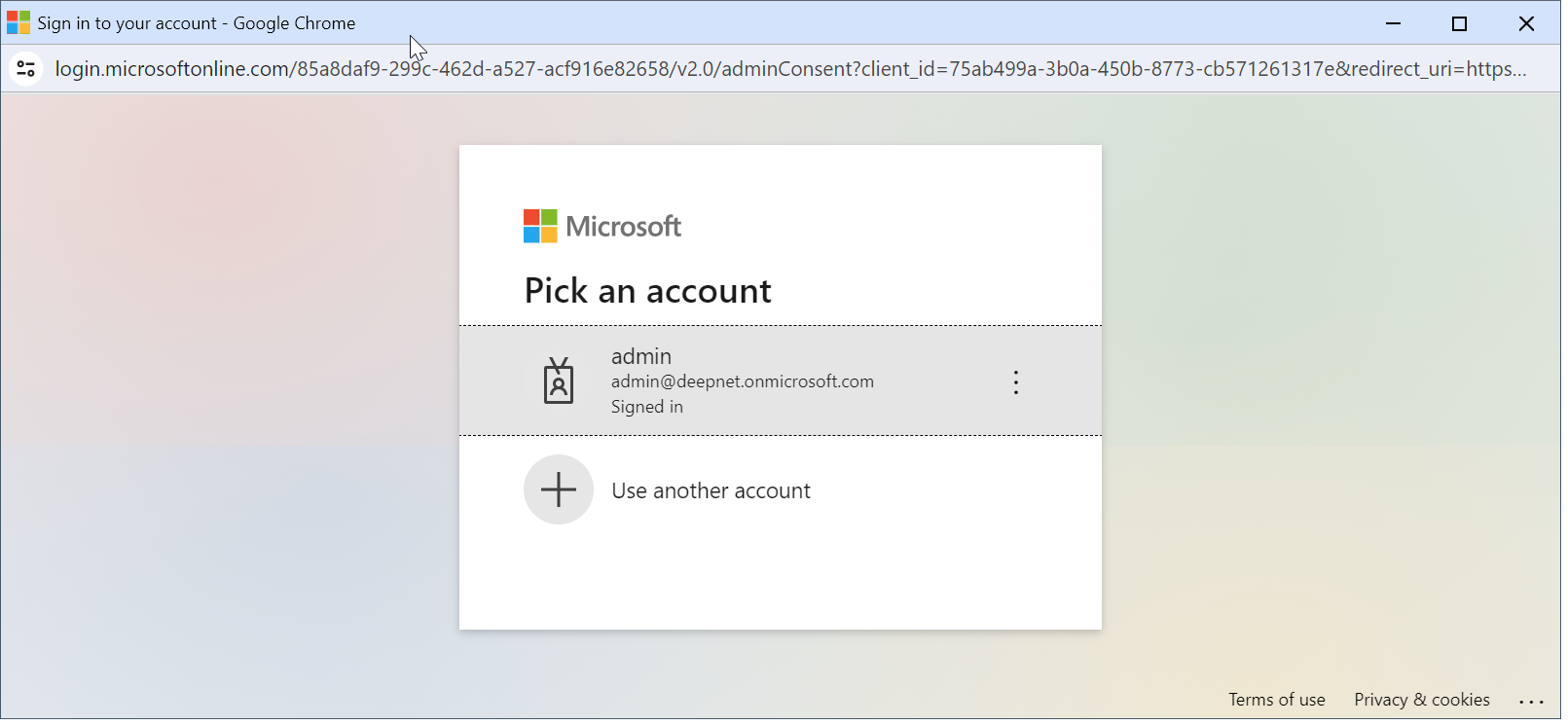
Please select an admin account for your Entra tenant.
The Microsoft "Permission requested" window will be prompted:
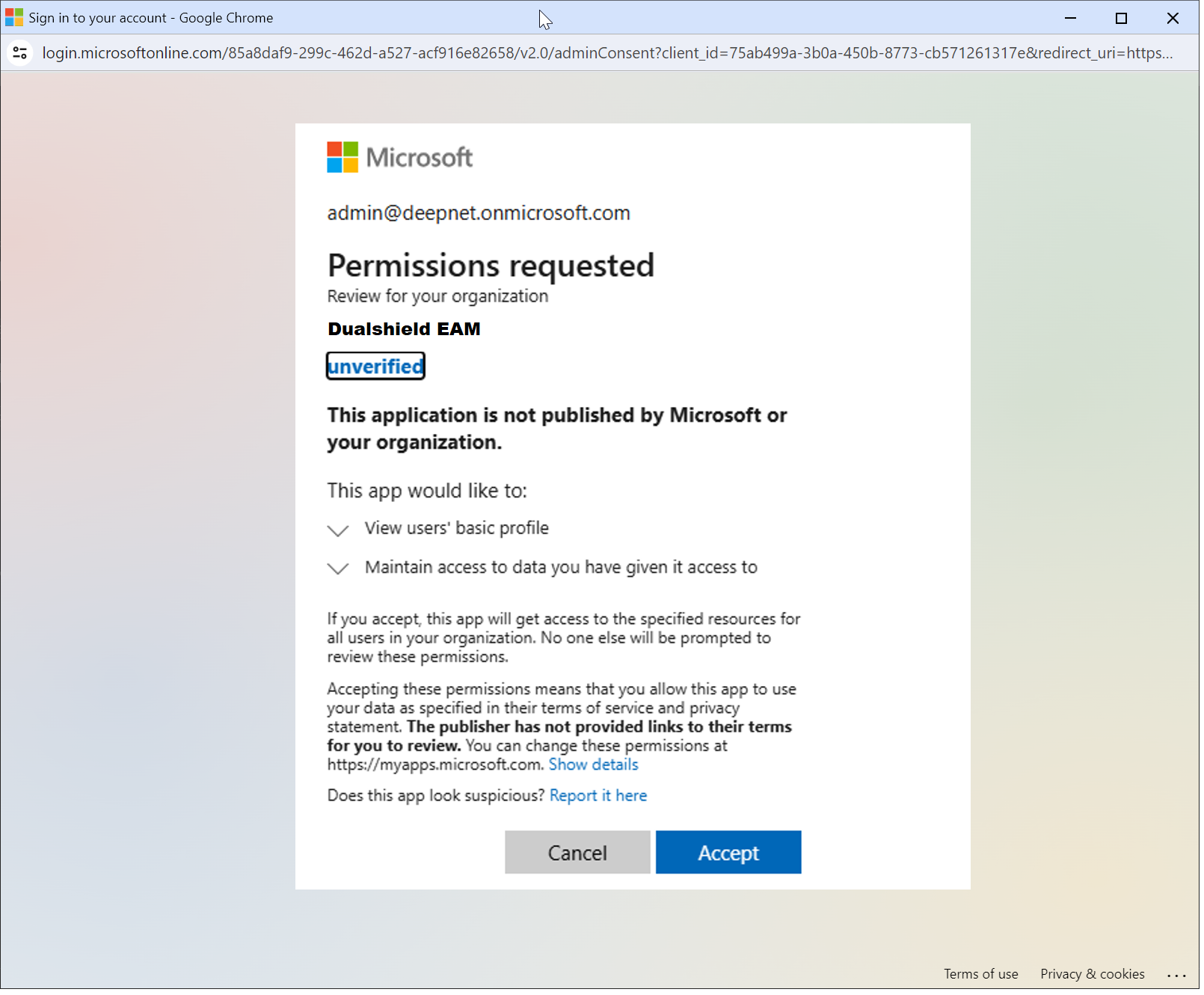
Click "Accept"
If you see "Admin consent granted", then you can continue to the next step
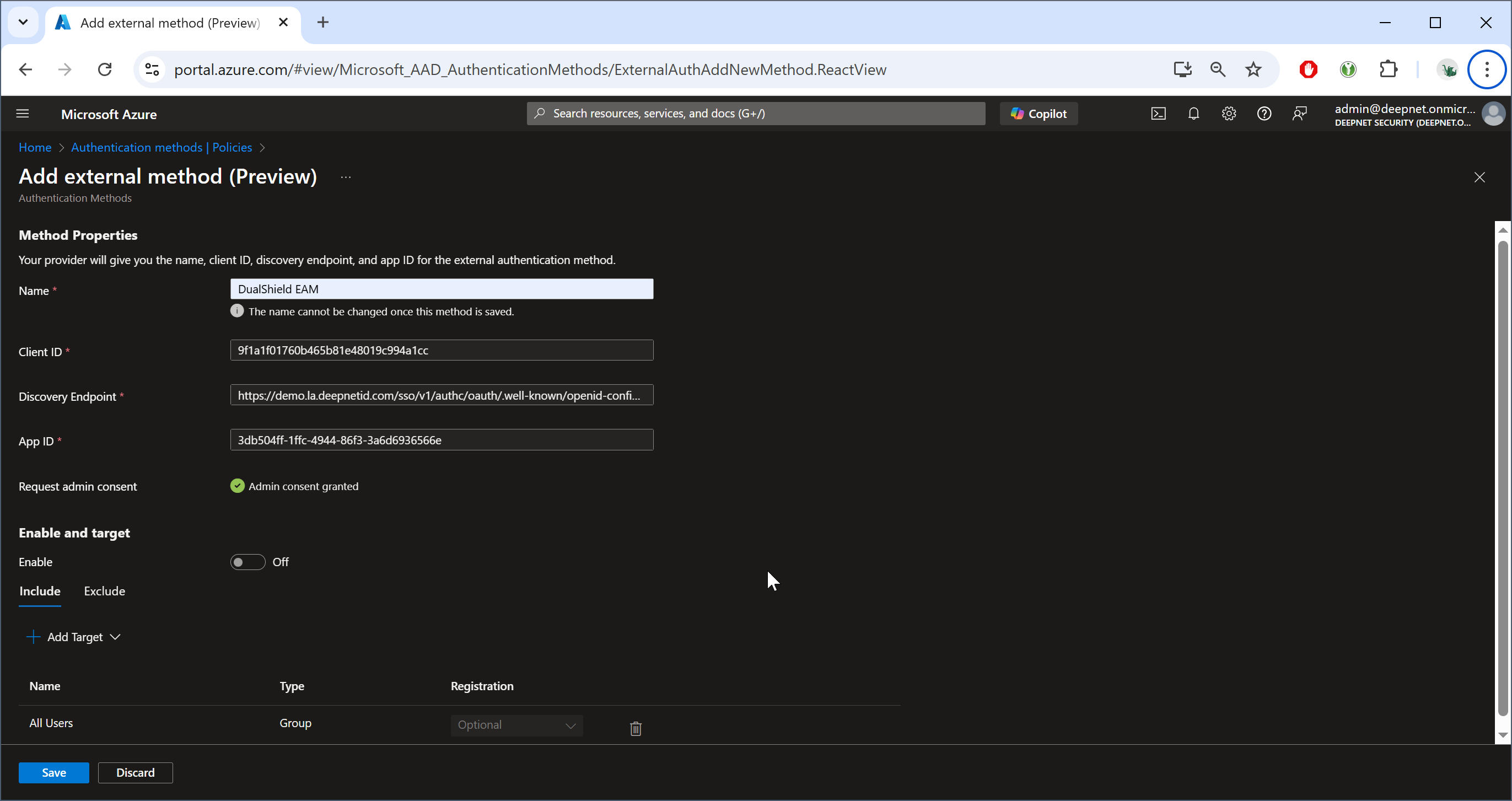
Next, enable the option: "Enable and target"
Click "Add Target"
Add the group that you have created for EAM, e.g. "DualShsield EAM"
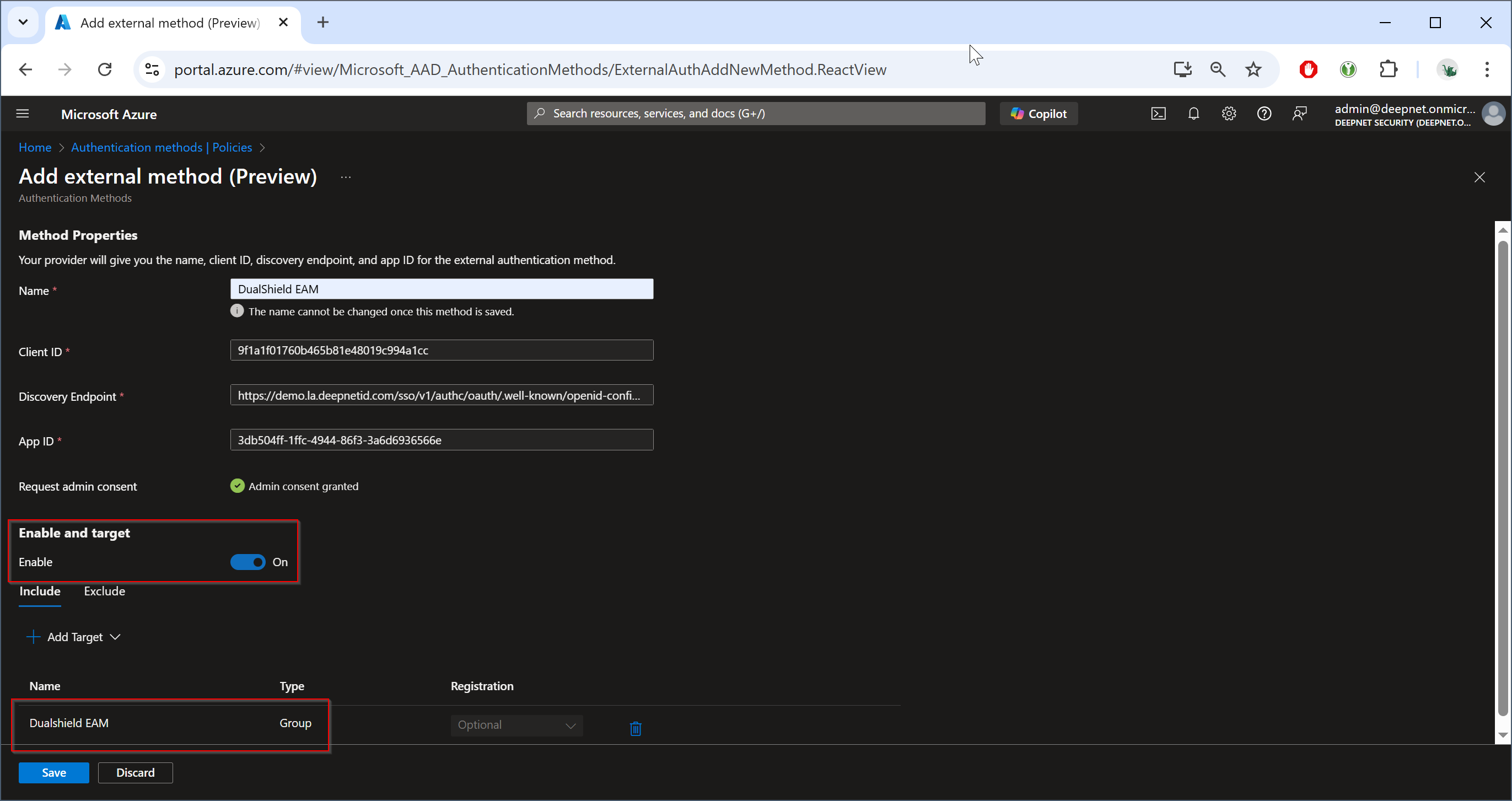
Click "SAVE"