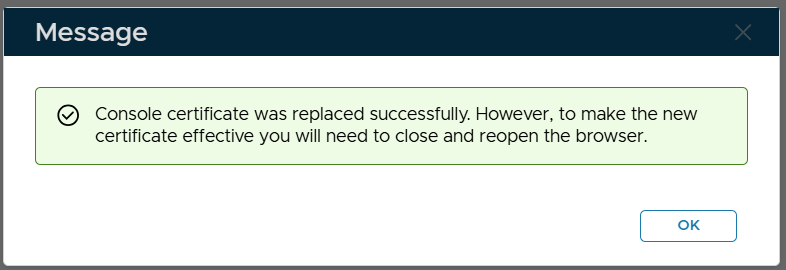
To renew the SSL Certificate of a DualShield RADIUS Server, follow the steps below.
Step 1: Renew the SSL certificate that is currently being used by the RADIUS server
Find the certificate to be renewed and select "Renew" from its context menu:
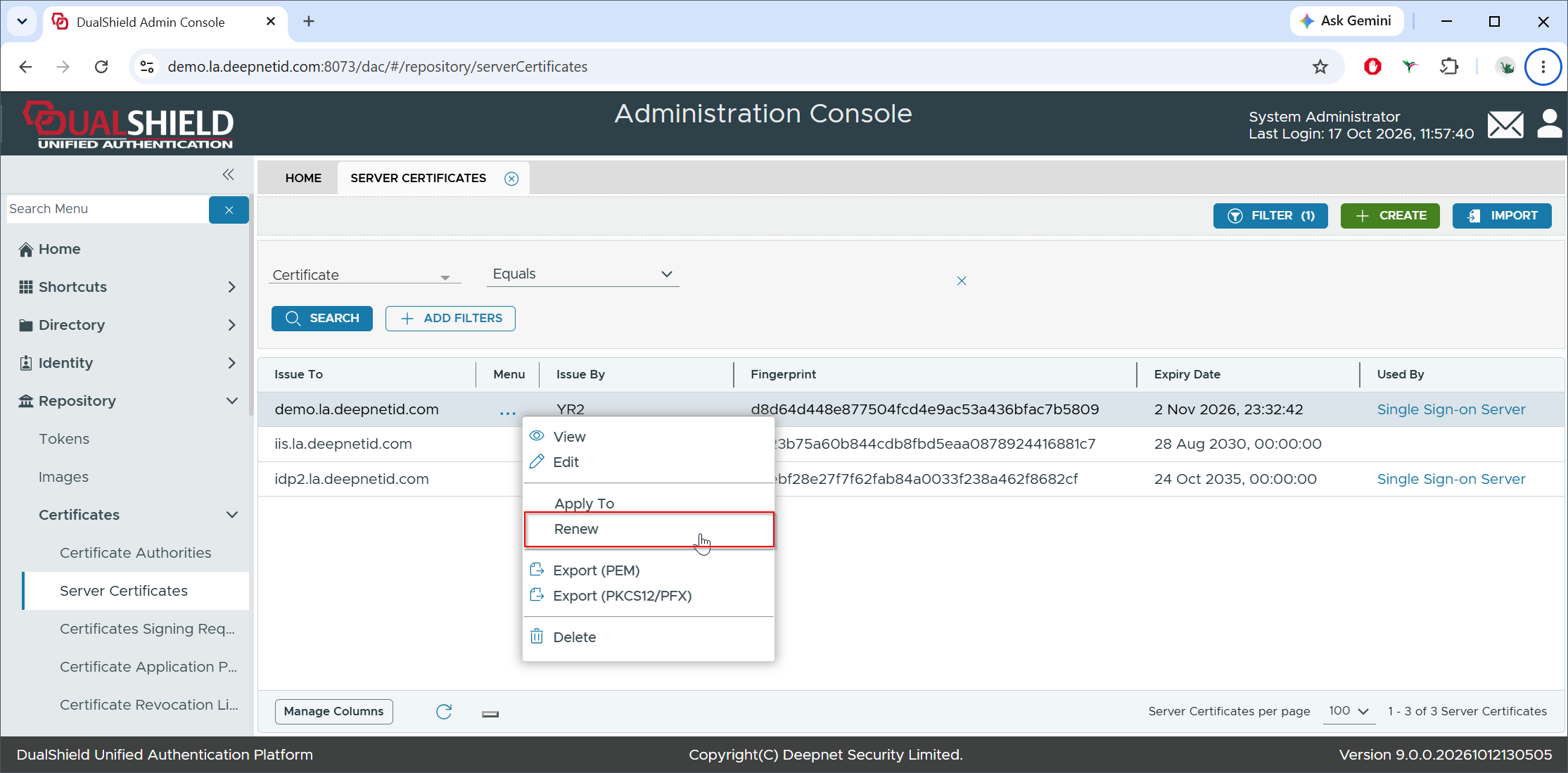
This will create a new Certificate Signing Request (CSR)
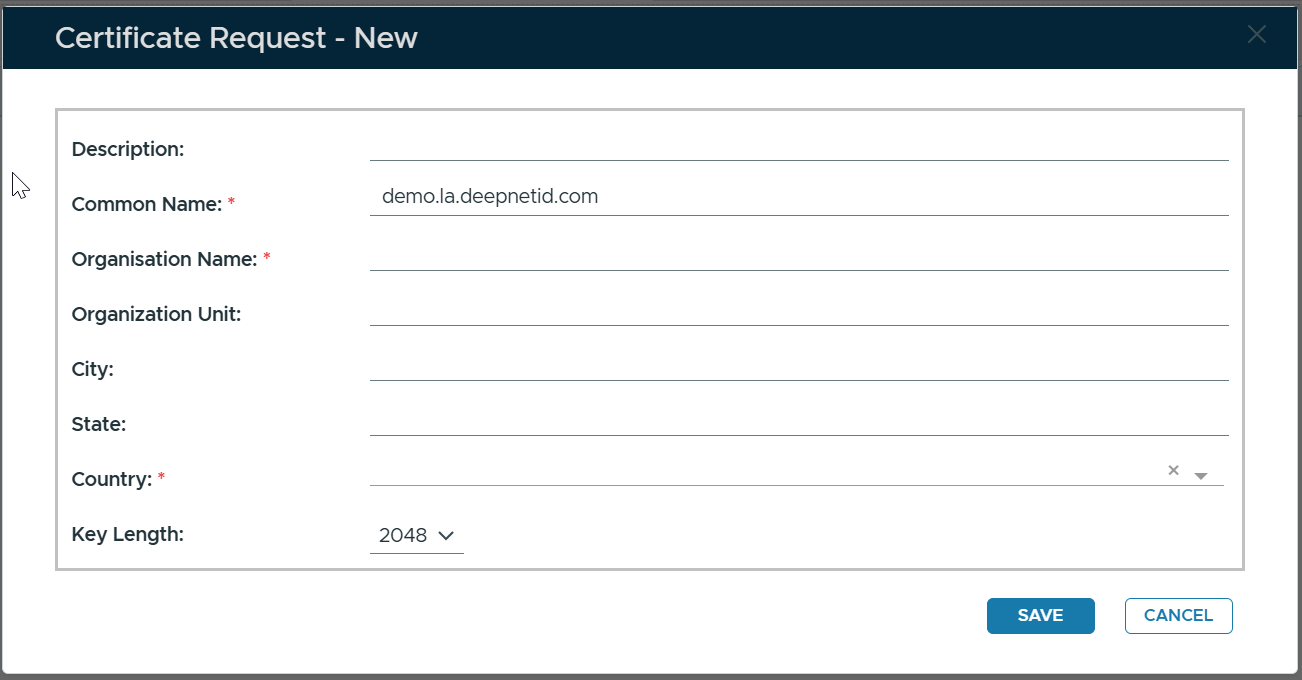
Fill in the CSR Form
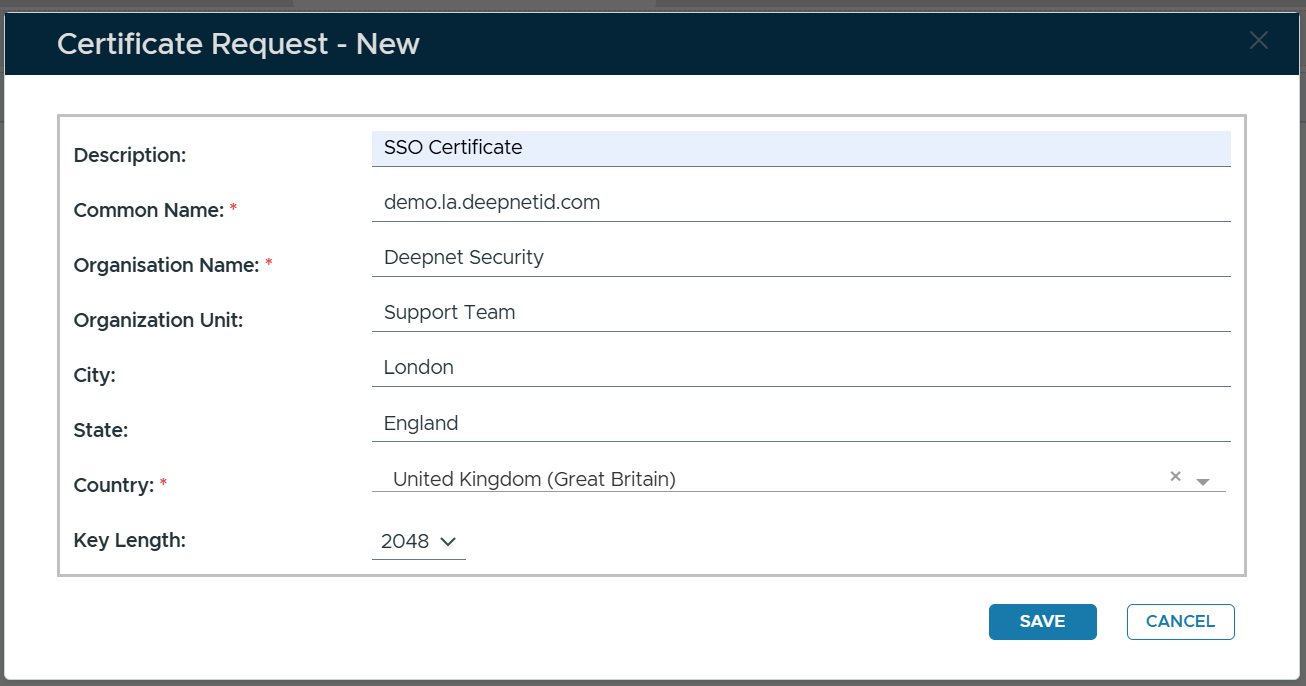
Click SAVE
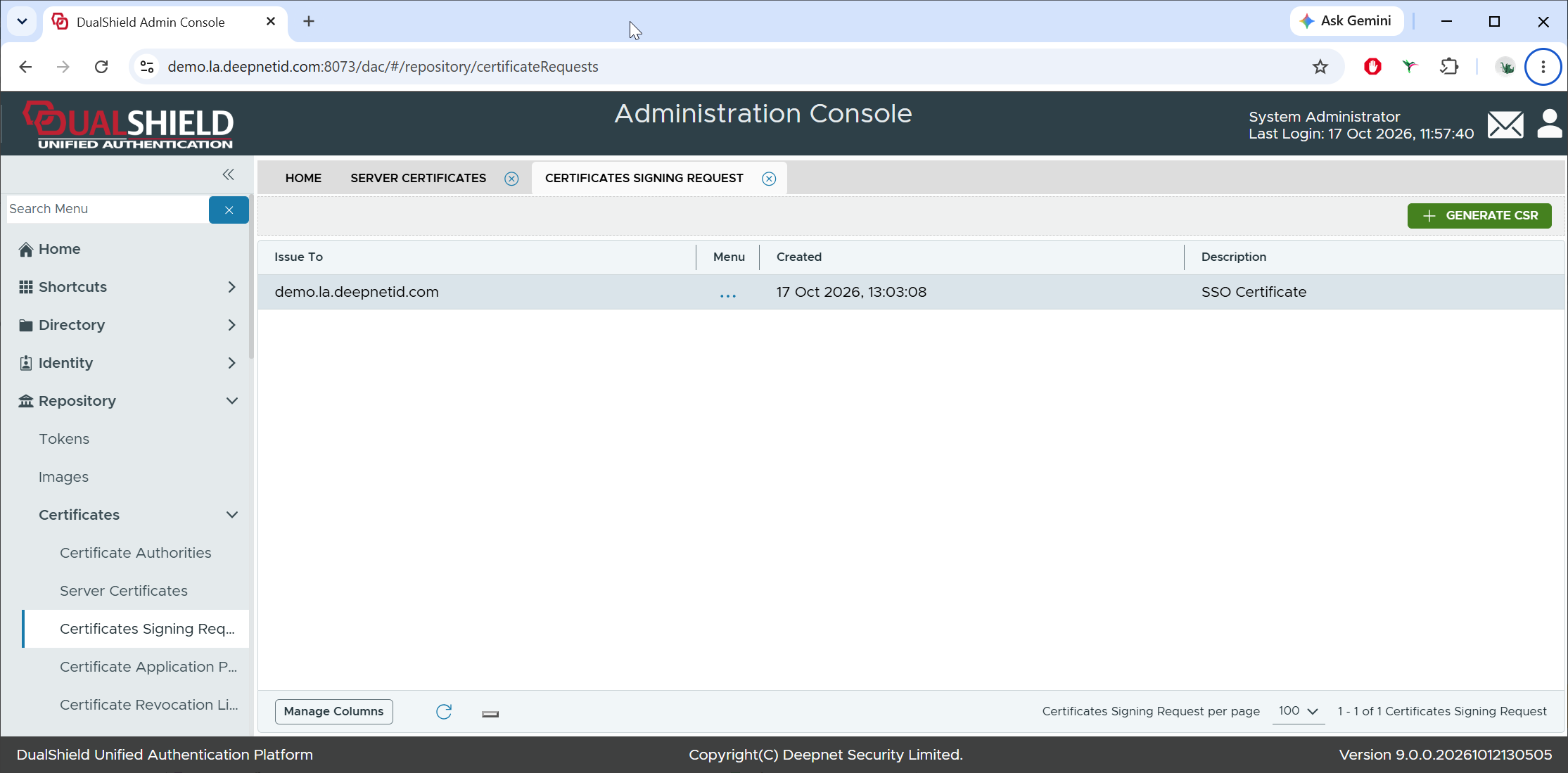
A new CSR has been created.
Next, to get the new certificate, you need to follow the steps below to complete the CSR
Click the context menu of the newly created Certificate Signing Request
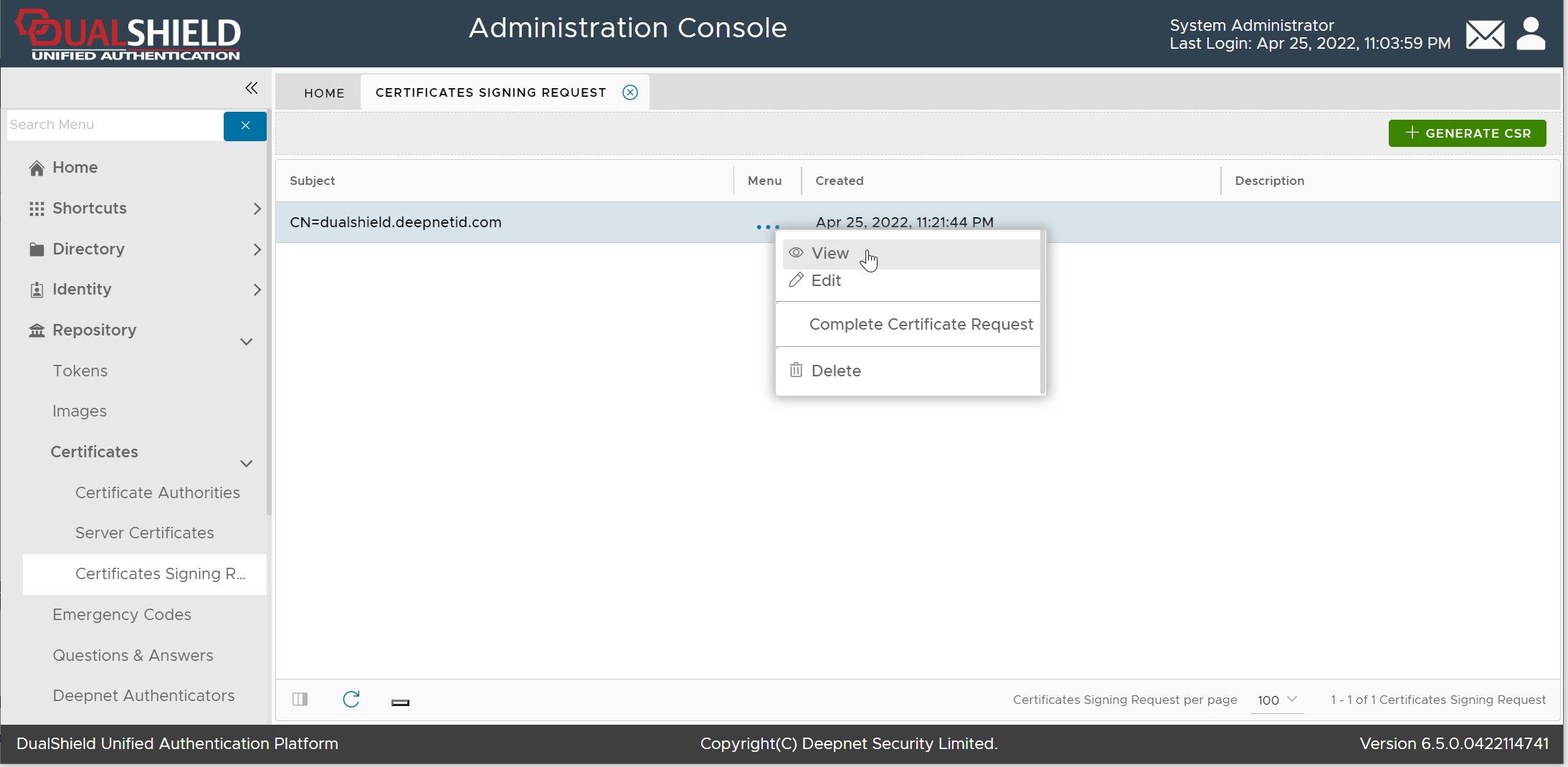
Select "View" from the context menu
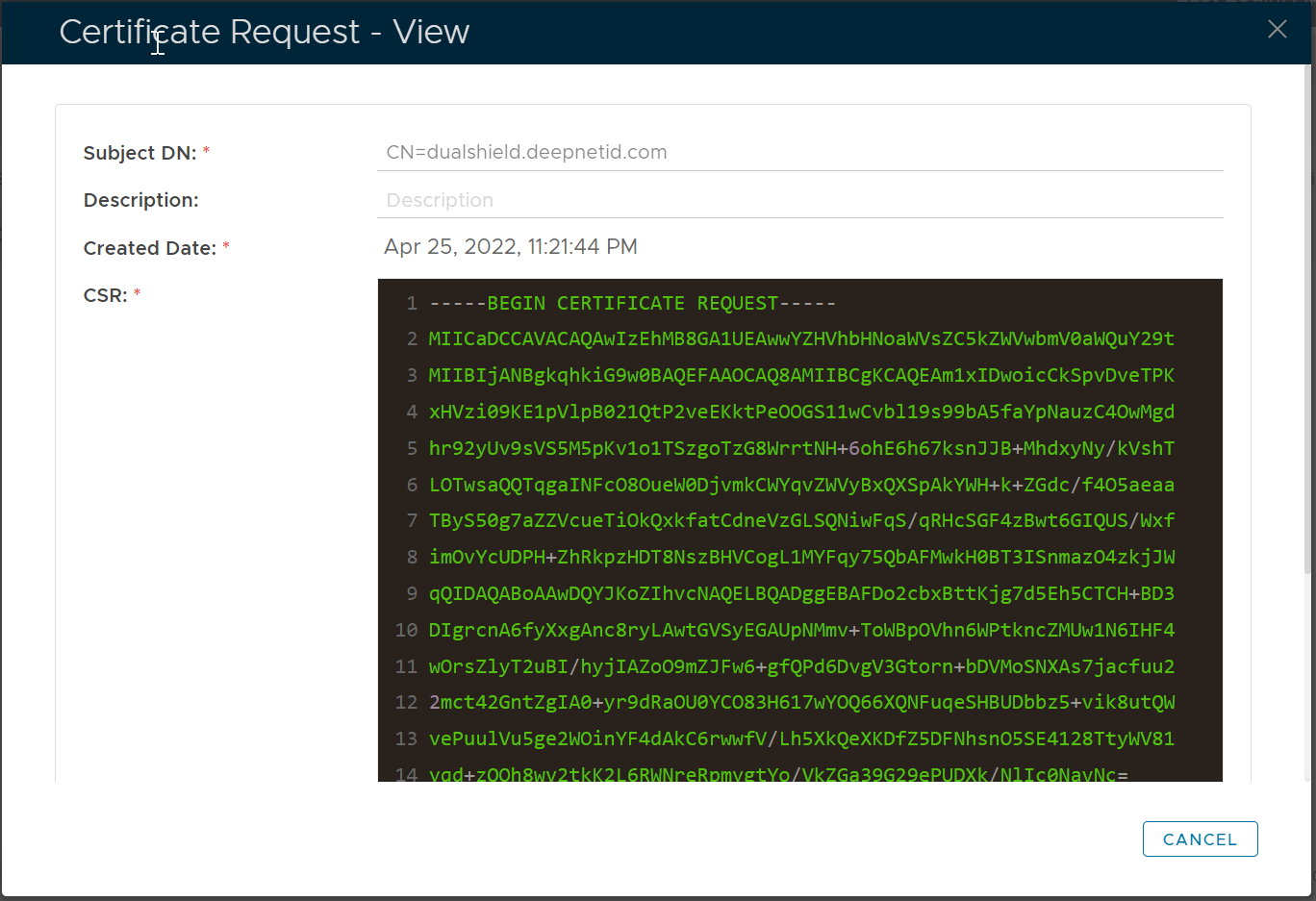
Copy the CSR text and submit it to your CA

Once your certificate is ready, you will be able to download it.
Important!: Before downloading please check the creation date or for best results go click on 'My Certificates' on the top left then click on the newly created certificate, check the creation date, and if correct download from there.
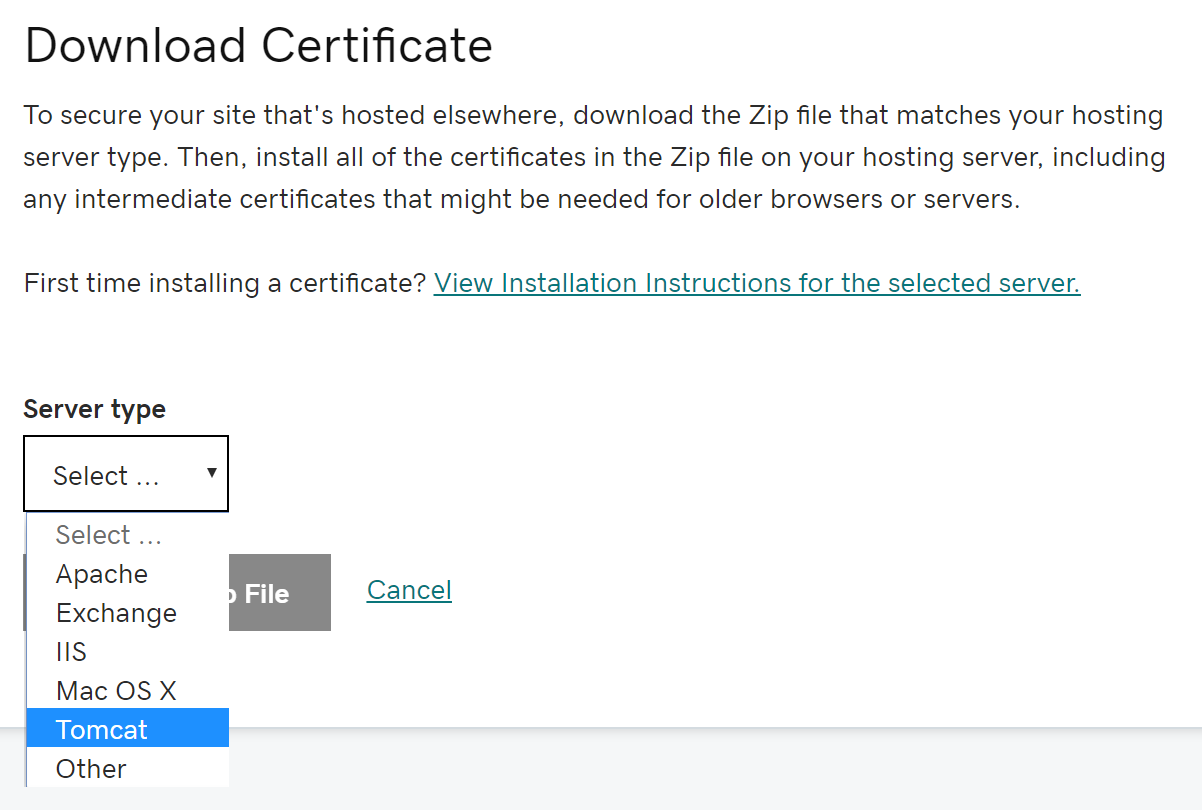
Select "Tomcat" as the Server type

Downlolad the certificate zip file, and unzip it to a folder in your hard drive:
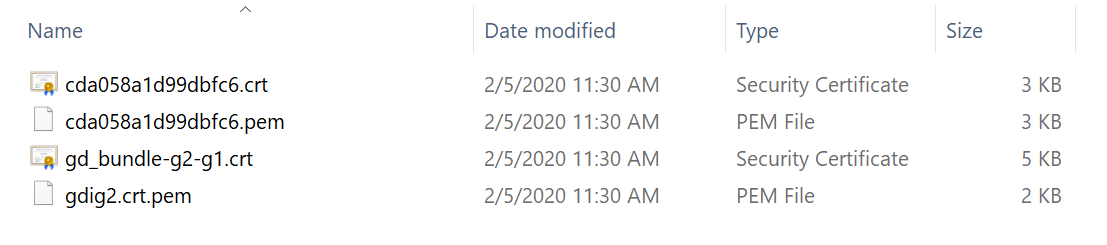
The file with the name "gd-bundle-g2-g1.crt" is the certificate of GoDaddy's intermediate CA. You can double click the file to check its content.
Download the SSL certificate. Commonly, the certificate is delivered in a CRT file, e.g. "dualshield.deepnetid.com.crt"
Also, a CA bundle file will be provided. The CA bundle file includes the certificate of the root CA and the intermediate CA, e.g. "dualshield.deepnetid.com.ca-bundle"

Click the context menu of the Certificate Signing Request
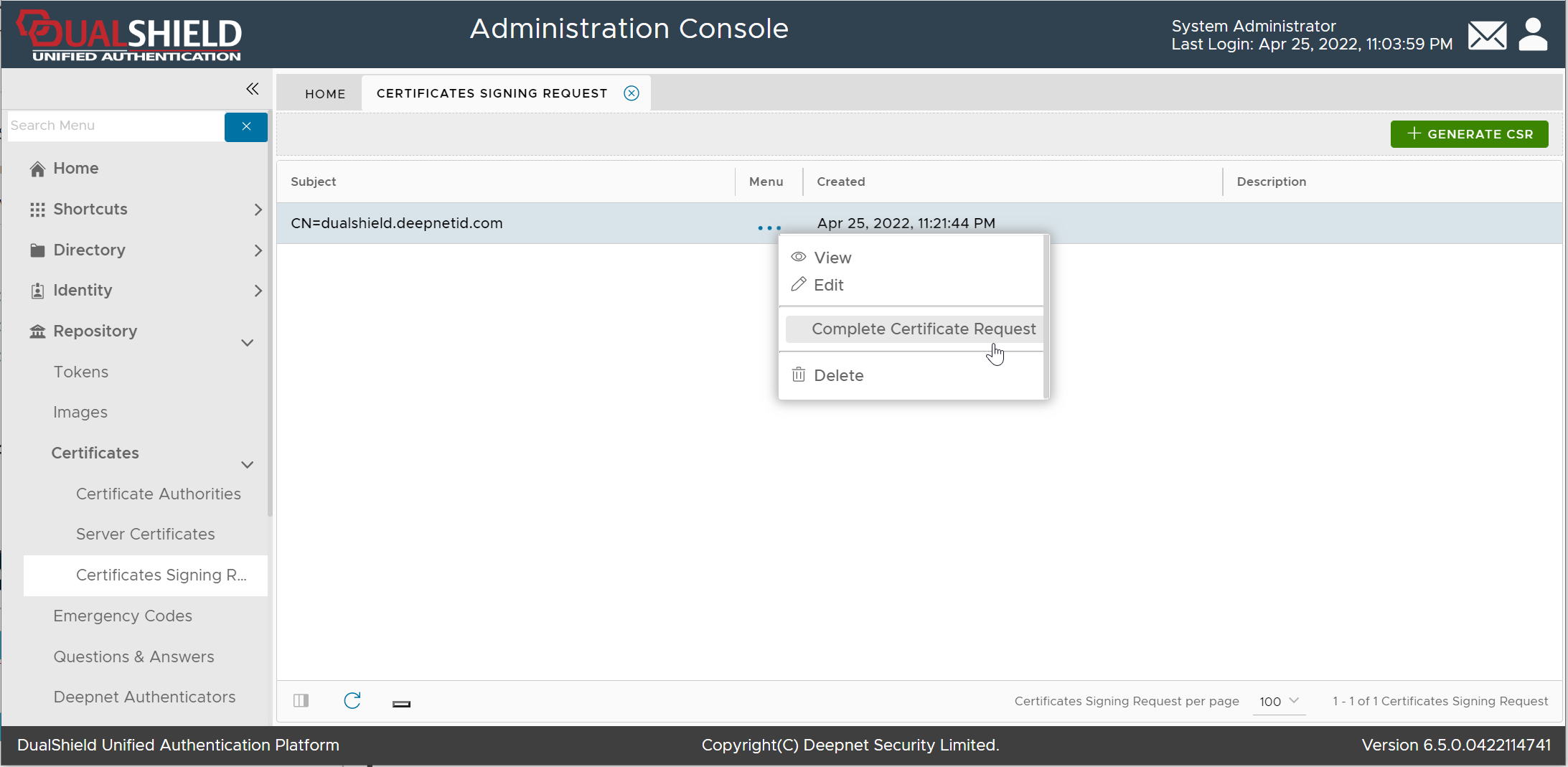
Select "Complete Certificate Request"
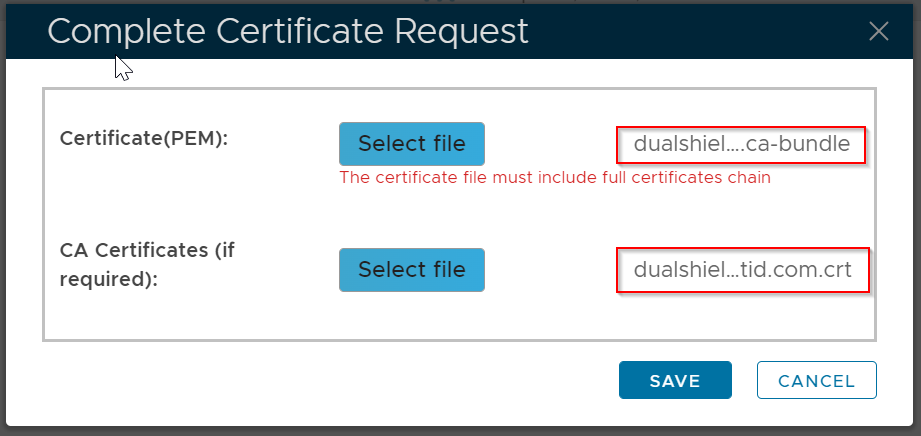
Select the CA Bundle file, and the certificate CRT file
Click Save
The certificate will be saved in the "Server Certificate" list
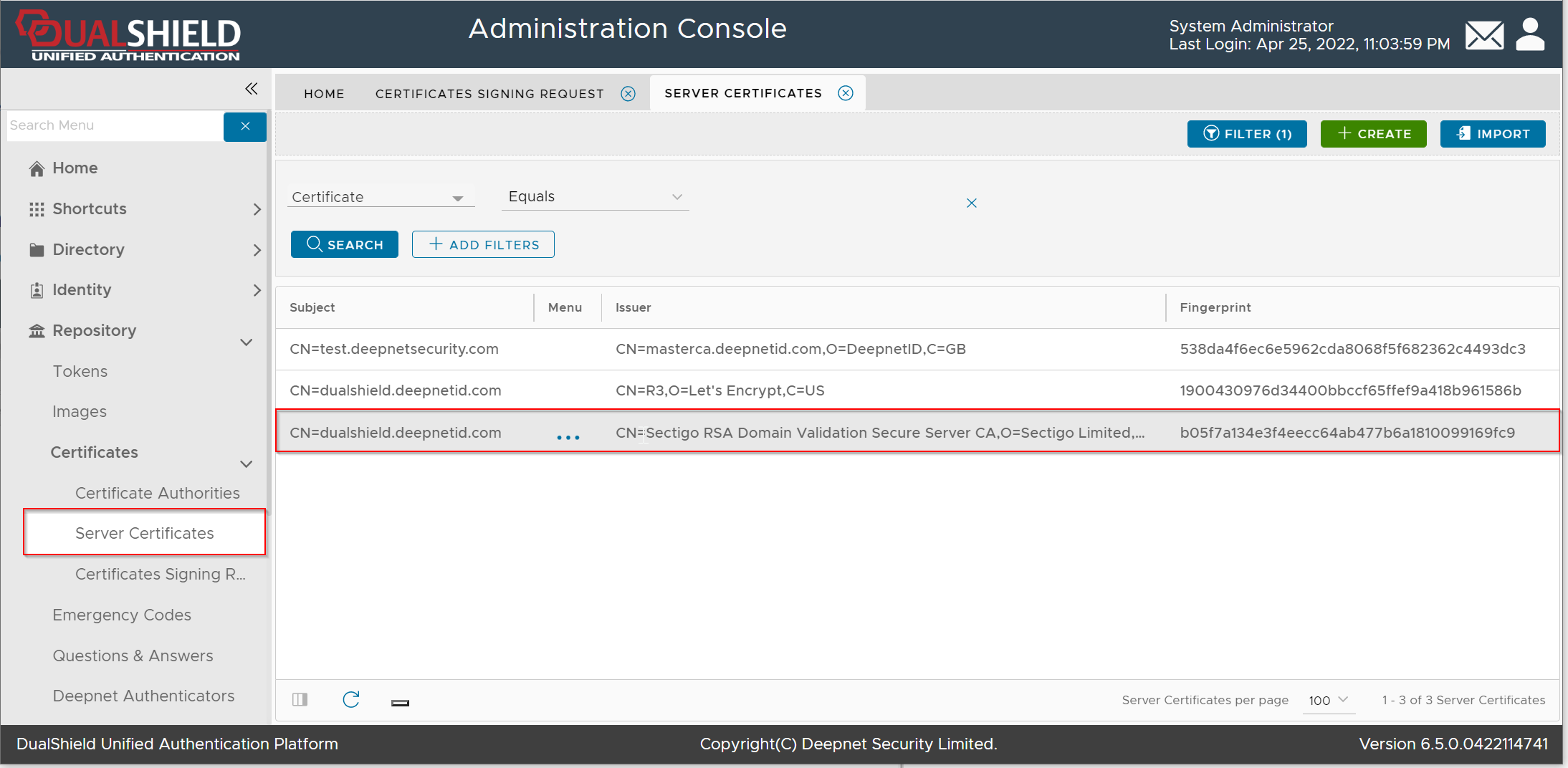
Please note that this does not automatically update the web certificate of your DualShield consoles. If you wish to do that then...
Navigate to "SSO | SSO Servers", click the context menu of "Single Sign-On Server"
Select "Replace Certificate" from the context menu

The "Replace Console Certificate" window will pop up:
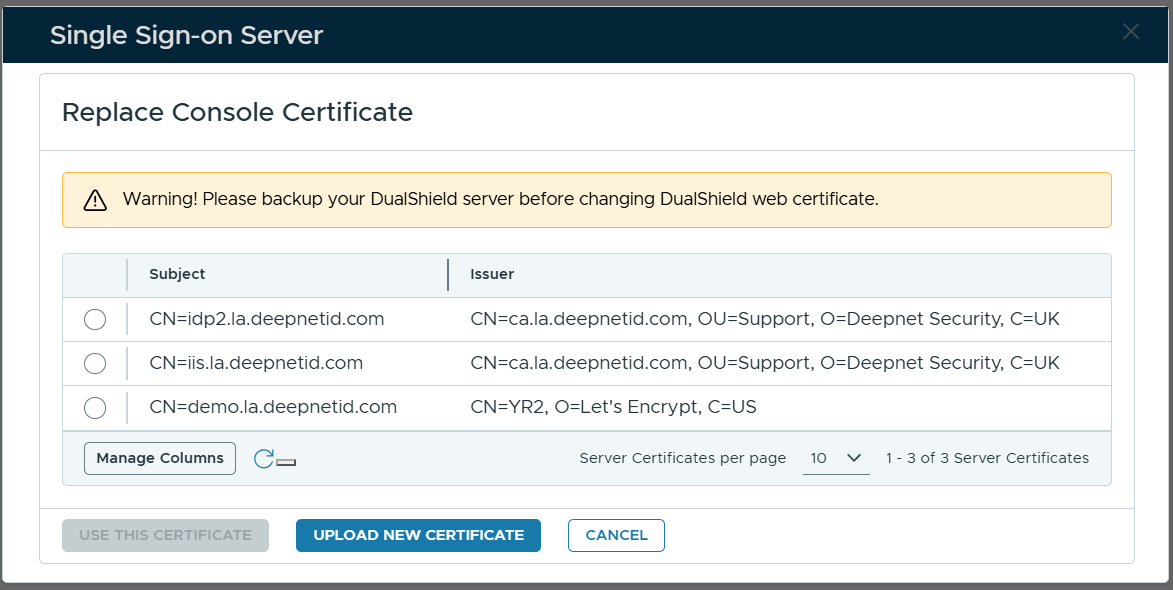
Select the certificate to be used
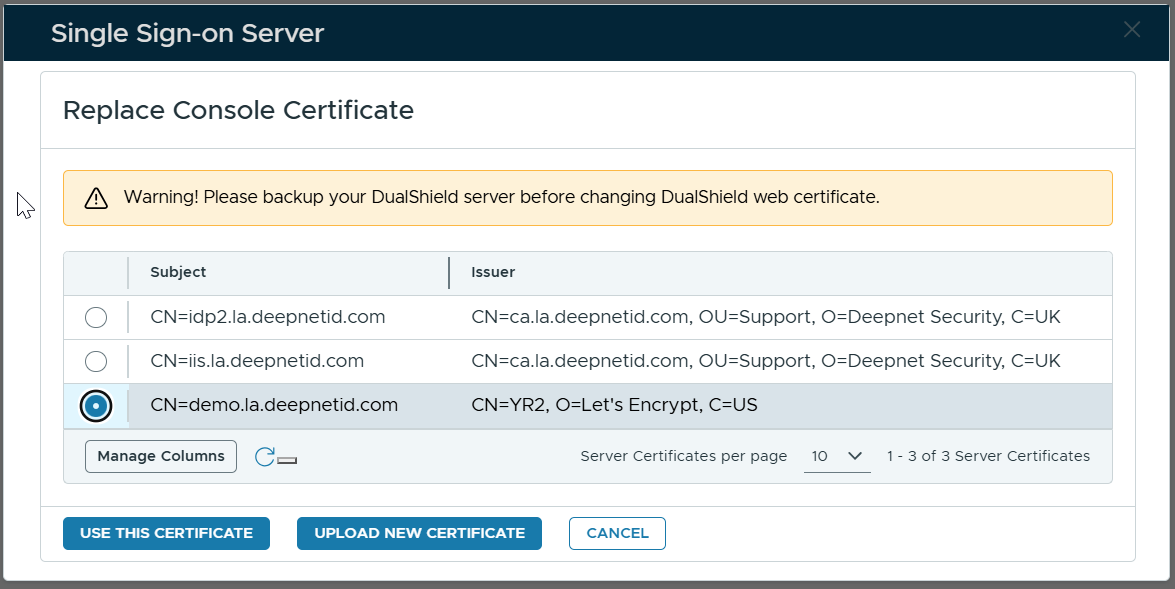
Click "Use This Certificate"