GitLab is a complete, web-based DevSecOps platform. It allows software development teams to manage their entire project lifecycle within a single application. Instead of using separate tools for tracking tasks, hosting code, testing, and security, GitLab brings everything together.
Once you have registered your FIDO2 key with GitLab, the key will be ready to be used as an authentication method when accessing your account;
Register your FIDO2 key in your GitLab account
Before you can use your FIDO2 key as an access method for your GitLab account you will need to register the key with GitHub using the following procedure;
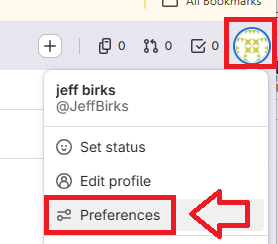
- Log in to your GitLab account, click on the icon in the top right of your logon page, then against your user icon select the option "Preferences";
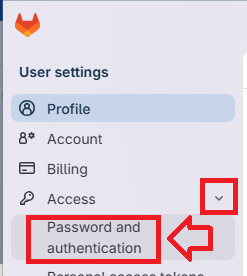
From the top left menu options, use the access dropdown to select the option "Password and authentication";
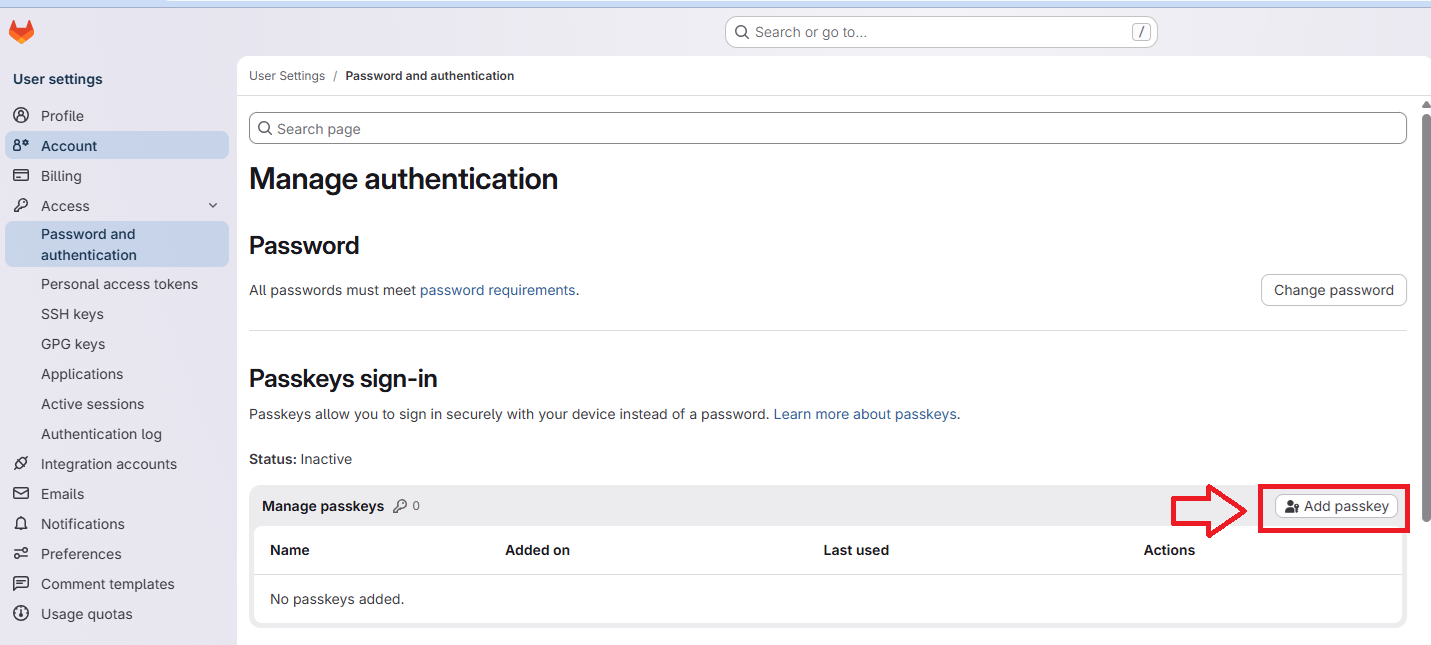
You will then be presented with options that allow you to manage your authentication options.
Scroll down to the section "Passkeys sign-in", then click on the option "Add passkey";
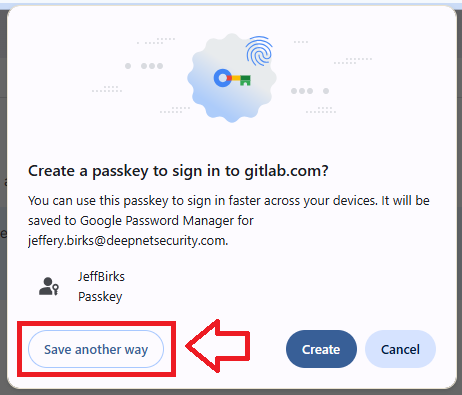
A popup window will now open that asks if you want to create a passkey, click on the "Save another way" button;
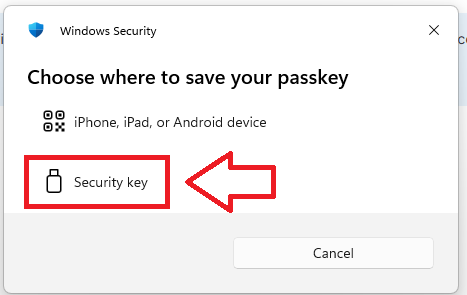
You are now asked where to save your passkey, select the option "Security key";
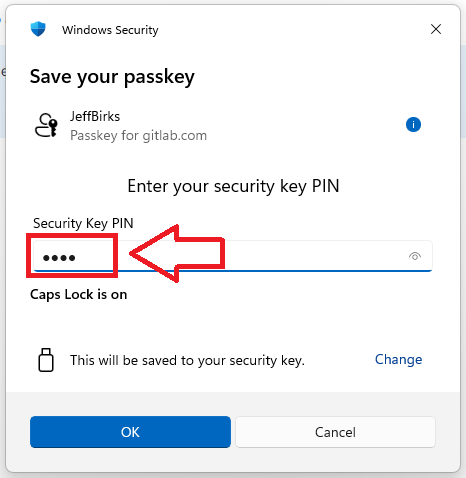
The window will now update and ask for your PIN code.
At the prompt "Security Key PIN", supply the PIN for you Fido2 key, then click "OK",
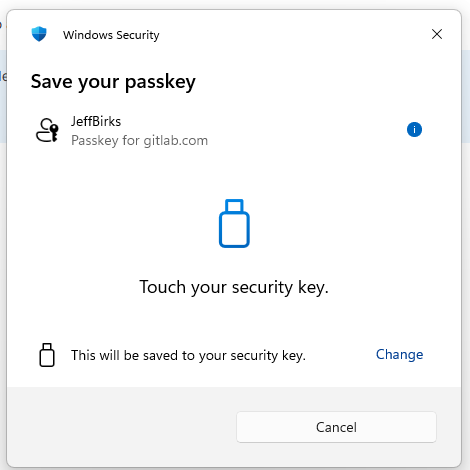
You are now prompted to touch the key (to prove you are present and giving permission for the key to be used).
Touch the necessary area on your Fido key;
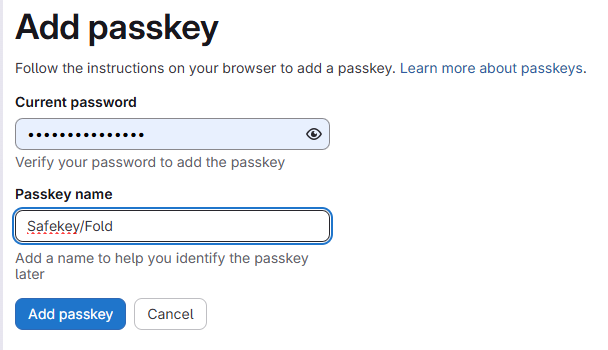
You will be asked to provide your current password for your Gitlab account, and a name for your passkey.
Supply the requested password and a suitable name for your passkey then click "Add passkey";
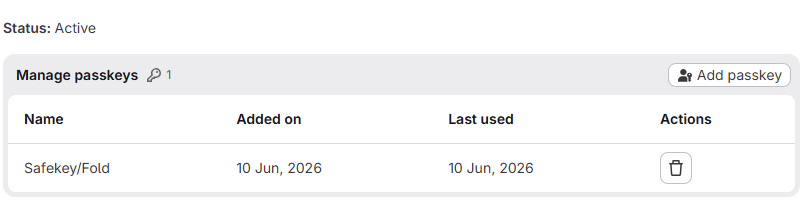
The Fido2 key is now ready to be used when you next log in to Gitlab, and the Passkeys Sign-in section will now list your newly added passkey.
Signing in to an GitLab account with a FIDO2 key
Once you have registered you FIDO2 key with Gitlab the key will be ready to be used as an authentication method when accessing your account;
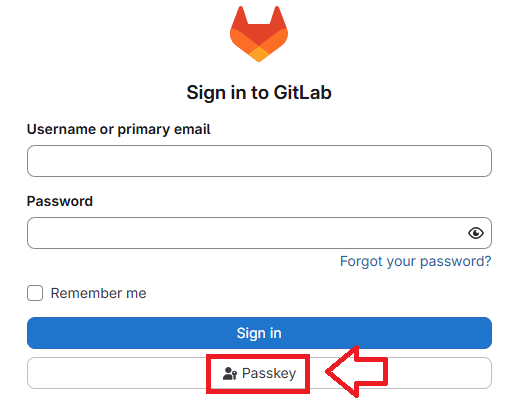
- Log in to your GitLab account, when you seed the logon screen use the option "Passkey";
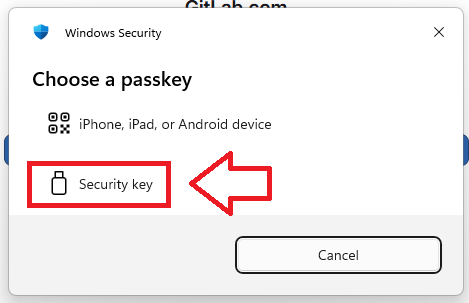
Select the option "Security Key";
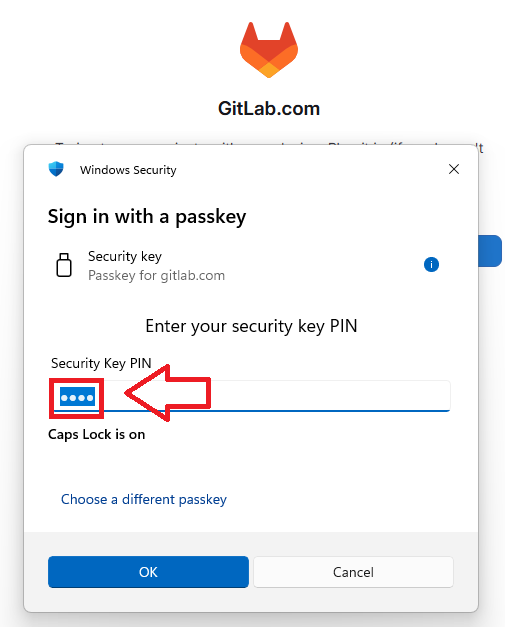
You will now be prompted to enter the PIN code for your Fido2 key.
At the prompt "Security Key PIN", enter the PIN code, then click
 .
. (in the case of a Fido key with a fingerprint reader you will need to swipe your finger on the key);
You are now prompted to touch the key (to prove you are present and giving permission for the key to be used).
Touch the necessary area on your Fido key;
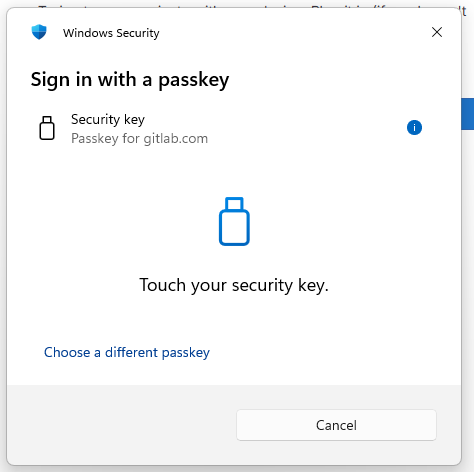
Once you have touched the Fido2 Key you will be logged in to your GitLab account.
Related Articles