Register your FIDO2 key in your Nord account
Before you can use your FIDO2 key as an access method for your Nord account you will need to register the key with LastPass using the following procedure;
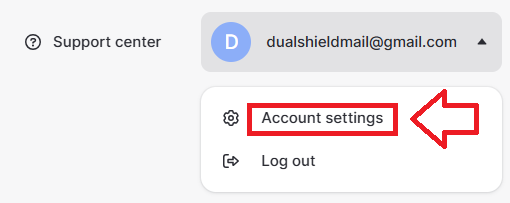
- Sign in to the you Nord account,, then use your account dropdown options and select "Account Settings";
A new window titled "Account Settings" will now open, select the sub-section "Multi-factor authentication (MFA)".
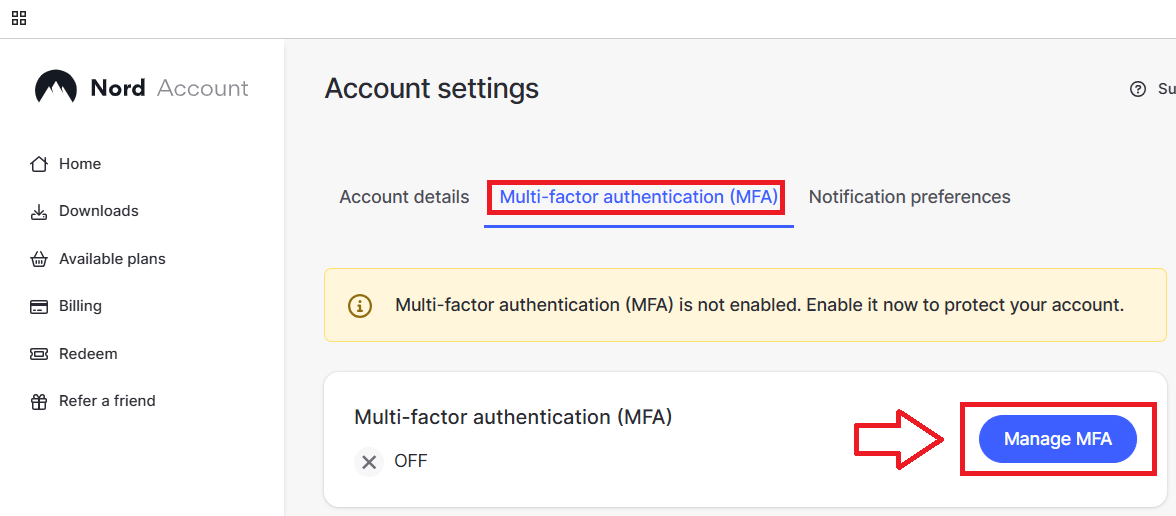
Click on the button
 , and you may be asked to verify your account (example below);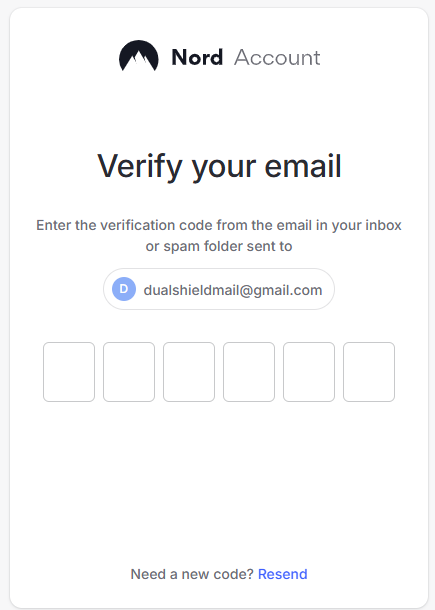
Verify your account (in the above example by entering the code sent to your email account), and a list of authentication options will be displayed
If no factors have currently been added then you are advised to add one using the
 button against the prompt "Authentication app";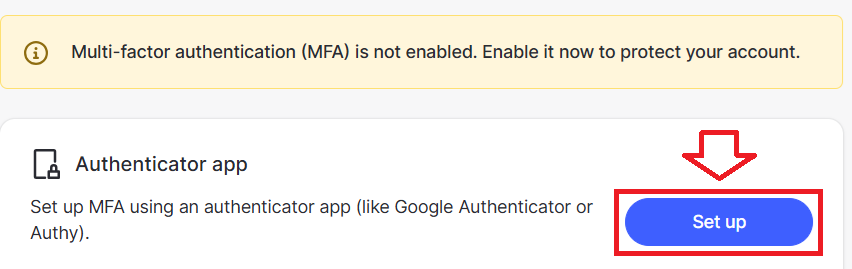
Follow the prompts until an alternative authentication method has been added (you may also add a programmable hardware token as an alternative to the authentication app using the procedure below);
Once an alternative authentication method has been added you can return to the account settings and click on the
 button that is against the prompt "Security key";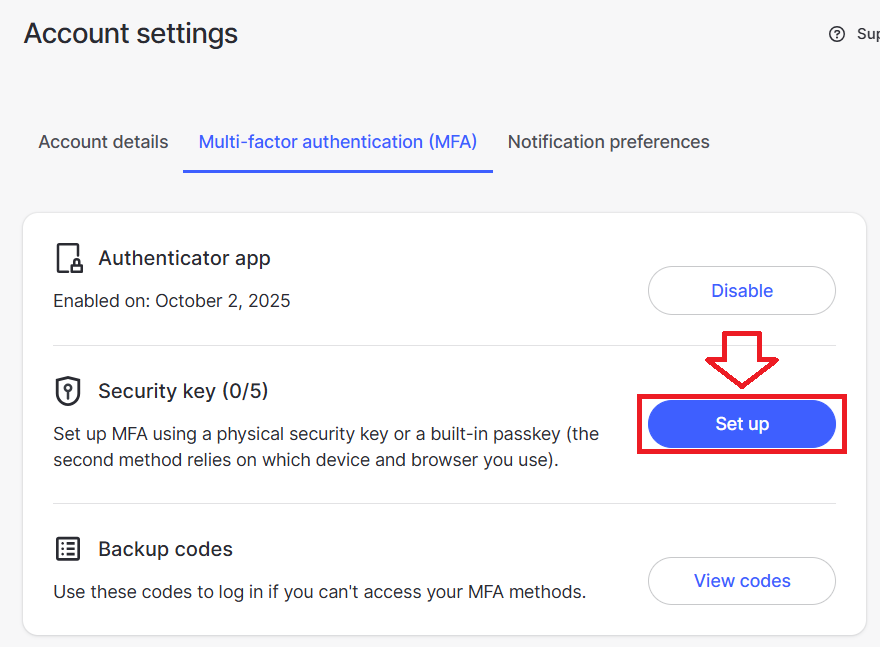
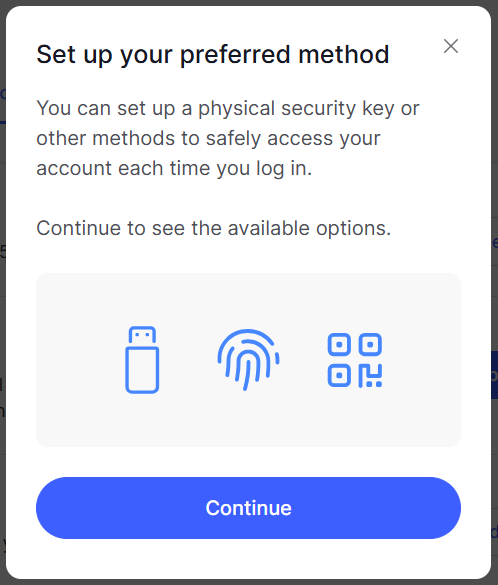
You are now prompted to set up a security key, insert your fido key into a USB port, then click
 ;
;
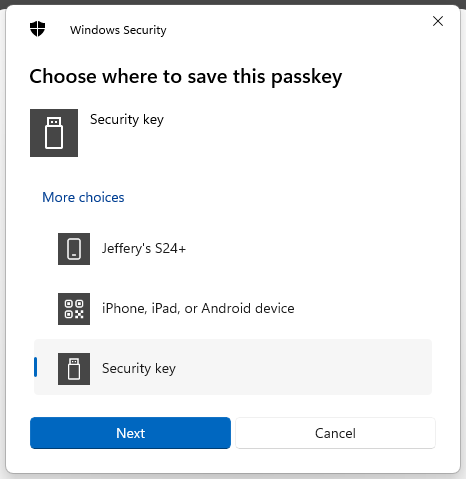
Select "Security key", then click
 ;
;
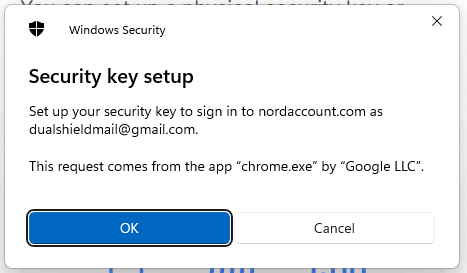
You will be notified that your security key will not be used with Nord, click
 ;
;
You will now be prompted to enter the PIN code for your Fido2 key.
At the prompt "Security Key PIN", enter the PIN code, then click
 .
. (in the case of a Fido key with a fingerprint reader you will need to swipe your finger on the key);
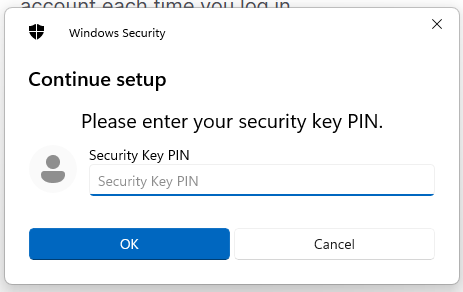
You are now prompted to touch the key (to prove you are present and giving permission for the key to be used).
Touch the necessary area on your Fido key;
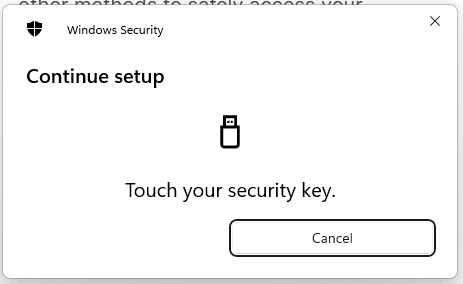
Once you have touched the Fido2 Key will be added as a passkey authentication method to your Nord account.
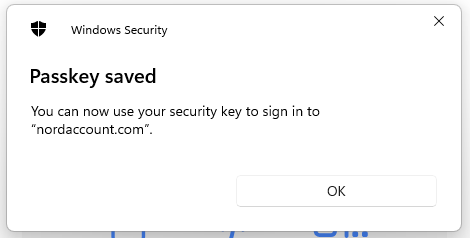
The Fido2 Key will be added as a passkey, and you will be prompted to give the device a name;
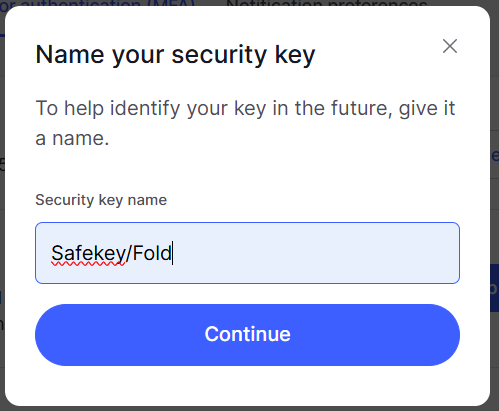
Provide a suitable name for your Fido key, then click
 , and your key will be ready to be used;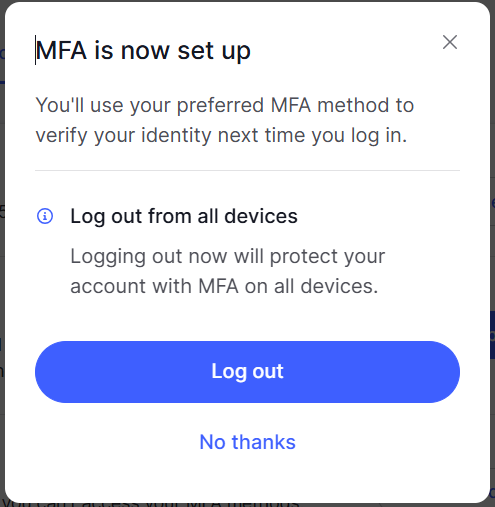
Signing in to your Nord account with a FIDO2 key
Once you have registered you FIDO2 key with Nord the key will be ready to be used as an authentication method when accessing your Nord account;
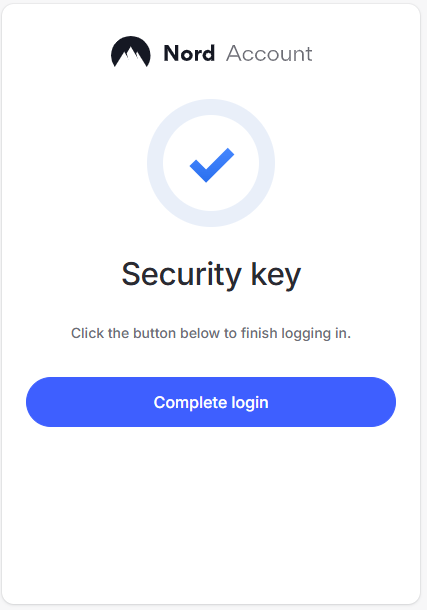
- In a web browser, Sign in to the your Nord account, but once you have supplied your username and password you will now be prompted to insert your security key,
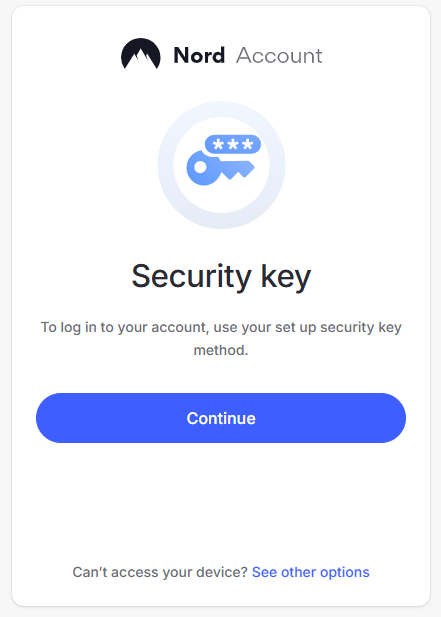
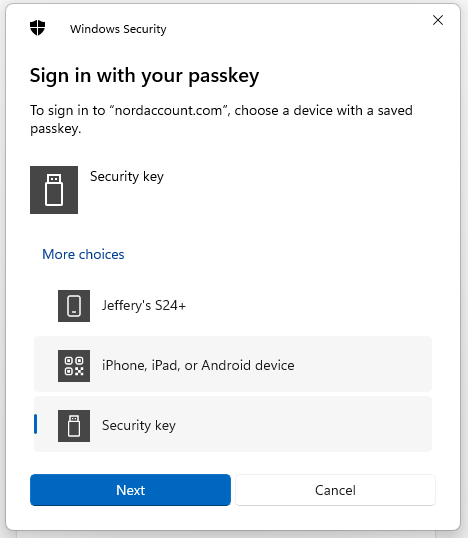
Insert you Fido2 key into an available USB port, then select the option "Security key";
You will now be prompted to touch the key (in the case of a Fido key with a fingerprint reader you will need to swipe your finger on the key);
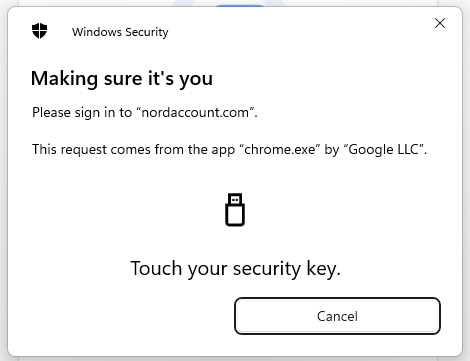
Once you have touched the key you will then be logged in to your Nord account.
Related Articles