Create a Web logon procedure
- Login to the DualShield Administration Console
- In the main menu, select “Authentication > Logon Procedures”
- Click the “+ CREATE” button on the toolbar, on the right
- Enter a recognisable “Name” and select “Web SSO” as the Type
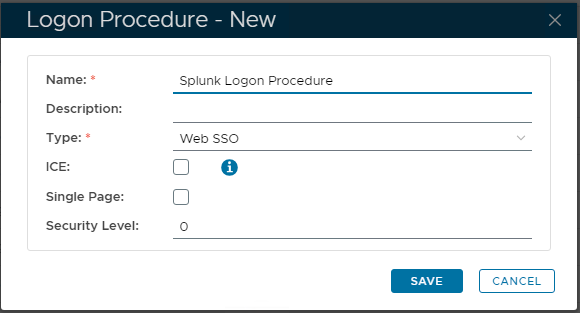
- Click “SAVE”
- Click the Context Menu icon of the newly created Logon Procedure, select “Logon Steps”
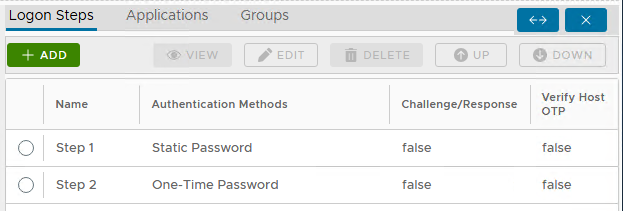
- In the popup window, click the “+ ADD” button on the toolbar
- Add the necessary Authentication methods here
Create a Web application
- In the main menu, select “Authentication > Applications”
- Click the “+ CREATE” button on the toolbar
- Enter a recognisable “Name”
- Select your internal “Realm”
- Add the newly created Logon Procedure (from the previous step)
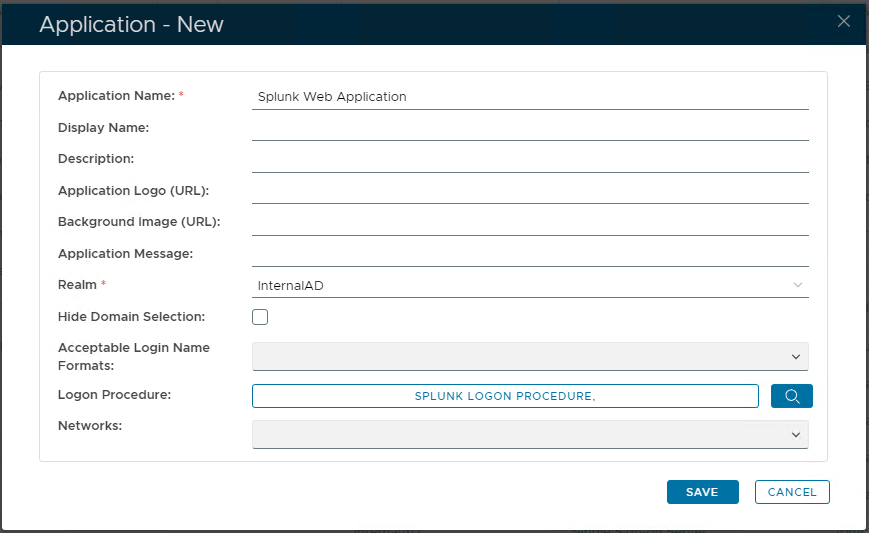
- Click "Save"
- Click the context "..." menu of the newly created Application, then select "Agent"
- Select the "Single Sign-on Server (SSO Server)"
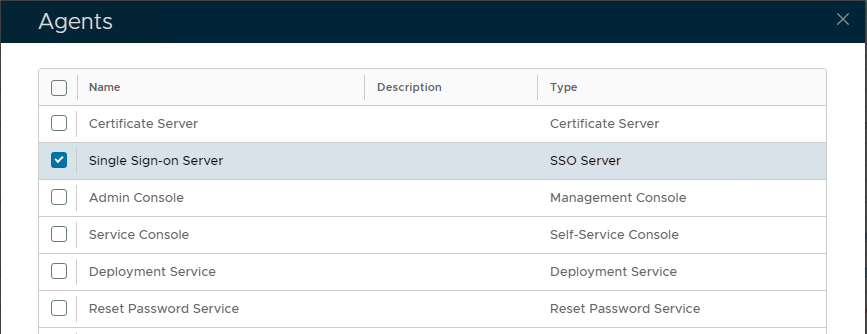
- Click "Save"
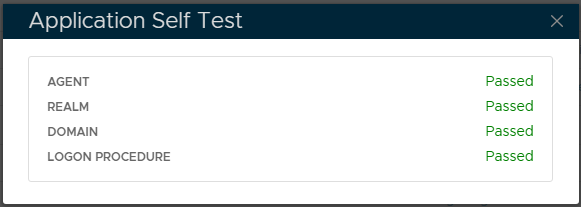
- Click the context "..." menu of the newly created Application, then select "Self Test"
- In the main menu, navigate to " SSO > SSO Servers"
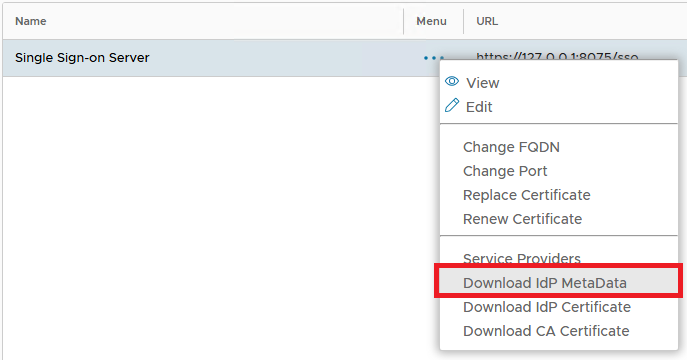
- Click the context "..." menu of "Single Sign-on Server (SSO Server") then select "Download Idp MetaData" .
Note the Name and location of the XML file, saved locally.
- In the main menu, select " SSO | Service Providers"
- Click "Create"
- Enter "Name", Select Type as "SAML 2.0"
- Copy the content of Service Provider Metadata (SPMetadata.xml) into the "Metadata" field.

- Click Edit for Attribute and create a role attribute map to a fix value that match the name of the Splunk group for instance: admin

- Select "User Principle Name" on NameID Fromat drop down list.
