Before you can use either Fido keys, programmable tokens, or pre-programmed tokens with Entra, you will need to ensure the following steps are taken;
- MFA is enabled for your users
- The Authentication Methods that are required for you hardware are selected
- At least two authentication methods are enabled
- The default authentication method has been selected
- Any authentication methods that are not required are disabled (e.g. SMS and Microsoft Authenticator)
Turn off per-user MFA
If you've previously turned on per-user MFA, you must turn it off before enabling Security defaults, or if you configure your policies and settings in Conditional Access.
- In the Microsoft 365 admin center, in the left nav choose Users > Active users.
- On the Active users page, choose multifactor authentication.
- On the multifactor authentication page, select each user and set their multifactor authentication status to Disabled.
Conditional Access and Security Defaults
If you have a P1 or P2, then you would be advised to use conditional access policies (if not then you may need to use security defaults).
Conditional Access is found in the Microsoft Entra admin center under Protection > Conditional Access.
Disabling security defaults
Organizations that choose to implement Conditional Access policies that replace security defaults must disable security defaults.
To disable security defaults in your directory:
- Sign in to the Microsoft Entra admin center as at least a Conditional Access Administrator.
- Browse to Identity > Overview > Properties.
- Select Manage security defaults.
- Set Security defaults to Disabled.
- Select Save.
After administrators disable security defaults, organizations should immediately enable Conditional Access policies to protect their organization.
Enabling and Enforcing MFA for your users
Microsoft Entra multifactor authentication works by requiring two or more of the following authentication methods, and in order to use hardware tokens, programmable tokens and fido keys the appropriate authentication methods for these devices should be selected from your authentication methods policy.
The authentication methods policy can be accessed by signing in to the Microsoft Entra admin center as at least an Authentication Policy Administrator and browse to Protection > Authentication methods > Policies.
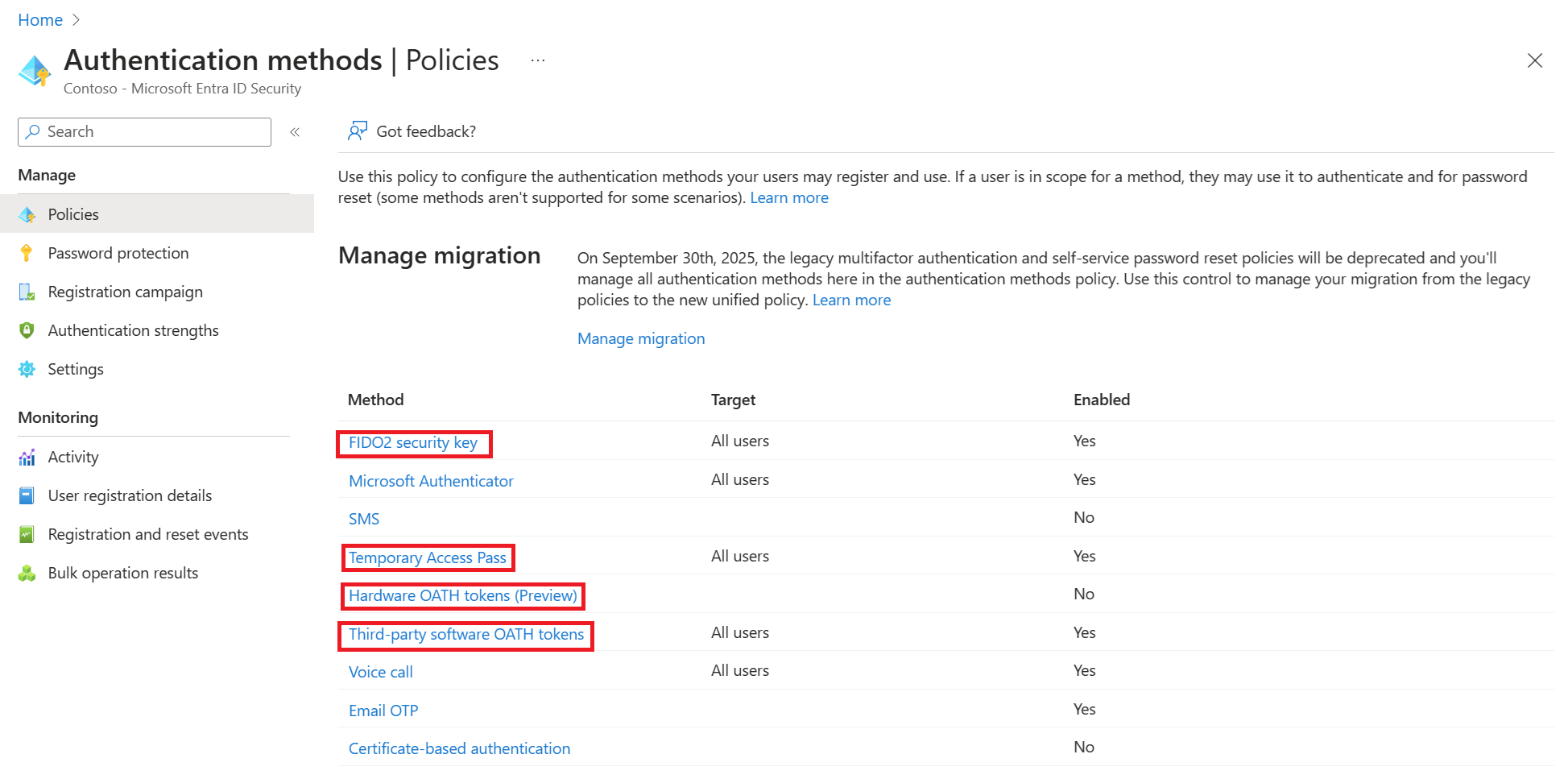
The following authentication options should be enabled dependant upon which hardware devices you will be using;
- Pre-Programmed Hardware Tokens
Pre-programmed tokens will need the authentication method "Hardware OATH tokens (preview)" enabled.
- Programmable Hardware Tokens
After they are programmed, programable tokens can be treated like pre-programmed hardware tokens, but they will normally be used as a direct replacement for 3rd party authentication apps (such as google authenticator).
Given these devices are normally used to replace authentication apps you would normally enable the authentication method "Third-party software OATH tokens".
- Fido security Keys
To use Fido keys you will normally enable the authentication methods "FIDO2 security key" and "Temporary Access Pass".
It is common to add a temporary access pass authentication method, then issuing a TAP code to the user so they can register their FIDO key for themselves (however inclusion of the method also satisfies the two authentication methods requirement, as well as providing the administrator a means to prepare the key themselves.
As well as adding the new authentication methods, you may also want to remove any authentication methods that are no longer required. It should be noted that Microsoft will require at least two authentication methods to be specified, and if Microsoft Authenticator is left enabled, then this method will normally be selected by default.
System-Preferred MFA
By default, system-preferred MFA is Microsoft managed and disabled for all users, but if this feature is enabled, then the default authentication method applied when users log in will be determined by a set of pre-defined preference rules. These rules will override any default authentication method, so if you want to take control of which authentication method the users defaults to you should disable this feature using the following procedure;
Disabling system-preferred MFA
Sign in to the Microsoft Entra admin center as at least an Authentication Policy Administrator.
Browse to Protection > Authentication methods > Settings.
For System-preferred multifactor authentication, choose whether to explicitly enable or disable the feature, and include or exclude any users. Excluded groups take precedence over include groups.
For example, the following screenshot shows how to make system-preferred MFA explicitly enabled for only the Engineering group.
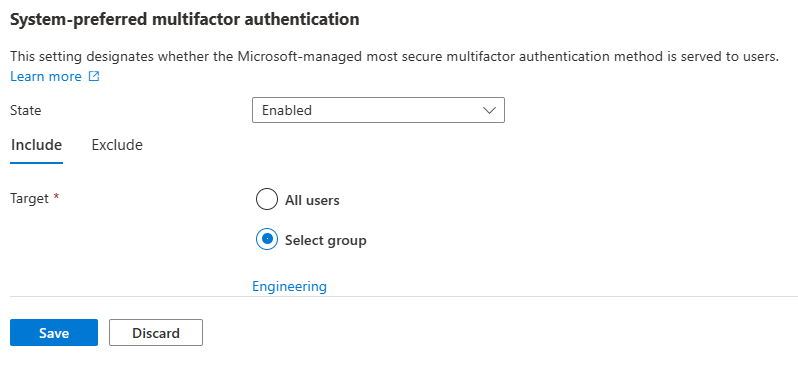
- To disable system-preferred defaults set State to "Disabled", then click Save.
Selecting the default authentication method
Once the new authentication method has been added you can set this new method as the default method using the following procedure;
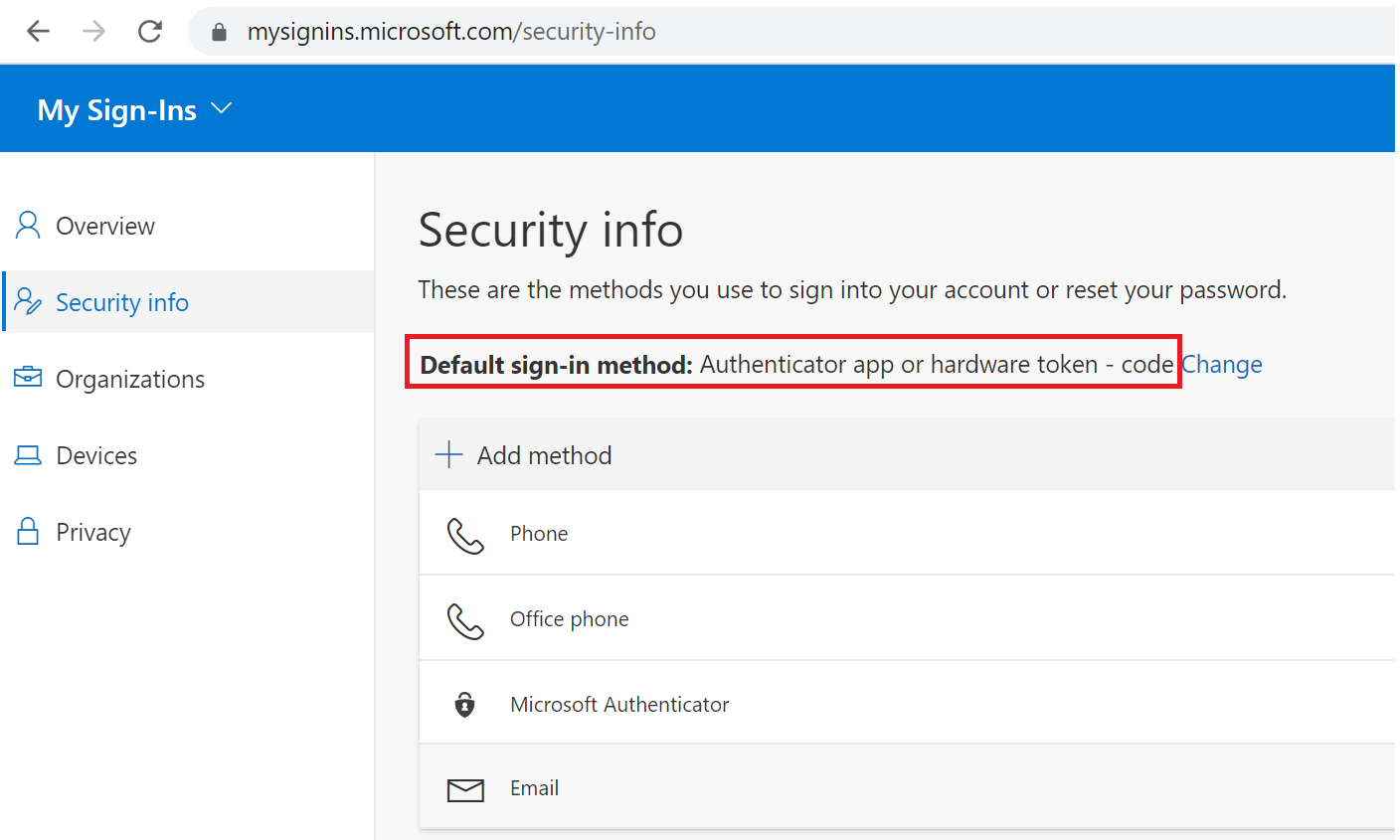
- Login to Microsoft My Sign-ins Portal, select "Security Info" (this login applies to both office365 and Azure).
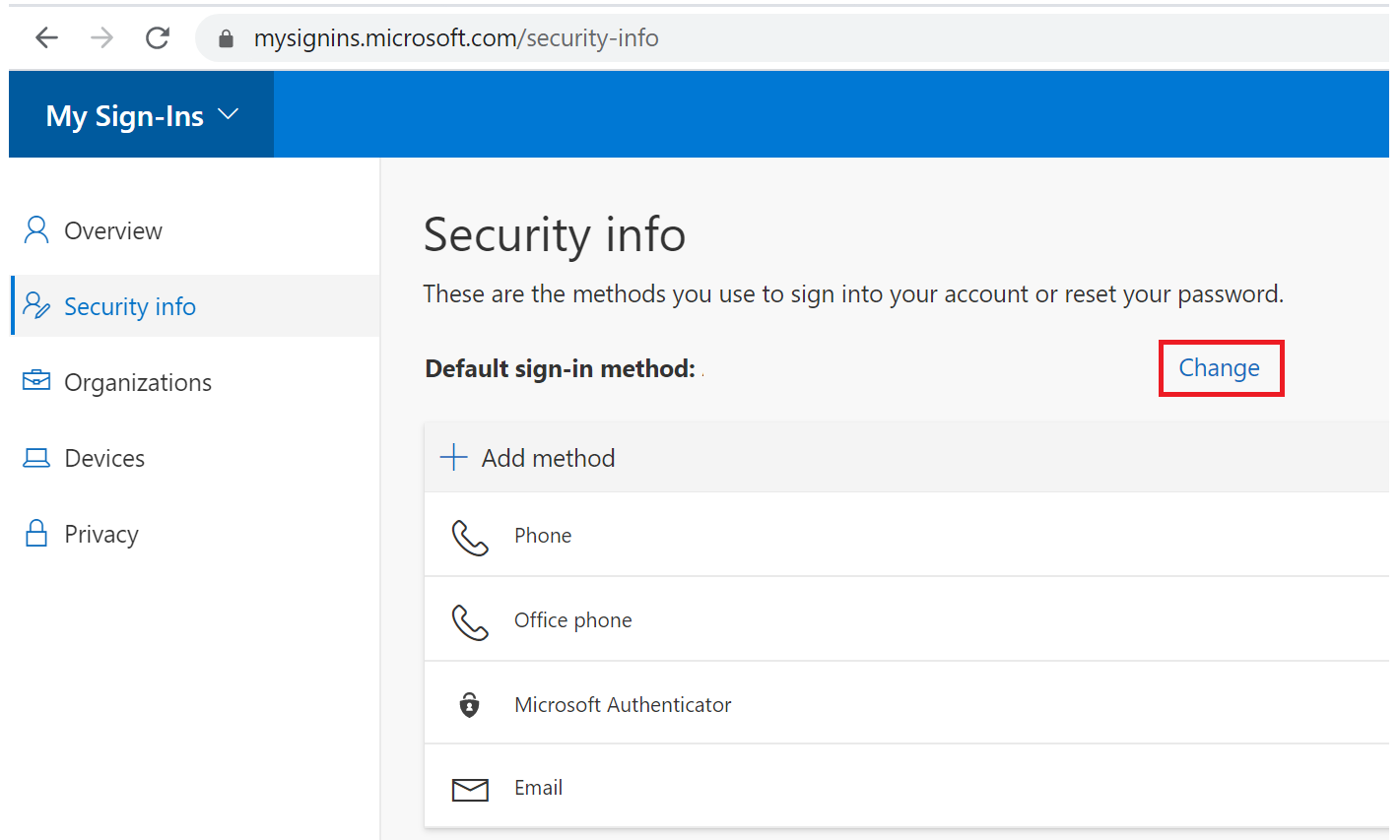
Click "Change" to the right of "Default sign-in method"
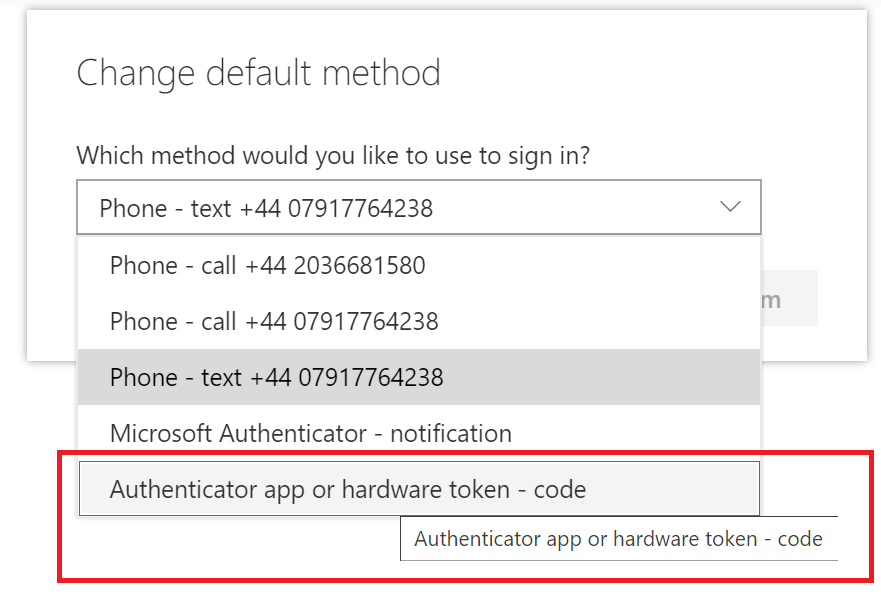
Select "Authenticator app or hardware token - code"
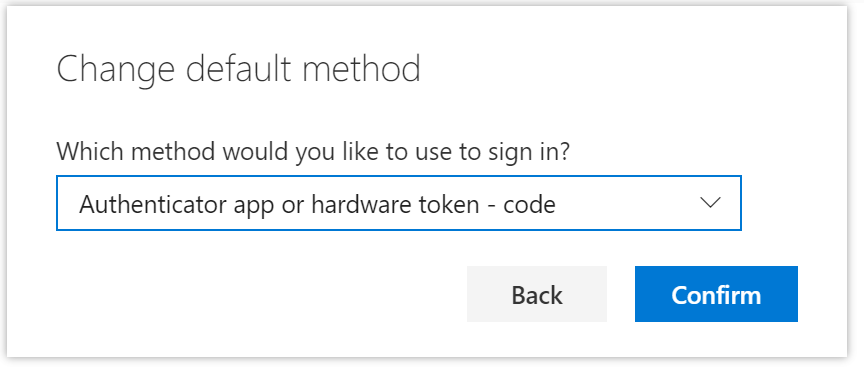
Click "Confirm"
Related Articles
Related Articles
- How to set OTP token as the default sign-in method for Office 365 MFA login
Tutorial: Secure user sign-in events with Microsoft Entra multifactor authentication
- How do I disable the requirement to use Microsoft Authenticator in order to sign into my Microsoft Office 365 accounts?
- Authentication methods in Microsoft Entra ID - OATH tokens
- Configure Temporary Access Pass to register passwordless authentication methods
- System-preferred multifactor authentication - Authentication methods policy
- Security defaults in Microsoft Entra ID
- What is Conditional Access?
- Configuring Azure Active Directory Conditional Access
- Enable system-preferred MFA in the Microsoft Entra admin center
- Set up multifactor authentication for Microsoft 365
- Configure Temporary Access Pass to register passwordless authentication methods