Select "Administration | Policies" on the side panel,
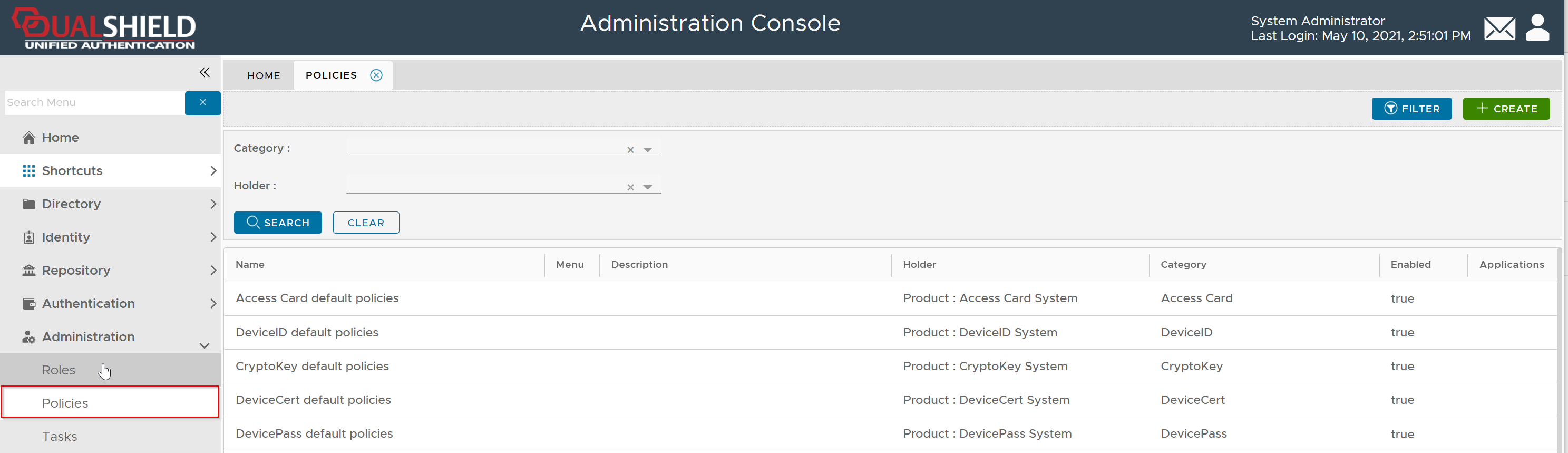
To create a new policy, click the "CREATE" button on the toolbar to open the policy editor window.
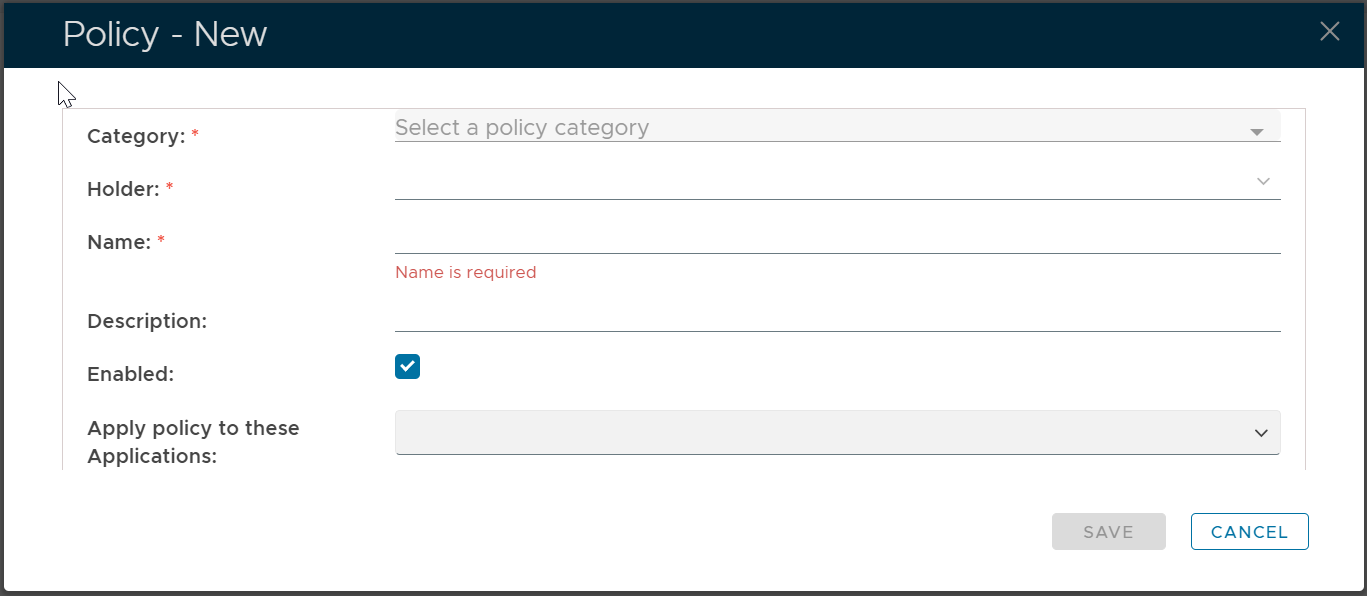
In the policy editor, firstly select FaceSense from the Category drop-down list

Policy Bindings
| Holder: | The policyholder defines the scope of the policy.
|
| Name: | A unique name that describes this policy |
| Applications: | Optionally, you can bind the policy to a specific application or a list of applications. To specify the application(s), select the field: Apply policy to these applications If the field Apply policy to these applications is left empty, then the policy will be applied to all applications. |

Policy Options
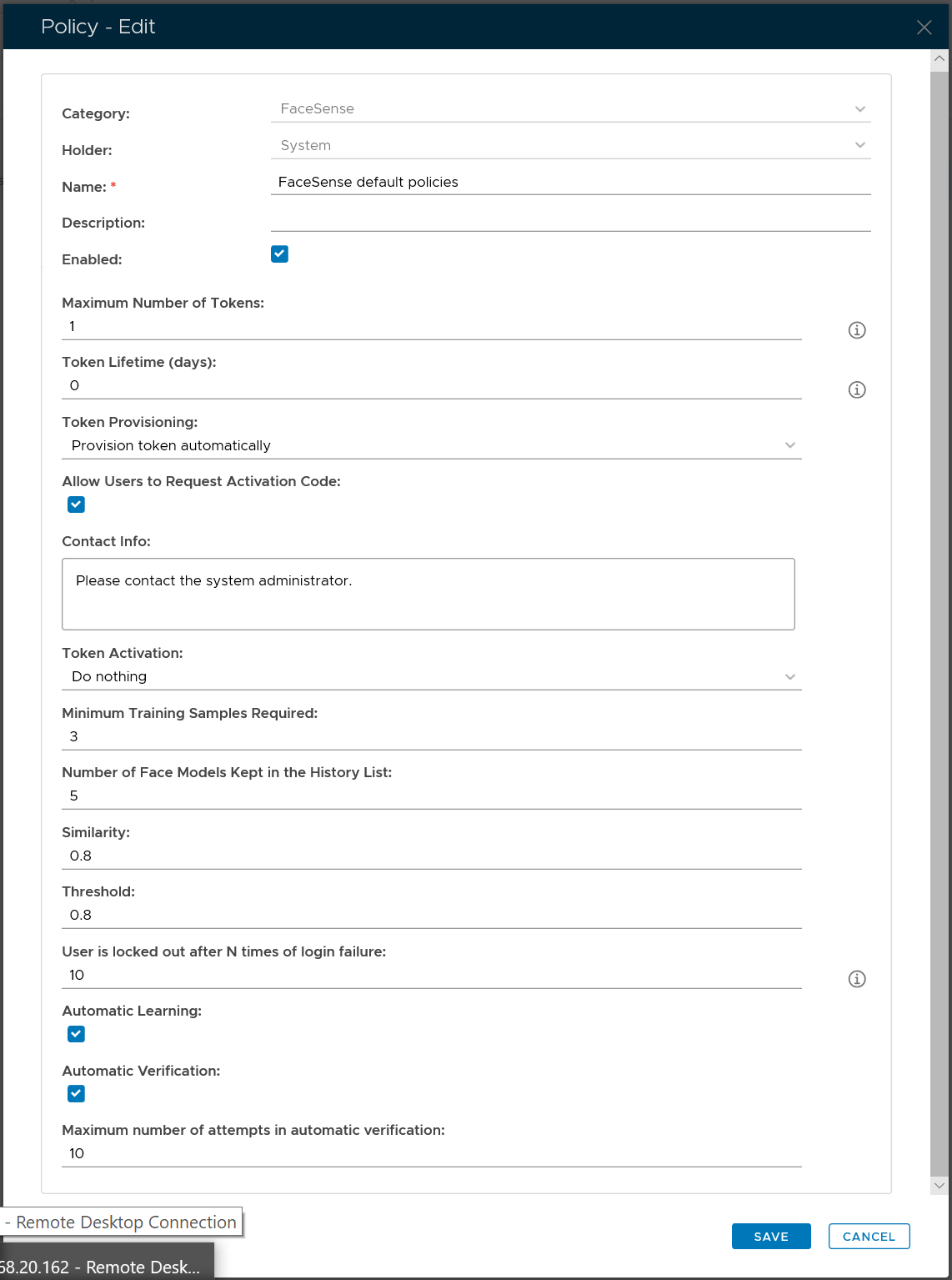
| Option | Value or Selection | Remark |
|---|---|---|
| Token Provisioning | Provision tokens automatically | When a user attempts to logon with Face Recognition, DualShield server will automatically create a FaceSense token in the user's account if the user does not ywt have a FaceSense token |
| Do nothing | ||
| Token Activation | Automatically activate then token when created or assigned | When a FaceSense token is created for the user or assigned to the user, DualShield server will automatically activate the token. |
| Send activation code to the user when created or asisgned | When a FaceSense token is created for the user or assigned to the user, DualShield server will not activate the token. Instead, it will send an activation code to the user. | |
| Do nothing | When a FaceSense token is created for the user or assigned to the user, the token will not be activated, and the activation code will not be sent either. |