The Computer Logon Modern Authentication solution consists of many components, including:
- Computer Logon Client
- Authentication Service
- Policy Service
- Token Service
The client needs to connect to various services. But how does the client know the address/endpoint of those services?
The answer lies in another service called the Autodiscover Service, which provides the endpoints of those services to the clients in a JSON document.
Currently, two servers/porals include the Autodiscover Service for Computer Logon MA:
| Server/Portal | Autodiscover URL |
|---|---|
| DualShield | https://DUALSHIELD-FQDN/sso/v1/computerLogon/check |
| Computer Logon Management Portal | https://dn-clo-ma-{entra-tenant-id}.azurewebsites.net/api/computerLogon/check |
If you are not using the DualShield MFA server, such as Entra MFA, then you need to install the Computer Logon Management Portal in your Entra ID tenant.
Finally, how does the client find the Autodiscover Service URL?
The answer depends on the computer's domain membership. There are 3 types of PCs:
- On-Prem AD joined
- Entra ID joined
- Hybrid joined
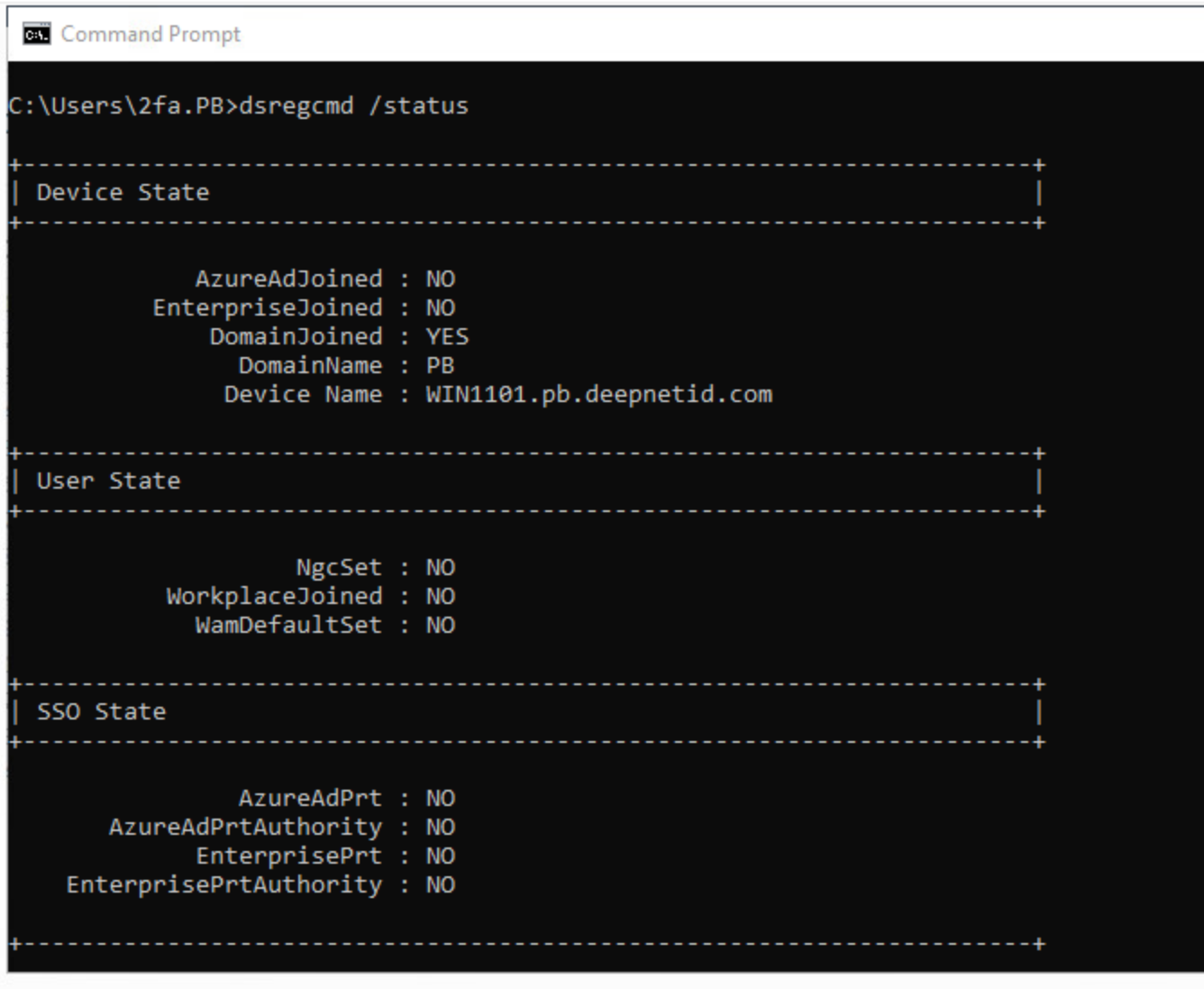
Scroll up to the top of the output block and locate the Device State section. Check the following key lines:
DomainJoined:YES= The PC is joined to a traditional on-premises Active Directory (AD) domain.NO= The PC is not joined to an on-premises AD domain (it may be a workgroup or pure cloud-joined device).
AzureAdJoined:YES= The PC is joined to Microsoft Entra ID (formerly Azure AD).NO= The PC is not joined to Entra ID.
EnterpriseJoined:YES= The PC is joined to an on-premises Device Registration Service (Workplace Join).NO= Not workplace joined.
Common Combinations:
- Traditional On-Prem AD Domain Joined:
DomainJoined : YES|AzureAdJoined : NO - Hybrid Entra ID Joined (Domain + Cloud):
DomainJoined : YES|AzureAdJoined : YES - Pure Microsoft Entra ID Joined:
DomainJoined : NO|AzureAdJoined : YES - Workgroup PC:
DomainJoined : NO|AzureAdJoined : NO
On-Prem AD joined PC
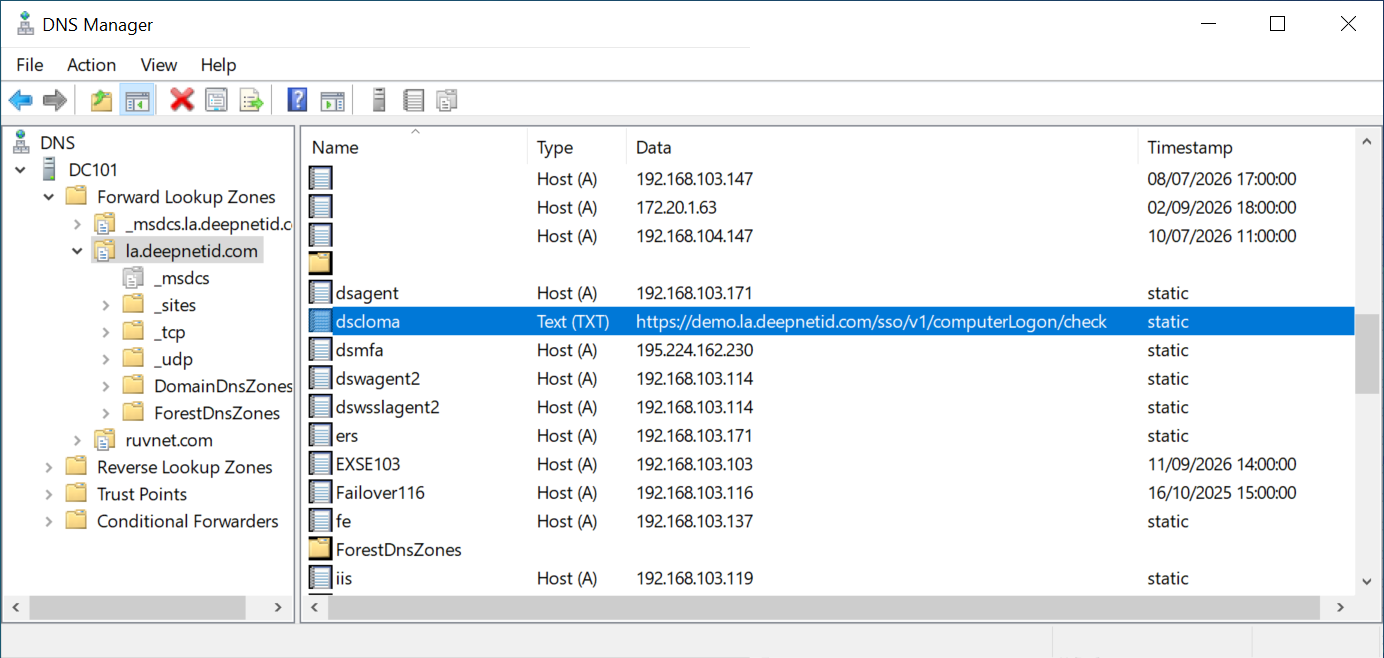
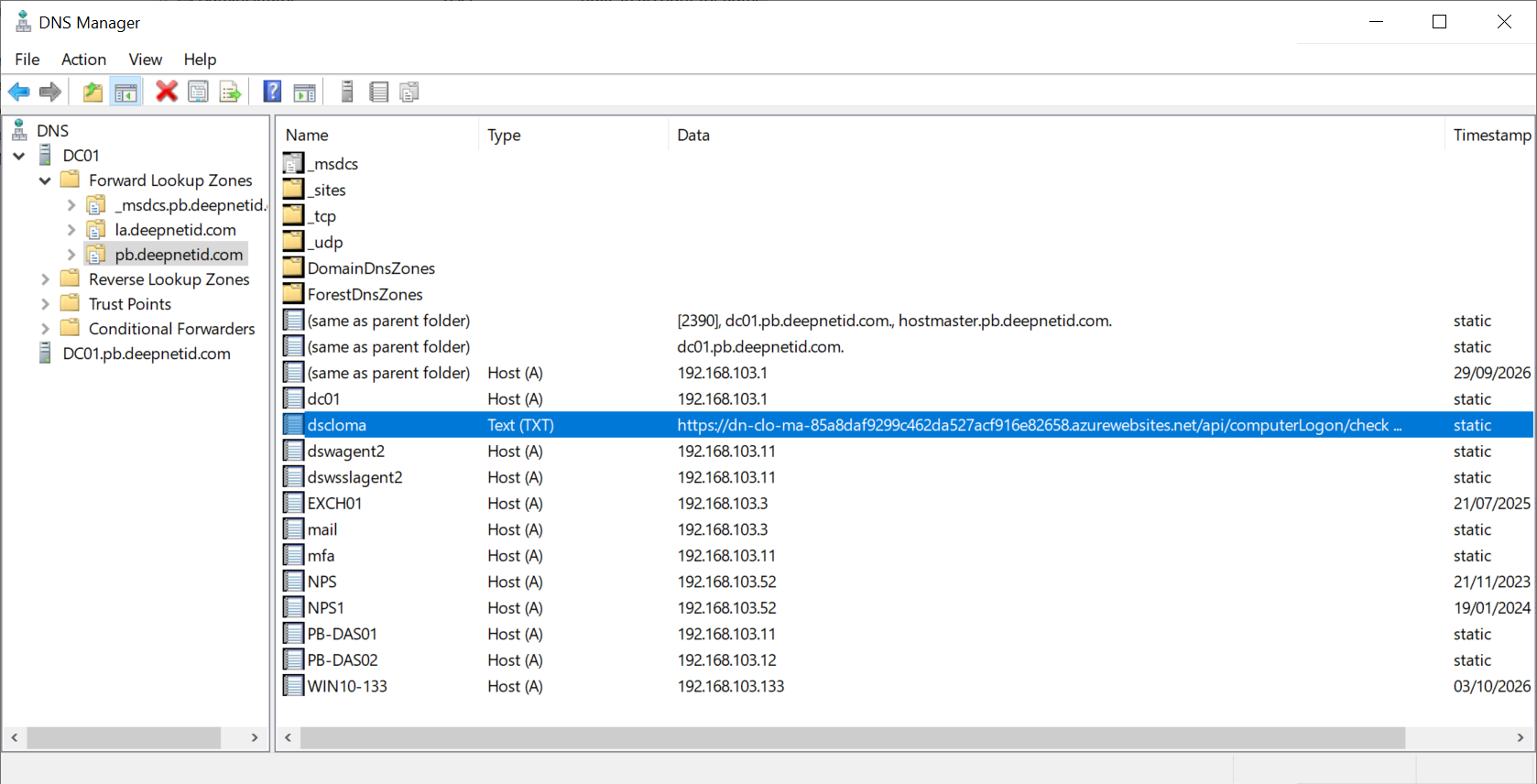
On an on-prem AD joined PC, the logon client queries the on-prem DNS server for a TXT record named "dscloma". The value of the TXT record is the URL of the Autodiscover Service.
References:
On your DNS server, launch the DNS Manager
Select your domain, e.g. "la.deepnetid.com"
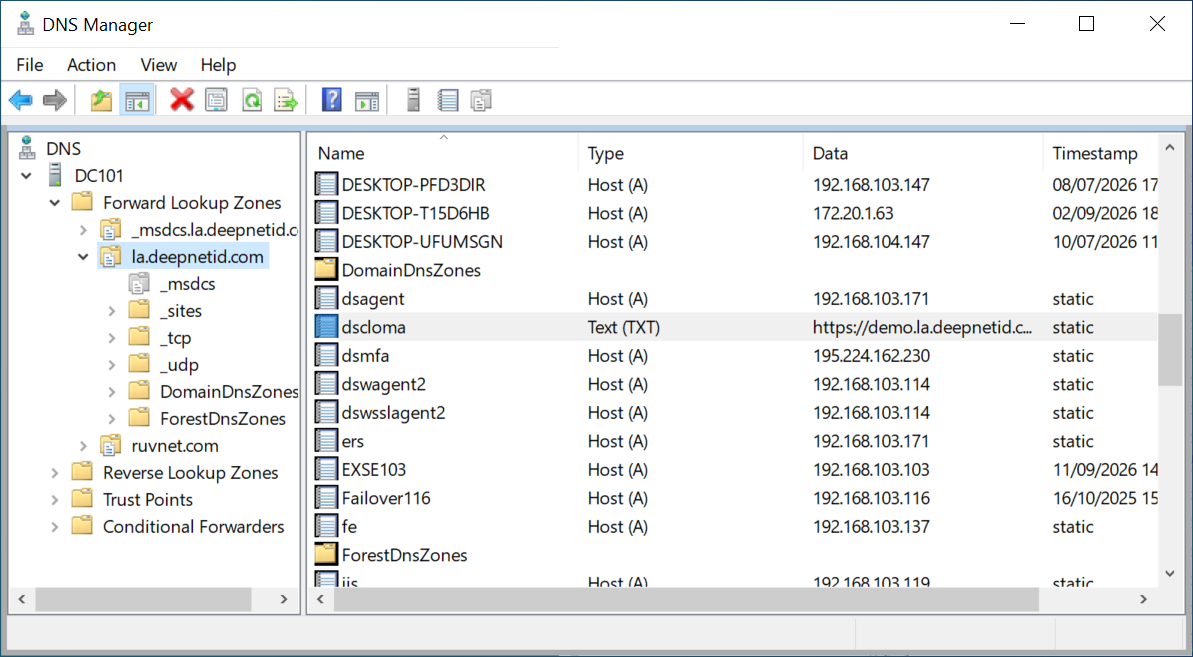
Create a new TXT record in the domain
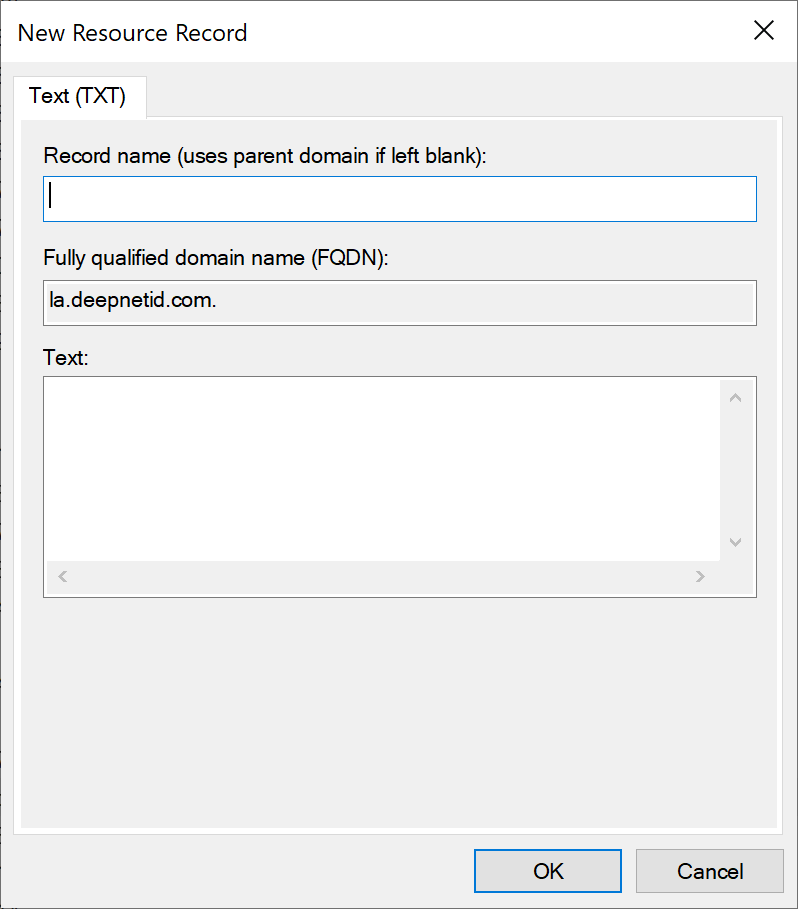
In the Record Name box, enter "dscloma"
In the Text box, enter the URL in the form of "https://DUALSHIELD-FQDN/sso/v1/computerLogon/check", in which "DUALSHIELD-FQDN" is the real FQDN of your DualShield server, e.g. "demo.la.deepnetid.com"
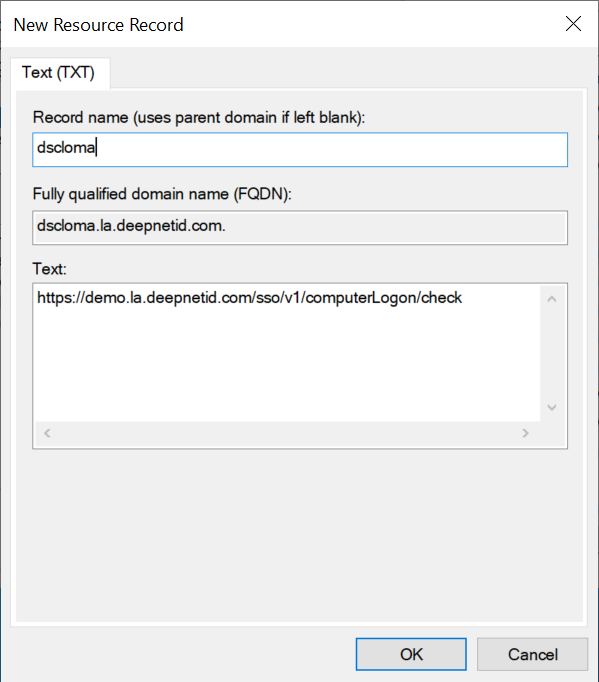
Press the "OK" button to save it
Reference:
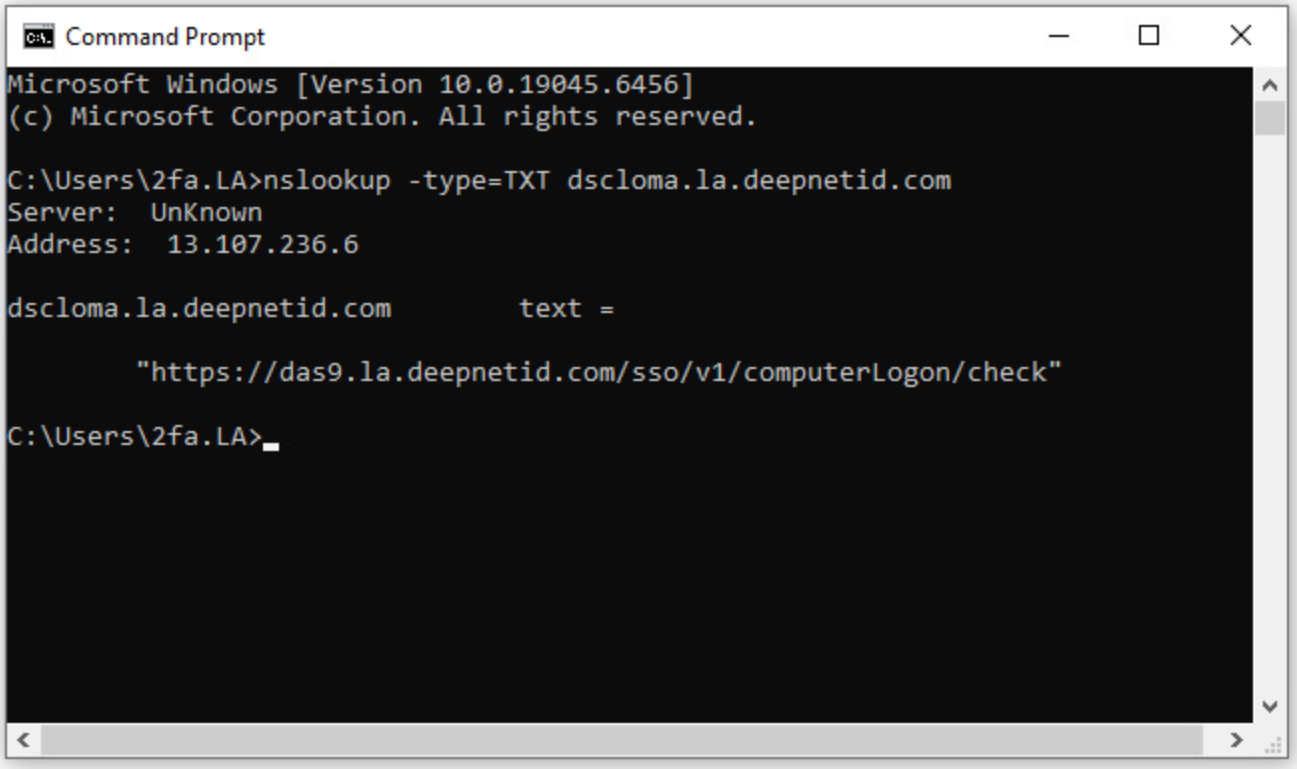
nslookup -type=TXT xyz.fqdn
in which "xyz" is the name of the TXT record, and "fqdn" is the fully qualified domain name.
For instance, to look up a TXT record named "dscloma" in the domain "la.deepnetid.com", the command is:
nslookup -type=TXT dscloma.la.deepnetid.com
On your DNS server, launch the DNS Manager.
Select your domain, e.g. "la.deepnetid.com"
Create a new TXT record in the domain
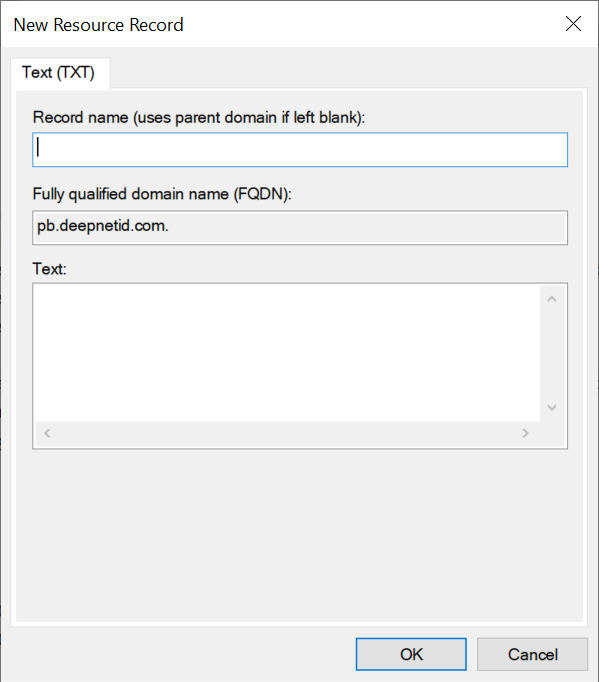
In the Record Name box, enter "dscloma"
In the Text box, enter the URL in the form of "https://dn-clo-ma-{entra-tenant-id-without-dash}.azurewebsites.net/api/computerLogon/check", in which "{entra-tenant-id-without-dash}" is the Tenant ID of your Entra ID tenant without the dash "-". For instance, your Entra tenant ID is "11111111-2222-3333-4444-555555555555", then the URL is: "https://dn-clo-ma-11111111222233334444555555555555.azurewebsites.net/api/computerLogon/check"
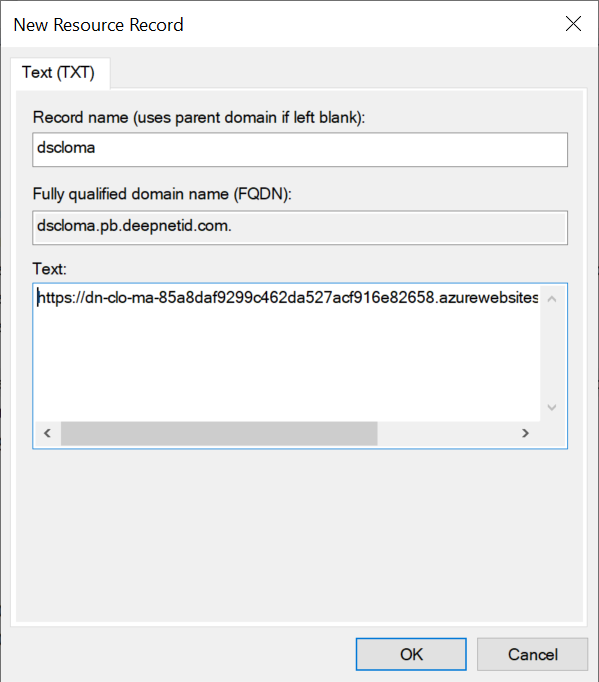
Press the "OK" button to save it.
Reference:
nslookup -type=TXT xyz.fqdn
in which "xyz" is the name of the TXT record, and "fqdn" is the fully qualified domain name.
For instance, to look up a TXT record named "dscloma" in the domain "la.deepnetid.com", the command is:
nslookup -type=TXT dscloma.la.deepnetid.com