For the computer logon MFA solution, we need to set up an enterprise application in Entra ID
Register an Enterprise Application
In Azure Portal, go to App registrations
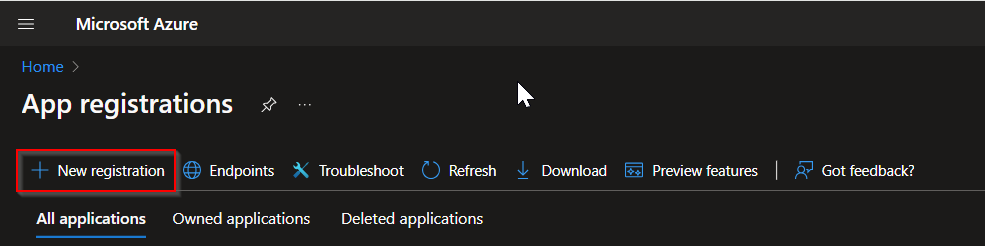
Click New registgration
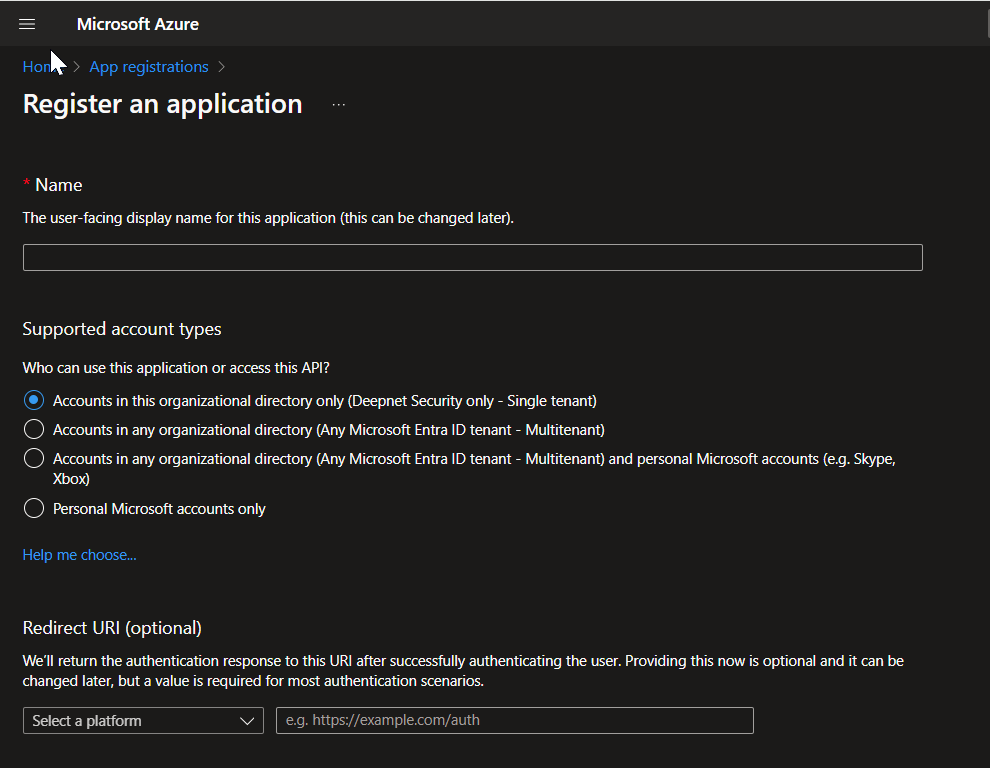
In the Name box, enter a name for this application, such as "Computer Logon with MFA"
Under Redirect URI, select "Public client/native (mobile & desktop)" and enter a value of "https://deepnet-clo-ma-native"
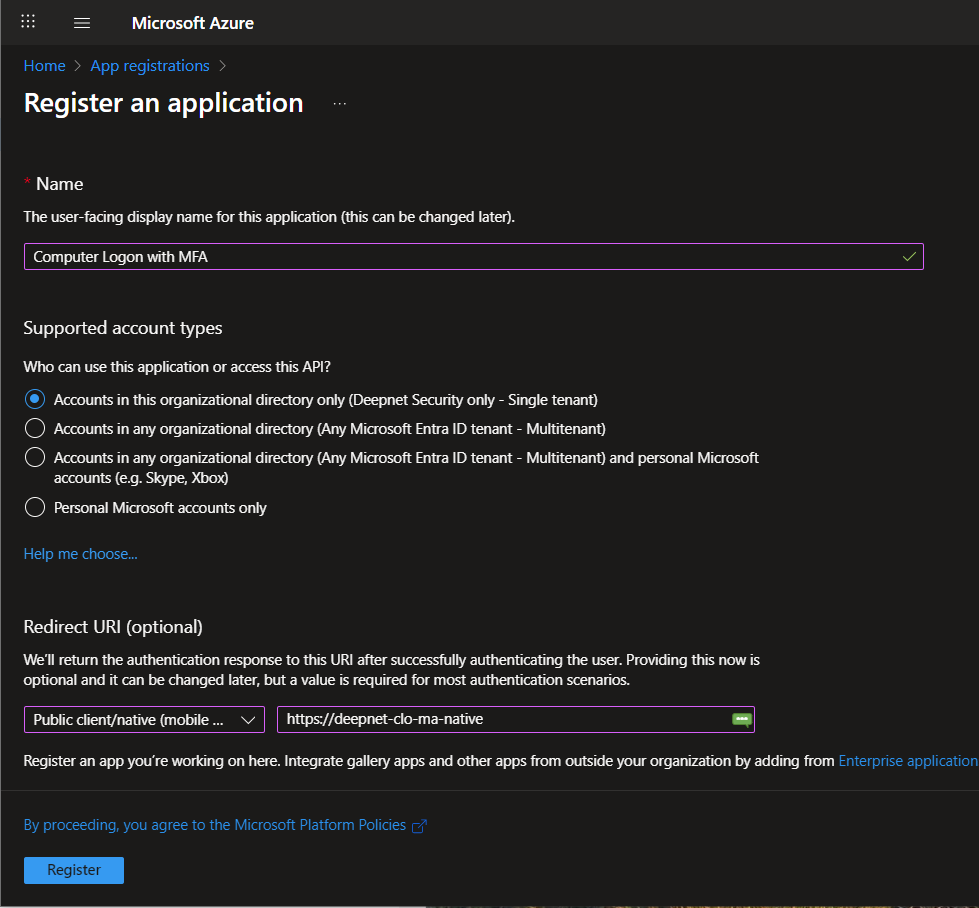
Click "Register"
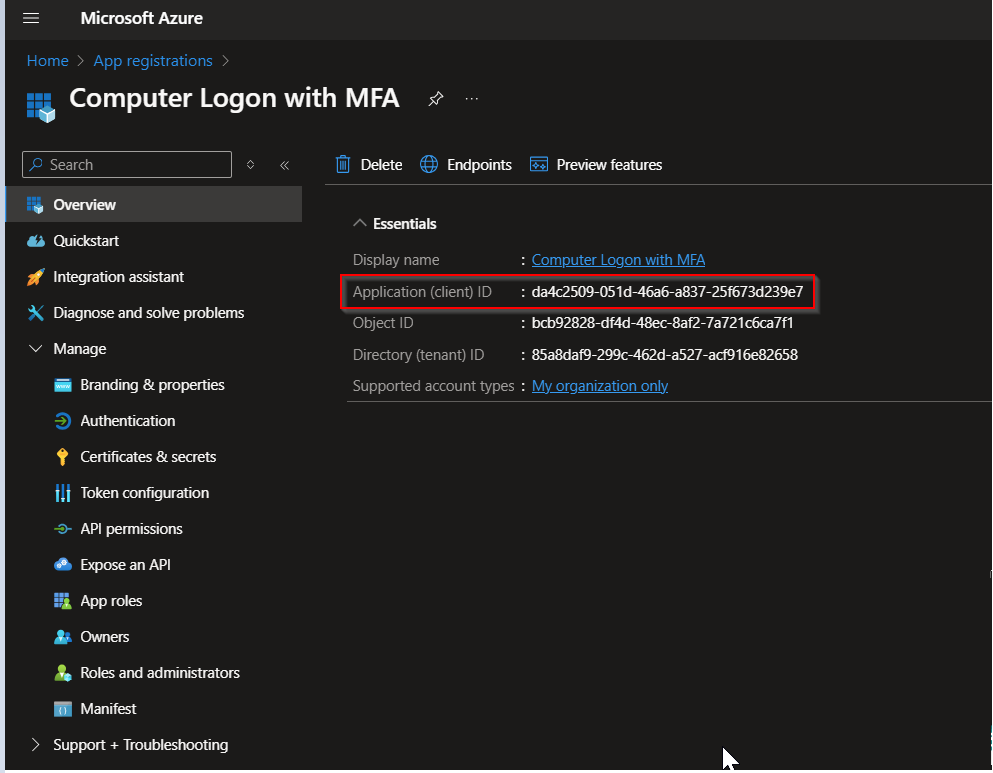
Take note of the Application (client) ID, e.g. da4c2509-051d-46a6-a837-25f673d239e7
Add Web Platform
Click Authentication
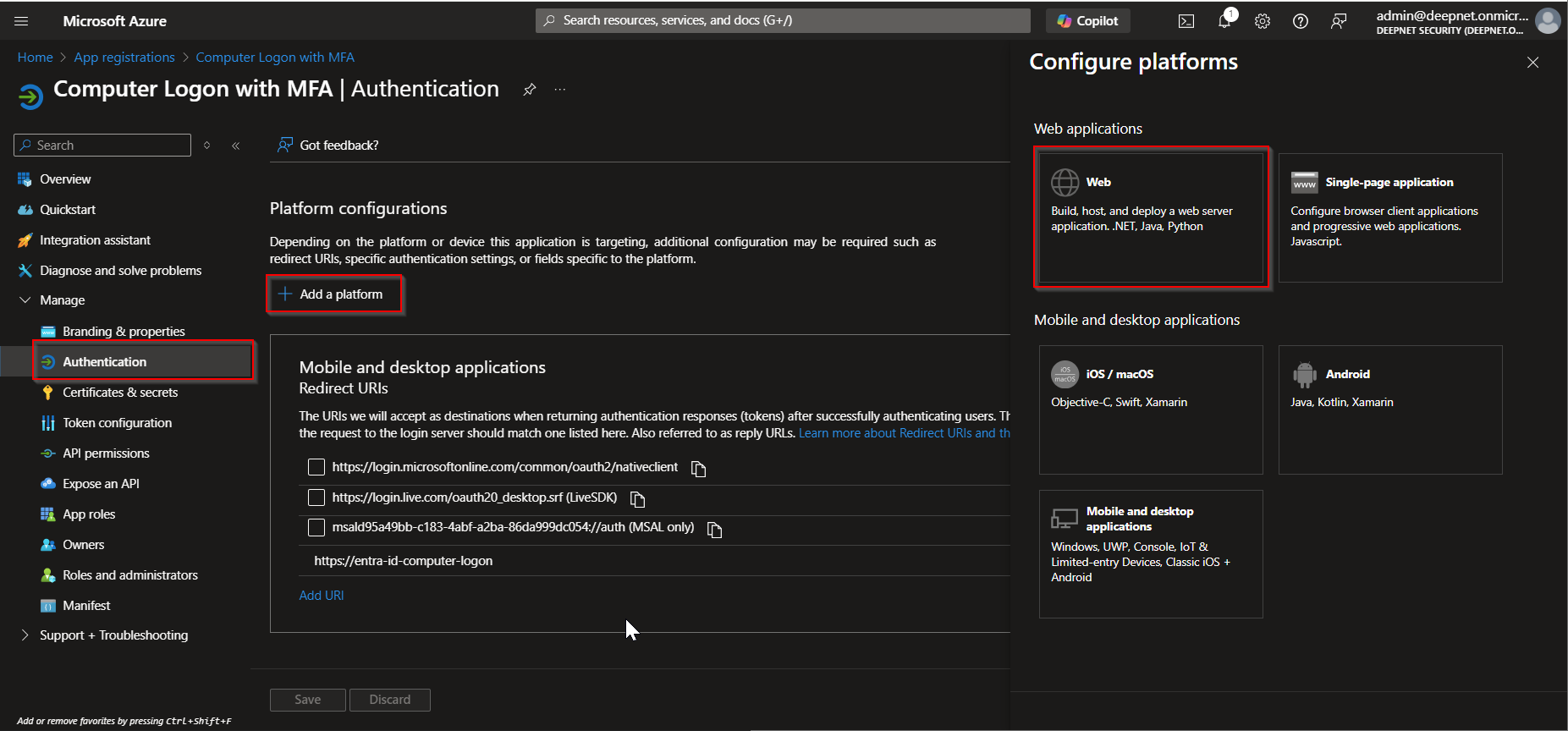
Click "+ Add a platform" in the middle pane, then select "Web" in the right pane
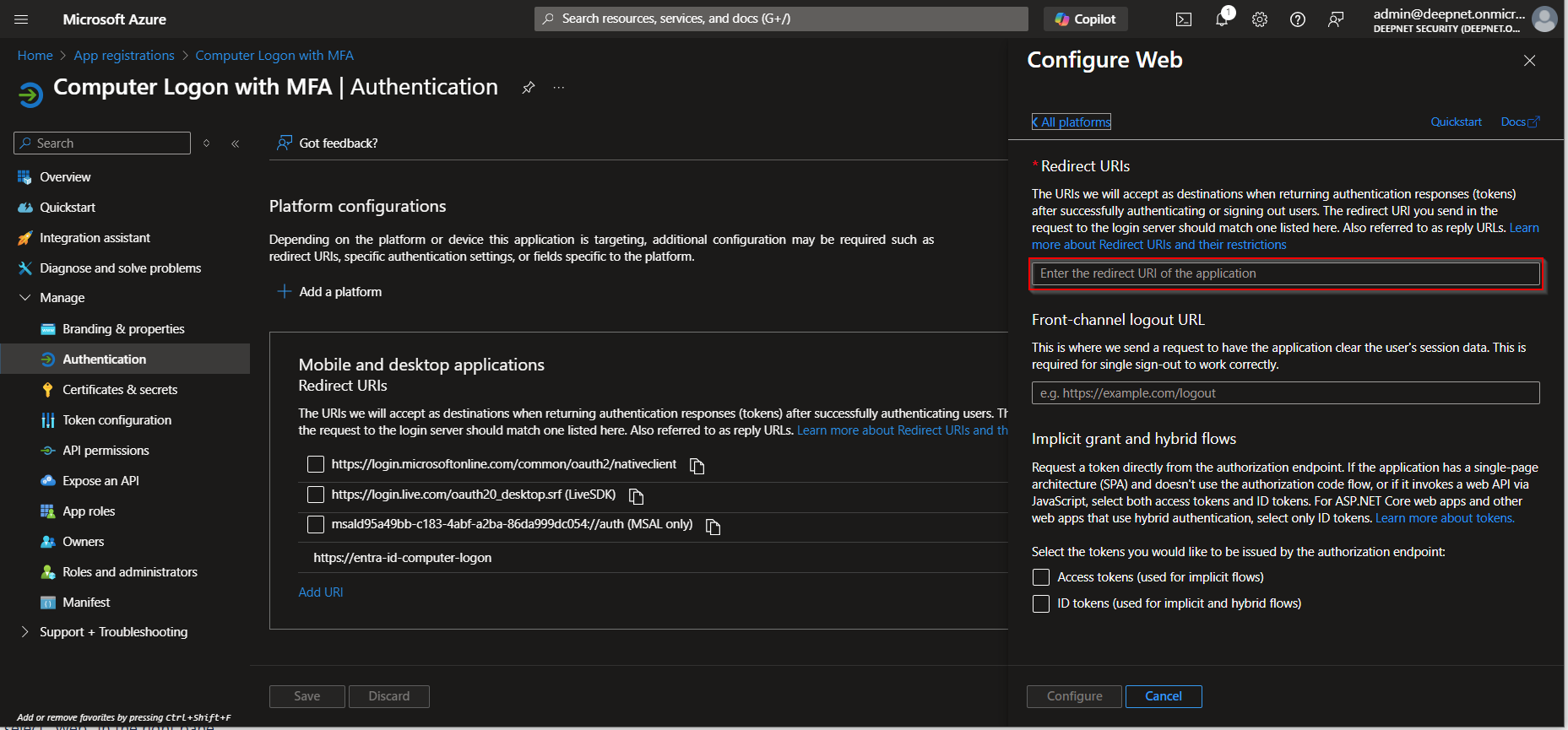
In the Redirect URIs box, enter: https://deepnet-clo-ma-web
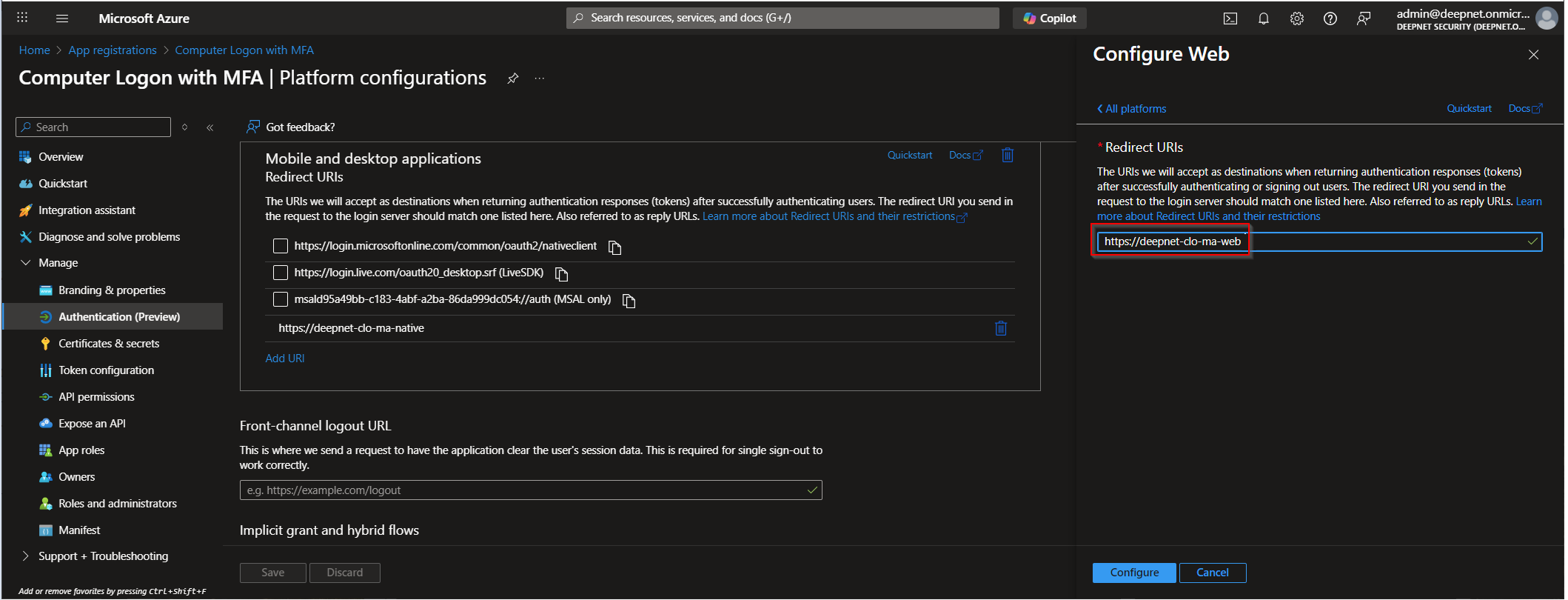
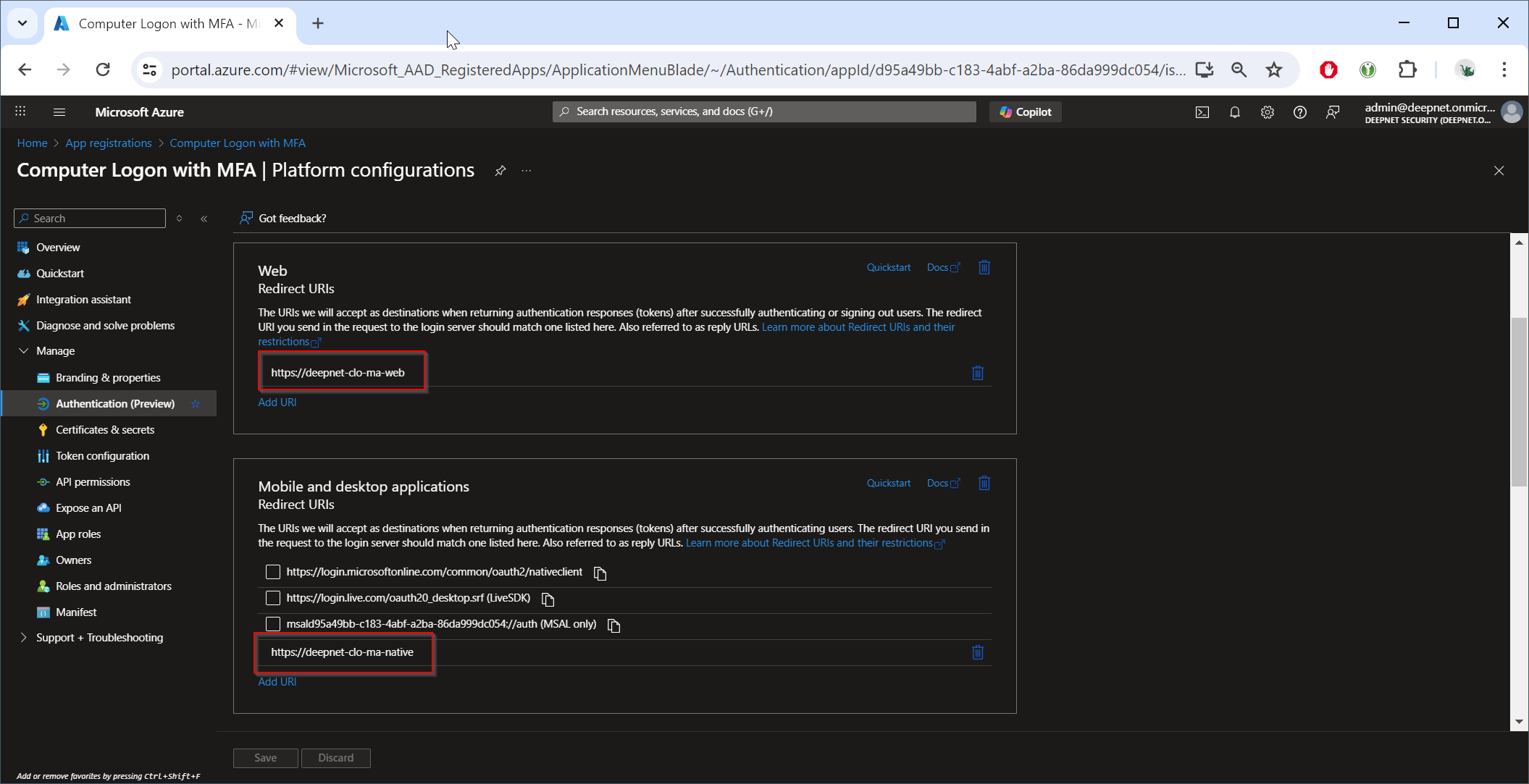
Click the "Configure" button to save it.
Grant API Permissions
Click API permissions
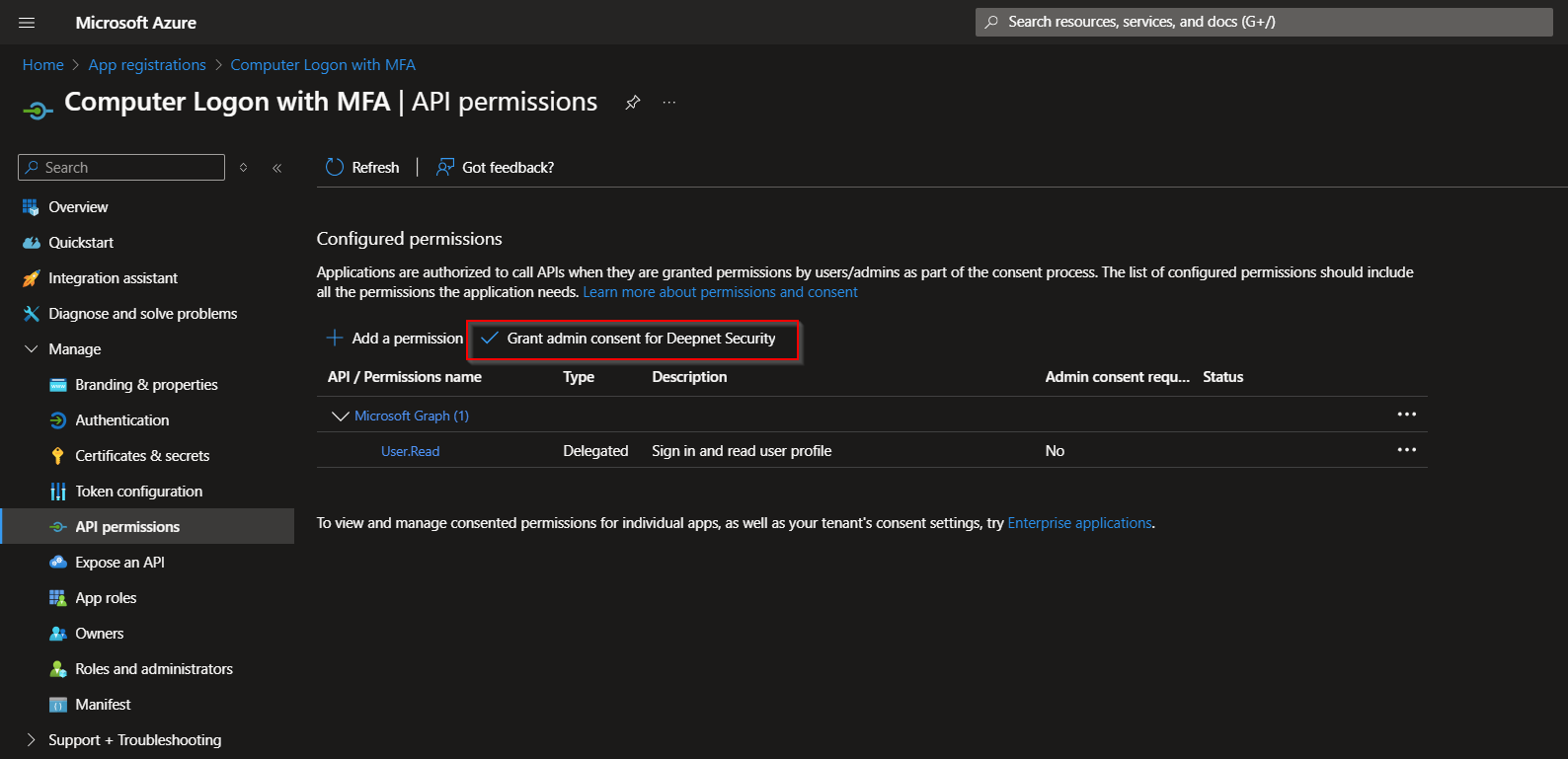
click the button "Grant admin consent for xxx" (where xxx is the name of your tenant)

Click Yes to confirm
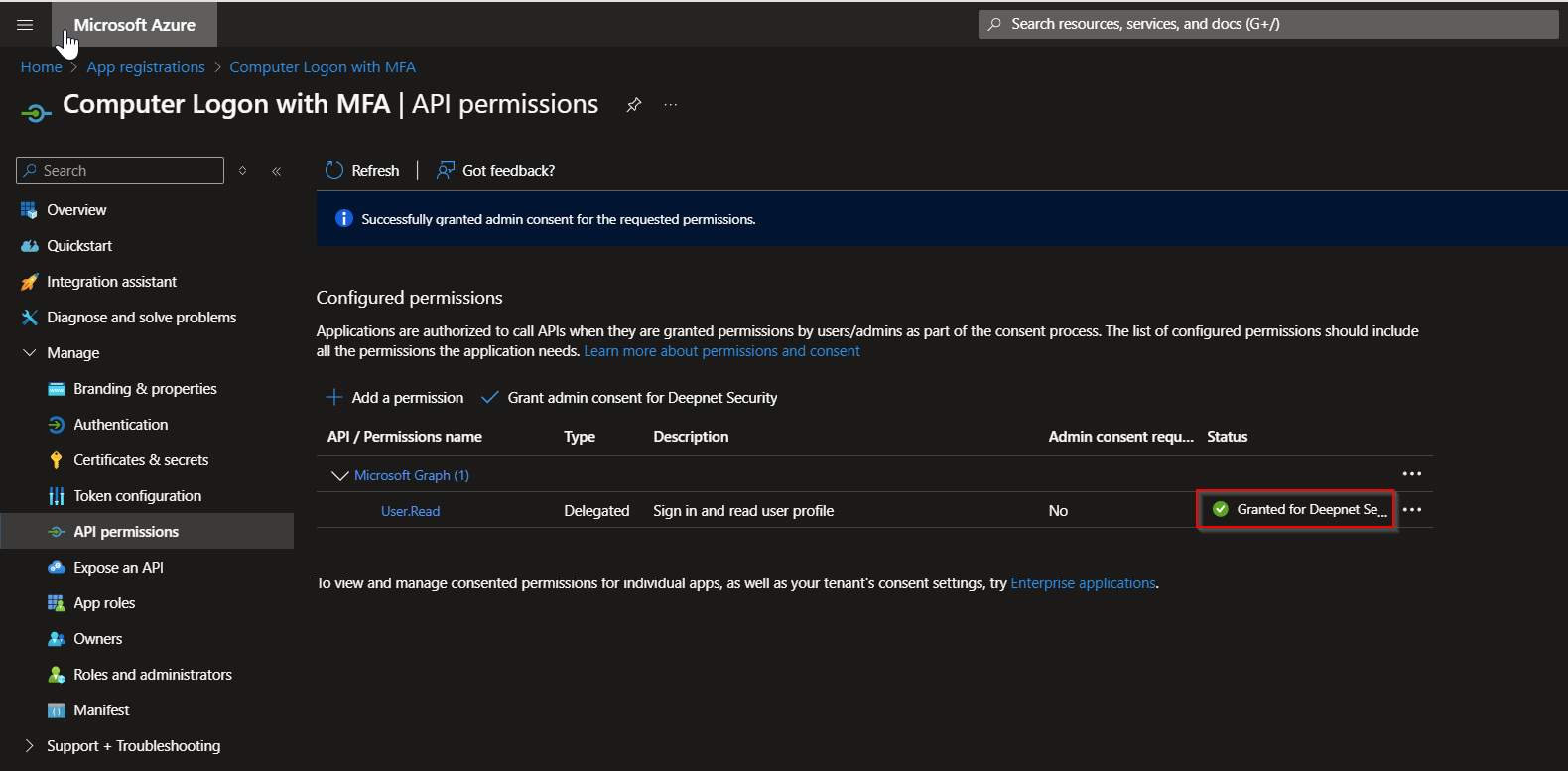
API permissions status now shows as granted.