Create a Logon Procedure
- Login to the DualShield Administration Console
- In the main menu, select Authentication > Logon Procedures

3. Click the Create button on the toolbar
4. Enter Name and select Web SSO as the type

5. Click Save
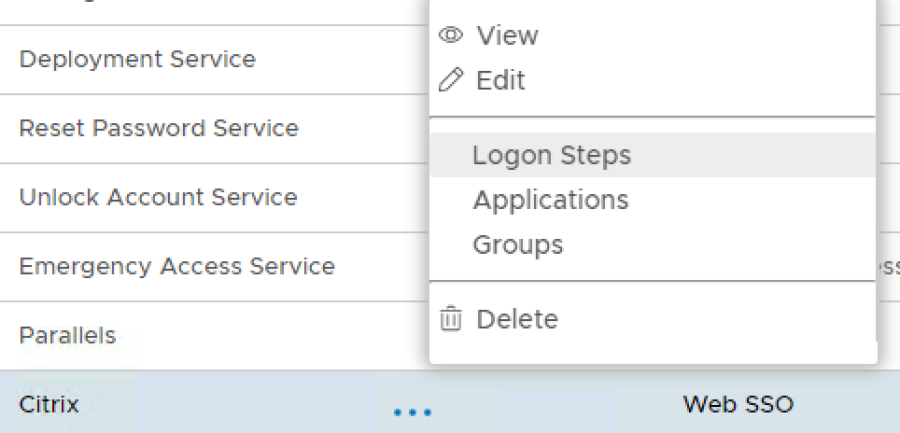
6. Click the Context Menu icon of the newly create logon procedure, select Logon Steps
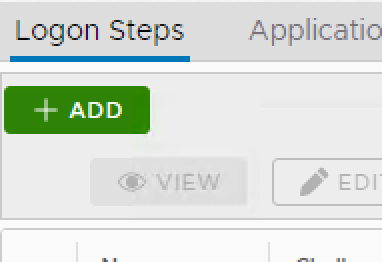
7. In the popup windows, click on Add
8. Select the desired authentication method, e.g. Static Password

9. Click Save
10. Repeat steps 7-9 to add more logon steps if desired, e.g. One-Time Password.

Create an Application
- In the main menu, select Authentication > Application

2. Click on Create

3. Enter an Application Name
4. Select a Realm that is bound to your domain
5.Select the newly created Logon Procedure

6. Click Save
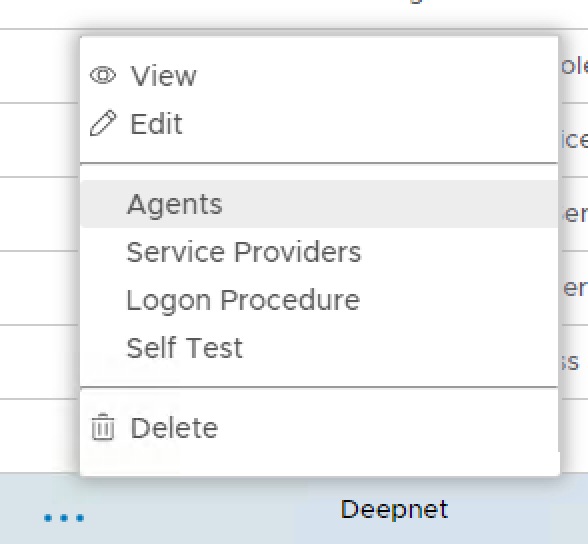
7. Click the context menu of the newly created application, select Agent
8. Select Single Sign-on Server
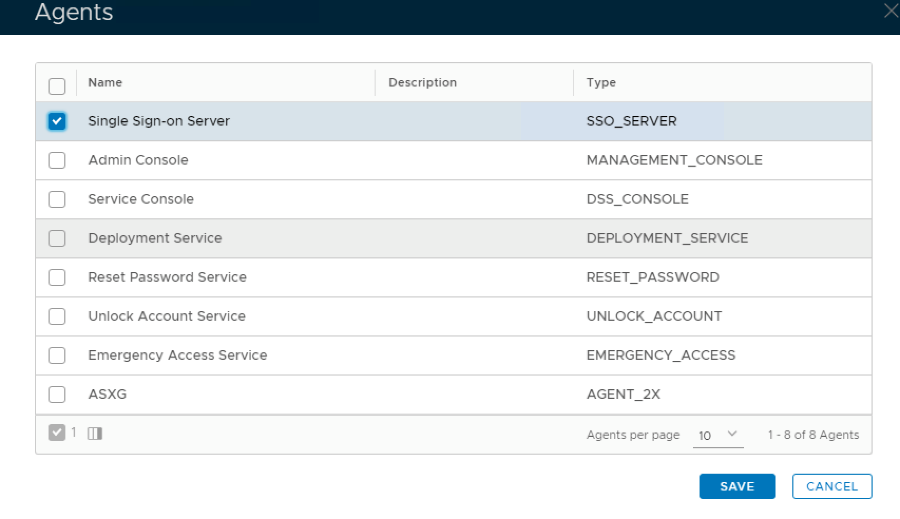
9. Click Save
10. Click the context menu of the newly created application, select Self Test

11. If configured correctly all the tests should pass, as below.
