Adding a FIDO2 key as an authentication method for your Microsoft account
- Sign in to your Microsoft account accessing https://account.microsoft.com, clicking on the
 icon, the supplying your login credentials,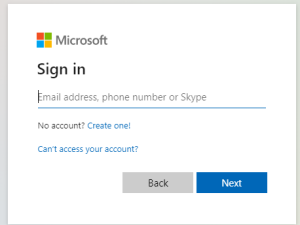
Once you have logged in to your account click on the
 icon;
icon;
Click on the security option "Advanced security options"

You will now be presented with the currently selected authentication options for your Microsoft account. If you have not already added a passkey click on

In order to add your Fido2 key as an authentication method you will now need to select the option "Face, fingerprint, PIN or security key";

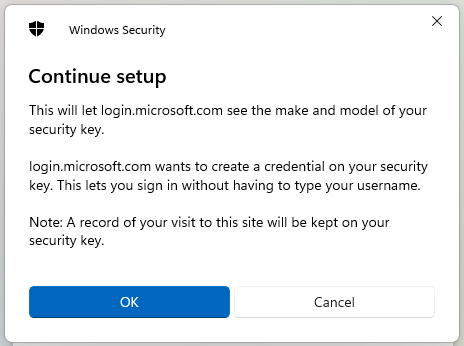
A new popup window titled "Continue setup" will now open asking if you want to use your device to sign in to login.microsoft.com, click
 ;
;
You will now be asked to select where to save this passkey, select
 , then click
  .
.A new popup titled "Security key setup" will now open, click
 , and at the "Continue setup" prompt click ;
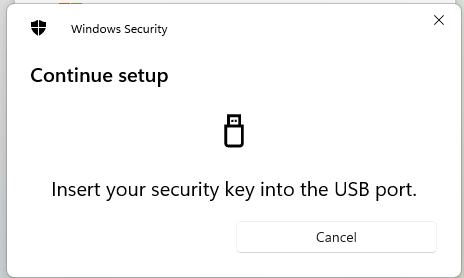
You will now be prompted to insert your security key into the USB port, Insert the Fido key;
Upon detection of the Fido key the prompt will change to requesting a PIN code,
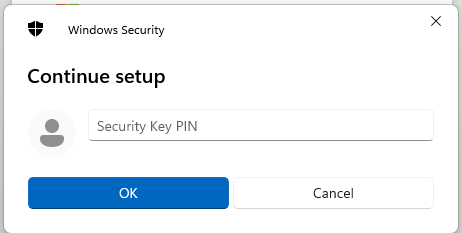
Supply the numeric pin you require then click
 ;
;You will now be prompted to touch the button on the Fido key;
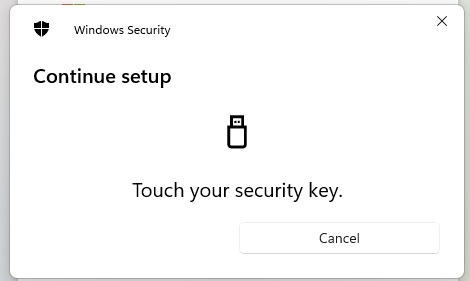
After pressing the button you will be informed that the Passkey has been saved;
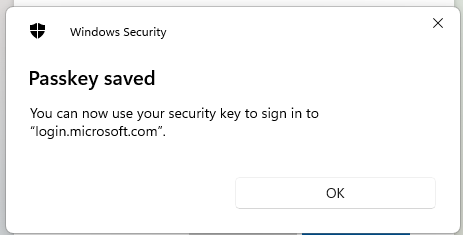
Click
 , and after a short delay you will be asked to name the passkey, supply a suitable name for you key then click
  ;
;
Your FIDO2 key will now be notified that your Fido2 device has been added as an additional authentication method for your Microsoft account;

Enabling Two-step verification on your Microsoft account
Once the Fido Key has been added as an authentication method when signing to your account.
Two-step verification is enabled on your Microsoft account using the following procedure;
- Sign in to your Microsoft account accessing https://account.microsoft.com, clicking on the
 icon, the supplying your login credentials,
 Once you have logged in to your account click on the
 icon;
icon;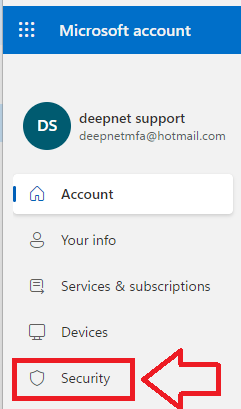
Click on the security option "Advanced security options", then scroll down to the section "Additional security"
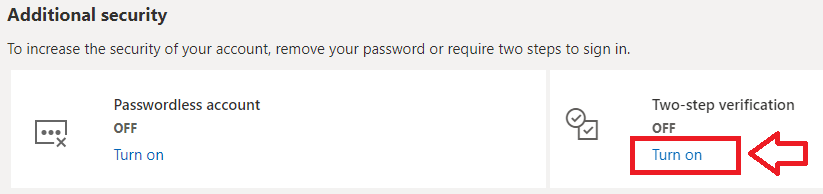
In order to enable Two-step verification, click on the "Turn on" option as indicated above, and you will be asked to confirm that you want Two-step verification enabledd;
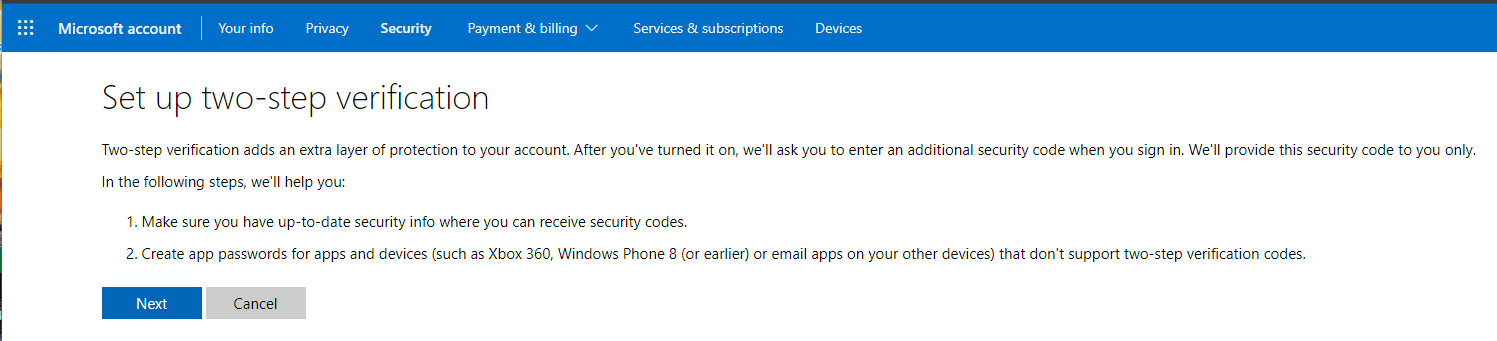
Click

You will now be informed that an app password will be synchronised with you Microsoft account, Click
, then click 
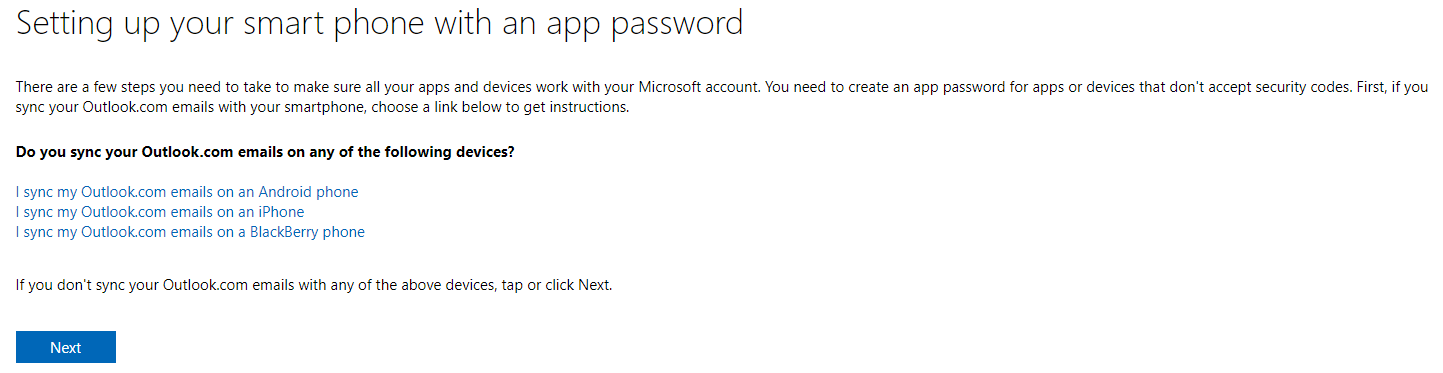
Two step verification will now be enabled on your Microsoft account;
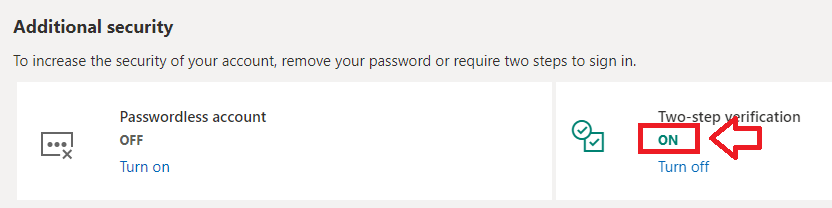
Signing in to Microsoft personal portals with your FIDO2 key
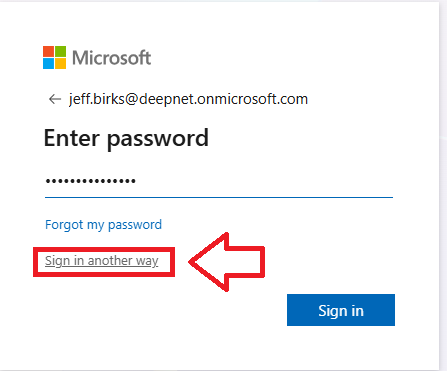
- Sign in to your Microsoft account accessing https://account.microsoft.com by supplying your username into the logon screen, but instead of supplying your password, click on the link "Sign in another way",
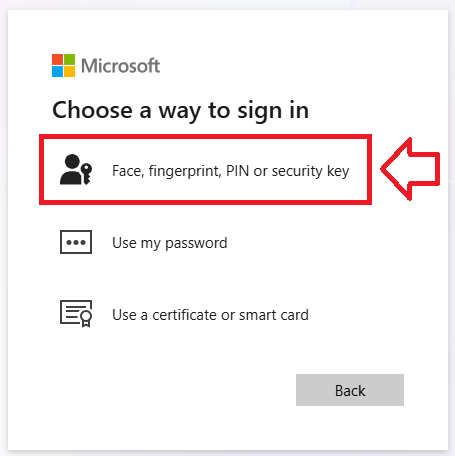
You are then prompted to select your alternative sign-in method, select the option "Face, Fingerprint, PIN or security key";
Insert your Fido2 key into an available USB port, then select the option "Security key";

At the "Security key PIN" prompt, supply the PIN code for your Fido2 key, then click
 ;
;
You will now be asked to touch the Fido2 key (in the case of a Fido key with a fingerprint reader you will need to swipe your finger on the key);
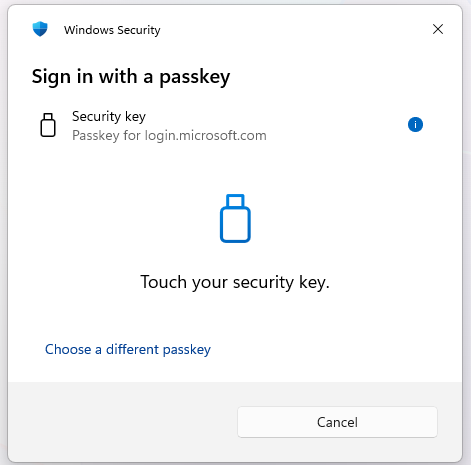
Once the key has been touched you will be logged in to your Microsoft account.