Introduction
When your have been issued a new GridGo token, your administrator will have created the token with a default path that you will need to change upon next login.
When logging in to an app that has been protected by a GridGo token, you will be presented with a screen such as the example below;
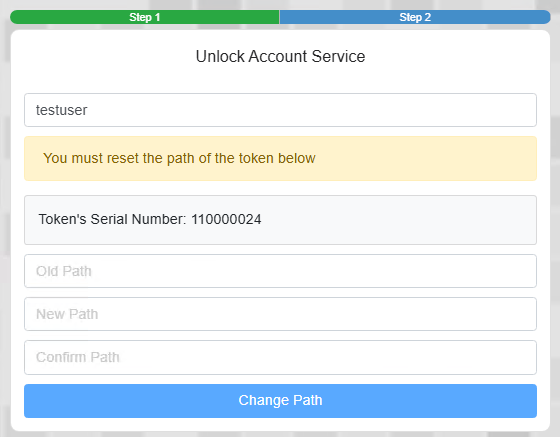
Your administrator will have notified you of the default value for the path (which you will supply in the box marked "Old Path", and you will need to provide a value that will be used when you log in using the grid.
This guide is to explain how to generate a new path, and what will happen once this new path has been supplied.
Generating a new path
The default path that is provided to you by your administrator will be in the form of a sequence of characters (or digits), and will be entered against the field "old path"';
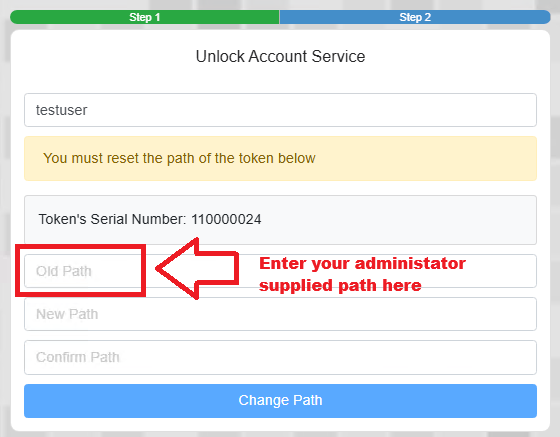
Paths are constructed by combining the characters that represent the individual stages of your path.
The following diagram may help to explain how directions are indicated by characters;
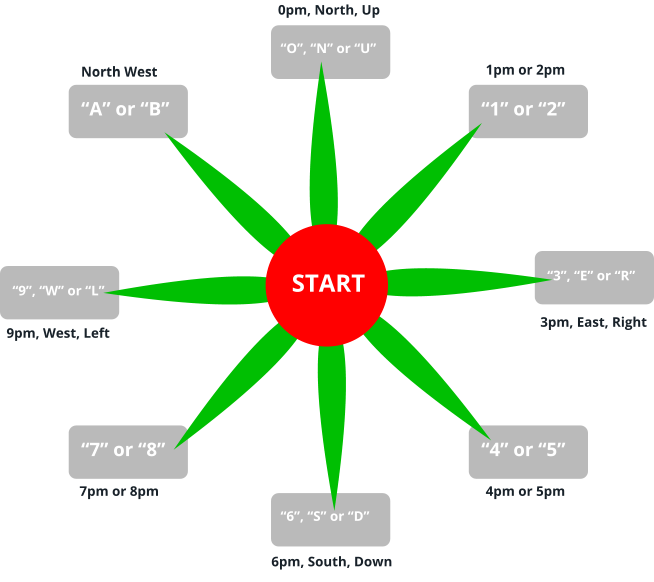
From the start position, a path that moves directly up (or north) of your location will be represented by either a "0", "N" or "U".
If you are moving to your right (or east) then you will use either a "3", "E" or "R".
The characters rare the first letters of either Left, Right. Up or Down, or the compass directions North,, South, East and West.
Diagonals are taken from the clock positions (with "A" or "B" representing the North-West direction).
Using this method a path of movement along the grid can be converted into a list of letters.
Example path
In the example below, lets say that we want a path that would travel North-East ("1" or "2"), North-East(("1" or "2"), North("0", "N" or "U"), then West("9", "W" or "L"), then on a grid our path might be "1109", and look a bit like this when used;
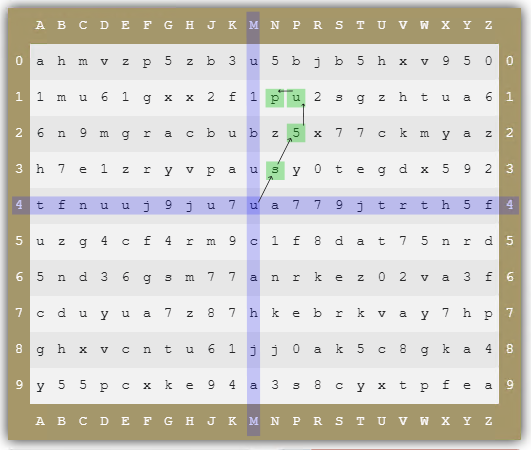
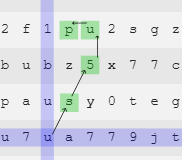
We are starting at the letter "u" (although when using a path you can start anywhere), then using this examle path we will navigate to the letters "s", then "5", then "u", then end at the letter "p".
Of course given each direction has two or three characters that can be selected from, you are free to choose which characters are used (so for this path "11UL" and "22NW" would also be valid).
Once you have decided on the path that you will use, and have created a group of characters that represent it, you can enter the new path into the fields "New Path" and "Confirm Path" then click  ;
;
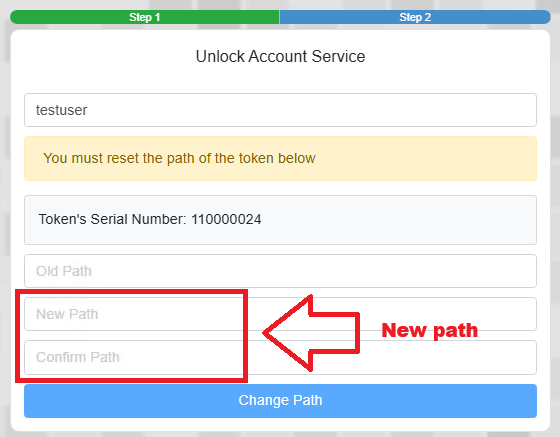
You will now be provided access to your protected application, and next time you use this authentication method you will be able to use your newly specified path.