Duo Security prefers HMAC-based One-Time Password (HOTP) hardware tokens because Duo's cloud servers has a preference againts Time-Based One-Time Password (TOTP) authentication (mainly as they do not provide for token drift, or allow for resynchronisation against drift that does occur with this type of token).
While the Duo Mobile app can generate TOTP codes for standard third-party accounts (like Google or Amazon), Cisco Duo implements HOTP as its native standard for standalone hardware tokens, but it is possible to use one of our HOTP compatible SafeKey FIDO tokens as a source for their required OTP codes.
All the SafeKey Classic , and SafeKey Mini USB range of FIDO keys come pre-programmed with HOTP seeds that generate OTP codes which are suitable for use with Duo authentication, and the seed data for these tokens can be uploaded to Duo using the same procedures that you would with standard pre-programmed HOTP tokens (such as the SafeID/Eco).
Obtaining seed data for your FIDO keys
As with using Pre-Programmed hardware tokens you will first need to download the seed file for the FIDO keys, then import this downloaded data to Duo using the instructions in the following guide;
How to request token seed or secret file
In step 4 select "Duo CSV";
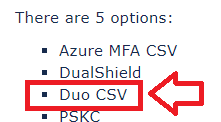
Import Hardware Tokens into Duo
The downloaded seed file can then be imported into Duo, follow the steps below (once imported ,Duo will then accept HOTP codes from the FIDO keys as if they were received from hardware tokens);
1 - Log in to the Duo Admin Panel
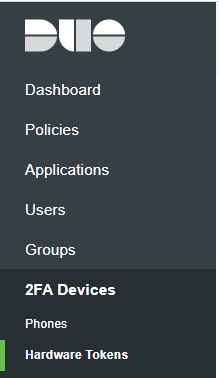
2 - Click 2FA Devices in the left sidebar, then click Hardware Tokens. A list of hardware tokens is shown, along with the attached end user, if any.
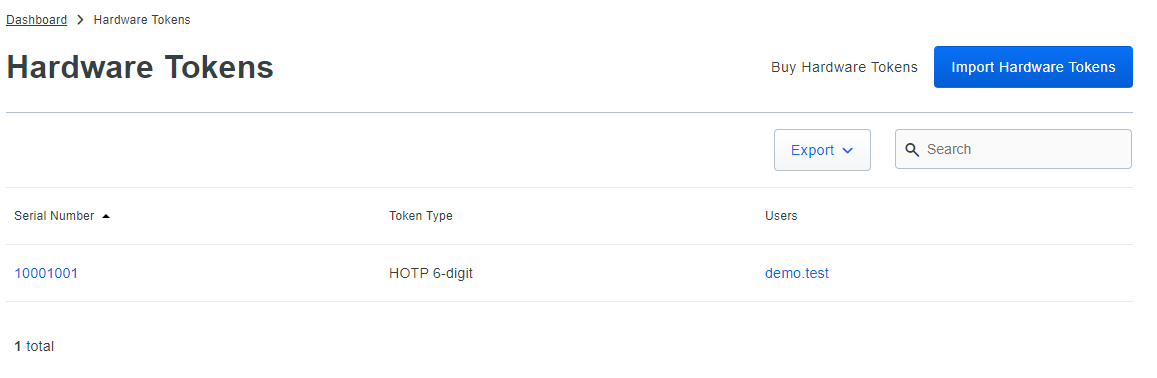
3 - Click the Import Hardware Tokens button
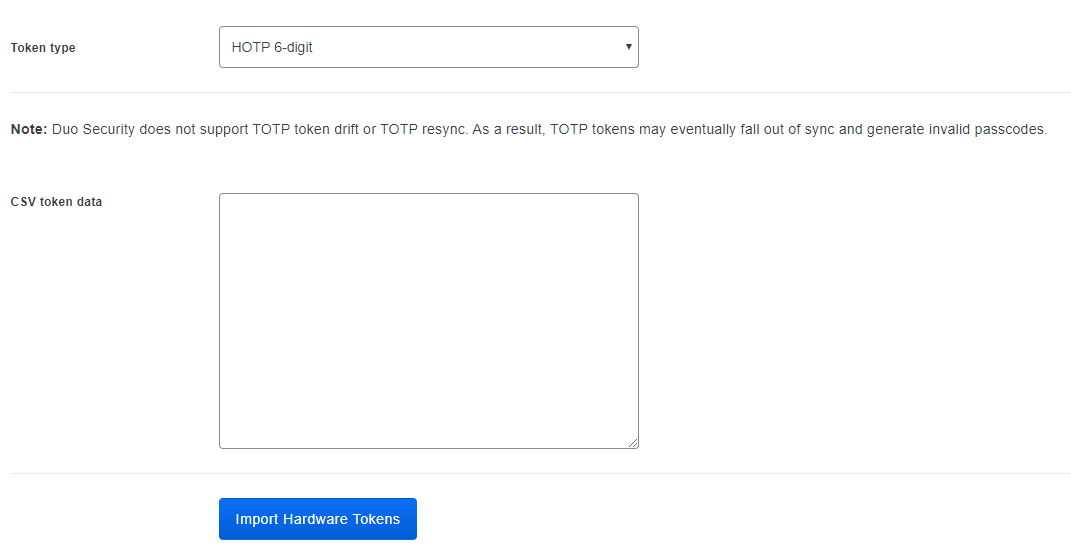
4 - At the prompt Token type, select "HOTP 6-digit".
5 - Open the SafeID token seed file received from Deepnet Security in a text editor such as Notepad
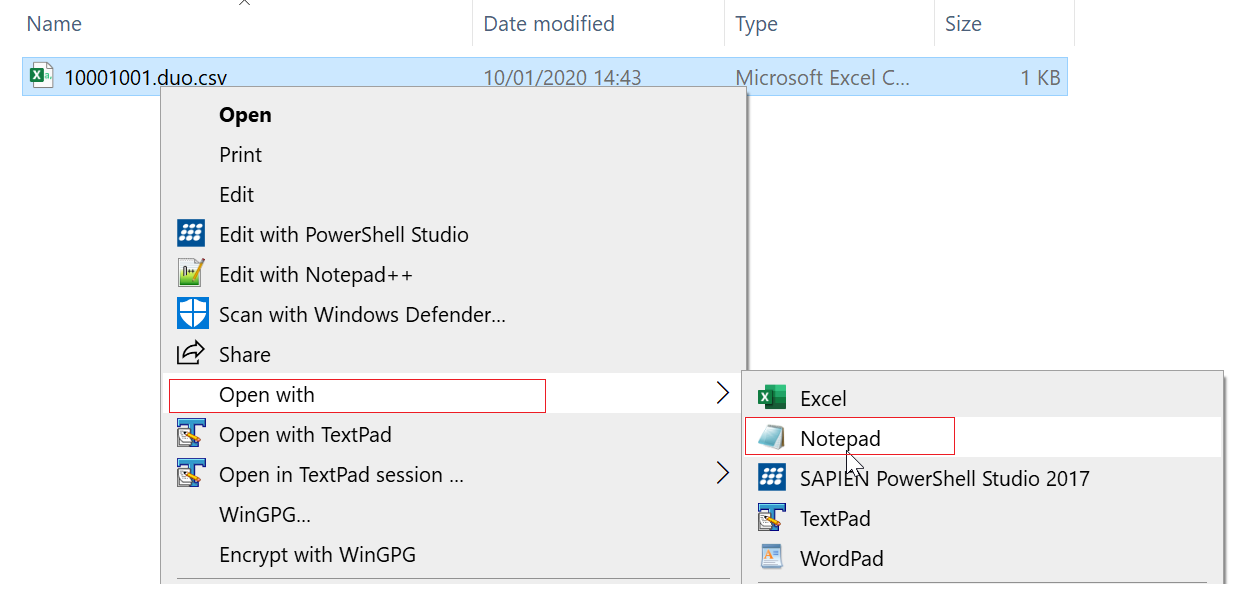
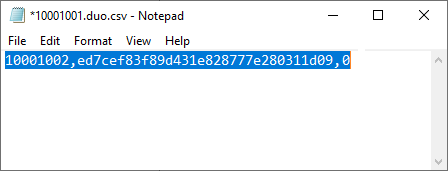
6 - Copy the entire content and paste it into the CSV token data box in the Duo portal
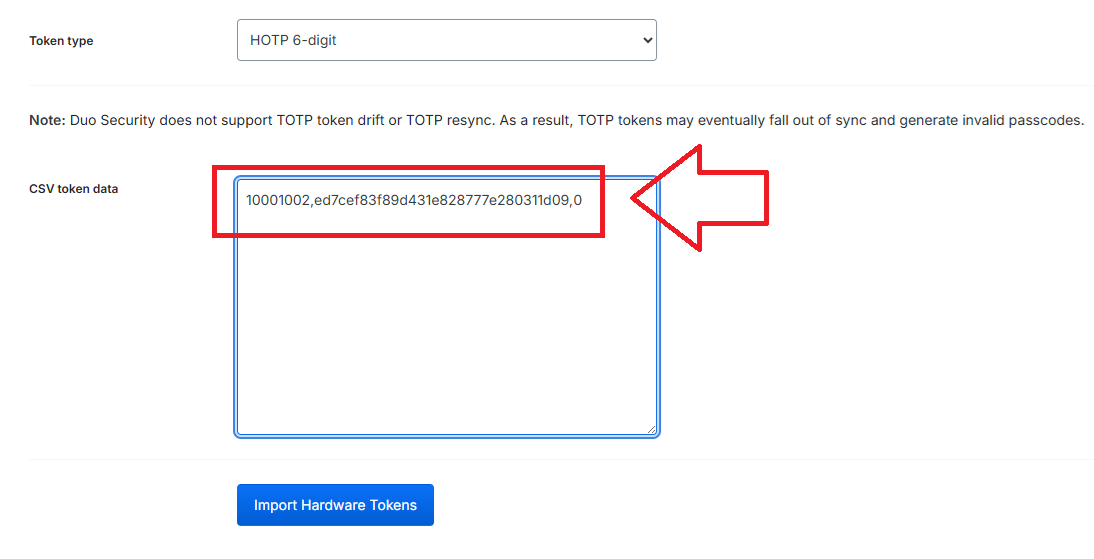
7 - Click Import Hardware Tokens button
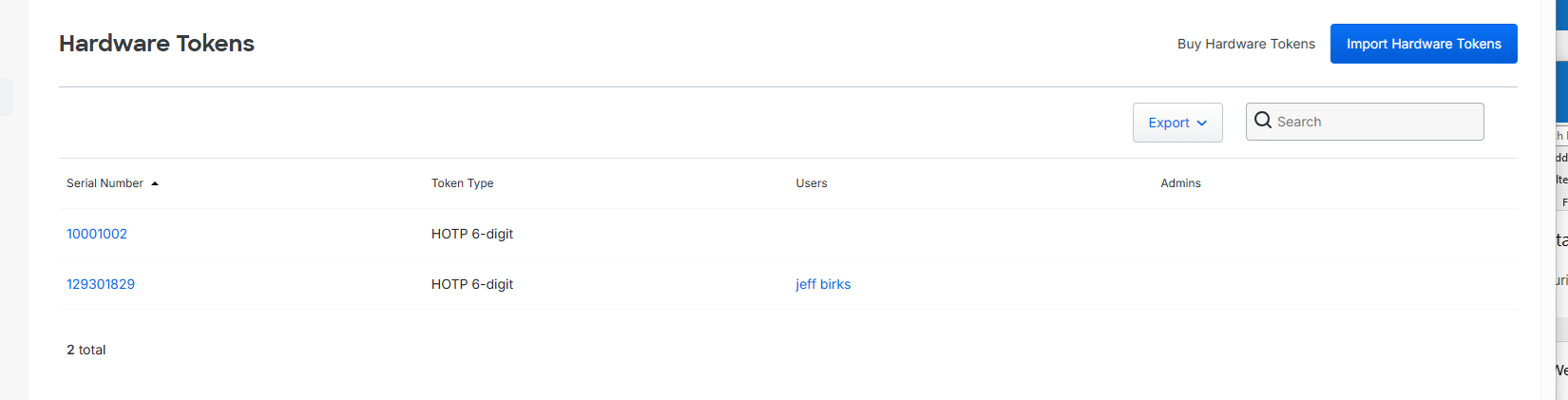
Assign Tokens to Users
Once the upload has been completed Duo will be able to use HOTP codes from the FIDO keys as if they were hardware tokens.
We now need to assign these token to users using the following instructions;
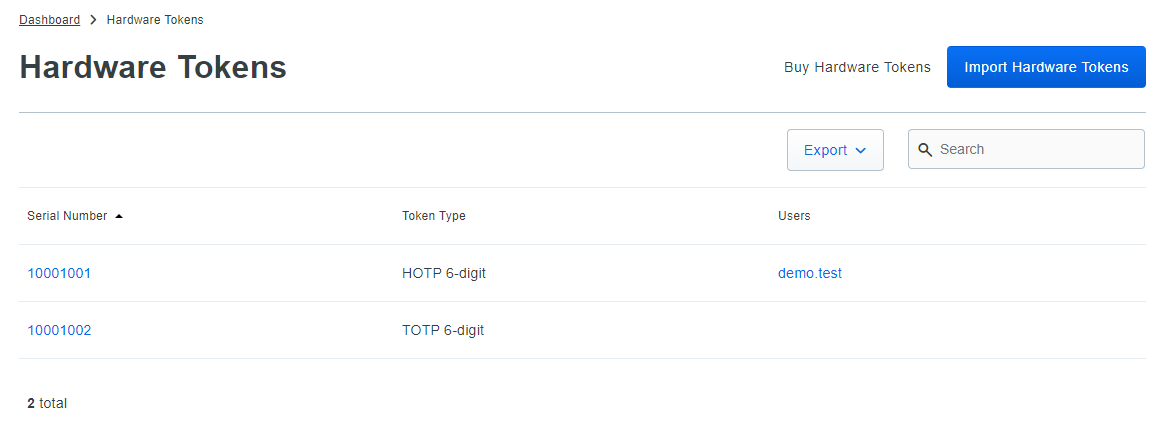
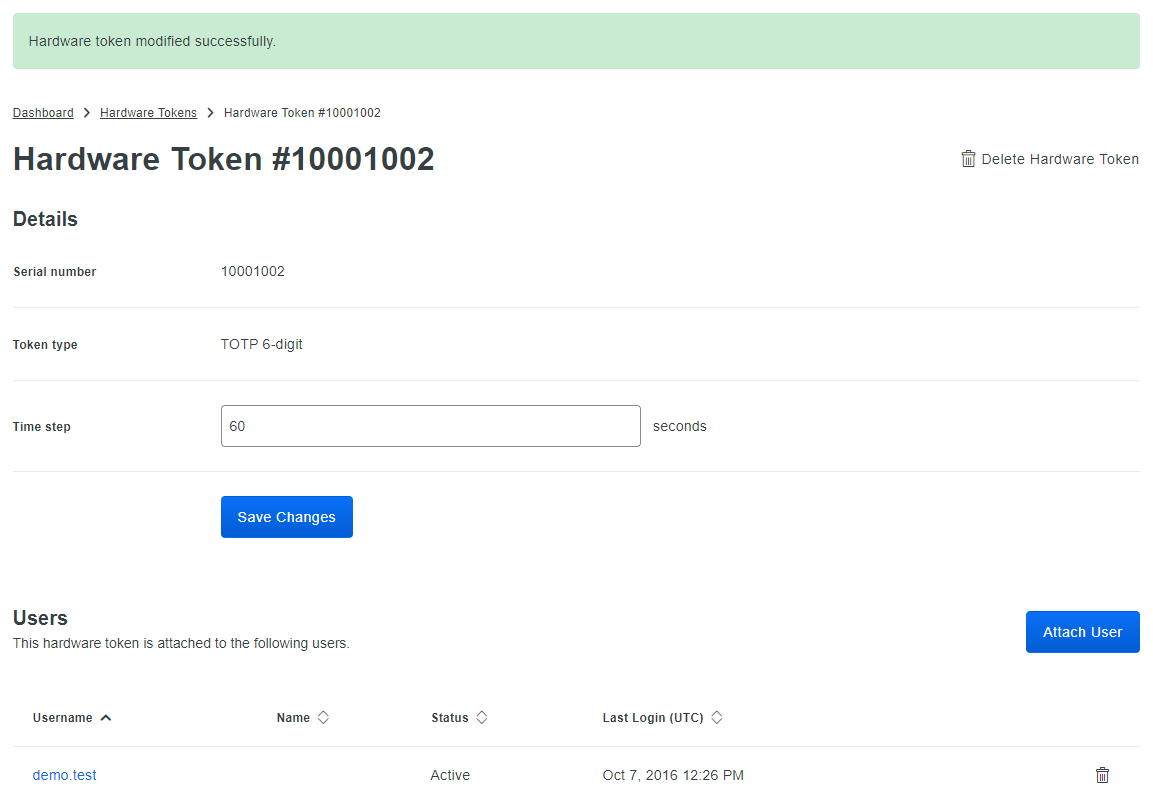
2 - Click on the serial number of a token to access the token's properties page, e.g 10001002
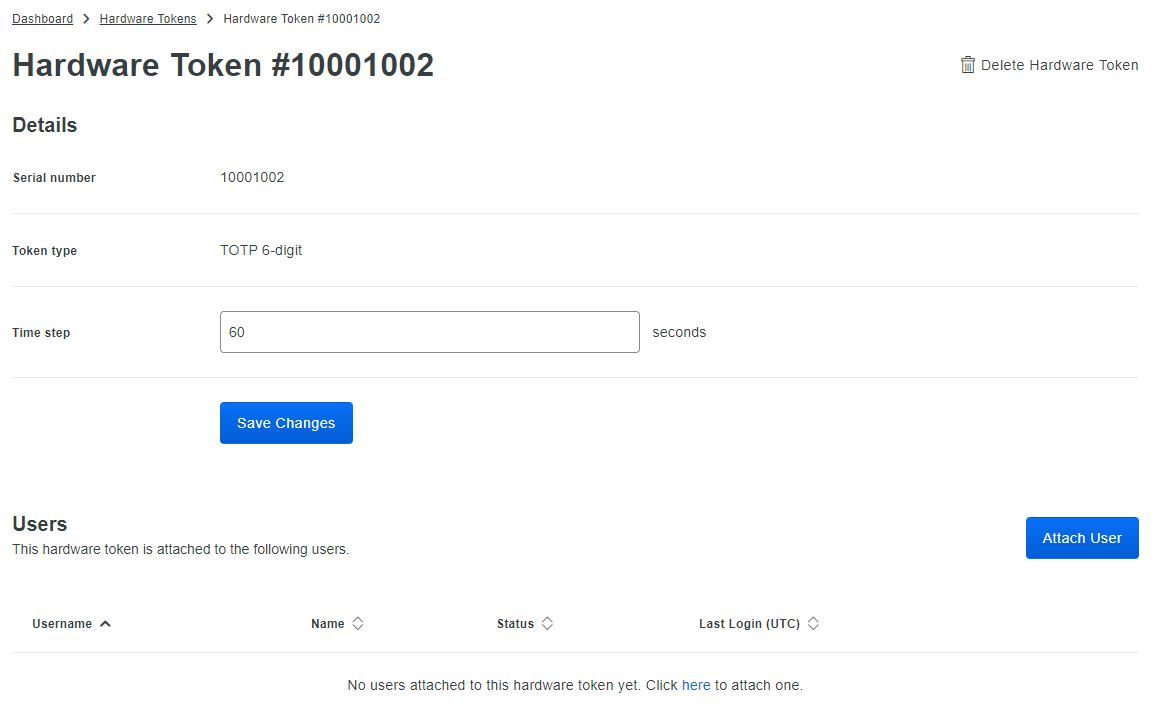
3 - On the token's properties page, scroll down to the Users table and click the Attach User button.
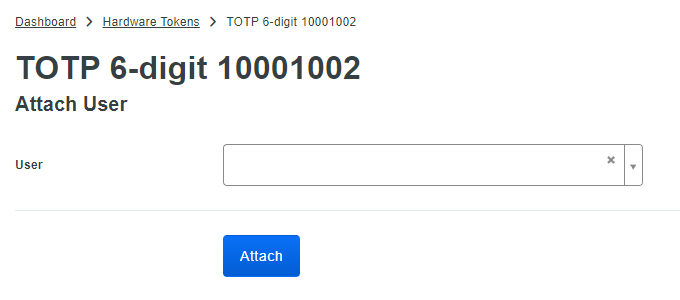
4 - Select a Duo user from the drop-down list and click Attach.
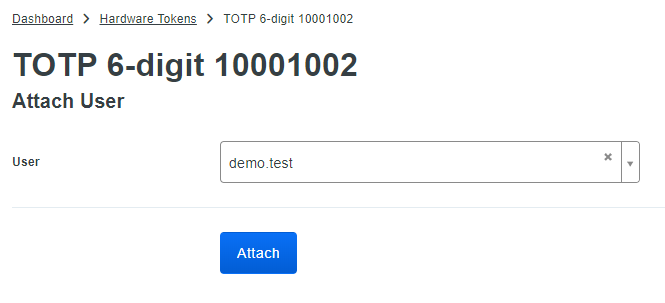
5 - The token's properties page now lists the attached user.
How to use the FIDO keys when authenticating with Duo
Once the seed data has been imported into Duo, and the tokens assigned to users, logging in using the FIDO key is a simple process.
When Duo prompts you to provide an OTP code during authentication, use the following procedure to obtain one from you key;
- Insert you FIDO key into an available USB port on the PC
- Select the on form field requesting the OTP code (as if you were about to type it in via your keyboard)
- Instead of typing a code just tap the button on the FIDO key, and the required code will be supplied for you by the key (as if typed)