To set up Passwordless Authentication in Computer Logon using secure cache, follow the steps below
Enable Passwordless Logon by Cache Policy Option
Logon to the DualShield Admin Console. Go to Administration>Policies and search for the category Computer Logon Client
Edit this policy.
Expand the Passwordless Login tab and check the Enable Passwordless Login by Cache option.
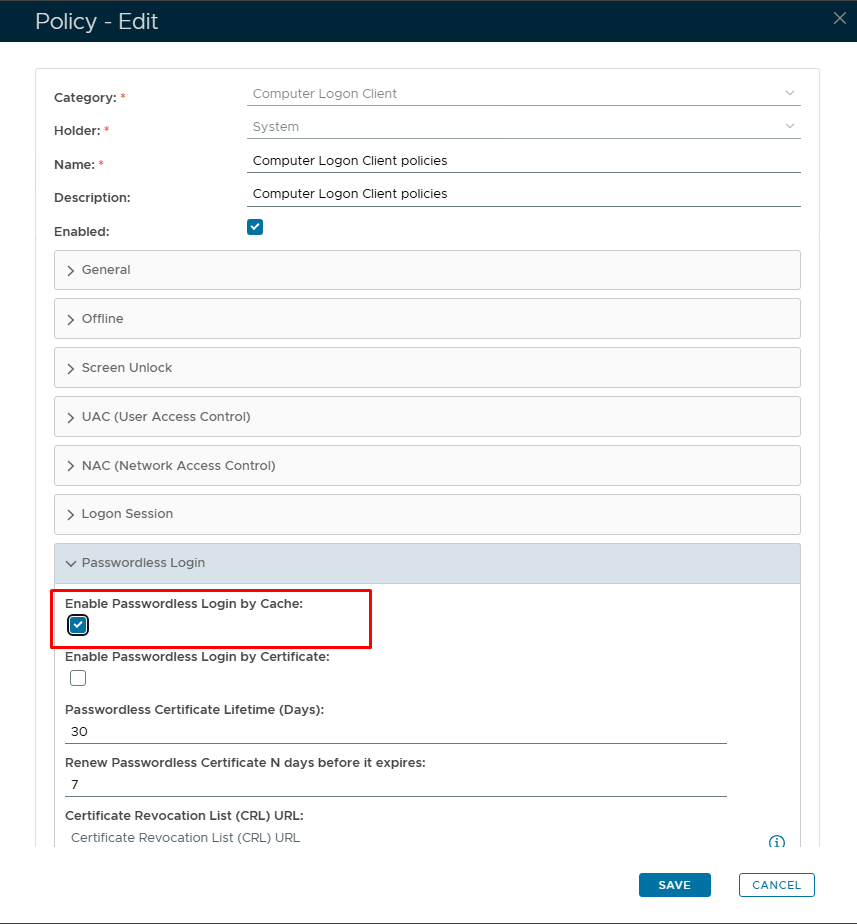
Save the policy.
Signing into a client PC for the first time
The first time you sign in to a PC, protected by Computer Logon you will have to type the AD password as usual
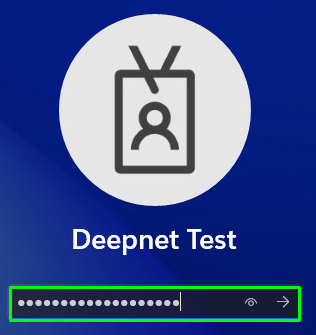
Continue to logon with the second factor until you are complelety signed in.
Then sign out again.
Passwordless Logon
The next time you attempt to sign in you shall be presented by the following Credential UI
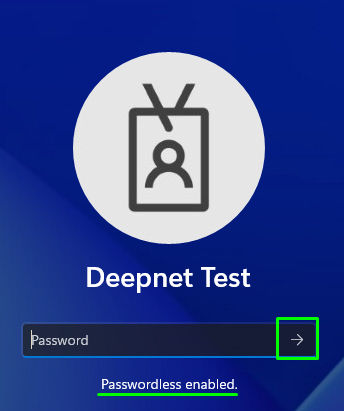
Notice the words Passwordless Enabled underneath the Password field.
This means that you do not need to enter the AD Password at this stage. Instead, just click the arrow on the right.
You will be presented with the Computer Logon UI, prompting for the second factor:
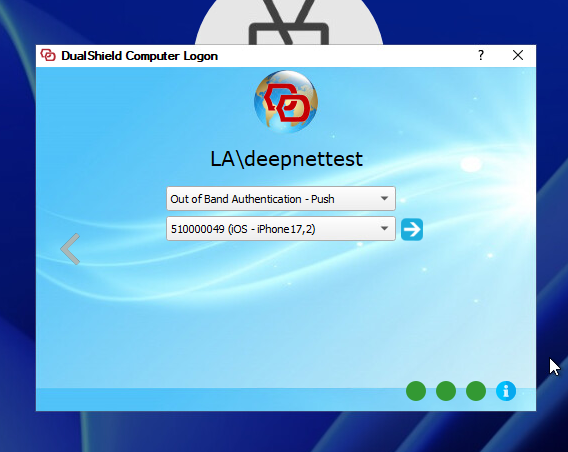
Follow the prompts (This will differ depending on the type of authentication you are using), and iff all succesfull, you will be logged in.