Download the latest version of the original application installer, such as the Computer Logon MA
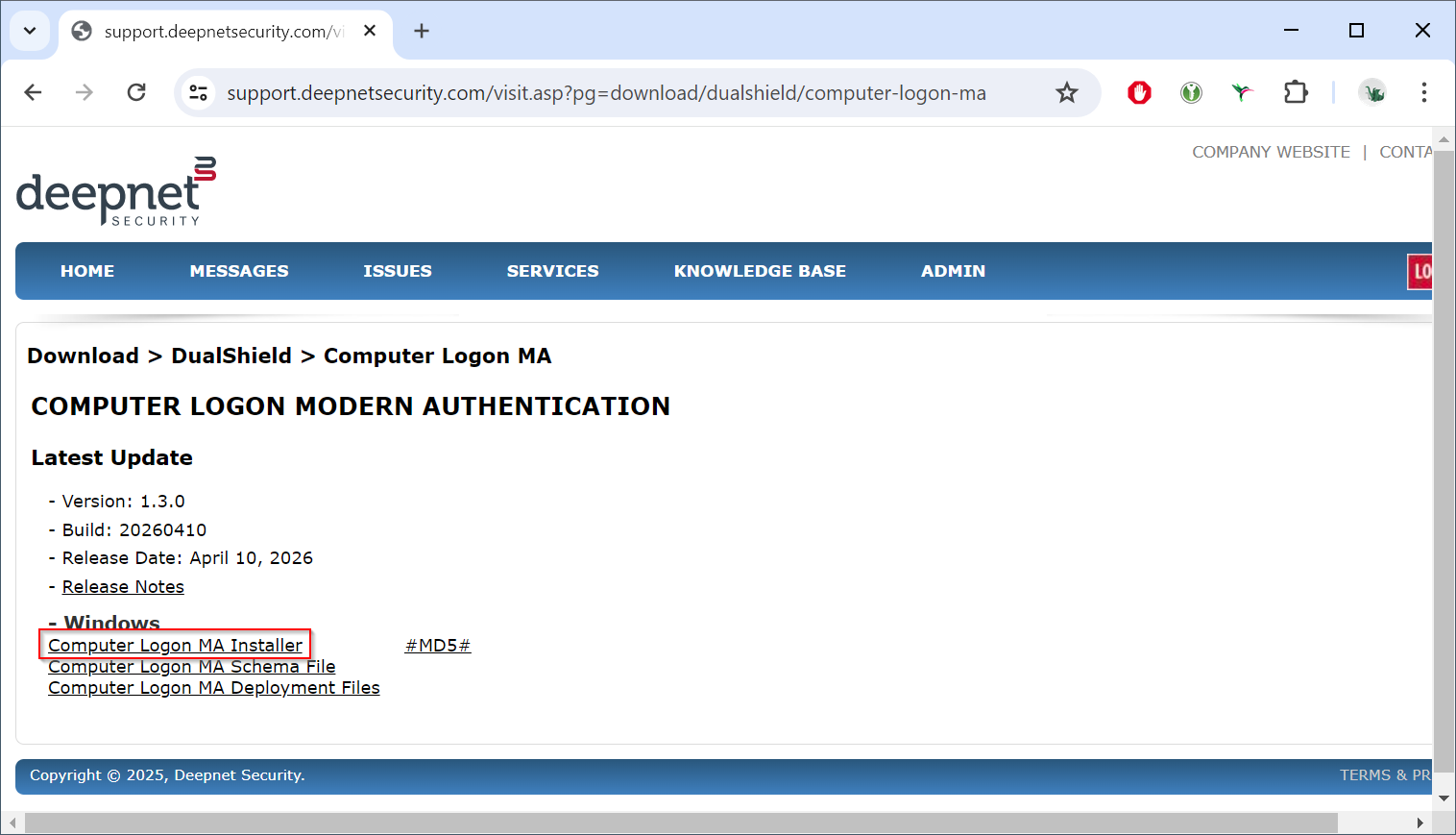
Download the Computer Logon MA Installer file:
computer-logon-modern-authentication-x.y.z.msi
(where x.y.z. is the version and build number, e.g. computer-logon-modern-authentication-1.3.0.20260410.msi)
Save it to a local folder.
Launch the Deepnet Configuration Editor, open the project, e.g., "Computer Logon MA"
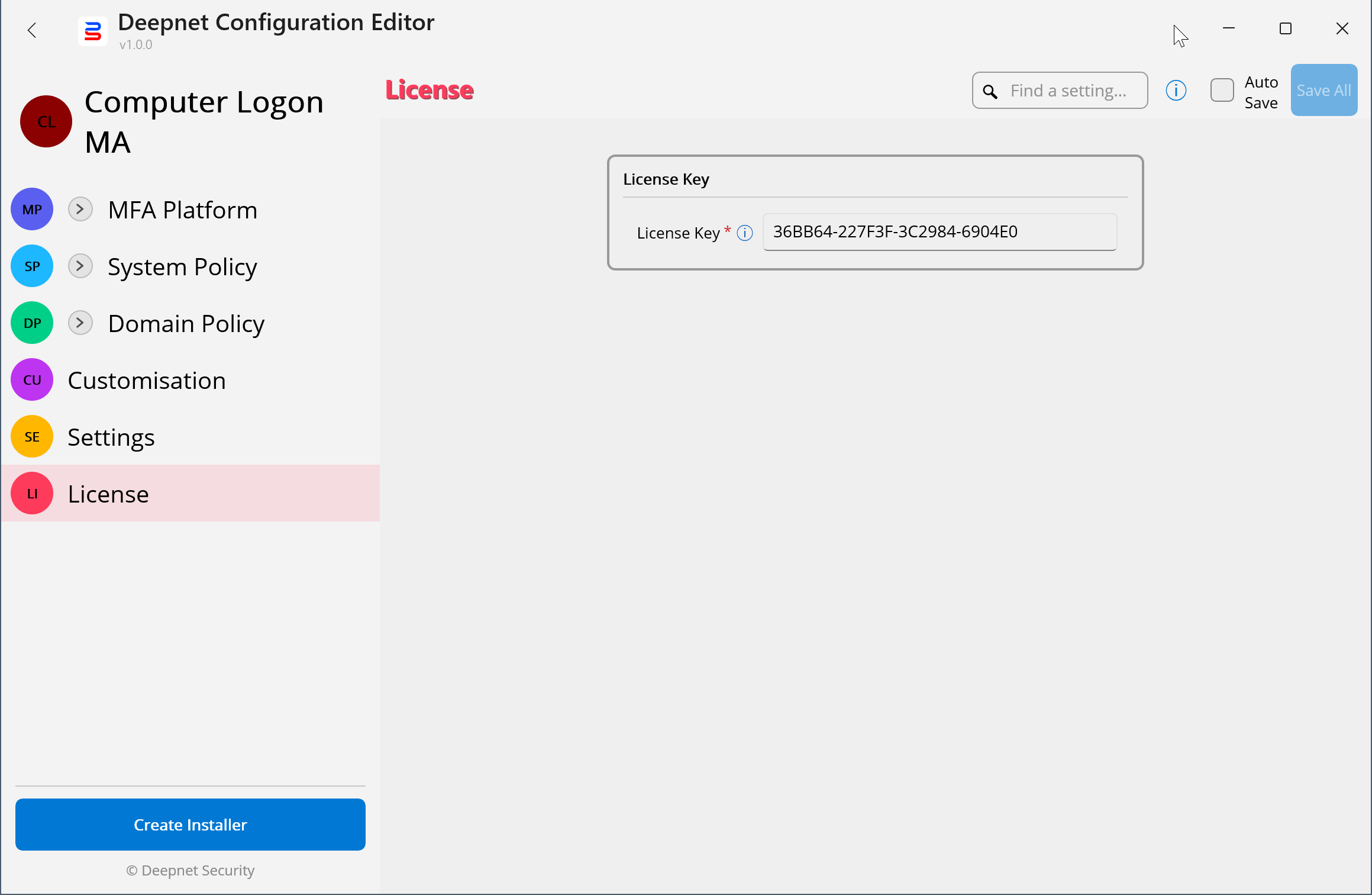
Make sure that you have completed the configuration, settings, customisation, and the license key if required, etc.
Press the "Create Installer" button
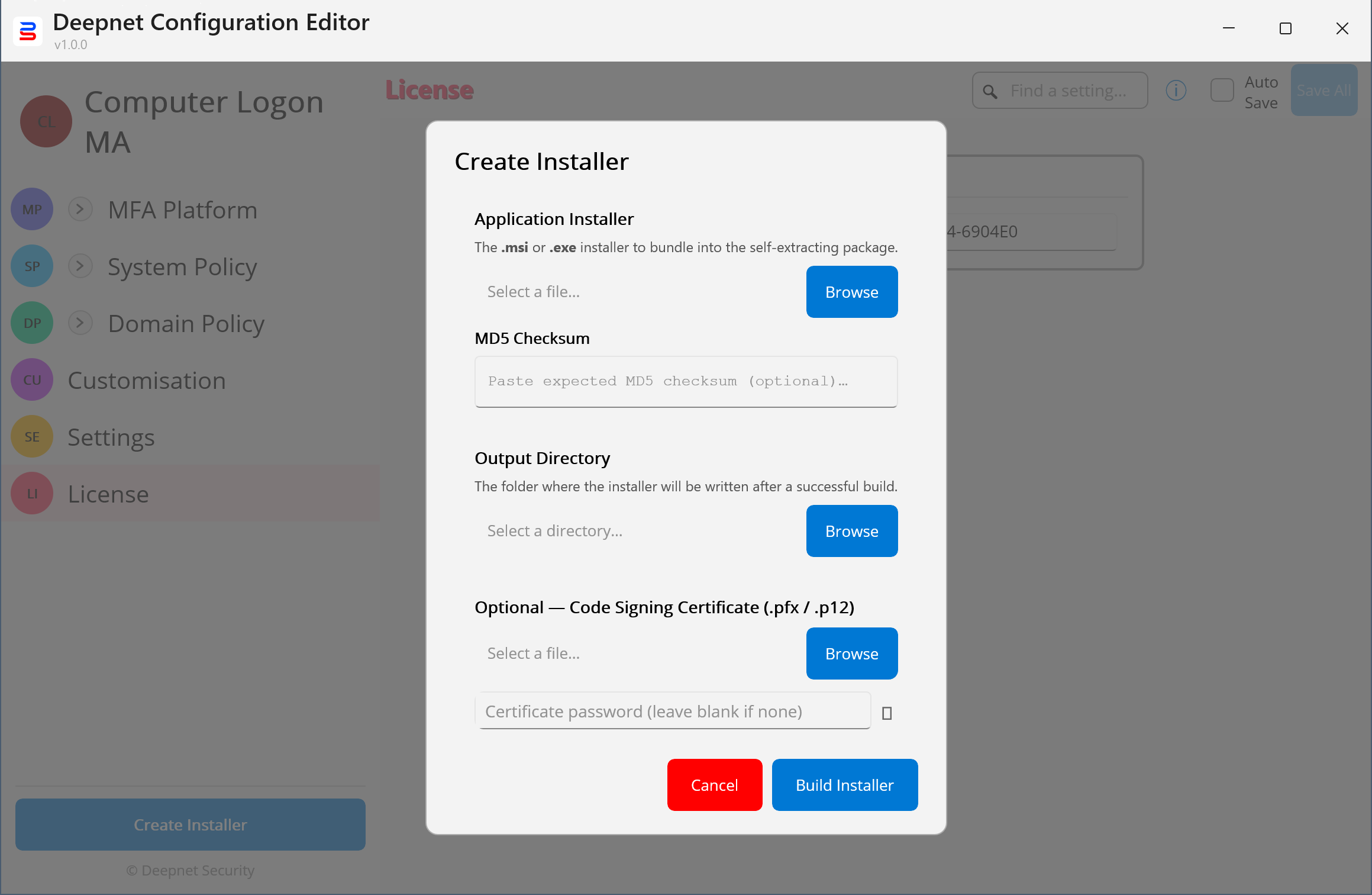
In the "Application Installer" field, select the original application installer file, e.g. the "Computer Logon MA" installer that you have downloaded
Optionally, enter the MD5 of the installer file
Select the "Output Directory" where the customer installer file will be saved
Optionally, you can sign the custom installer file with your own signing certificate
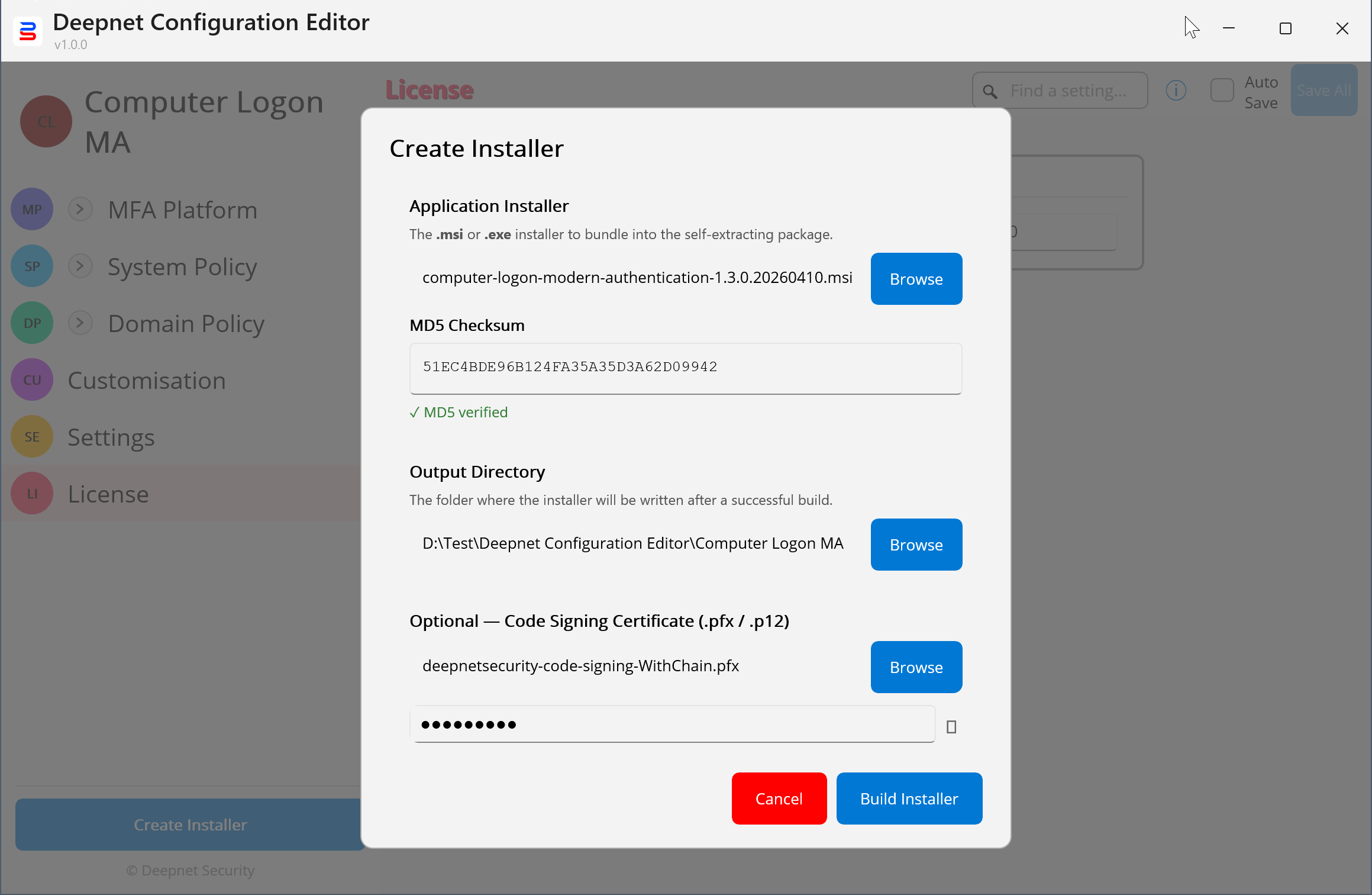
Press the "Build Installer" button
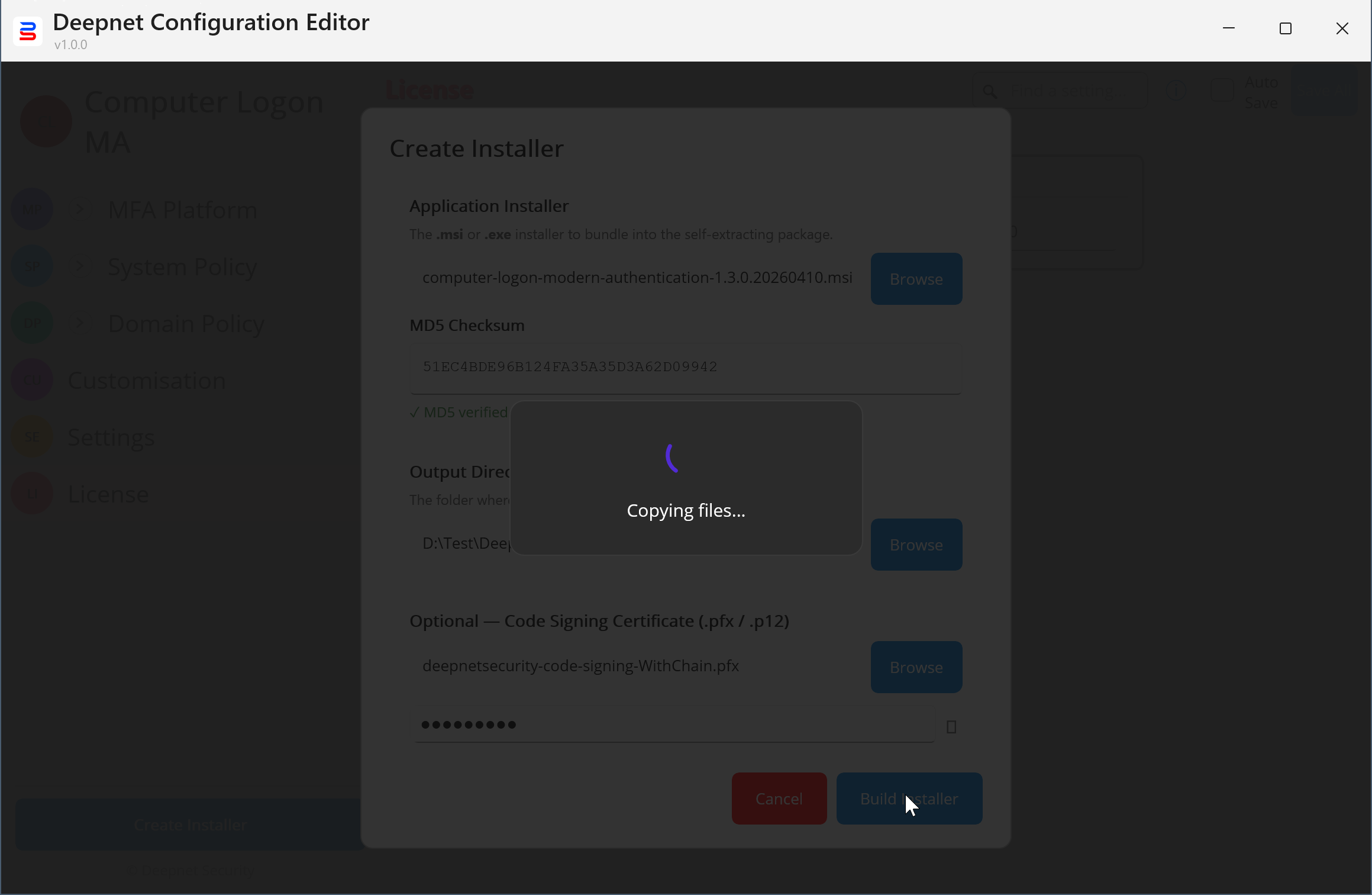
The custom installer will be completed shortly
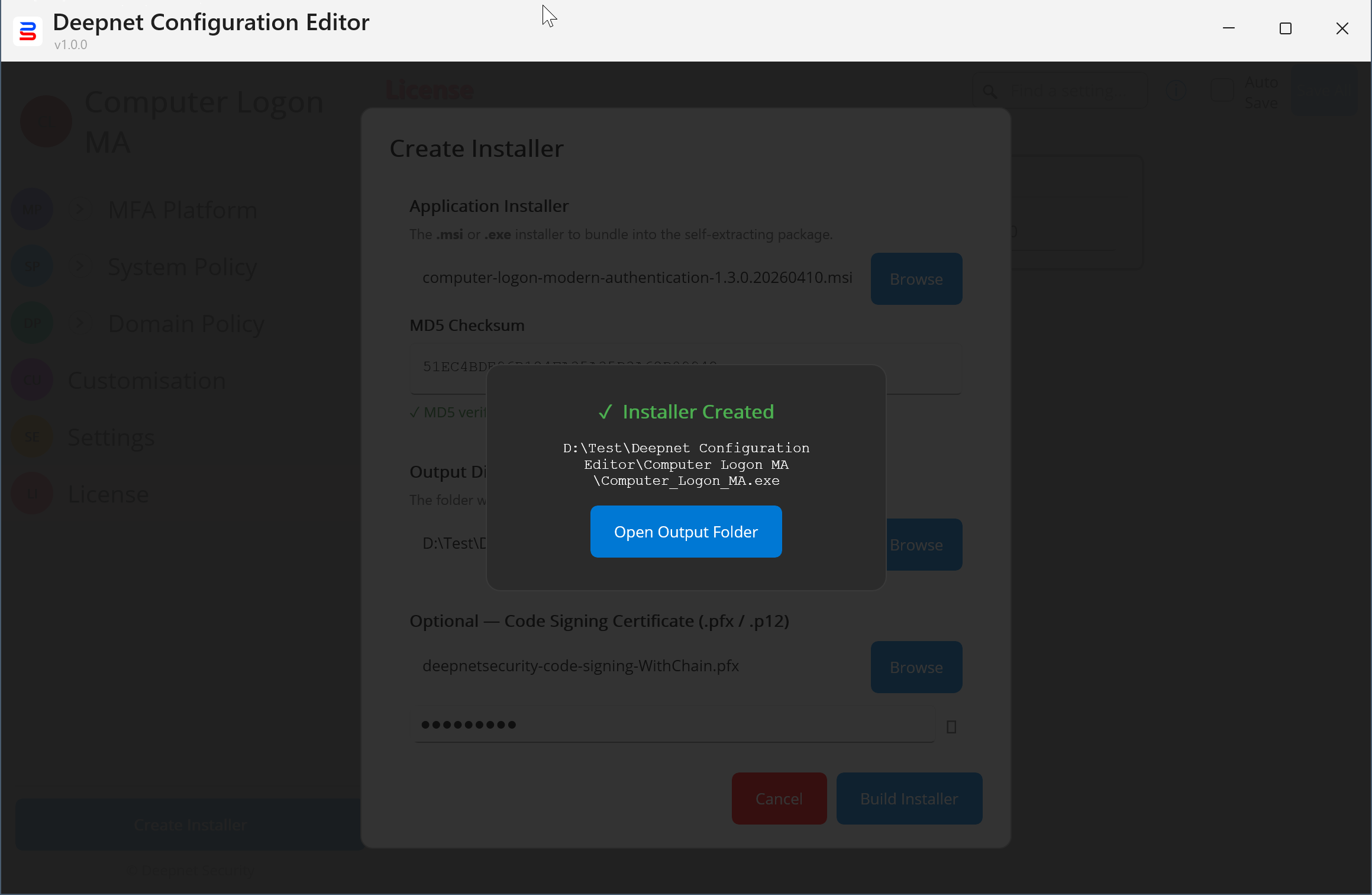
Press the "Open Output Folder"
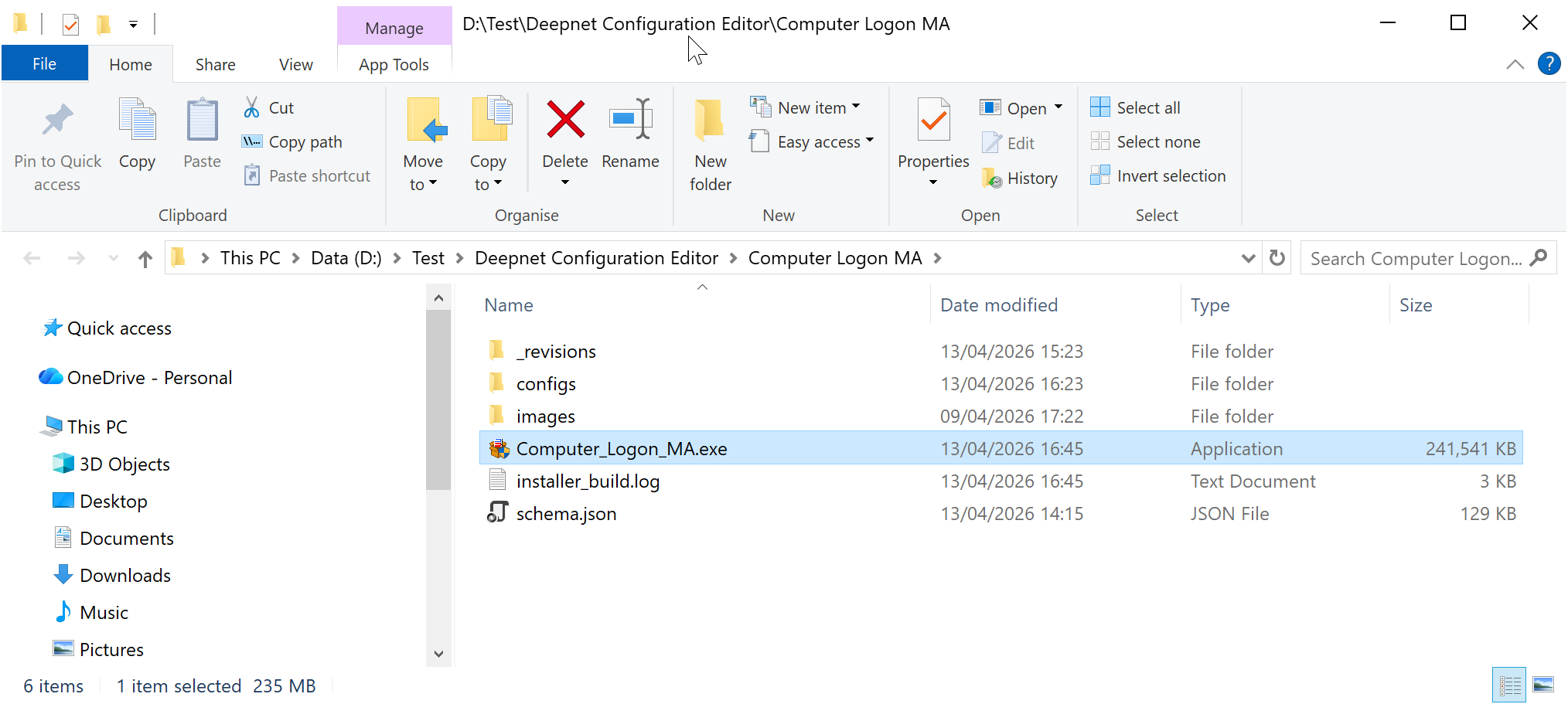
Your custom installer is named after the name of the project, e.g. "Computer_Logon_MA.exe"