ID.me is the next-generation digital identity wallet that simplifies how individuals securely prove their identity online.
Register your FIDO2 key in your ID.me account
Before you can use your FIDO2 key as an access method for your ID.me account you will need to register the key using the following procedure;
- When you first log in to your ID.me, account you will be asked to secure your account with a multi-factor authentication method with a prompt similar to the following;
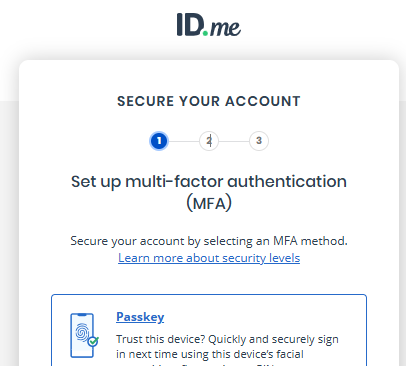
Alternatively, if you account is already running you can select the MY ACCOUNT submenu option "Sing In & Security";

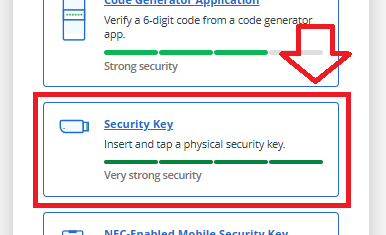
Scroll down the presented authentication method options until you find the section "Security Key". then select this option;
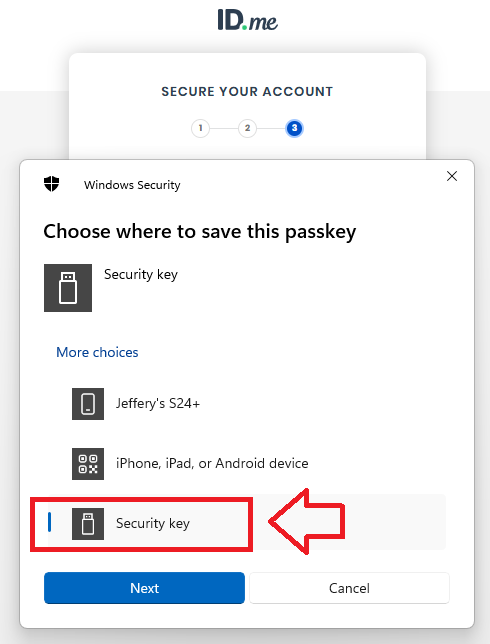
When asked where to save this passkey, select the option "Security Key", then click
 ;
;
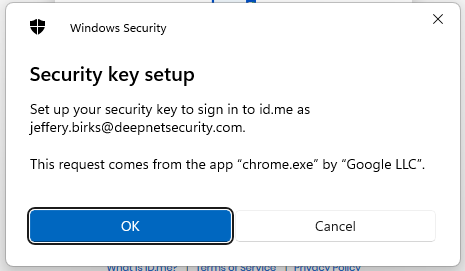
You will be notified that your security key will not be used with id.me, click
 ;
;
You will now be asked to touch the Fido2 key (in the case of a Fido key with a fingerprint reader you will need to swipe your finger on the key);
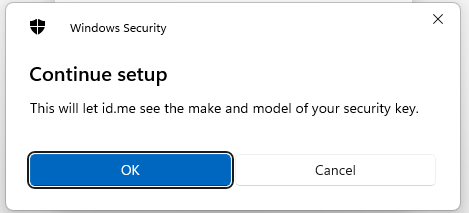
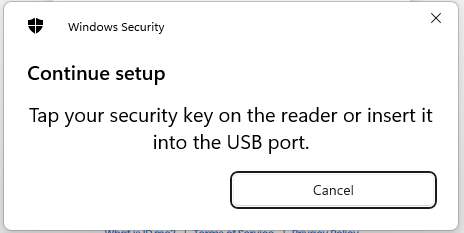
Insert your Fido2 key into an available USB Port
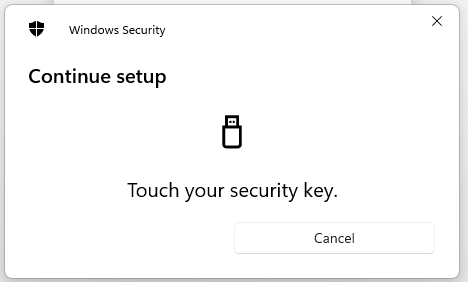
You will now be asked to touch the Fido2 key (in the case of a Fido key with a fingerprint reader you will need to swipe your finger on the key);
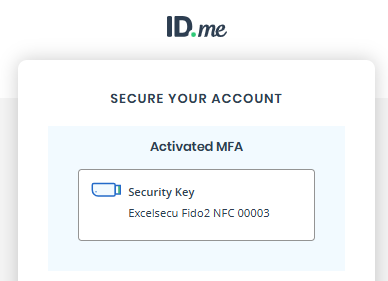
Provided you press the button on the Fido2 key in the allowed time, the passkey details will be stored on your Fido2 key, and you will be presented with the following confirmation;
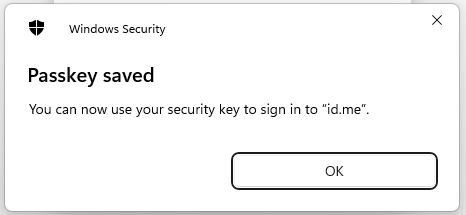
Click "OK", and you will be shown confirmation that the security key enrolment process succeeded;
Signing in to an ID.me account with a FIDO2 key
Once you have registered you FIDO2 key with ID.me the key will be ready to be used as an authentication method when accessing your account;
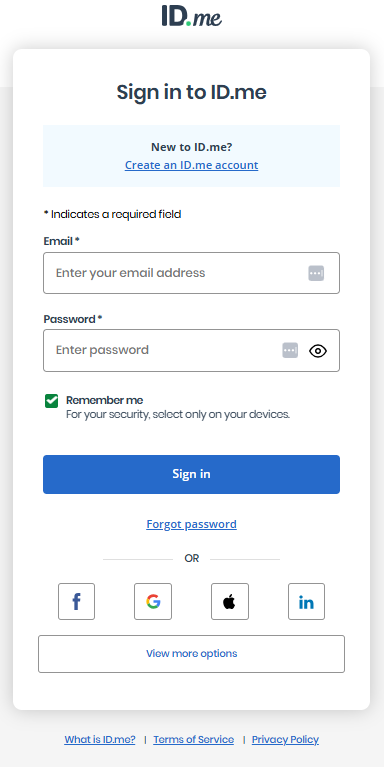
- Sign in to your ID.me, account by supplying your email address and password, then click
 ;
;
You will now be asked to authenticate yourself using a passkey;

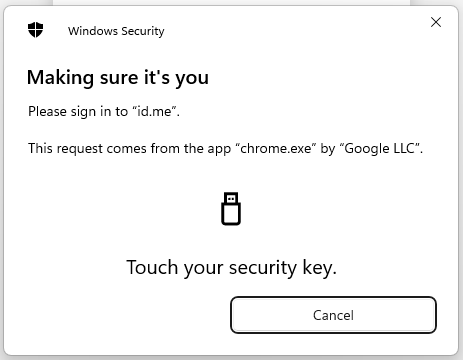
You will now be asked to touch the Fido2 key (in the case of a Fido key with a fingerprint reader you will need to swipe your finger on the key);
You will then be logged in to your ID.me account.
Related Articles
