1 Overview
This document is mainly about how to configure Certificate Authority at Windows Server before smart card login certificates can be requested and loaded to FIDO keys. There are five main parts:
- Create a smart card login template
- Publish the template in the Certification Authority
- Edit Group Policy about user enrollment
- Auto-enroll certificate at user 's machines
- Manually enroll for current user
2 Prerequisites
- A Windows Server with domain controller and certificate authority configured. In this document, Windows Server 2016 with AD CA is used.
- Guest machines (could be the Windows Server itself) and available Windows accounts which have already joint in the CA 's domain. In this document a Windows 10 enterprise is used.
- The FIDO product supports PIV function.
- The Minidriver of EsMiniTokenSetup.exe is installed in relevant machines.
3 Set up the Certificate Templates for Enrol on behalf
3.1 Create a Smartcard Enrolment Template for Agents
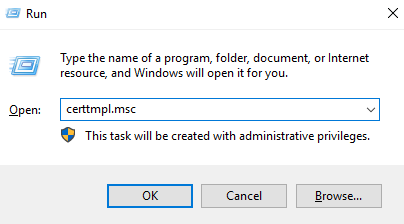
To create a smartcard enrolment template, you need to run the Certificate Templates Console
Press Win+R, type "certtmpl.msc" and press Enter.
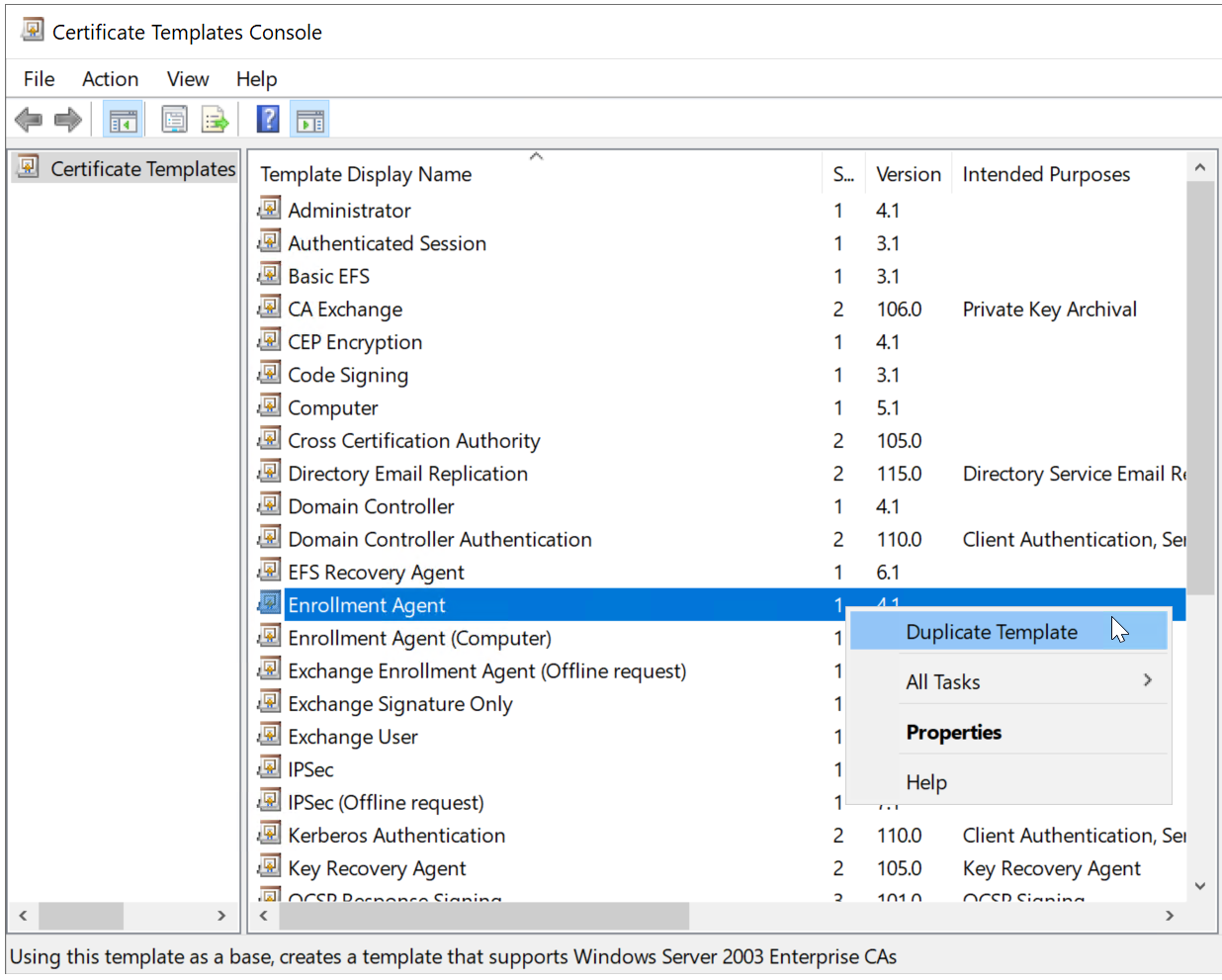
In the Certificate Templates Console, select Certificate Templates in the left pane
Next, right-click Enrollment Agent, and select Duplicate Template.
First, the Compatibility tab is selected
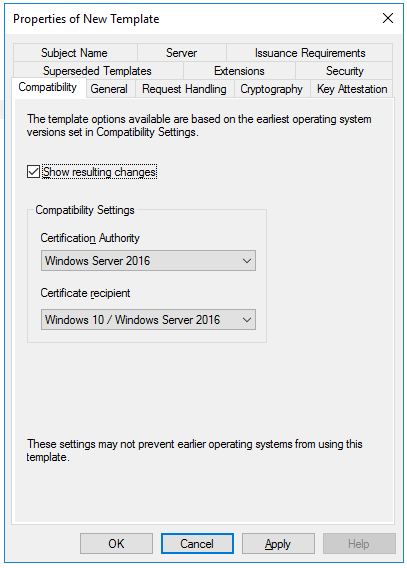
In the Certification Authority box, select the OS version of the CA server
In the Certificate recipient box, select the oldest OS version of the client machine in the domain
Next, select the General tab
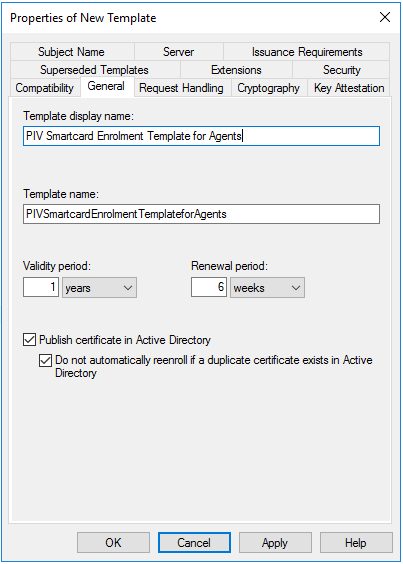
Enter the name and display name of the template
Optionally, you might want to change the Validity period and Renewal period
Enable the option "Publish certificate in Active Directory"
Next, select the Request Handling
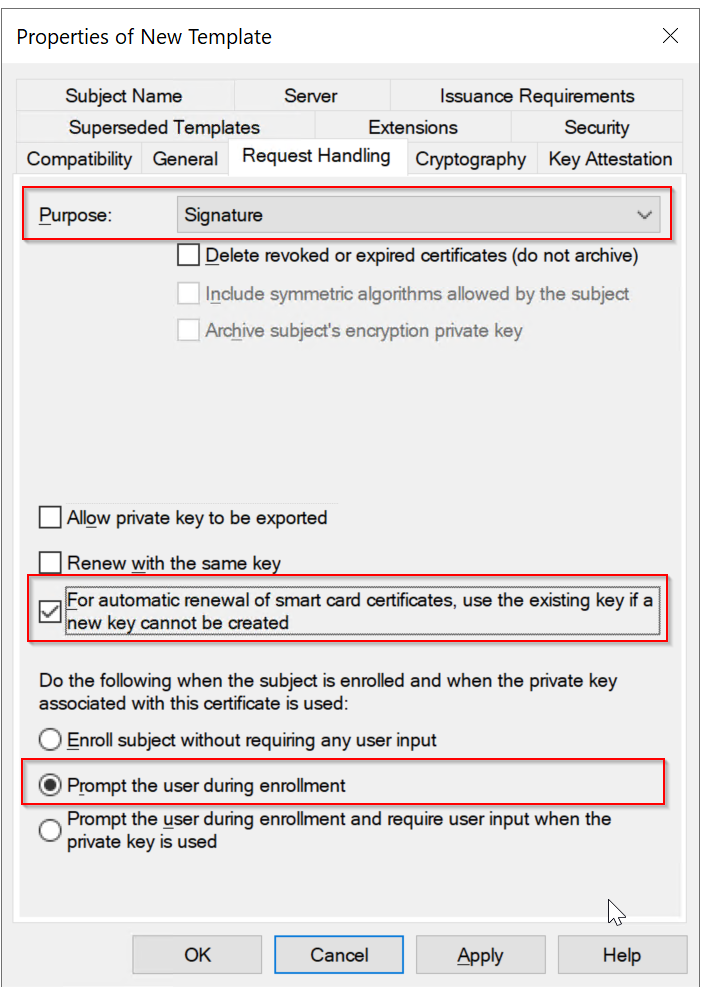
Make sure that you have selected the options as highlighted above
Next, select the Cryptography tab.
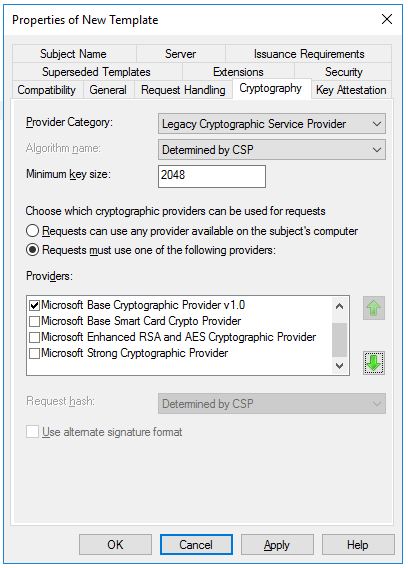
Change the Minimum key size to 2048
Select "Requests must use one of the following providers", and then in the Providers list select the Microsoft Base Cryptographic Provider v1.0.
Next, select the Security tab,
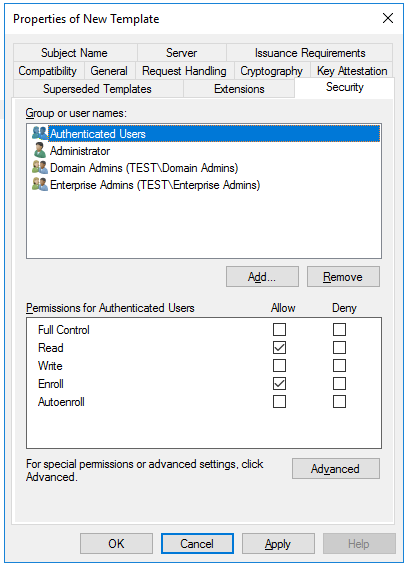
Make sure that the Read and Enroll permissions are enabled for the user or group of users who will be setting up the smart cards for logon.
Click Apply, and then click OK to close the template properties window.
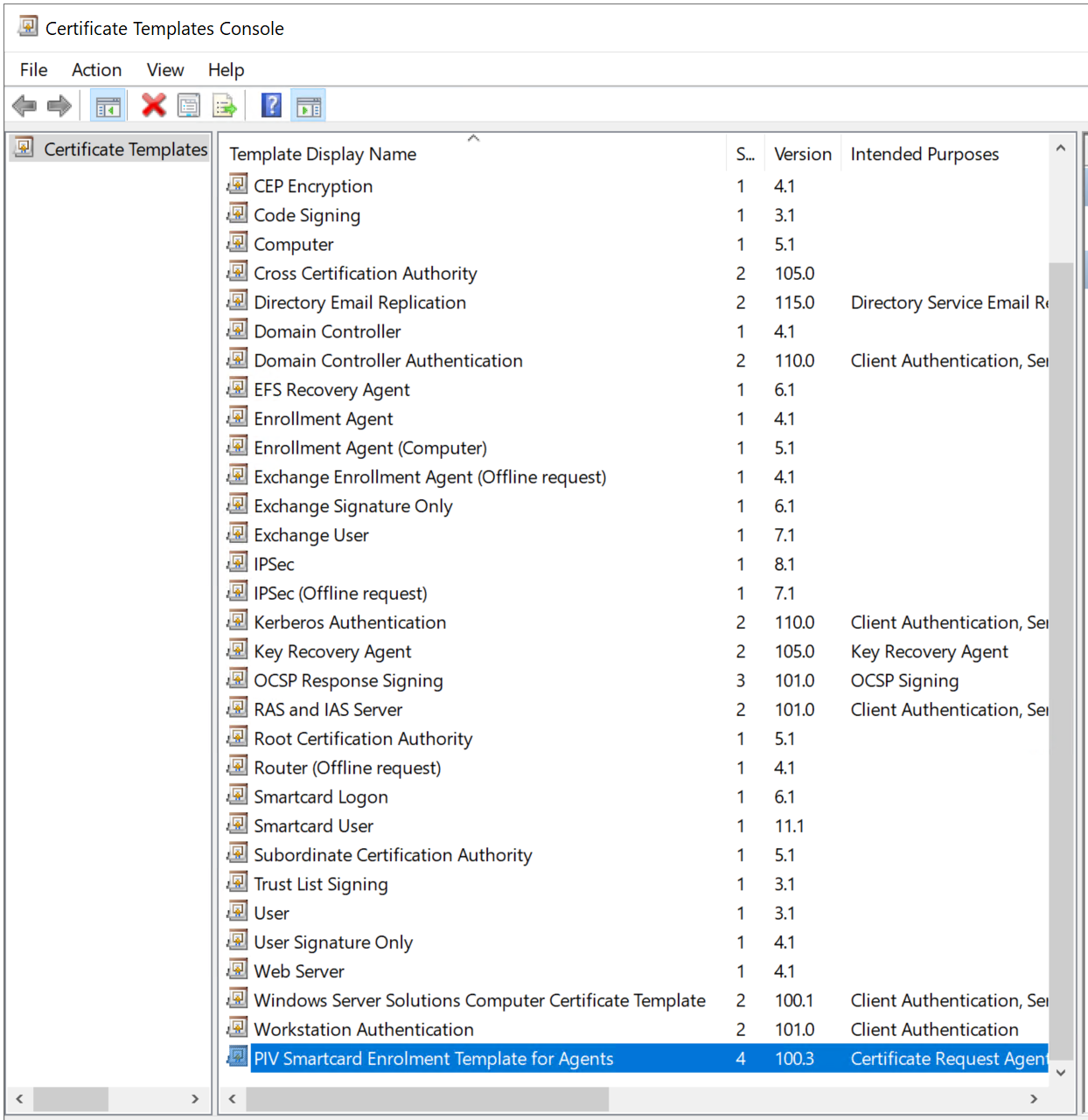
Close the Certificate Templates Console.
3.2 Adding the Template to the Certification Authority
- Right-click the Windows Start button and select Run.
- Type "certsrv.msc" and press Enter.
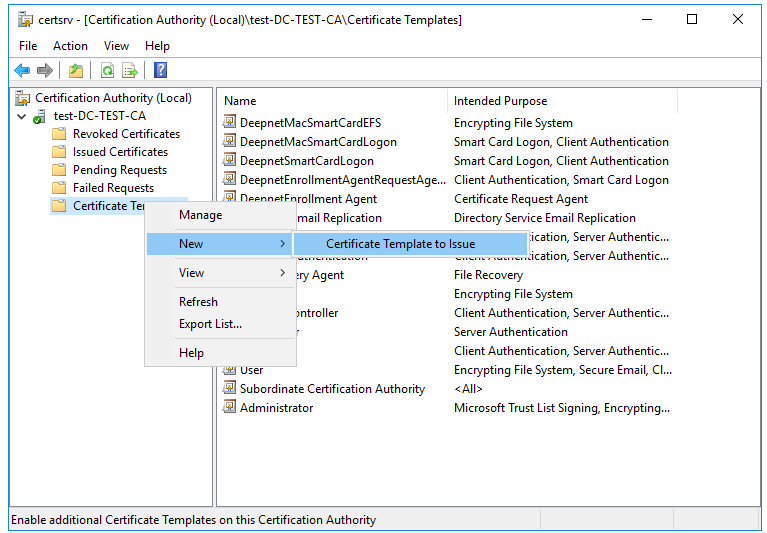
- Click Certification Authority, double-click your server, right-click Certificate Templates, select New and then select Certificate Template to Issue.
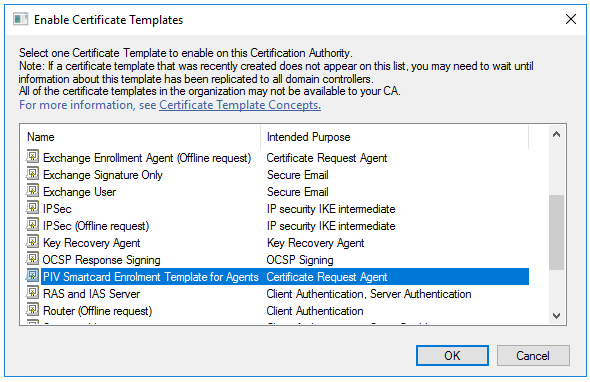
- Locate and select the recently created self-enrollment template, and then click OK
3.3 Issue Enrolment Certificate template to Agent
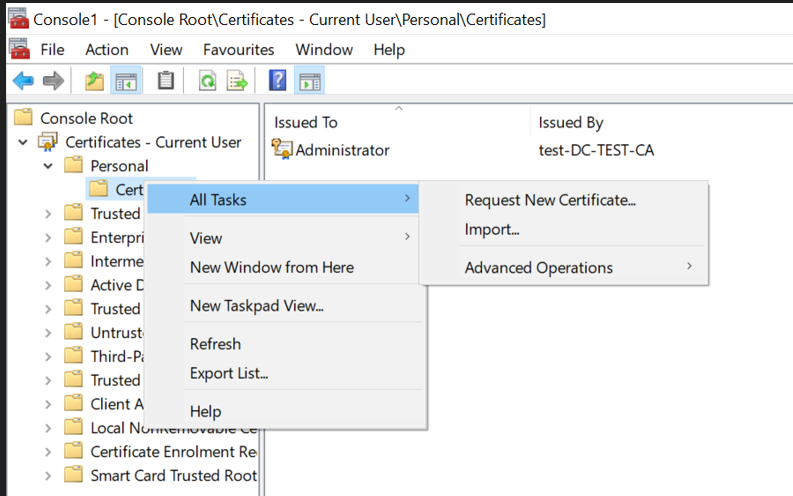
- Login the issuer account, run certmgr.msc. Right click the Certificate – Current User / Personal / Certificate, and select All Tasks / Request New Certificate…
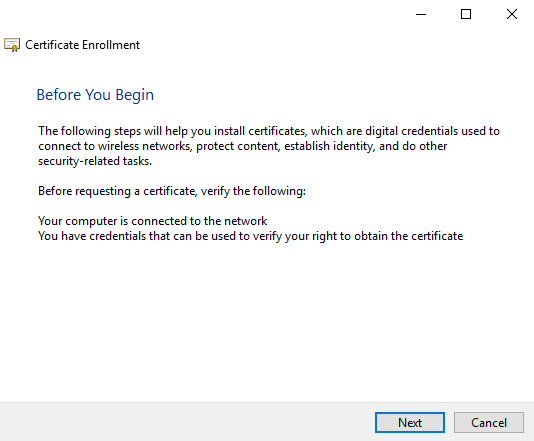
- Click 'next'
- Make sure your AD Enrollment Policy, click 'next'
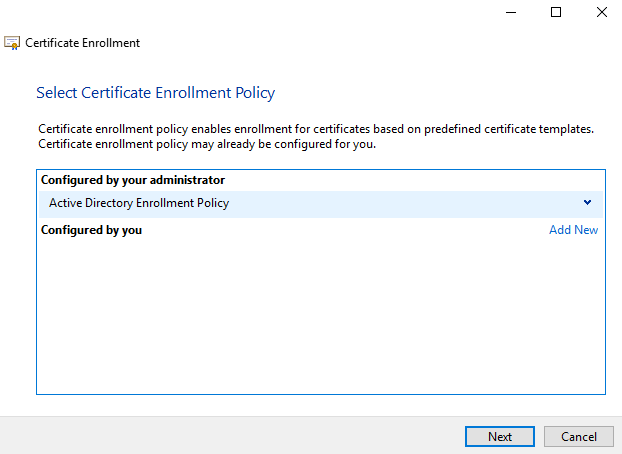
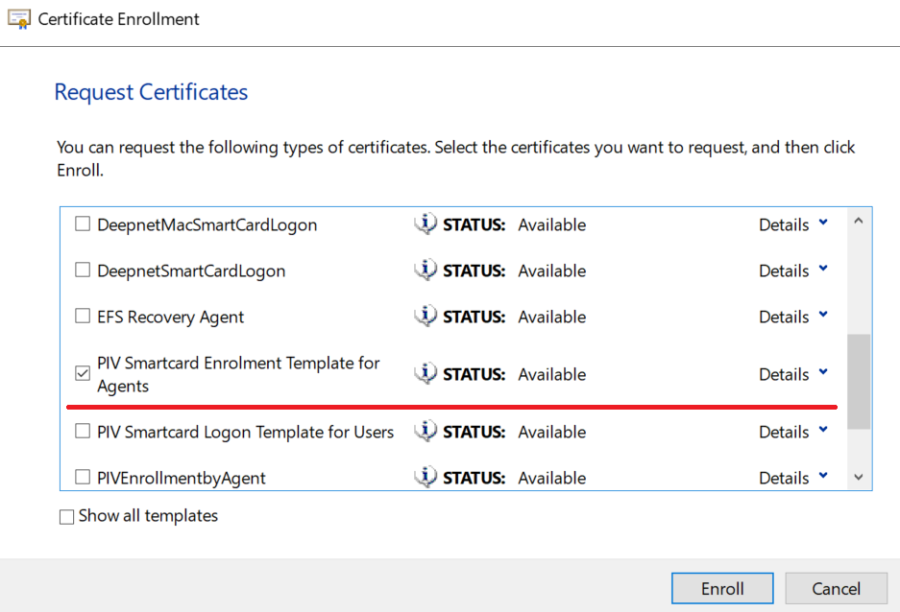
- Select the certificate, ie 'PIV Smartcard Enrolment Template for Agents', and click 'Enroll'
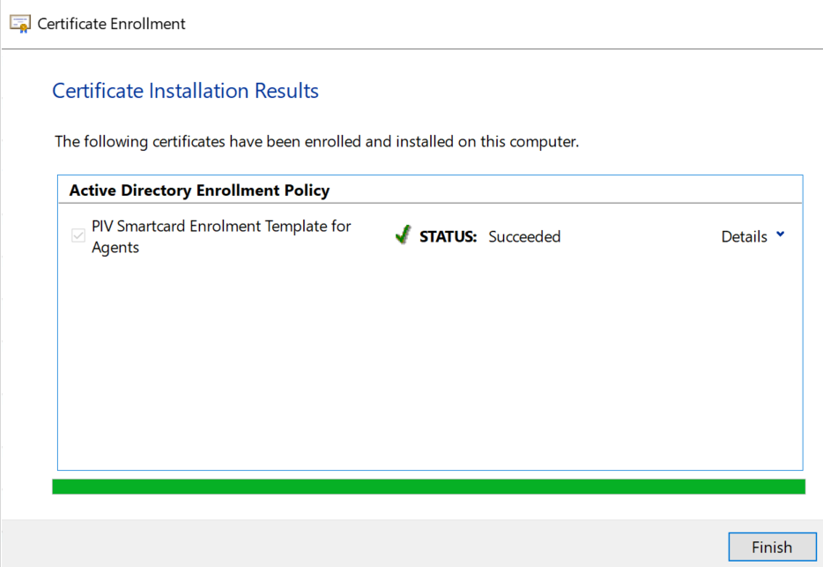
- Succeed.
3.4 Create a certificate Logon Template for target users by Agents
- In order to be able to issue a smart card certificate on behalf of another user, the Smart Card User or Logon template needs to be adjusted to require the Enrolment Agent certificate for enrolment.
- Duplicate and configure a Smart Card User or Logon template.
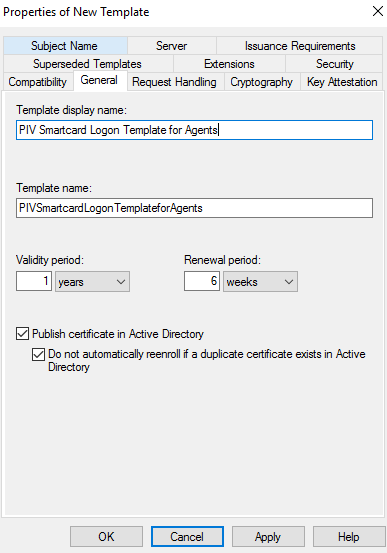
- Make the following changes to following changes
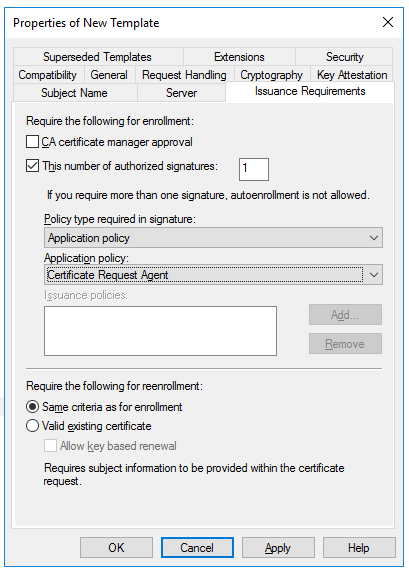
- In Security Tab, make sure the "Read and Enroll" ability is set for the group or users who act as the Enrollment Agents to set up the other users with this certificate.
- Issue the cert template.
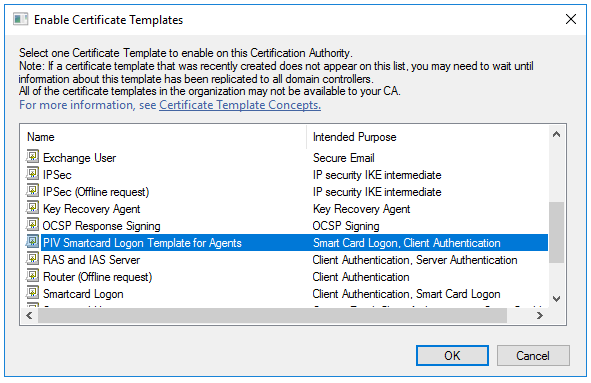
Enroll a Smart Card Certificate on behalf of others
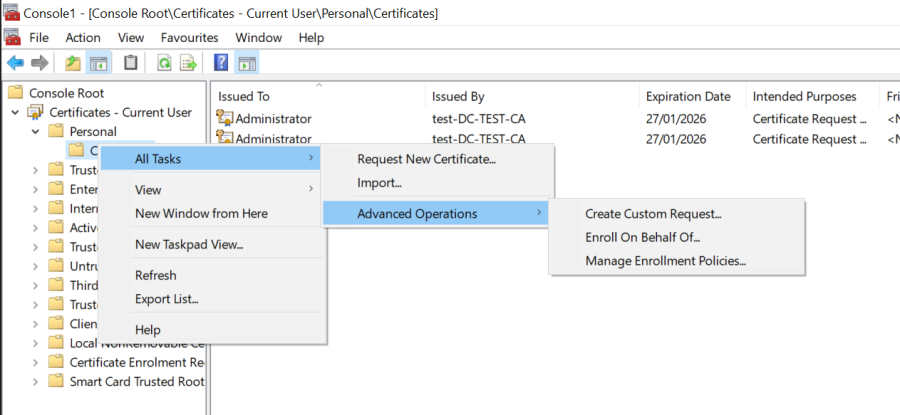
- Log in as the user that will do enrollment for others, then run certmgr.msc. Right click the Certificate – Current User / Personal / Certificate, and select "Enroll on behalf of" from All Tasks / Advanced Operations.
- Click through the "Before You Begin" screen, and on the "Certificate Enrollment" screen, click the "Browse…" button and select the enrollment agent certificate you have been issued in Step 3.1 .
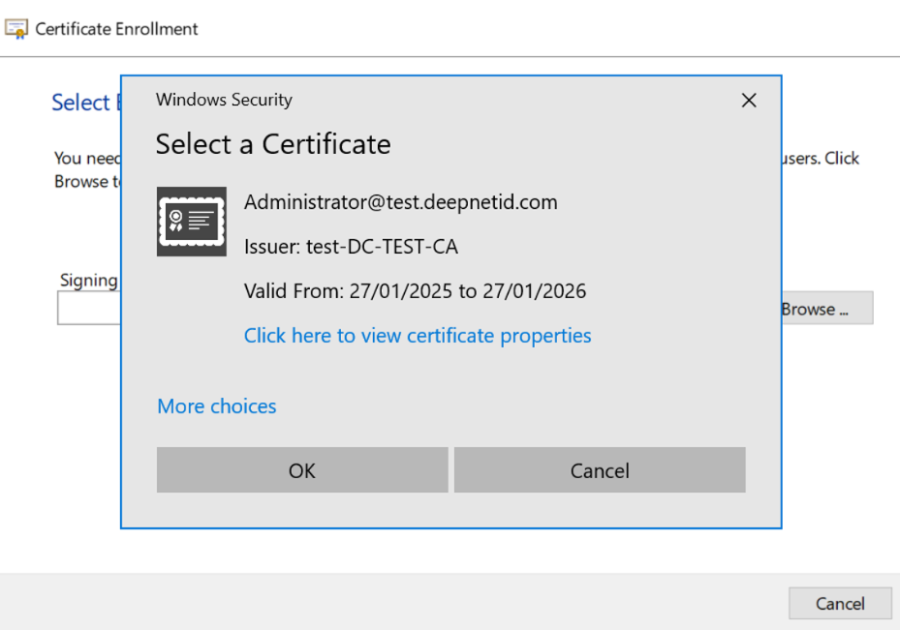
Click 'OK'.
- Note: If no Enrollment Agent certificate is available you will need to request one be issued to you.

- On the next page select the smart card enrollment certificate template, ie. PIV Smartcard Logon Template for Agents.
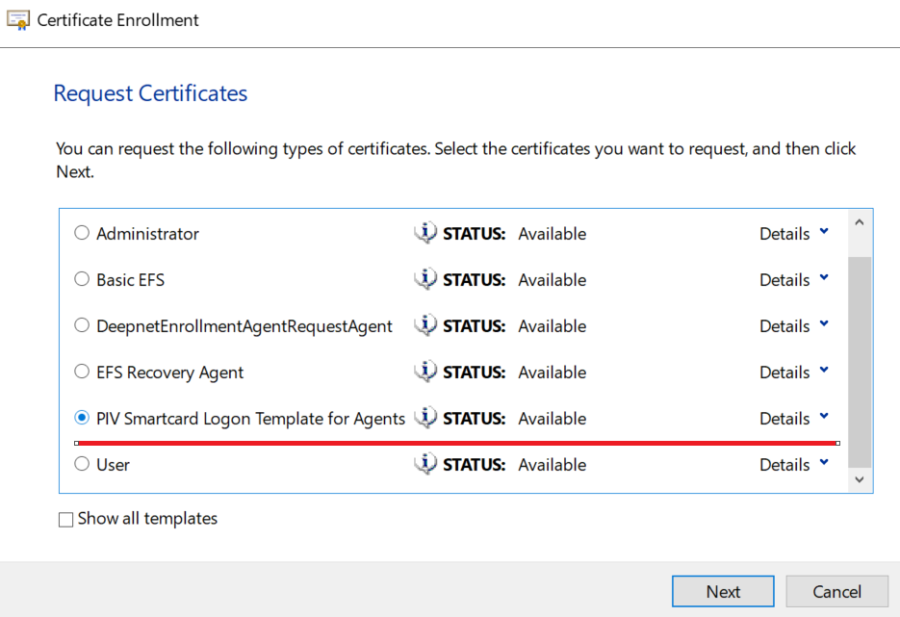
- Click Next and enter the target domain user you are going to enroll the certificate on the behalf of.

- Click Next, and it asks you to insert the user's smart card if it is not already inserted. Enter the PIN.
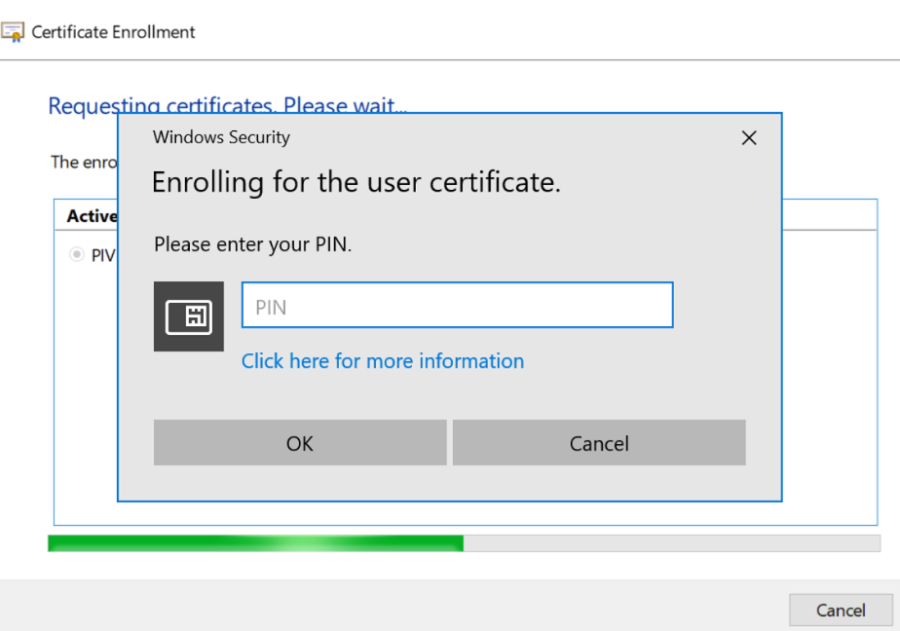
- If the enrollment is successful, the dialog will show the following:
- Click Next, and it asks you to insert the user's smart card if it is not already inserted. Enter the PIN.
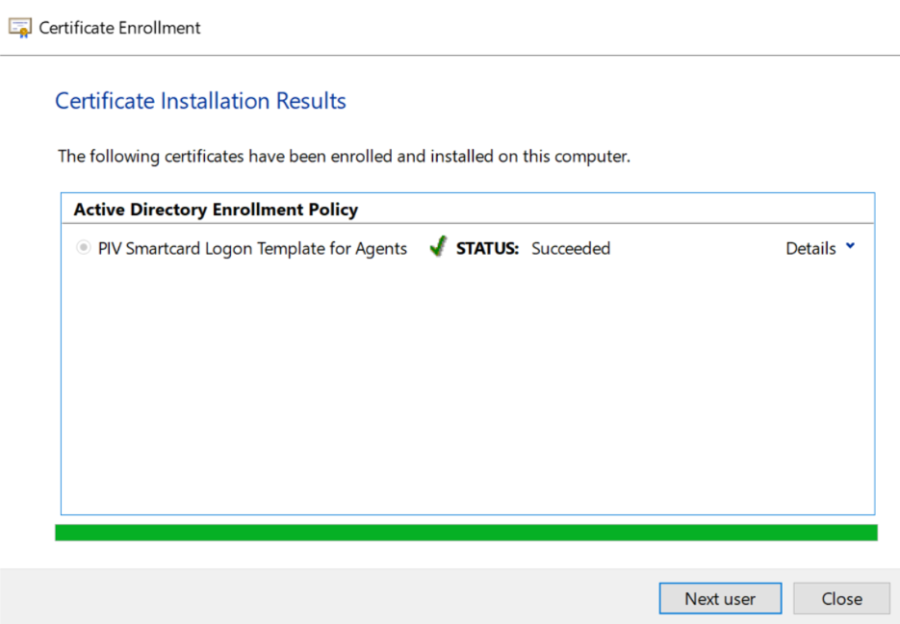
- After the enrollment is success, the smart card is ready for target user, and Agent can click 'Next user' to enroll for others or close windows.
- You can see the issued smartcard is listed in Agent's personal store.
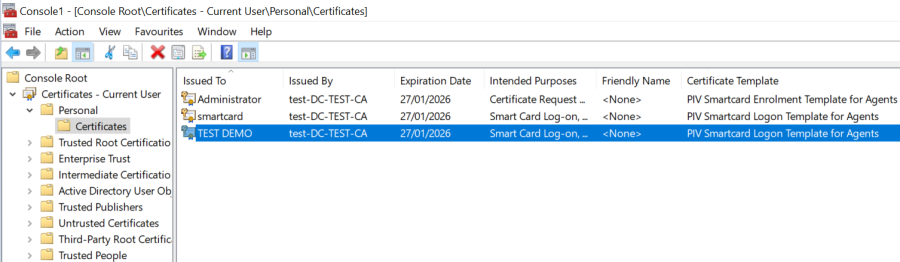
- Now, the smart card sign-in is ready for end user, and user is able to login domain with the issued smartcard.